To eject water from the MacBook speaker, act within the first 60 seconds. If you spill water near your MacBook, shut the lid, disconnect all cables, and turn it upside down immediately to let excess liquid drain before it reaches internal components.
The water eject shortcut plays a 165 Hz tone to vibrate moisture out. Run it two or three times at full volume, then tilt the MacBook so the speaker grille faces down. Leave it to air dry for at least 30 minutes before testing.
There are two ways to get the shortcut. Download a pre-made one from RoutineHub or build your own in the Shortcuts app using a 165 Hz audio file and the Play Sound action. If you want to build more advanced maintenance workflows, Shortcutie adds 70+ extra actions inside the same Shortcuts app.
The shortcut works on surface moisture — not deep soaking. If crackling persists after 24 hours, try silica gel packets overnight. If that doesn't fix it, take the MacBook to Apple Support. Run a system health check with CleanMyMac to catch any software errors that may have appeared after the incident. If nothing helps, take the MacBook to Apple Support.
Never use rice. Starch and dust particles from rice can enter your MacBook's ports and openings and cause additional damage.
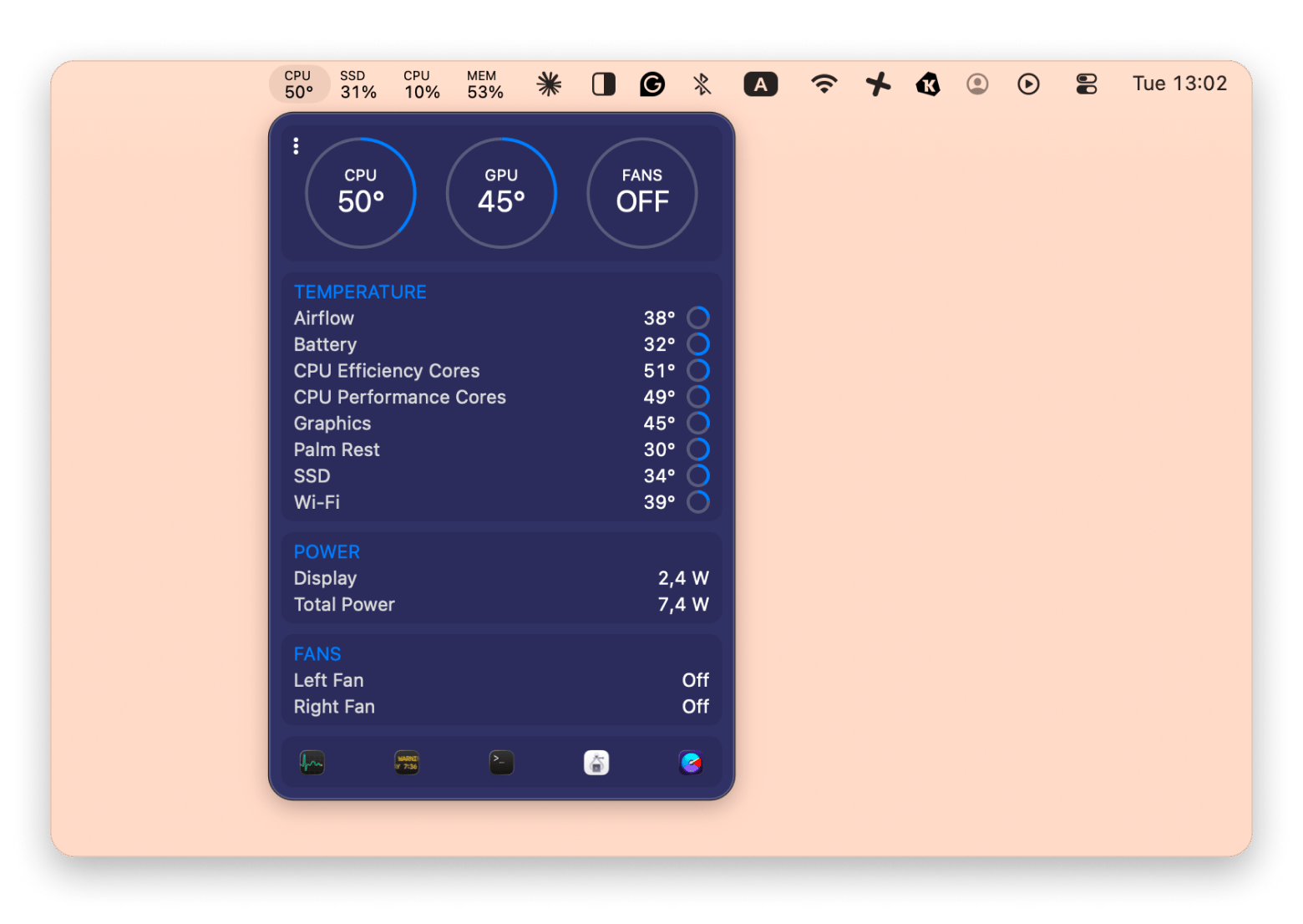
Monitor your Mac's health after any liquid incident. iStat Menus shows temperature, fan speed, and CPU behavior in real time — unusual readings after a spill are an early warning sign.
Spilled water on your Mac? Four tools to check audio, clean the system, and monitor hardware — all on Setapp. Try all four free for 7 days — Boom 3D, Shortcutie, CleanMyMac, and iStat Menus included in 270+ apps on Setapp.
A few months ago, I was working from a co-working space and had my cup of water right next to my Mac. I had everything scattered around, and I accidentally spilled it over my Mac.
I've been using technology for far too long not to know that it doesn't go well with water. But it was my first time spilling anything on it, so I had no idea what to do. I did my research and found that the best method was to create a water eject shortcut for Mac, and so I did. My laptop survived and is still safe and sound to this day.
So here's how to eject water from a MacBook speaker with a shortcut and prevent it from happening in the first place.
Situation
What to do
Just spilled water
Shut lid, disconnect cables, and turn it upside down immediately.
Speakers sound muffled
Run water eject shortcut 2–3 times at full volume.
Shortcut didn't fully work
Tilt MacBook, use silica gel, wait 30 min
Still crackling after 24 hours
Contact Apple Support
Want to monitor hardware after
Use iStat Menus for temperature and fan behavior
Why water gets trapped in MacBook speakers (and why it matters)
The reason why water gets trapped in MacBook speakers has to do with its design. The speakers sit behind small grilles that are built into the laptop's body. While this gives the MacBook a clean, sleek look, it also makes it harder for water to drain out, so moisture can get stuck inside the speaker mesh.
For example, you spill a drink near your MacBook, and some moisture gets inside the speakers. So now the speakers can't move as freely as they should, and your audio may sound muffled or a bit crackly. Even voices in videos or calls may sound dull.
Small amounts of water can't cause much damage. If you act quickly, then nothing will happen to the speakers. The issue appears when you let moisture sit inside for too long. It can corrode and damage the internal components.
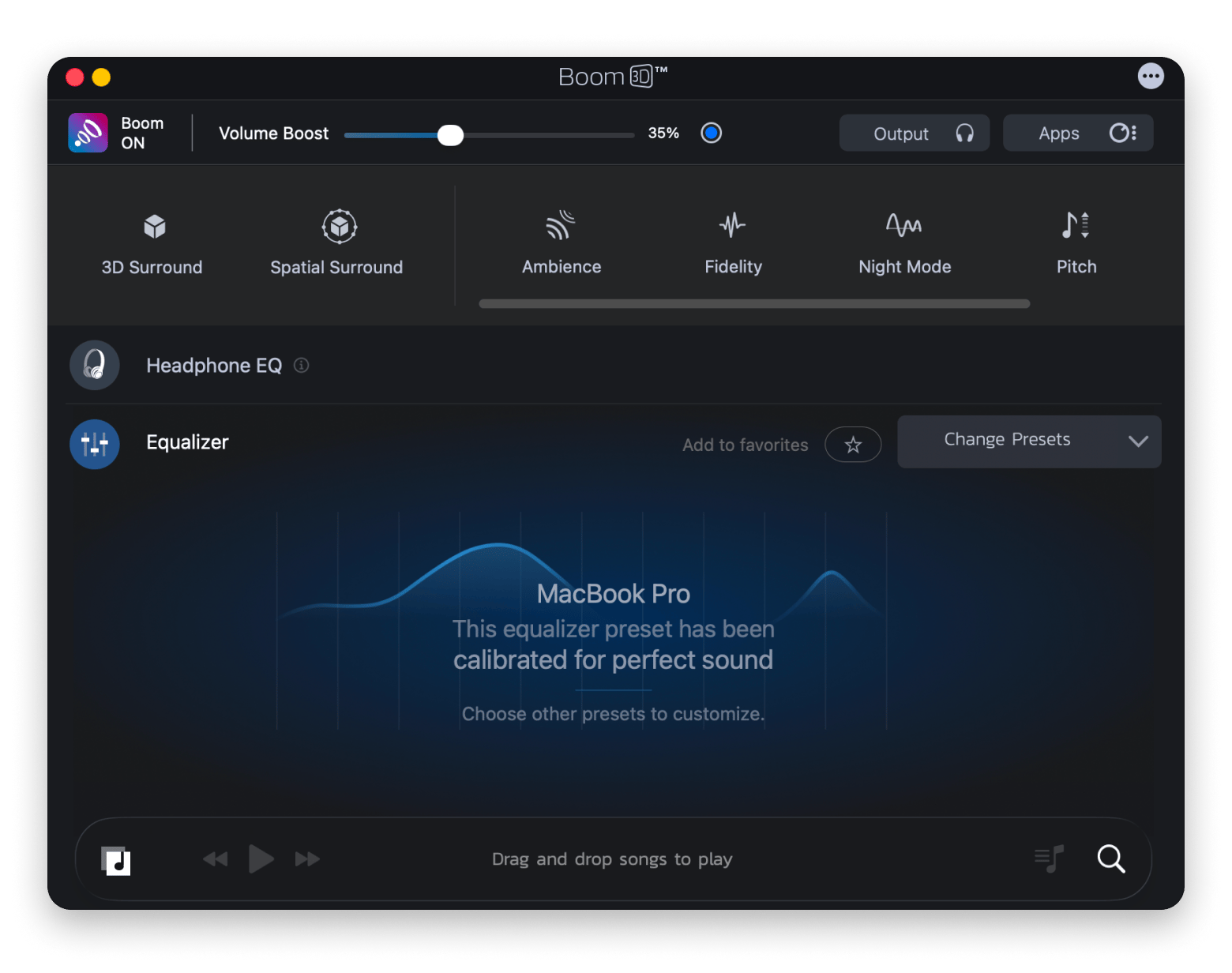
So let's say you ran the water eject shortcut for Mac and now you're unsure whether your speakers are working properly. You can install a tool like Boom 3D that comes with a great equalizer and audio boost features so that you can spot changes in sound quality. By running a quick check, you'll see if the water is gone or the speakers need more time to dry.
If the audio sounds off even after the speakers dry out, here's how to fix Mac sound not working covers every audio troubleshooting step in one place.
How the water eject shortcut actually works
But how does the water eject shortcut work? Well, the science behind it is quite straightforward. The shortcut plays a low-frequency sound at around 165 Hz through the speakers. The sound causes the speaker membrane to vibrate, which pushes trapped water droplets out through the speaker grille.
This is the same feature that the Apple Watch has, called the Water Lock feature. It's nothing too complex, like ultrasonic frequencies or special hardware. It's just an audio file that plays at high volume, creating vibrations that push water out.
How to set up the water eject shortcut on Mac — Step by step
If your MacBook supports the Shortcuts app, then the water eject shortcut works on your device. There are two ways to eject water from MacBook speakers: Download a pre-made shortcut from RoutineHub, or build your own in the Shortcuts app using a 165 Hz audio file.
The first method is to use a ready-made Siri shortcut for water eject. It's the fastest and easiest option. Here's how:
Open RoutineHub or Shortcuts Gallery in your browser.
Look for a water eject shortcut.
Open the shortcut page and click Add Shortcut.
Confirm that you want to add it to the Shortcuts app.
Turn the volume all the way up.
Run the shortcut and let it finish playing.
Run it two or three times. Then tilt your MacBook a bit so the speaker grille faces downward so that gravity pulls any remaining water out. Then, leave the MacBook to air dry for at least 30 minutes before testing the speakers again.
One thing I'd add from my own experience: Run the shortcut with your MacBook flat first, then run it again while holding the laptop at a slight angle with the speaker grille facing down. The second pass seems to remove the water; the first one loosens but doesn't fully push out.
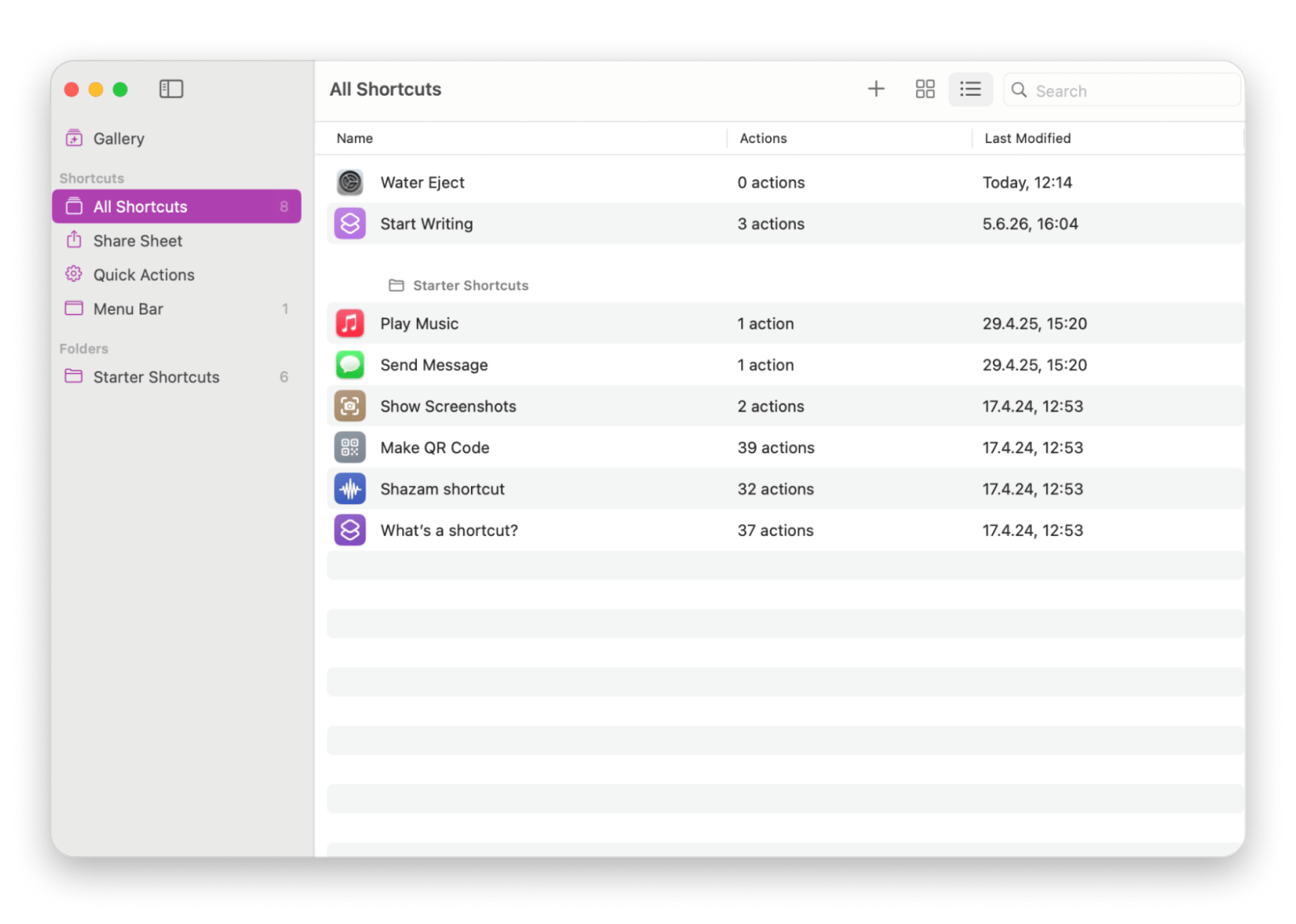
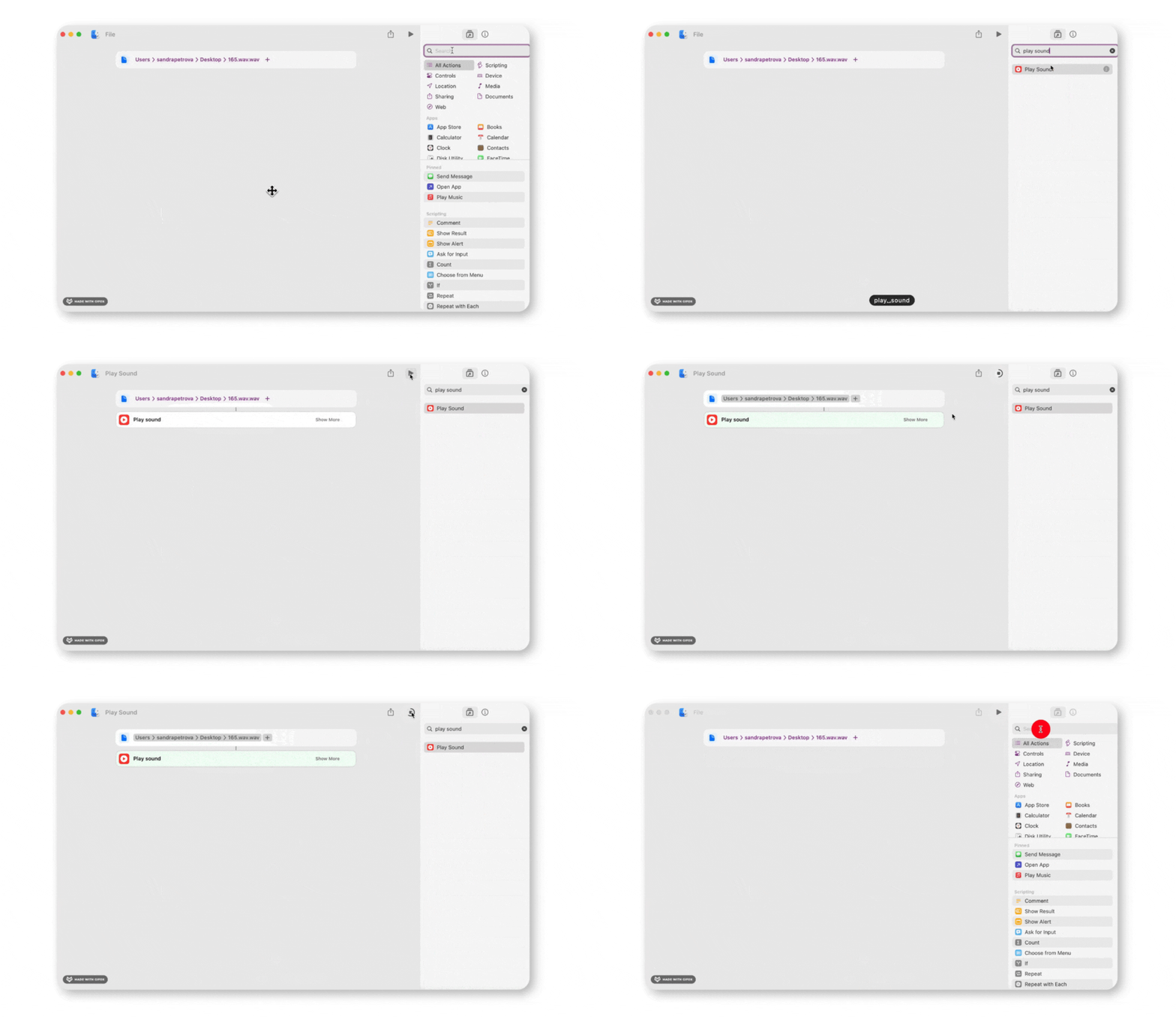
The second method for how to remove water from laptop speakers is to create your own water eject shortcut. You can do this in the Shortcuts app. The step-by-step process is this:
Open the Shortcuts app.
Click the + button to create a new shortcut.
Download a 165 Hz audio file and drag it into the Shortcuts app.
Add the Play Sound action.
Save the shortcut.
Turn the volume to maximum.
Click the run icon to run it.
Just like with method #1, run it two or three times in a row, then tilt your MacBook and leave it in a well-ventilated area for 30 minutes.
If you're someone who's constantly using shortcuts, then you might benefit from a tool like Shortcutie. This app expands the capabilities of the Shortcuts app and adds 70 extra actions. You can build more advanced workflows, like broader device maintenance and troubleshooting automations.
What to do if the shortcut does not fully work
If the water eject shortcut doesn't fully clear the moisture, you can still hear crackling or muffled audio. The water has likely reached deeper than the speaker grille.
Here are some additional steps you can try:
Open the MacBook to a 90-degree angle and place it with the keyboard facing downward. Leave it for about 30 to 60 minutes so that any trapped moisture drains away from the internal components.
Place the MacBook in a large sealed container or bag with several silica gel packets and leave it overnight.
If your speakers are crackling after 24 hours, then it's time to take your MacBook to the nearest store or contact Apple Support. If your speakers are still crackling or muffled after drying, the guide on how to fix MacBook Pro speakers crackling covers both software and hardware causes in detail.
Whatever you do, don't put your device in a bag of rice. Small starch and dust particles can get inside ports and openings, which can create even more issues.
While you're checking your Mac's hardware, it might also be a good time to check the system health. One great tool you can use is CleanMyMac, which checks to see if your Mac is performing properly by checking system junk, app errors, malware background processes, and other issues that may have appeared after the incident. For quick checks, I use the Smart Care module:
A water spill can trigger software errors and background process issues that aren't obvious until later. CleanMyMac catches them before they compound. Free for 7 days on Setapp. Try CleanMyMac Free. Or get it standalone from $65.40/yr.
Preventing water damage to MacBook speakers in the future
The water eject shortcut for Mac is a great way to drain moisture from your MacBook speakers. Still, the best way is to prevent water from getting there in the first place. There are a few simple habits you can put into practice that can save you the hassle of damaging your speakers:
Don't keep drinks next to your MacBook. Make sure they're on one side of the desk. The #1 cause for spills is when a coffee mug or water bottle sits right beside the keyboard.
Use a keyboard cover. By using one, you'll protect the keyboard but also prevent water from getting into the speaker grilles.
In case you spill liquid on your Mac, be fast and act immediately, as the first 60 seconds matter the most. Shut the lid, disconnect any cables, turn the MacBook upside down, and let excess liquid drain out. Then, run the water eject shortcut two or three times.
The good thing is that newer Mac models with the M chip have better speaker sealing than Intel MacBooks. But no Mac is waterproof, and you should take water damage seriously. Once you have the water eject shortcut set up, it takes less than 30 seconds to run if an accident happens.
Another tool that can help you keep track of your Mac's performance after a liquid incident is iStat Menus. It lets you monitor system stats such as temperature, fan speed, battery life, cycles, and CPU activity. It can't directly detect water damage, but if you notice unusual heat or fan behavior, this is a sign that some component might be damaged.
After a liquid incident, iStat Menus keeps watch — temperature, fan speed, CPU activity, all visible in your menu bar in real time. If something's wrong inside your Mac, unusual readings show up here first. Free for 7 days on Setapp. Try iStat Menus on Setapp.
For a broader overview of what to check after any hardware incident, the guide on how to run diagnostics on Mac walks through both Apple's built-in tools and third-party options, including iStat Menus.
How to eject water from MacBook speakers: What to do next
The water eject shortcut works by playing a 165 Hz tone that vibrates moisture out through the speaker grille — run it two or three times, tilt your MacBook, and give it 30 minutes to air dry. If crackling persists, silica gel packets overnight usually finish the job. For anything beyond surface moisture, Apple Support is the right next step. Once your Mac is dry, iStat Menus is worth keeping in the menu bar to catch any unusual temperature or fan behavior — the kind of thing that signals a component may have been affected.
The full post-spill toolkit — check audio, scan the system, and monitor hardware, all on Setapp:
Does the water eject shortcut work on MacBook Pro and MacBook Air, or only on iPhone?
The water eject shortcut works on MacBook Pro, MacBook Air, and iPhones. The principle behind the shortcut on each device is the same: play a low-frequency tone that makes the speakers vibrate and pushes water outward.
Can I run the water eject shortcut on macOS without installing anything?
Yes, you can run the water eject shortcut on macOS without installing anything. As long as you have the Shortcuts app, which is built into macOS Monterey and later, you can create a basic water eject shortcut. This shouldn't take you more than a few minutes since you won't be installing any software.
What frequency does the water eject shortcut use, and does it matter?
You need to use a tone close to 165 Hz. It's the ideal frequency to create speaker vibrations without causing any strain on the hardware. The 165 Hz frequency has been tested by users over the years and is the go-to choice.
Is it safe to run the water eject shortcut multiple times in a row?
Yes, it's safe to run the water eject shortcut multiple times in a row. A single pass doesn't usually remove all the moisture, so the recommended repetition is two or three times.
My MacBook speaker still sounds muffled after using the shortcut — what should I do next?
Leave the MacBook in a dry and well-ventilated area for an hour or two, then test it again. If the crackling or muffled sound is still there the next day, it's probably time to have it inspected.
Powerful apps live on Setapp
Ditch defaults and discover new gems on one app platform.






 Best solution
 Best solution