To plan and prioritize:
• Taskheat — visualize task dependencies as a flowchart.
• GoodTask — smart views and filters on top of Apple Reminders.
• Amie — calendar and task list in one view.
For focus and deep work:
• Session — Pomodoro sessions with website blocking.
• Desktop Composer — switches your whole Mac into work mode in one toggle.
• HazeOver — dims everything except your active window.
To automate repetitive work:
• BetterTouchTool — custom shortcuts and trackpad gestures for any action.
• Rocket Typist — expands short abbreviations into full text snippets.
• Workspaces — launches your full project setup in one click.
To review your productivity:
• Timing — automatic time tracking across all Mac apps.
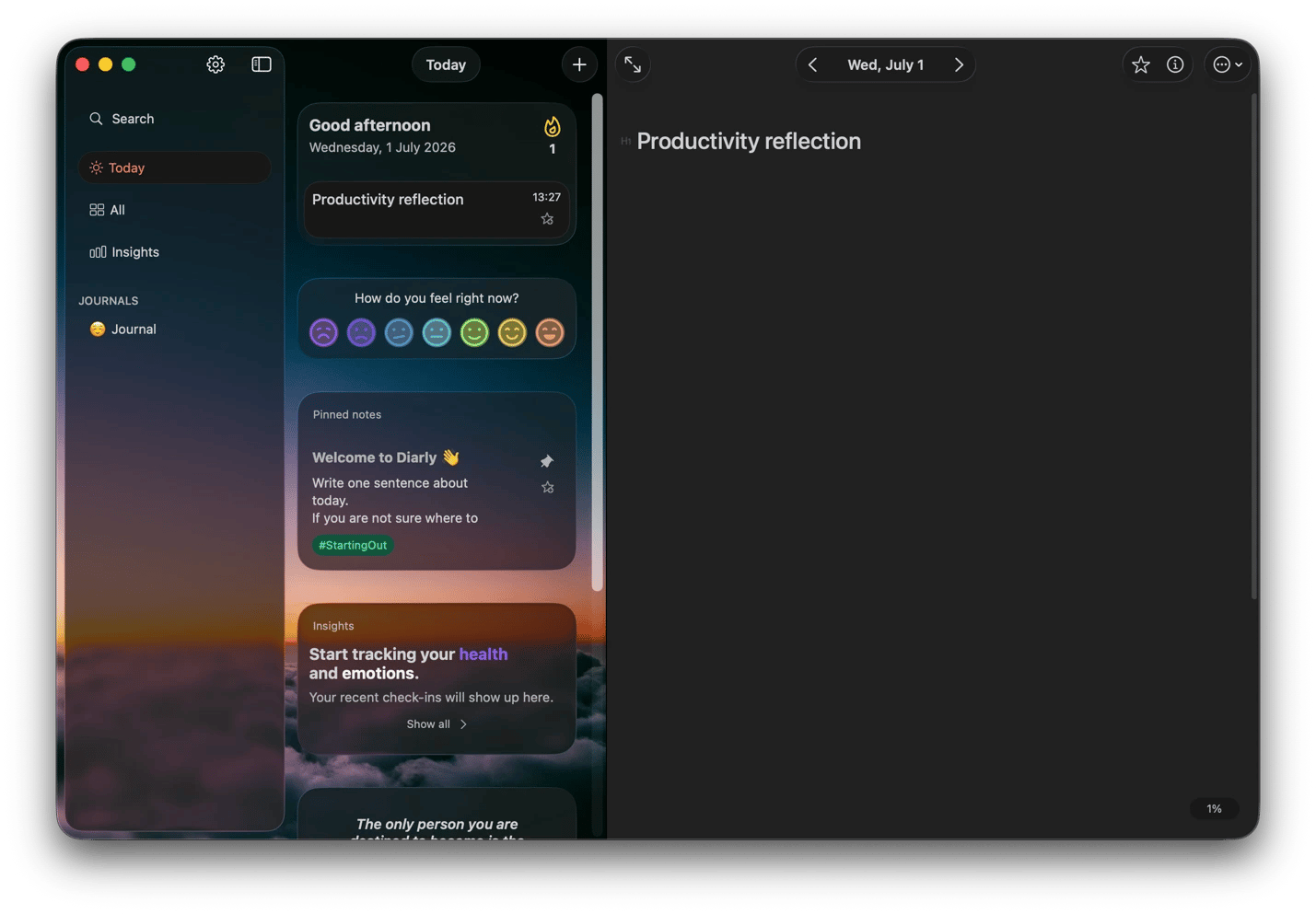
• Diarly — encrypted daily journal with calendar navigation.
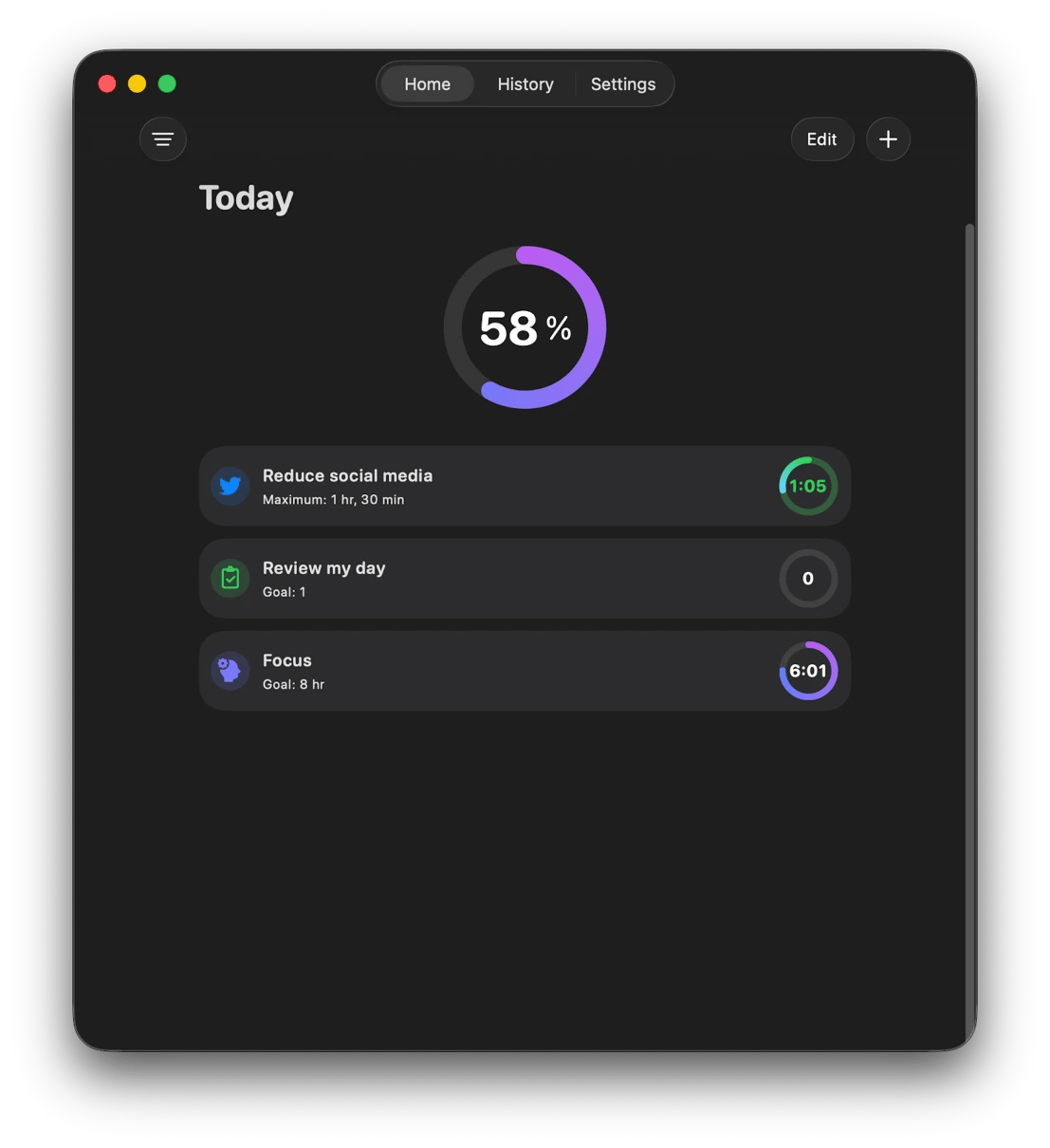
• Awesome Habits — habit tracking with progress history. Try all 260+ apps FREE for 7 days on Setapp — cancel before Day 7, $0 charged.
Building the perfect productivity toolkit for Mac often involves scrolling through Reddit recommendations, hunting for discounts on BundleHunt or StackSocial, and still ending up with 3 or 4 subscriptions alongside a handful of one-time purchases.
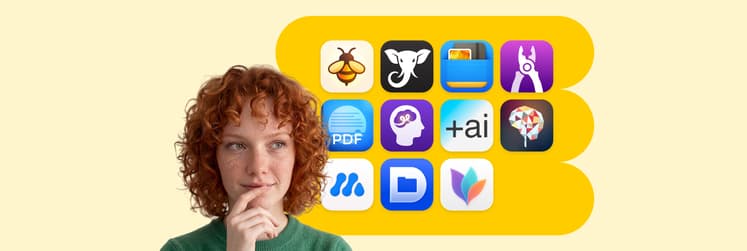
Setapp changes that by bringing together 260+ apps under one subscription. This includes a wide range of tools to plan projects, stay focused, automate repetitive work, and review how you spend your time.
I've been using the platform for more than 5 years, and I'll walk you through its best tools for different productivity workflows.
Workflow automations for productivity nerds: Quick overview
Before we get into the workflows, here's a quick look at some of the tasks you can automate with Setapp.
Automatically tracks your activity and generates detailed productivity reports.
Plan and prioritize your day
The Setapp apps below can help you stay on top of your day and tasks.
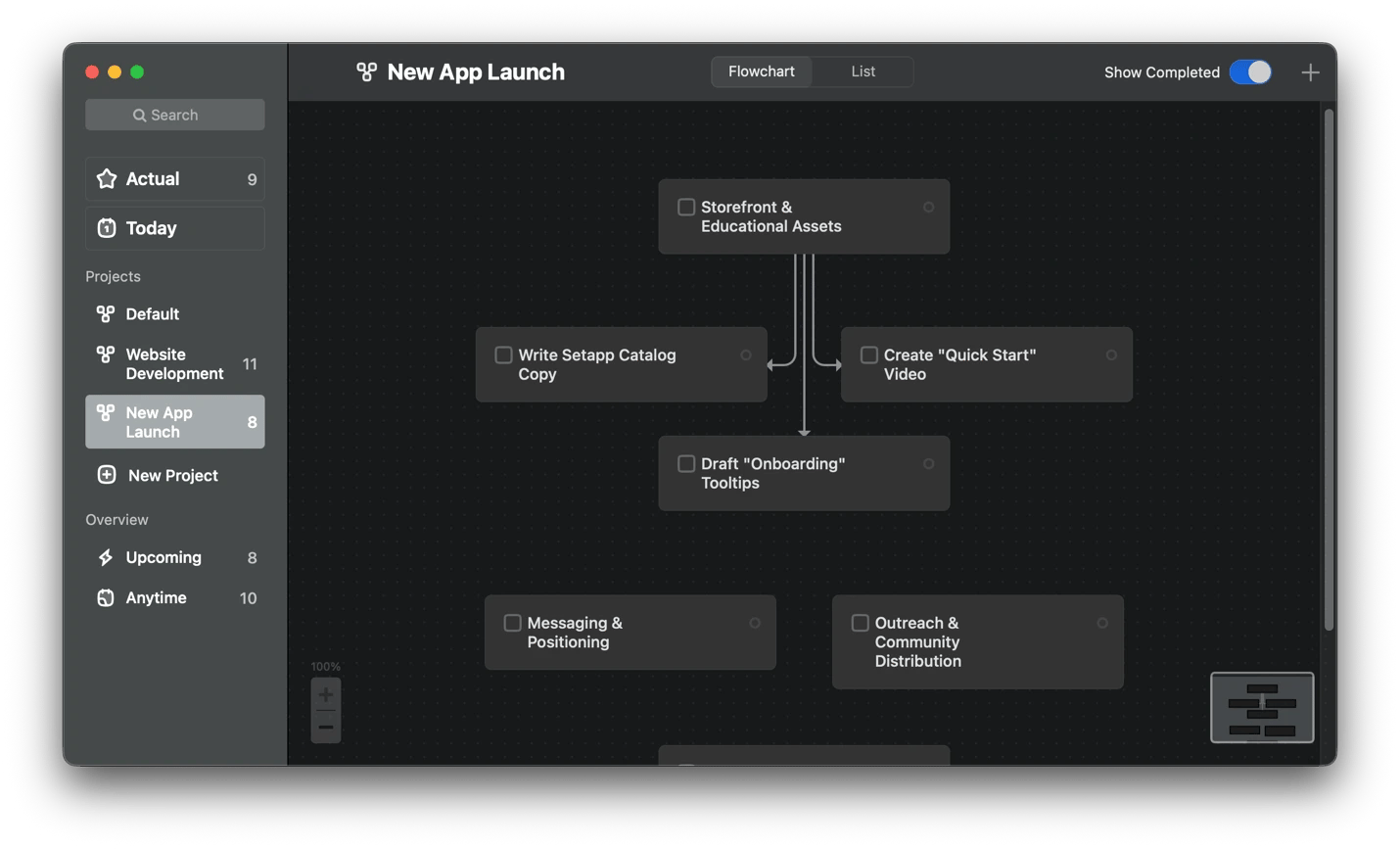
Map dependencies and prioritize complex projects with Taskheat
Taskheat understands that some of your projects have dependencies rather than simple to-do lists. It therefore lets you draw connections between your tasks and visualize them as a flowchart. This way, it's easy to track your progress and identify the tasks that are blocked by others and need prioritization.
Taskheat even lets you delegate some tasks by assigning them to an expert, then automatically adjusts your flowchart based on what's on your plate. It's great for productivity nerds who think in terms of systems.
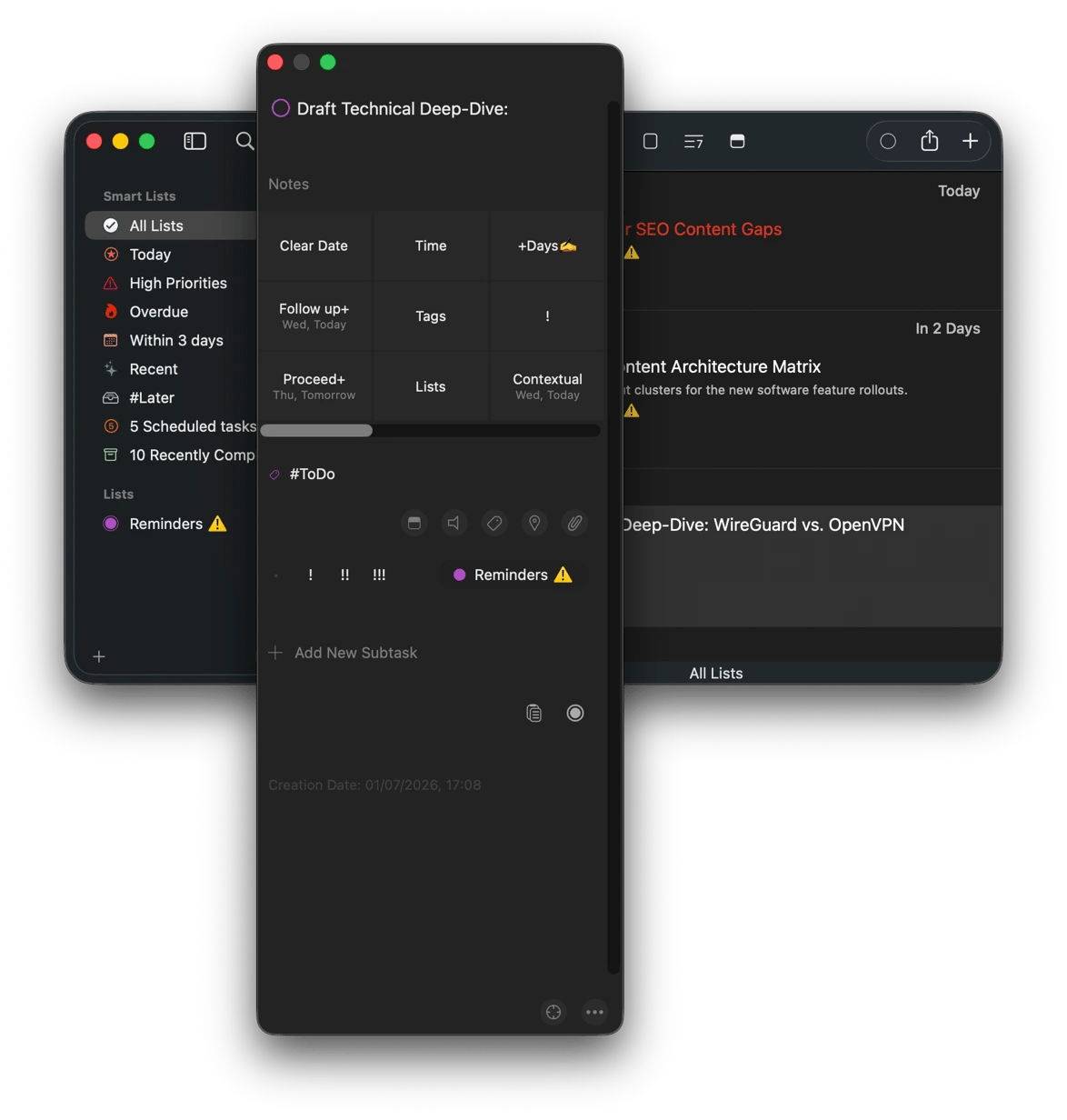
Build smarter task views on top of Apple Reminders with GoodTask
While most of us rely heavily on Apple Reminders because it's also on iPhone and iPad, it's still too vanilla for maximum productivity. GoodTask turns it into a more capable task manager without requiring you to migrate the data. You can use it to view your reminders and tasks with smart lists, filters, subtasks, and custom views tailored to your work.
You can also build a view to show you high-energy tasks for your focused mornings, another to filter tasks by projects, and another for quick wins you need on a slow afternoon. You can then pair it with Shortcuts across iOS, iPadOS, and macOS to automate task creation from other apps.
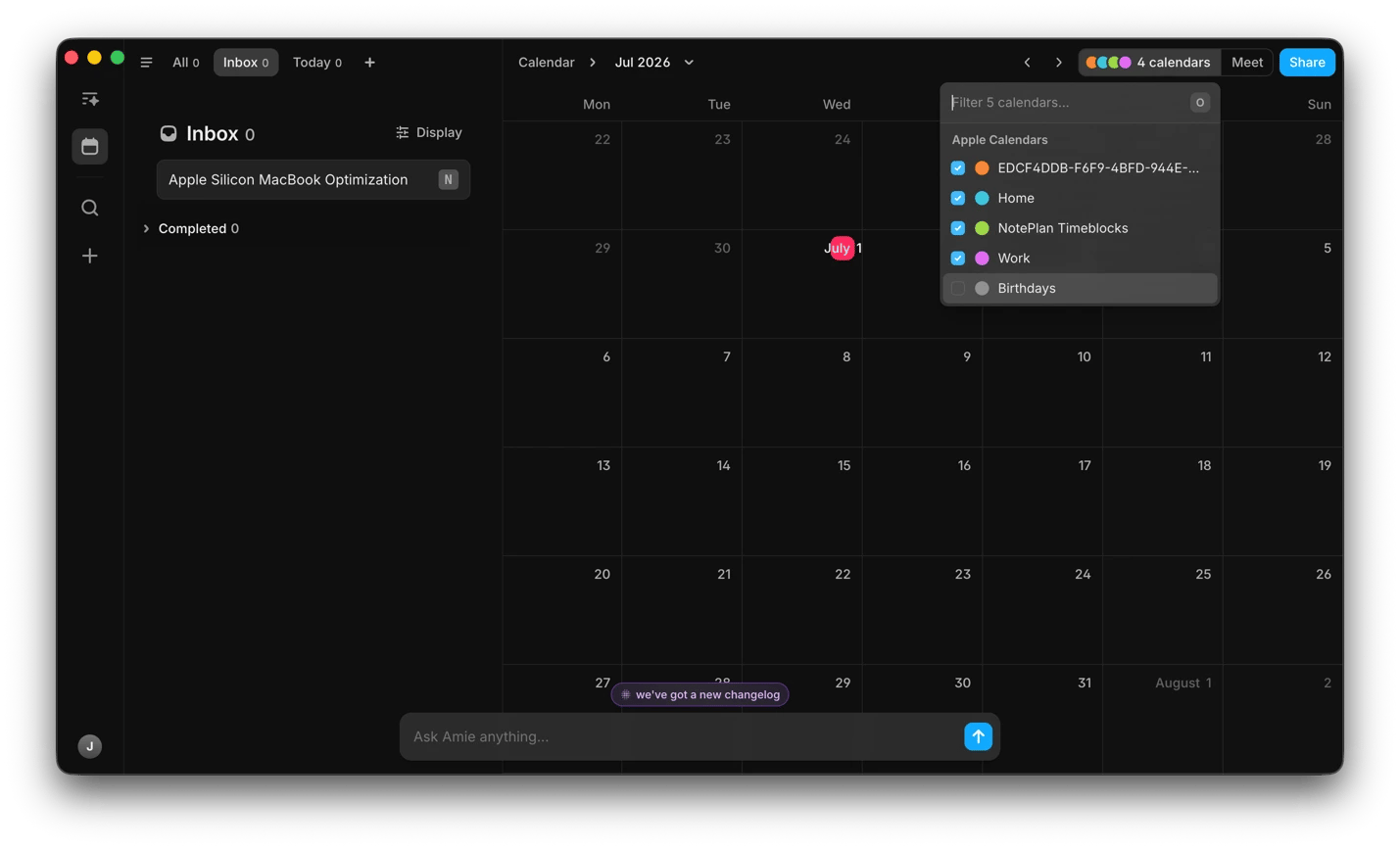
Plan your day around your calendar with Amie
Amie closes the gap that usually exists between the calendar and task list in most workflows. It gives you a single view of your calendar and the tasks ahead to help plan your day realistically rather than optimistically.
It works closely with your meetings and integrates with your email and 10+ other popular work apps, so it actually understands your context. It then suggests time blocks for different tasks based on your schedule to reduce the gap between "I need to do this" and "when I will actually do it." I find it quite useful when my schedule keeps changing and I need to reshuffle work without rebuilding the entire plan.
Never miss important deadlines with Due
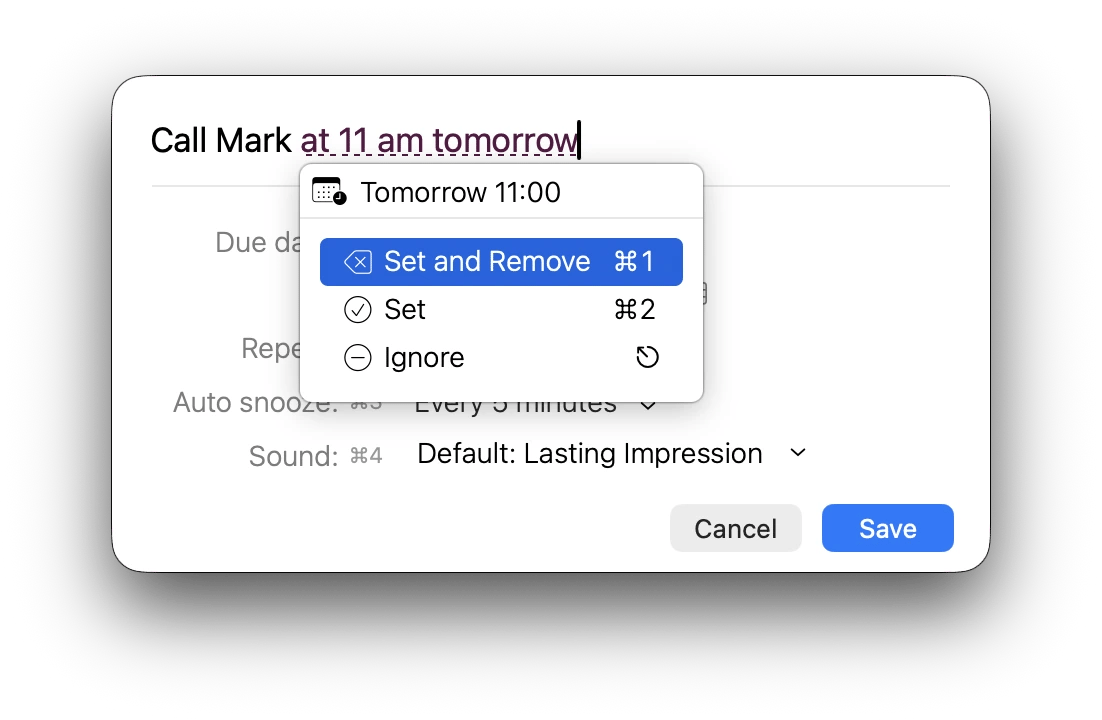
Due exists because some reminders just need persistence to ensure everything gets done in time. Its superpower is nagging, which it does quite well until you acknowledge a task and mark it as complete or postpone it. Otherwise, you'll have to manually turn off the reminder.
The customizable auto-snooze feature keeps your notifications recurring based on the set interval. I particularly like that creating reminders only requires you to type a natural sentence like "call Mark at 11 am tomorrow."
When you need a more subtle reminder, DeskMinder places its reminders on your desktop without a pop-up. It doesn't interrupt your work but still makes important reminders hard to miss.
Build a distraction-free deep work system
Even with the right tools, you still need to focus to make the most of them. Setapp has lots of apps that can protect your attention from notifications, background noise, and the ten other windows competing for your eyes.
Run focused work sessions and block distractions with Session
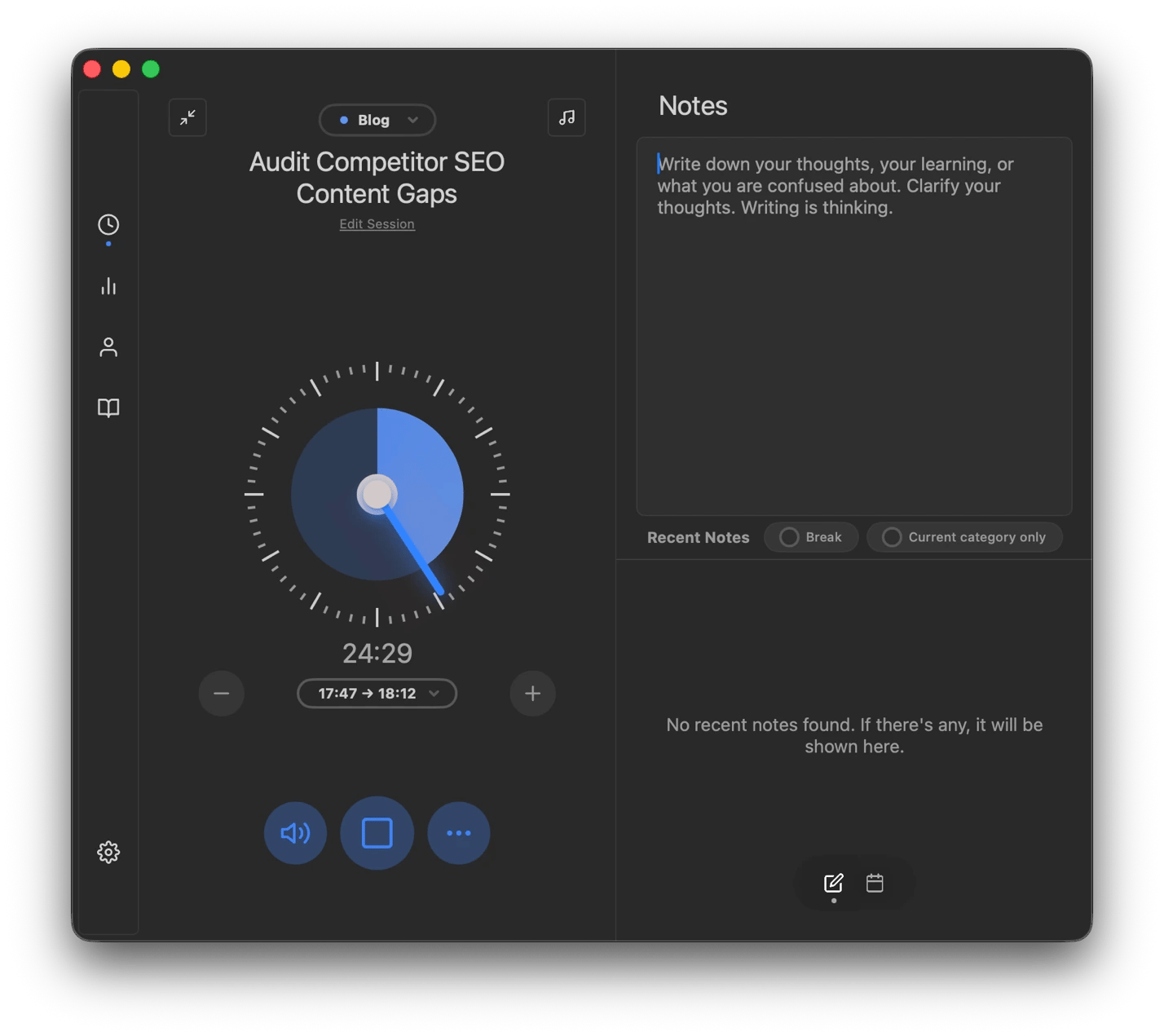
Session enforces focus with structure, as none of us can count on willpower as a reliable focus strategy. It lets you work in Pomodoro-style sessions with breaks. The default session length is 25 minutes with 10-minute breaks, but you can adjust them based on how you like to work.
To boost the focus, block distracting websites like social media and set the background sound you prefer. You can then track your productivity over days and weeks.
Focused Work also offers a similar workflow, but the focus and break cycles are more configurable. There's also a scratchpad where you can write distracting ideas to review later.
Switch your entire Mac into deep work mode with Desktop Composer
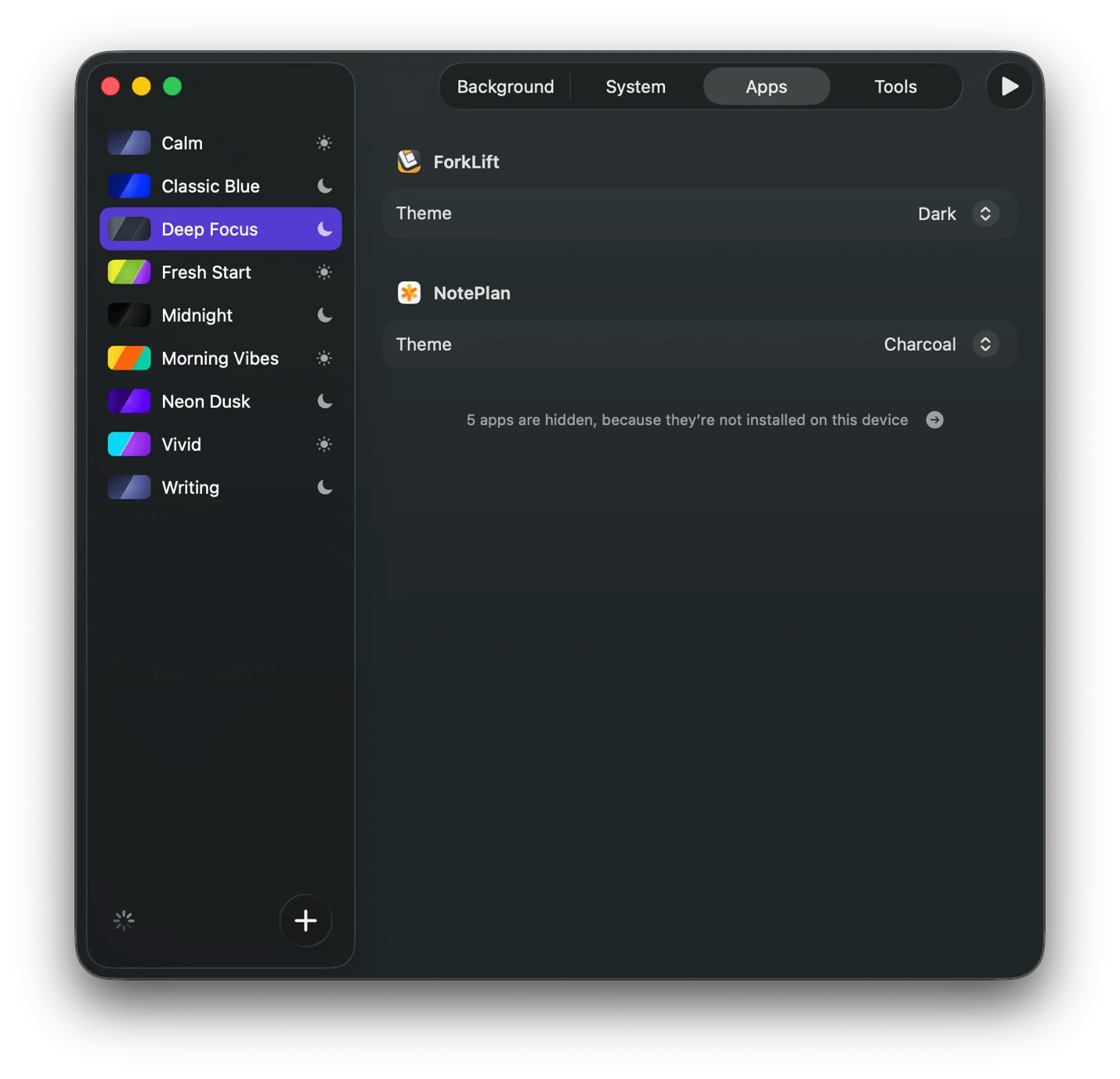
Most people have a routine that helps them start focusing on work. Maybe turning on Do Not Disturb, switching to dark mode, and closing unnecessary apps. Desktop Composer automates all these and even changes the wallpaper and a few other settings. You can also create different workspace profiles for different activities like writing, meetings, or creative work. When you toggle on a profile, Desktop Composer changes everything to signal your mind that it's time for some deep work.
Dim everything except what you're working on with HazeOver
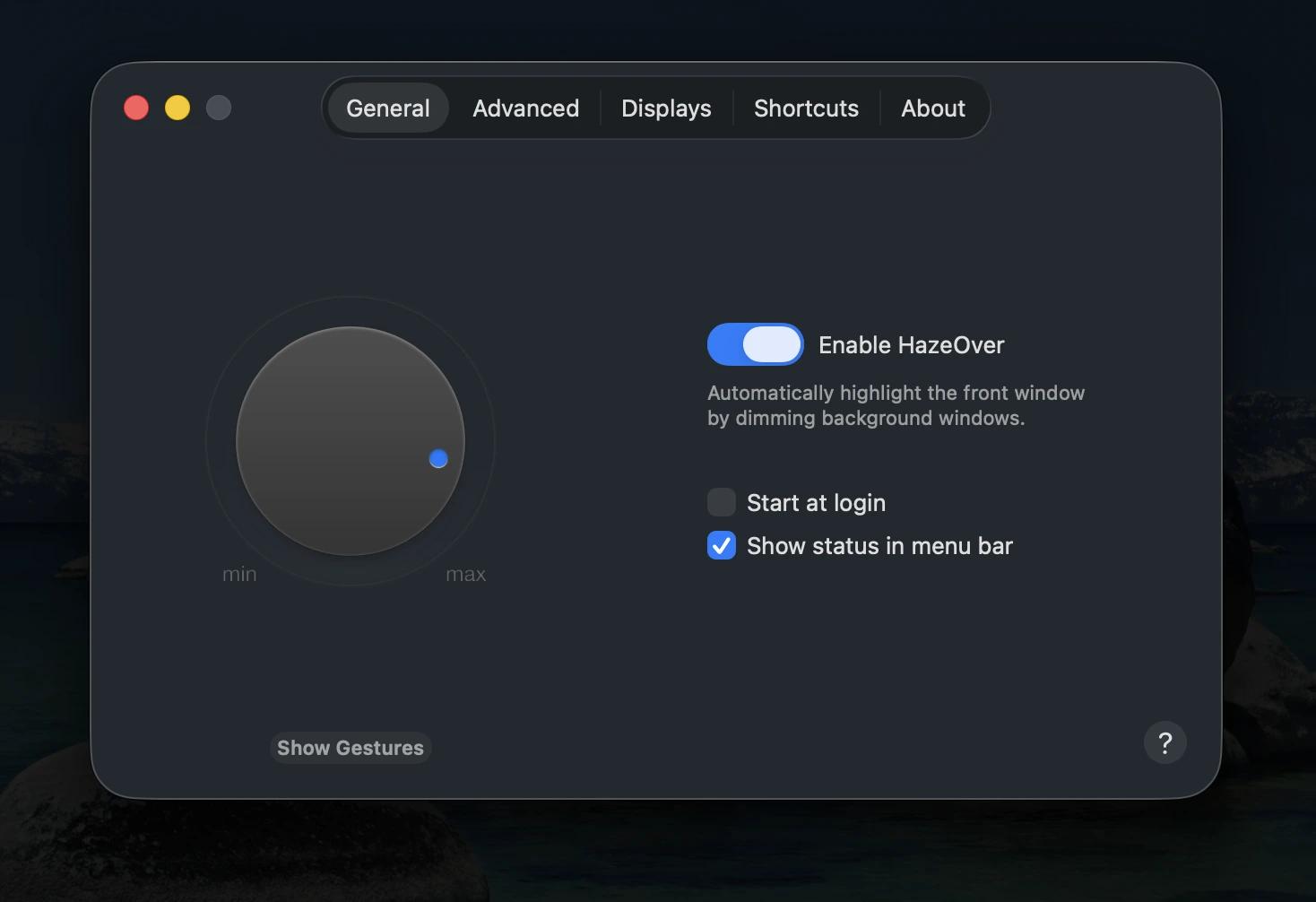
HazeOver comes in handy when you want to focus only on your active window to avoid distractions and put your brain into deep work mode. It's the best way to avoid seeing too much of your screen as the brain often interprets everything you can see as something competing for attention. HazeOver fixes this without even closing any of your apps. You can adjust the dimming intensity or even go full tunnel vision on any app you are using.
Maintain healthy work habits with LookAway
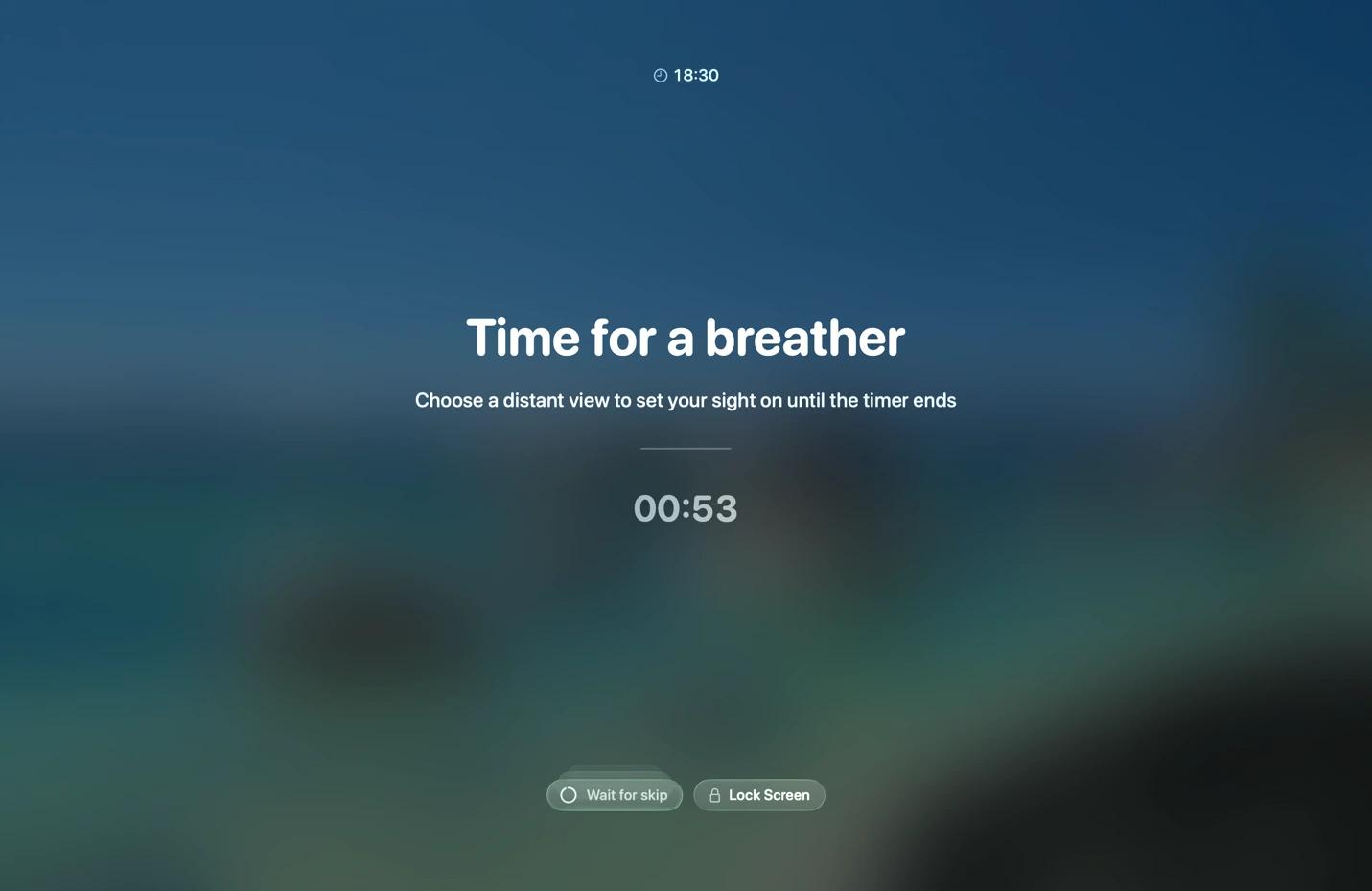
LookAway understands that while long work periods often seem good for productivity, they are not always good for your eyes, posture, or cognitive capacity. So, LookAway enforces regular screen breaks at intervals you define.
The time settings are flexible, so you can also use it as a Pomodoro timer (without the tracking aspect). It sends break and posture reminders, but it's also smart enough to know when taking breaks can interrupt your workflow – like when you are in a meeting or recording your screen.
You can pair it with SlouchSniper to enhance the physical side of the equation. It monitors your posture in the background and lets you know when you start slouching before bad posture affects your energy, focus, and physical health.
Automate repetitive work across your Mac
If you keep typing the same responses, opening the same set of apps, or repeating the same task over and over again, Setapp can eliminate these tiny interruptions and friction points.
Browse and research more efficiently with Ortix
Research usually requires you to open a source tab here, notes there, and a separate PDF, which means a lot of back-and-forth. Ortix lets you keep all these in one window.
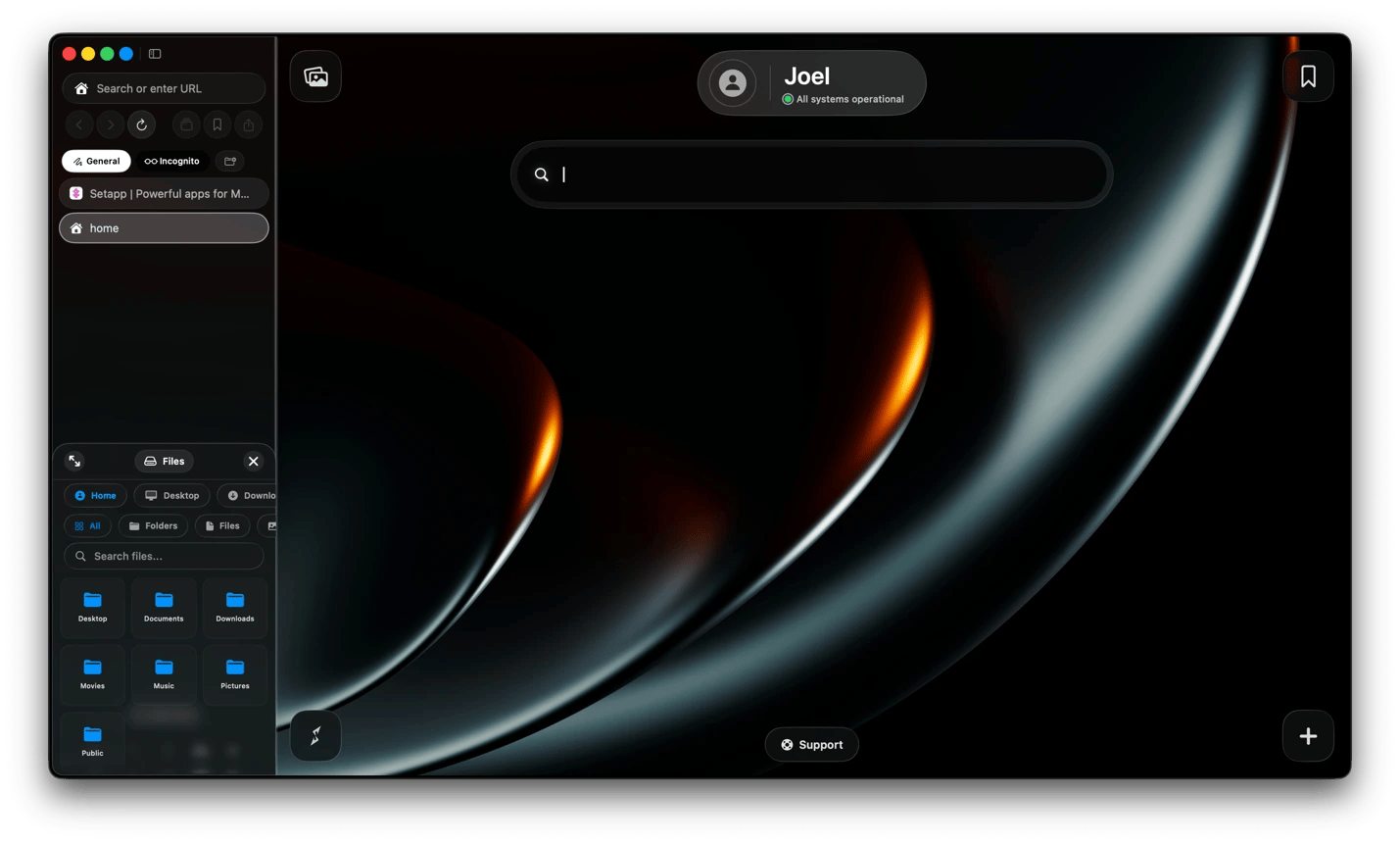
When you want to reference an article, you can pop it into a floating mini-browser and keep working in your main window. Instead of bouncing between a document and your notes, you can split the view. And when you need to fill a form, you can invoke a baked-in OpenAI model to take over. There's also a local AI model when you need to summarize a sensitive document.
Expand text snippets anywhere on your Mac with Rocket Typist
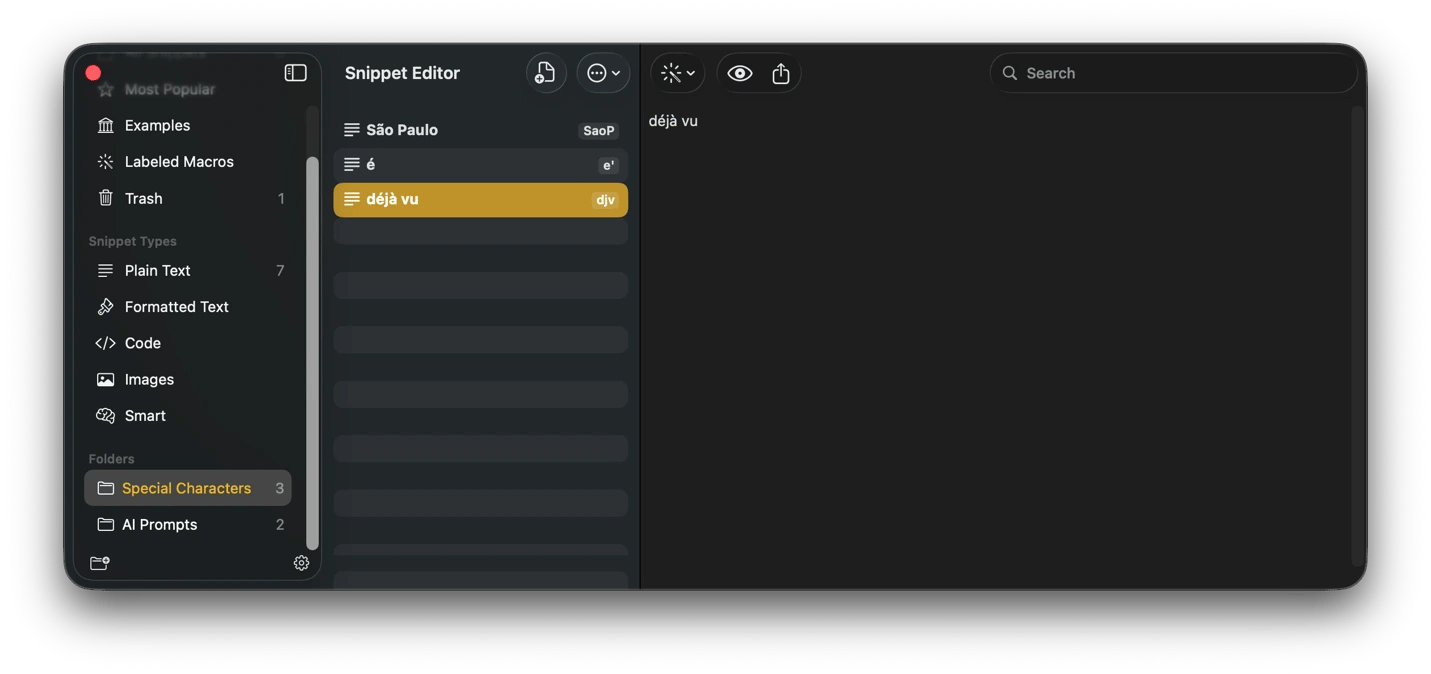
Rocket Typist is the way to avoid typing the same AI prompt, code snippet, or boilerplate response over and over. You can take the text you type repeatedly and assign it a short abbreviation. When you type this abbreviation in any browser or app, Rocket Typist will replace it with the actual text. It even makes it easier to organize your snippets in categories, so you can have a section for your AI prompts and another for special characters you often write.
TypeDesk also works in a similar way but adds more flexibility. You can use it to share standardized company responses with your team to keep everyone on the same page.
Automate your Mac with custom gestures and shortcuts using BetterTouchTool
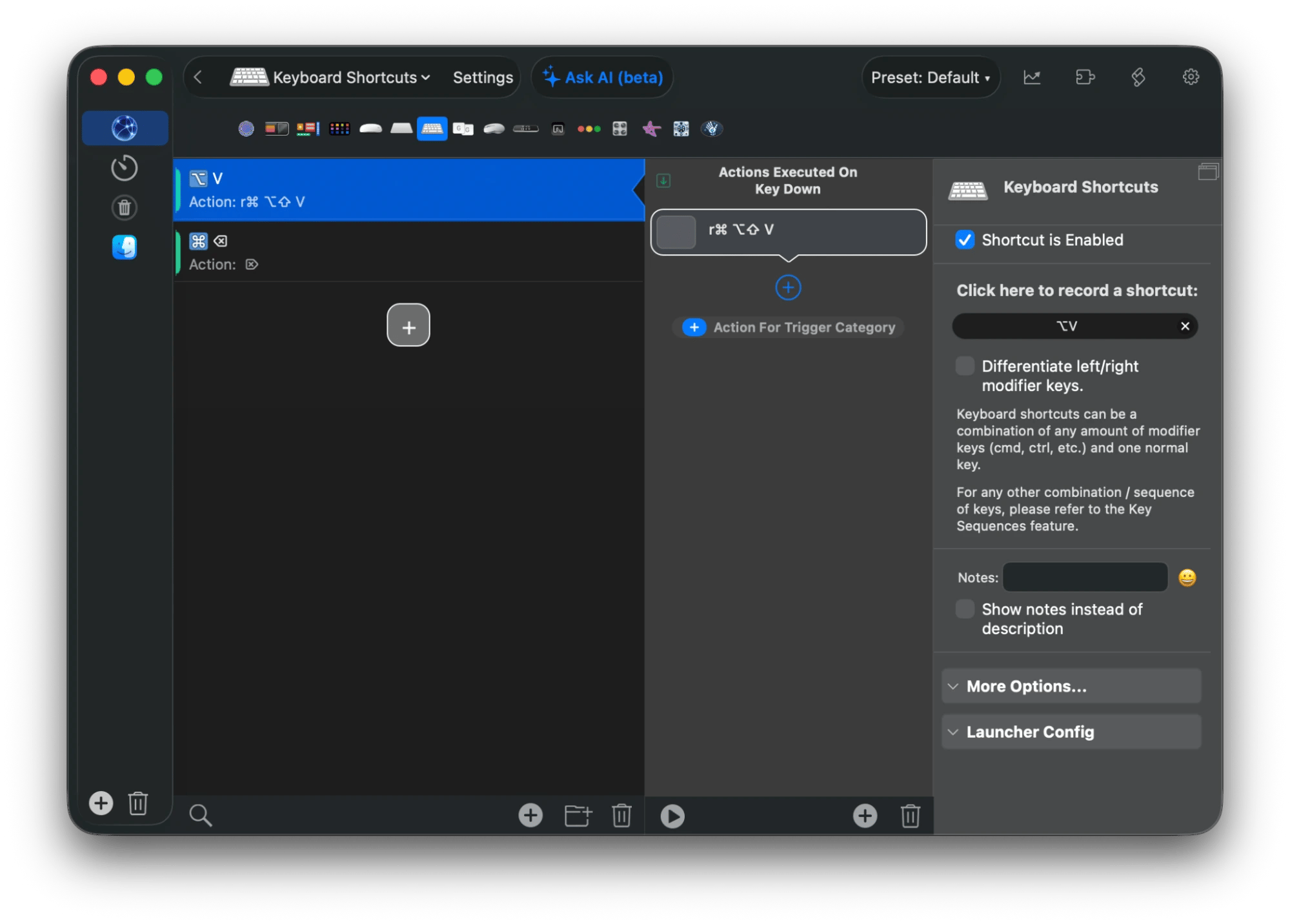
BetterTouchTool is meant for productivity enthusiasts who feel the flexibility of macOS isn't enough. Instead of juggling Command + Shift + V to paste as plain text, you can just map it to Option + V to quickly paste with one hand. It also works with trackpad gestures and mouse buttons for single actions and even sequences.
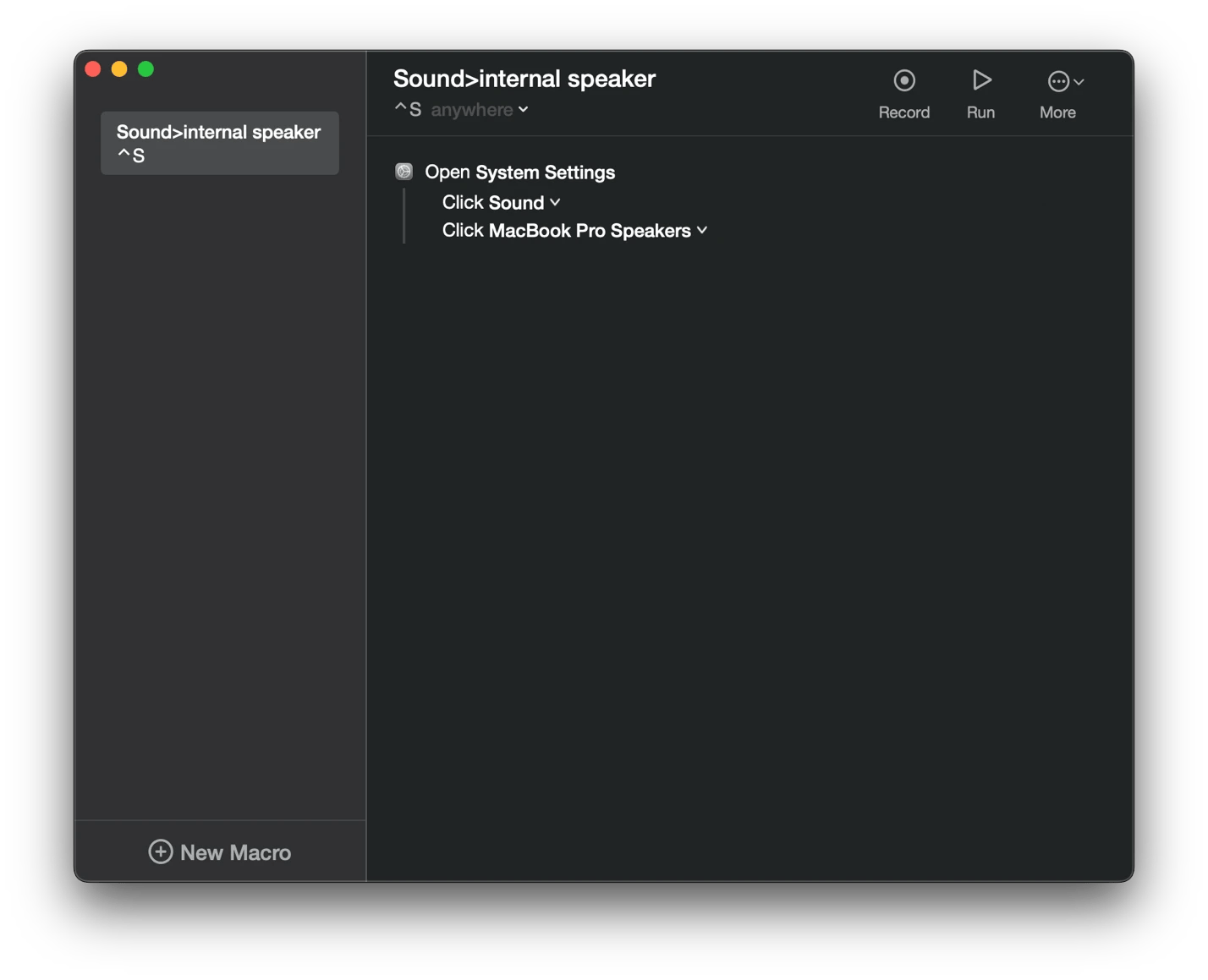
Keysmith also helps achieve a similar goal but takes a different approach. If you often carry out specific actions on a particular app, you can record with Keysmith and replay them with a single shortcut.
If you don't want to automate but still need to unlock more flexibility, you can try Shortcutie. It integrates with the Shortcuts app and unlocks hidden actions, such as clearing all system notifications and closing all windows of a specific app.
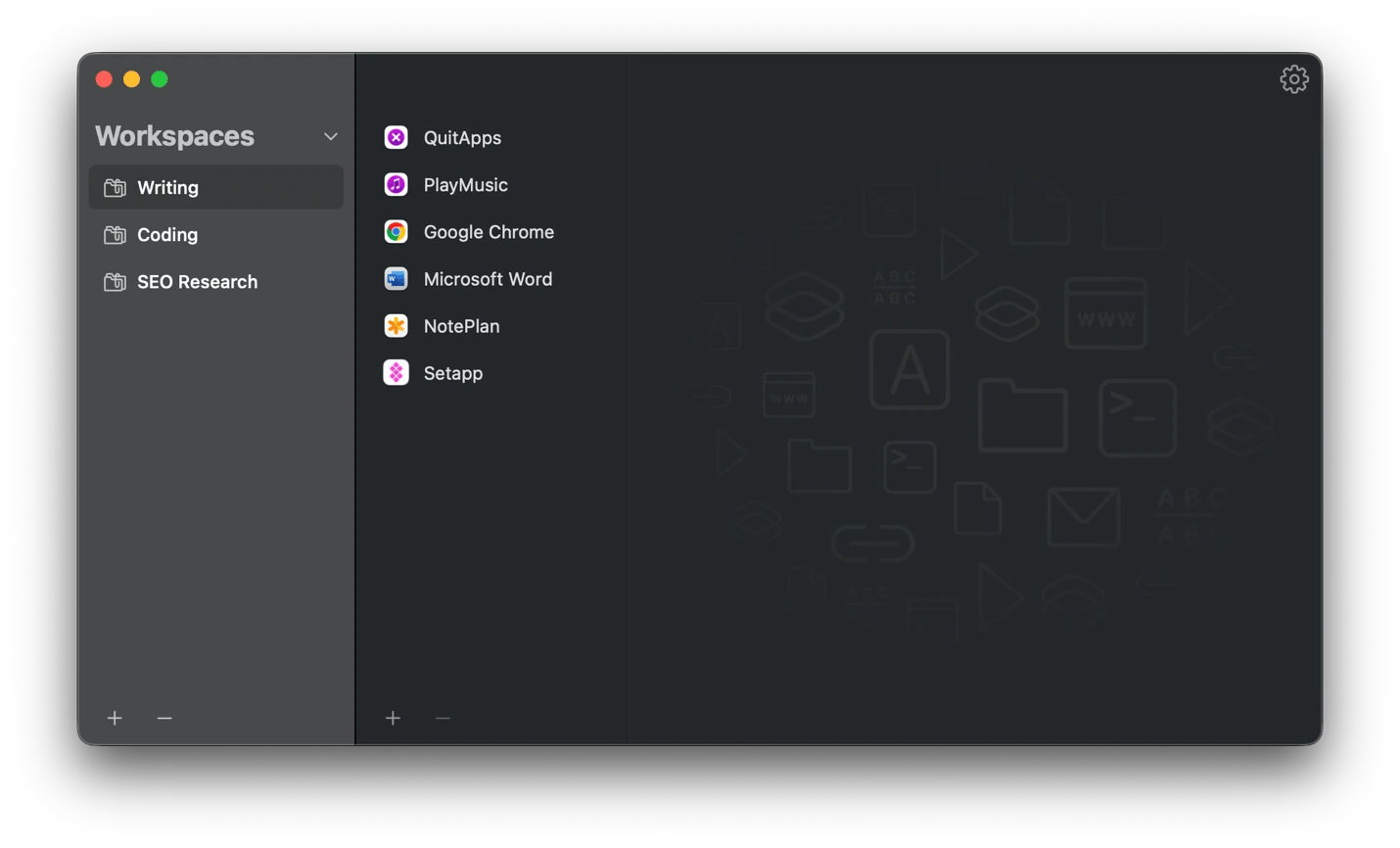
Launch your full project setup in one click with Workspaces
You don't have to spend the first 10 minutes of your focused work time opening specific apps, files, and browser tabs. Workspaces automates this ritual so you can launch everything you need with a single click. The beauty of the app is that you can create separate profiles for writing, coding, joining meetings, and a specific client project.
When you need to switch from one task to another, just launch a new profile to get everything you need ready.
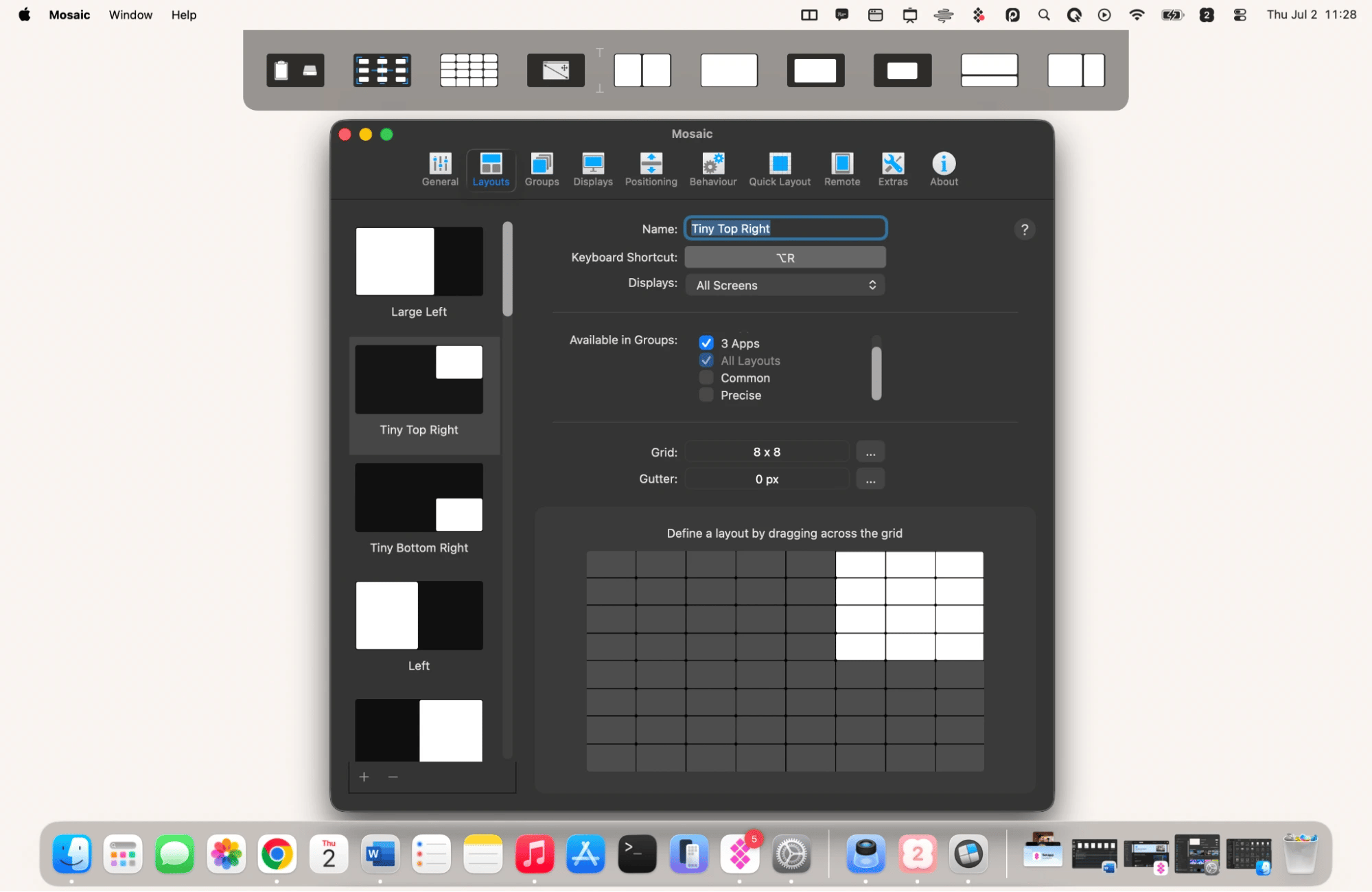
Snap windows into layouts without touching the mouse with Mosaic
Mosaic is built for the moments of your day when you need to reach for your mouse and drag app windows to the right size. You can use it to create various layouts and then snap any window into them with a simple shortcut or drag. This means you can have one layout for writing, one for research, and another for your meetings. Once you get used to it, reaching for your mouse to manually resize a window will start feeling like failure.
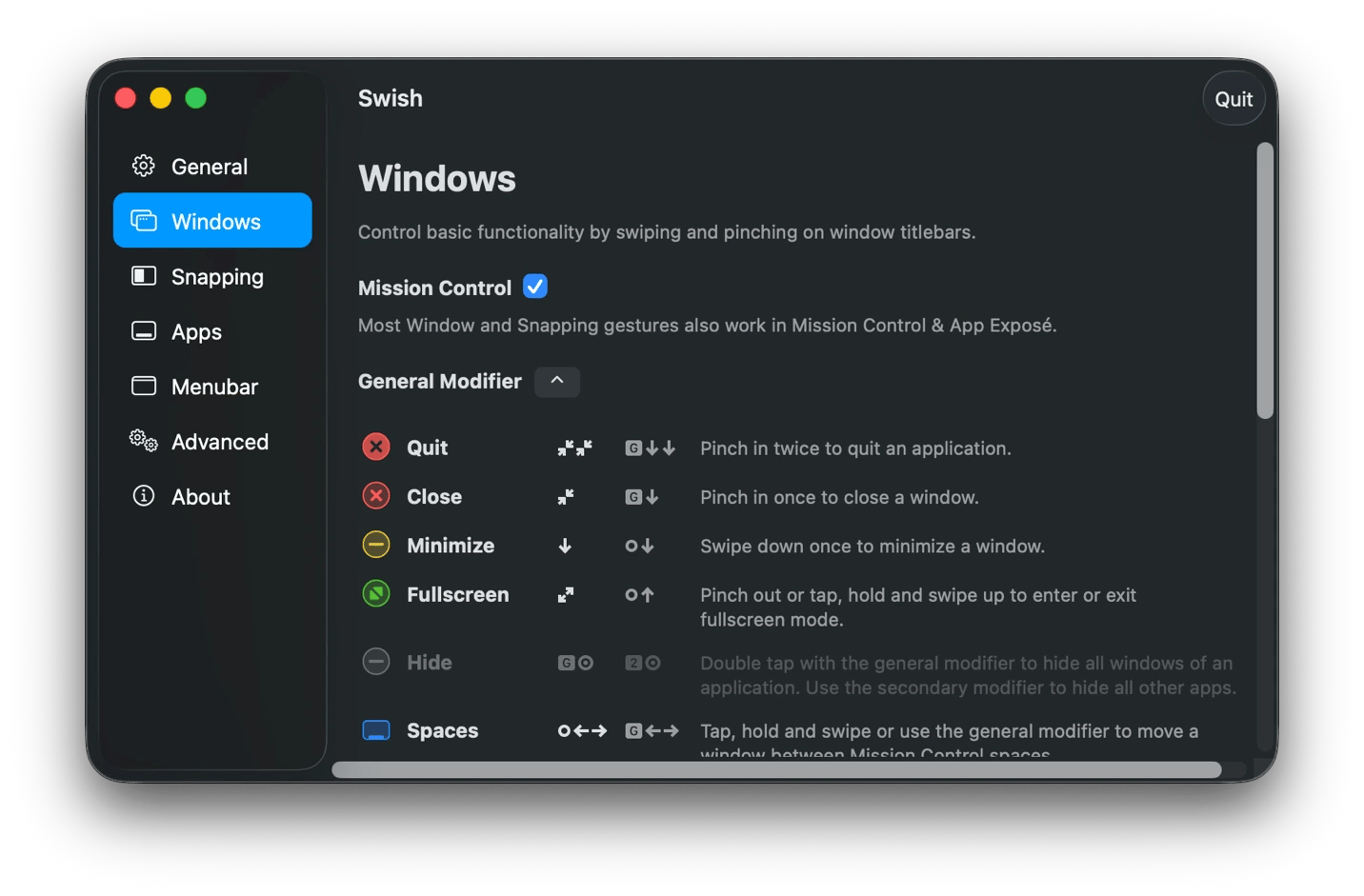
Swish complements this well if you prefer to work with gestures over shortcuts. It offers 28 gestures you can use to manipulate your windows to move, resize, maximize, or switch between them.
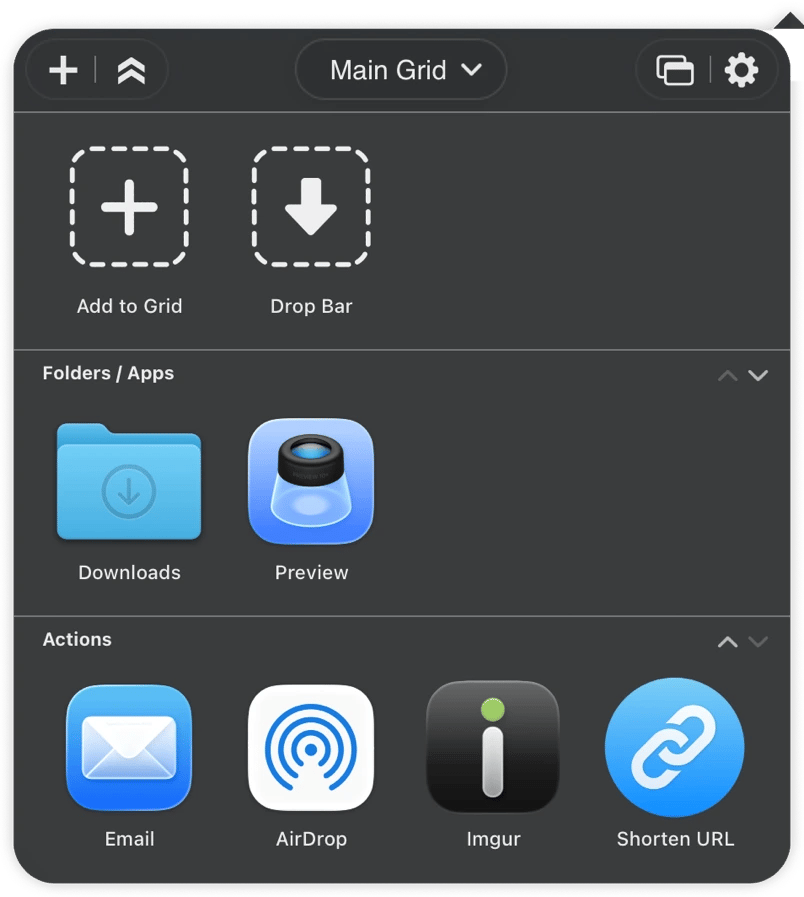
Speed up repetitive file tasks with Dropzone
Uploading files and moving documents between folders often means you need to repeat the same actions multiple times every day. Dropzone removes this friction by letting you create a persistent drop grid for your files.
You no longer need to open a cloud window on your browser to share screenshots as you can just drop your file here. It lives in the menu bar to stay invisible until you need it, and the 30 seconds it saves you significantly compounds when you repeat a task 10 times a day.
Choose which app handles every link type with OpenIn
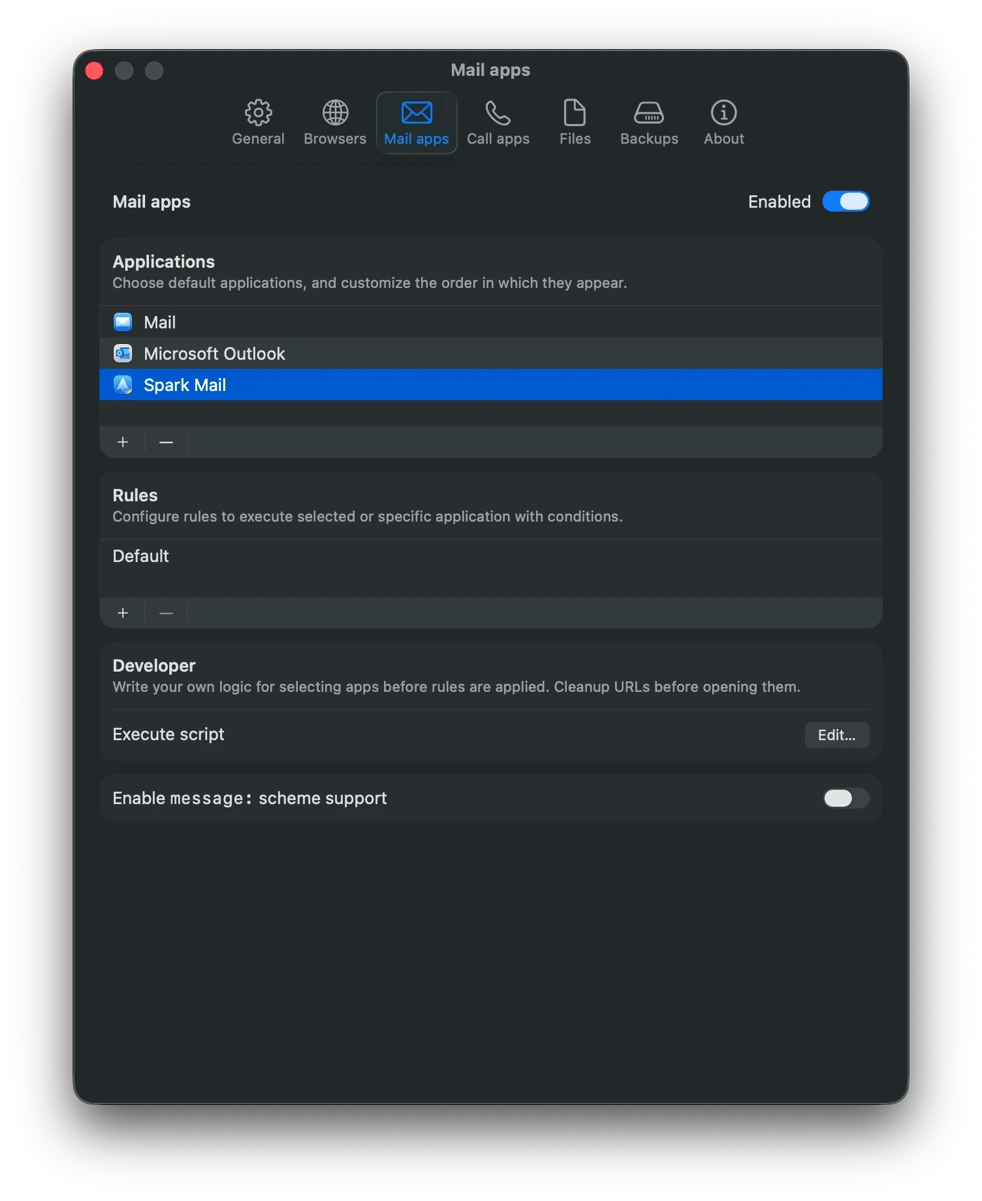
OpenIn helps avoid the frustration of every link opening in Safari when you have Chrome open. When you install the app, you can set rules around how your Mac handles specific link types. You can send HTTP links to a browser like Chrome, mailto links to SparkMail, and calendar invites to the Calendars Mac app.
You can even set the specific apps you want to open your local files with. It's one of those things that feels small until you realize the friction it saves you by preventing links and files from launching a different app when you're already using a more capable replacement.
Unlock hidden macOS settings with Almighty
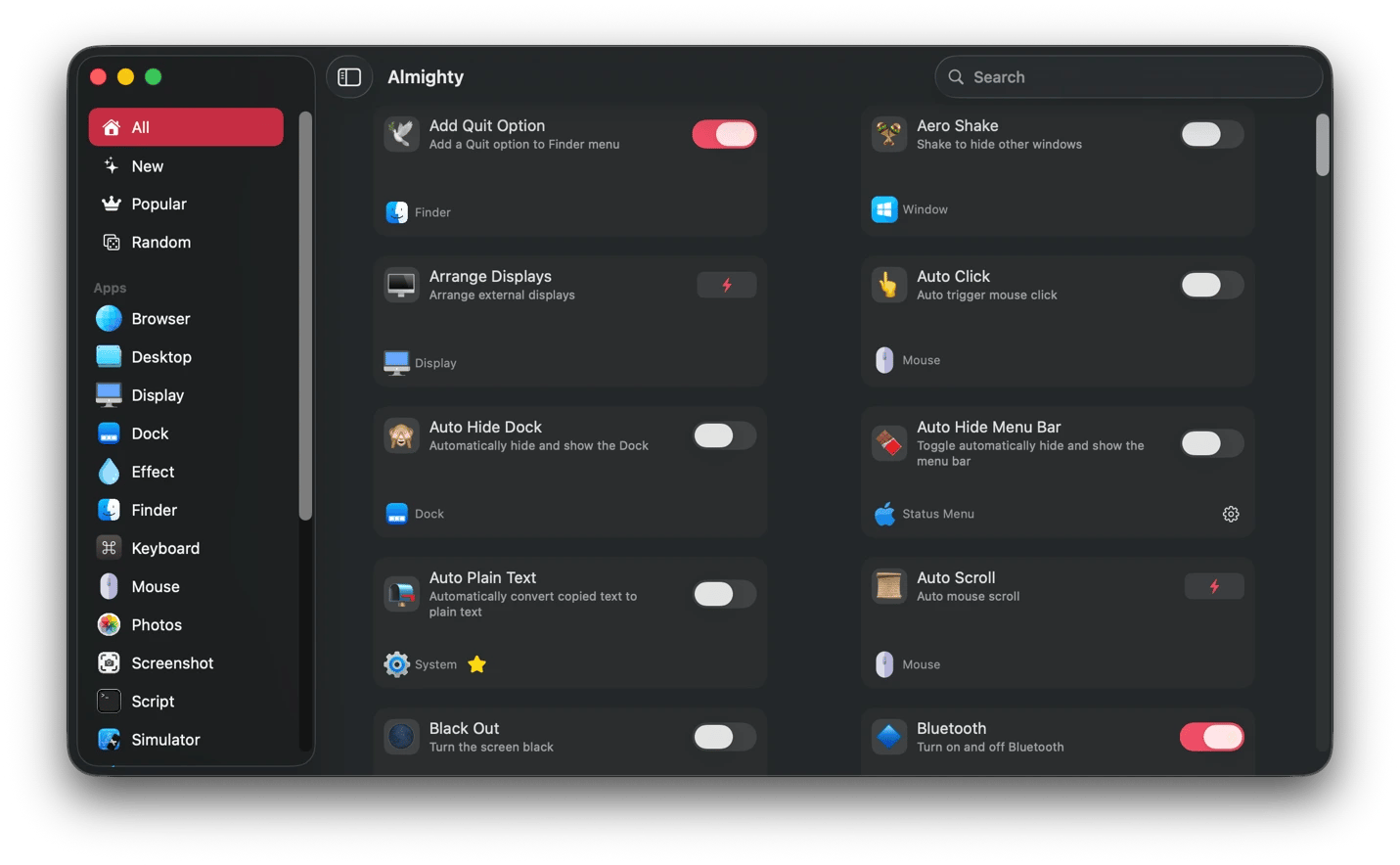
Almighty is meant for productivity nerds who often exhaust macOS settings but still feel there's more to be done. You can use it to unlock hidden macOS settings that change how apps behave, as well as to unlock more customization for Finder, the clipboard, and the keyboard.
You can add a Quit button to Finder, prevent your Mac from idle sleeping, automatically convert copied text to plain text, and much more. It's a trick to fine-tune your Mac to an unreasonable degree of precision without any Terminal commands.
Jump to any open browser tab with Tab Finder
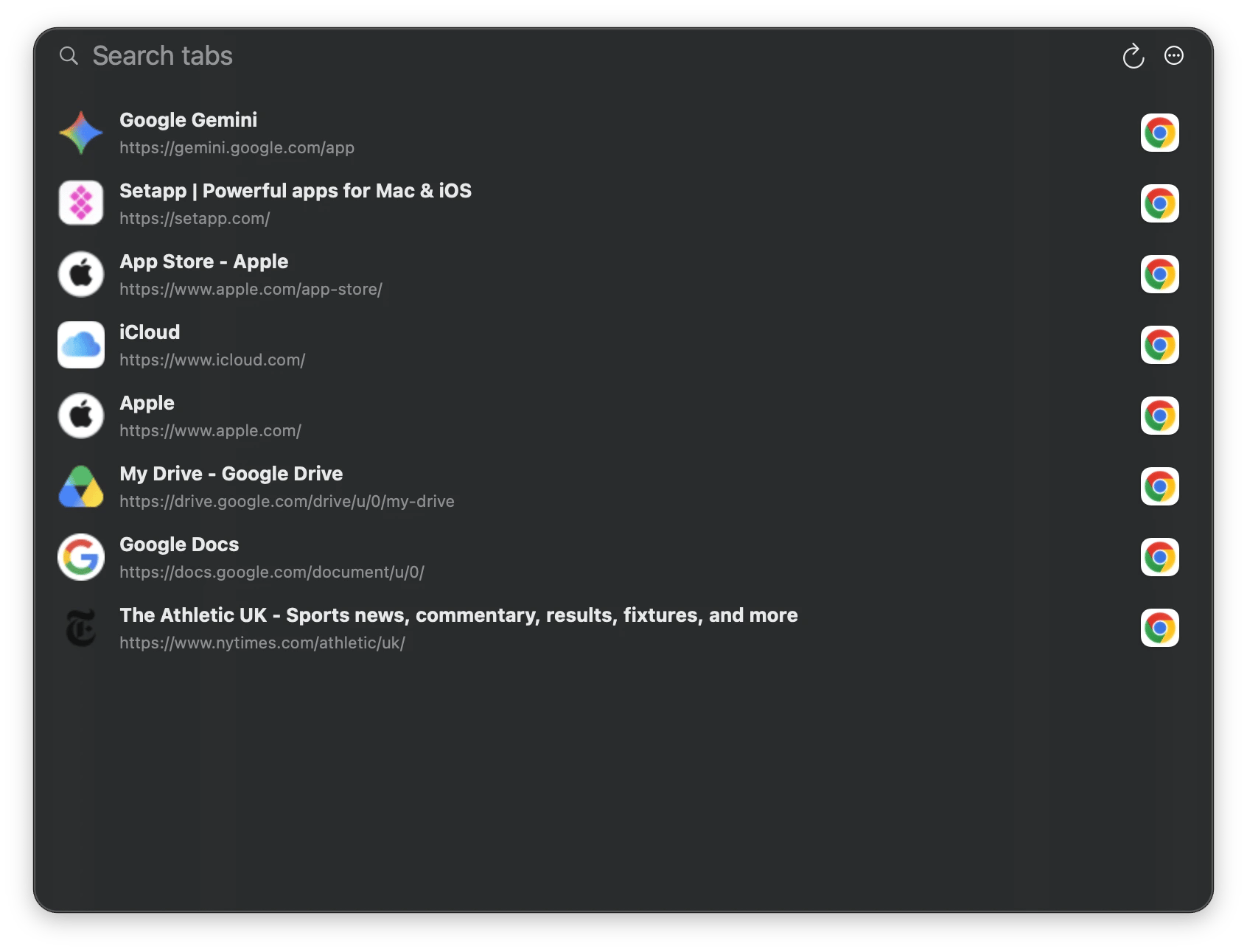
Instead of scrolling through a bloated tab bar, you can jump to any of your open browser tabs with Tab Finder. It works a bit like the Finder app, but it's specific to the browser and works with all popular ones. When you press Option + Tab or another hotkey, you can select the tab you want from a list in all open browsers or search for it if you have 37 tabs you've refused to close.
I find that it saves a lot of time and reduces the cognitive overhead of managing a large collection of research or reference tabs.
Review and improve your productivity system
A productivity system is only complete when you can see how your work, habits, and priorities have evolved over time. Setapp has several apps you can use to monitor how your small adjustments compound over weeks and months.
See where your time actually goes with Timing
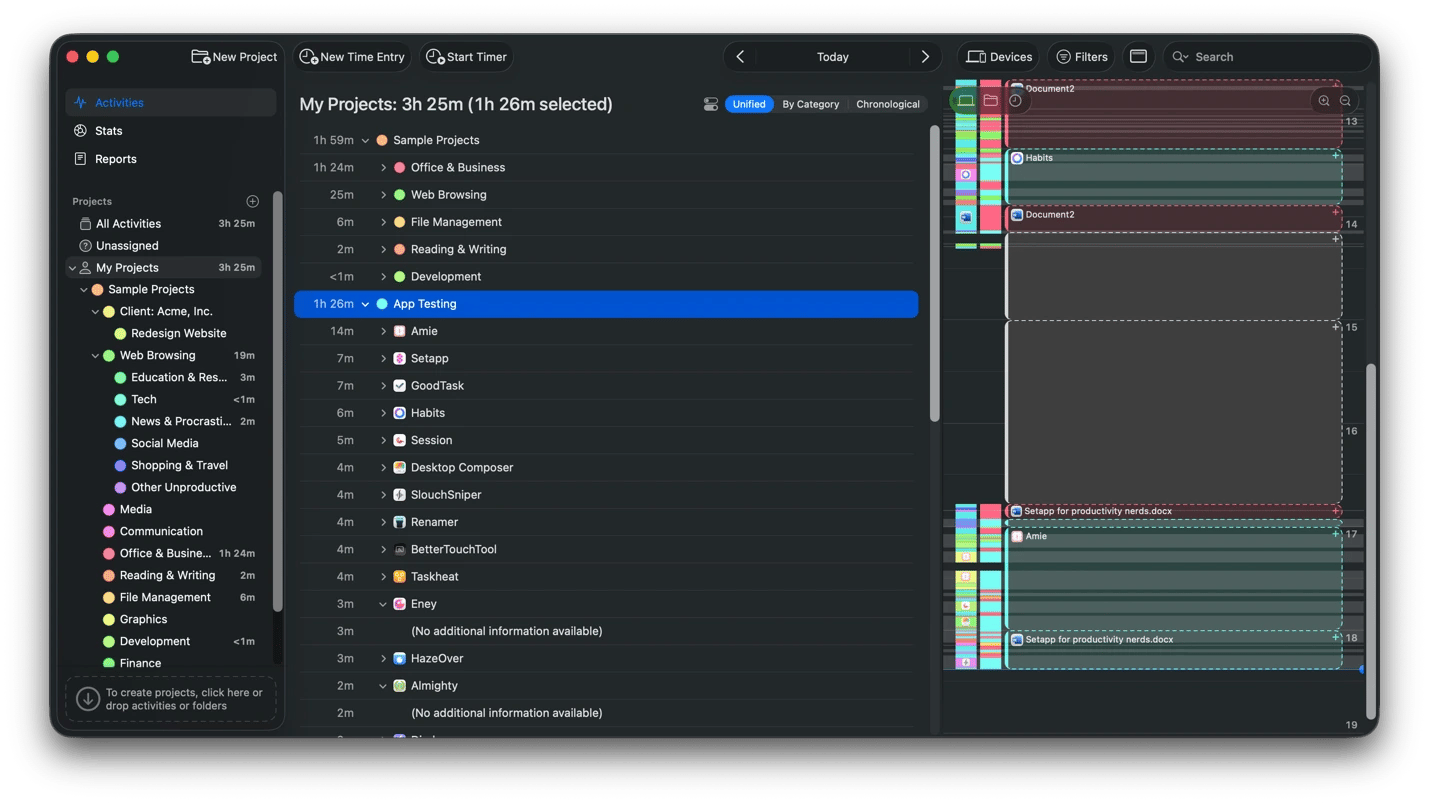
Timing is the app you use when you want to be accountable for how you spent your entire day. It's different from a simple time tracking app in that it automatically tracks everything you do on your Mac to create a detailed report of how you spent your day, week, or month. All you need to do is give it permission to start at launch, and you won't need to remember to start tracking your work.
Since it's always active in the background, Timing keeps everything local to protect your privacy. It also learns from your habits and smartly recommends timing blocks for specific categories.
Build a daily journaling and reflection habit with Diarly
Diarly is the safe space you need to reflect at the end of the day and see patterns beyond what productivity apps offer. It's an encrypted journaling app with calendar-based navigation that you can use on both Mac and iOS to capture what's on your mind. You can easily structure your entries using Markdown and add tags that you can search to revisit related ideas in the future.
Diarly is quite useful when creating your productivity system as you can make weekly review write-ups or end-of-day notes on what worked and what didn't.
Build better habits with Awesome Habits
Awesome Habits is the help you need to build better habits, break bad ones, track progress, and become the version of yourself you want. Just choose one of the goals in the app or create your own, then enter the details or let it track automatically.
You can set Awesome Habits to notify you when you are nearly accomplishing your goal, then go to the history section to see how you've performed over time.
Get non-fiction book insights in 15 minutes with Headway
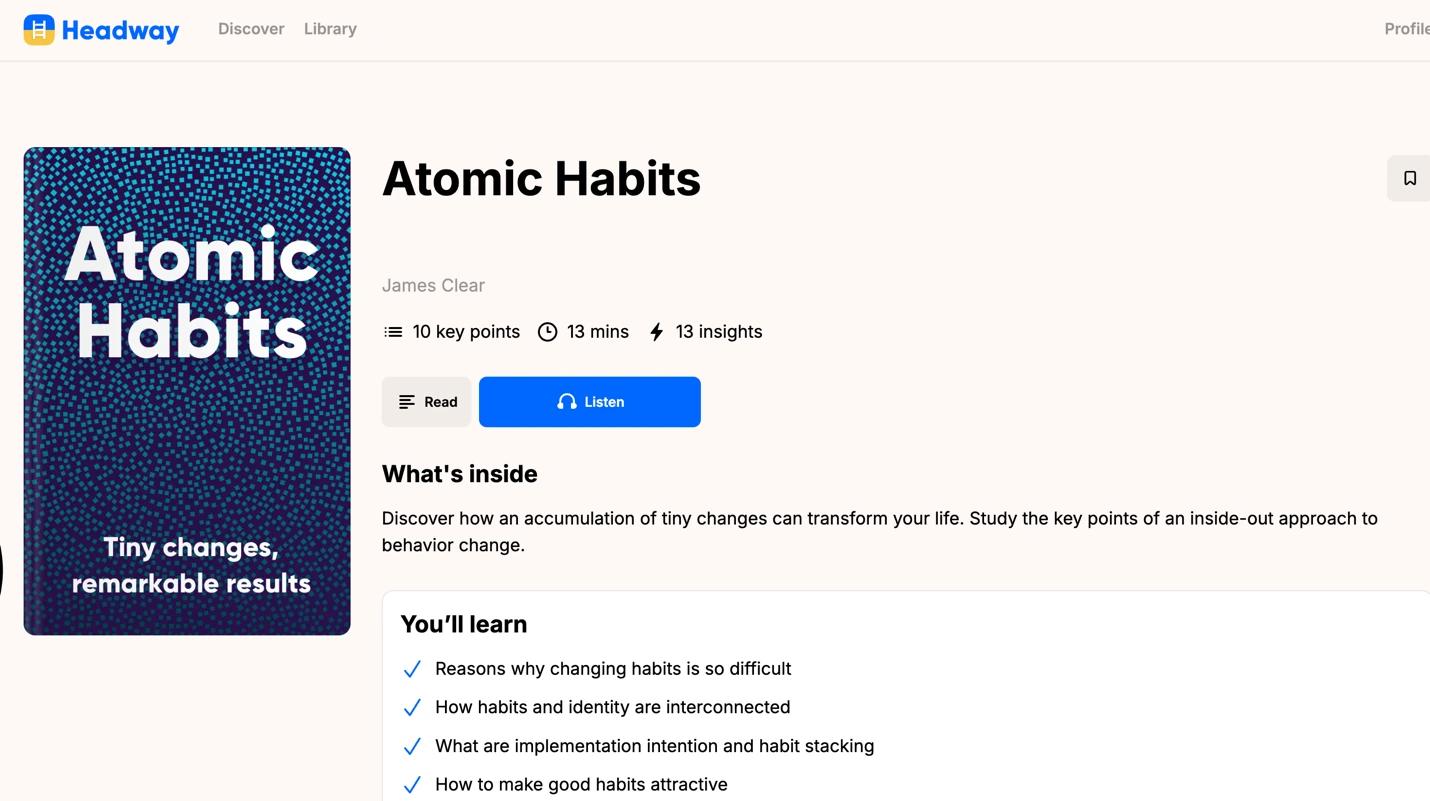
After productivity has freed your time and mind from repetitive actions and low-value work, you need to use that capacity for self-improvement before you default to social media. Headway lets you benefit from non-fiction books without going through 300 pages. You can use the app to get 15-minute summaries of popular titles across productivity, business, psychology, leadership, and personal development.
You can read or listen and complete a book summary with your morning coffee or while commuting.
Build a productivity system that grows with you
Building the perfect productivity system is all about creating a setup that removes the friction points you often encounter. Setapp helps piece together tools from different developers you can use for pretty much everything, from mapping complex projects to tracking how you spend your time. And when your needs change, you can add a new tool or replace an existing one at no extra cost.
All the apps in this article, and 260+ more are available on Setapp. Try them all free for 7 days, cancel before Day 7 = $0 charged.






 Best solution
 Best solution