To capture knowledge before it's lost:
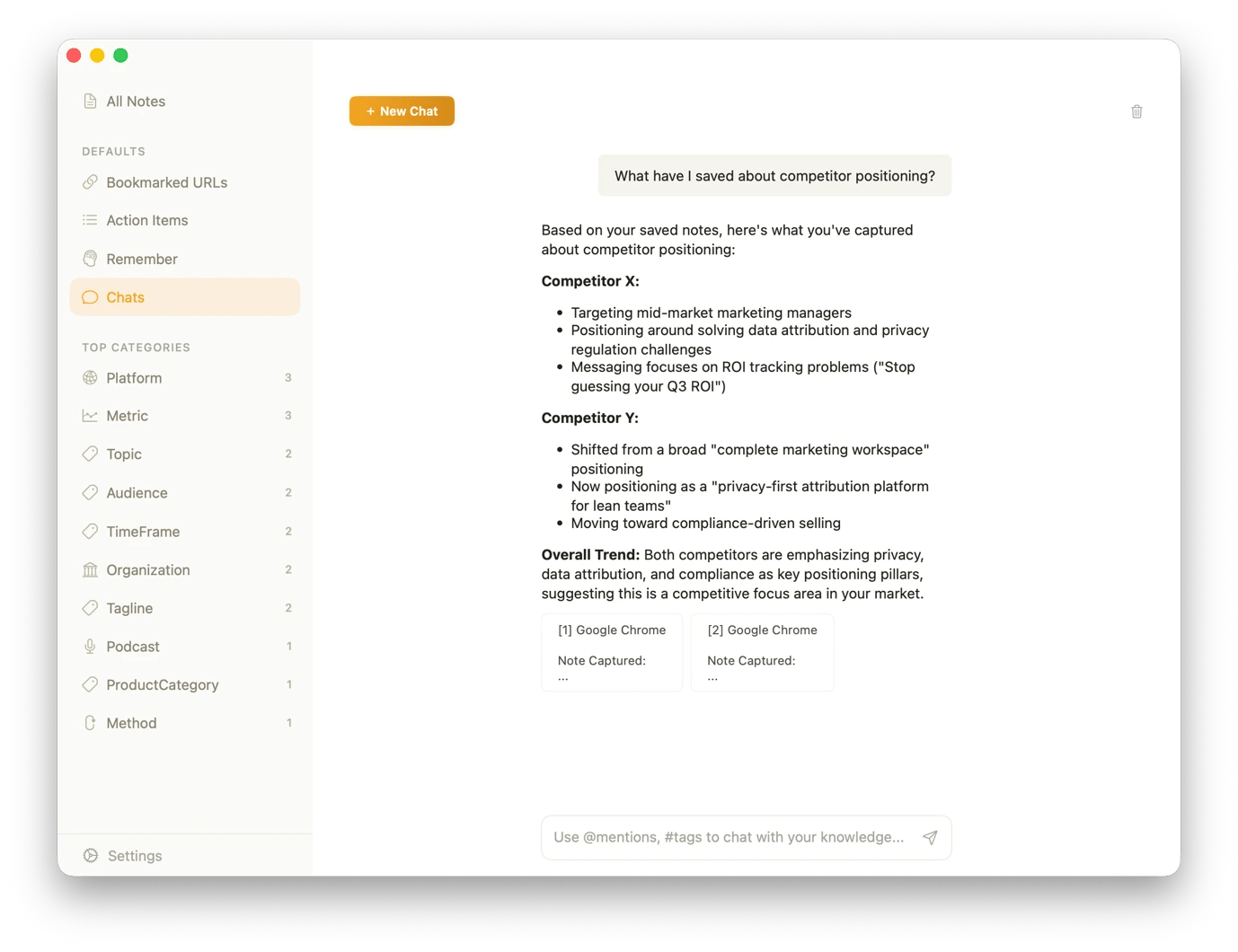
• BeeMind — one-click capture from any app with plain-English search across everything you've saved.
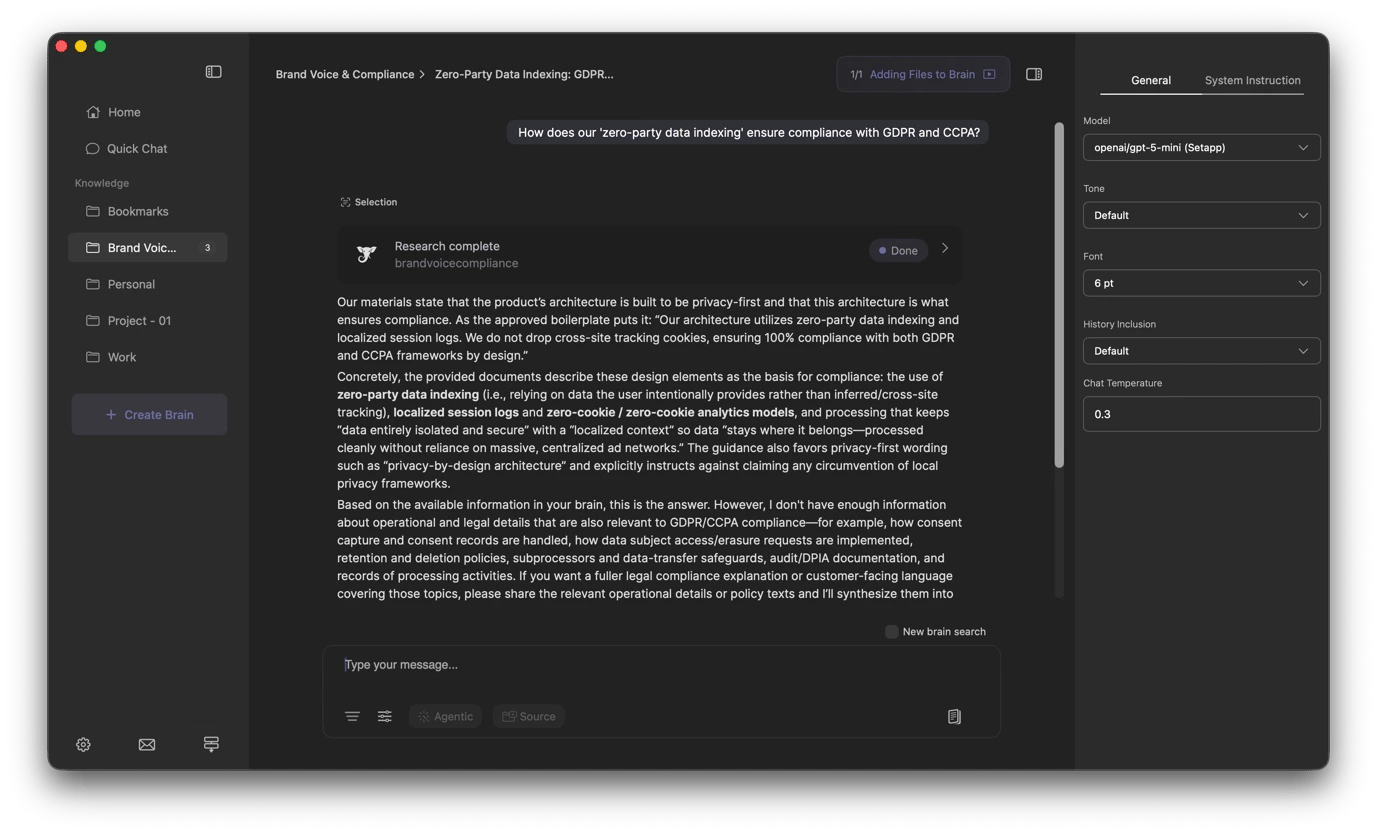
• Elephas — turn your documents into a searchable knowledge base you can query in chat.
• Unclutter — keep clipboard history, scratch notes, and a file shelf in one persistent panel.
To find information across projects:
• Workspaces — launch every app, file, and browser tab for a project in one click.
• Default Folder X — jump to any project folder from any app using a shortcut.
To read and analyze complex information:
• MarginNote — turn highlights into linked notes and visual maps across multiple PDFs.
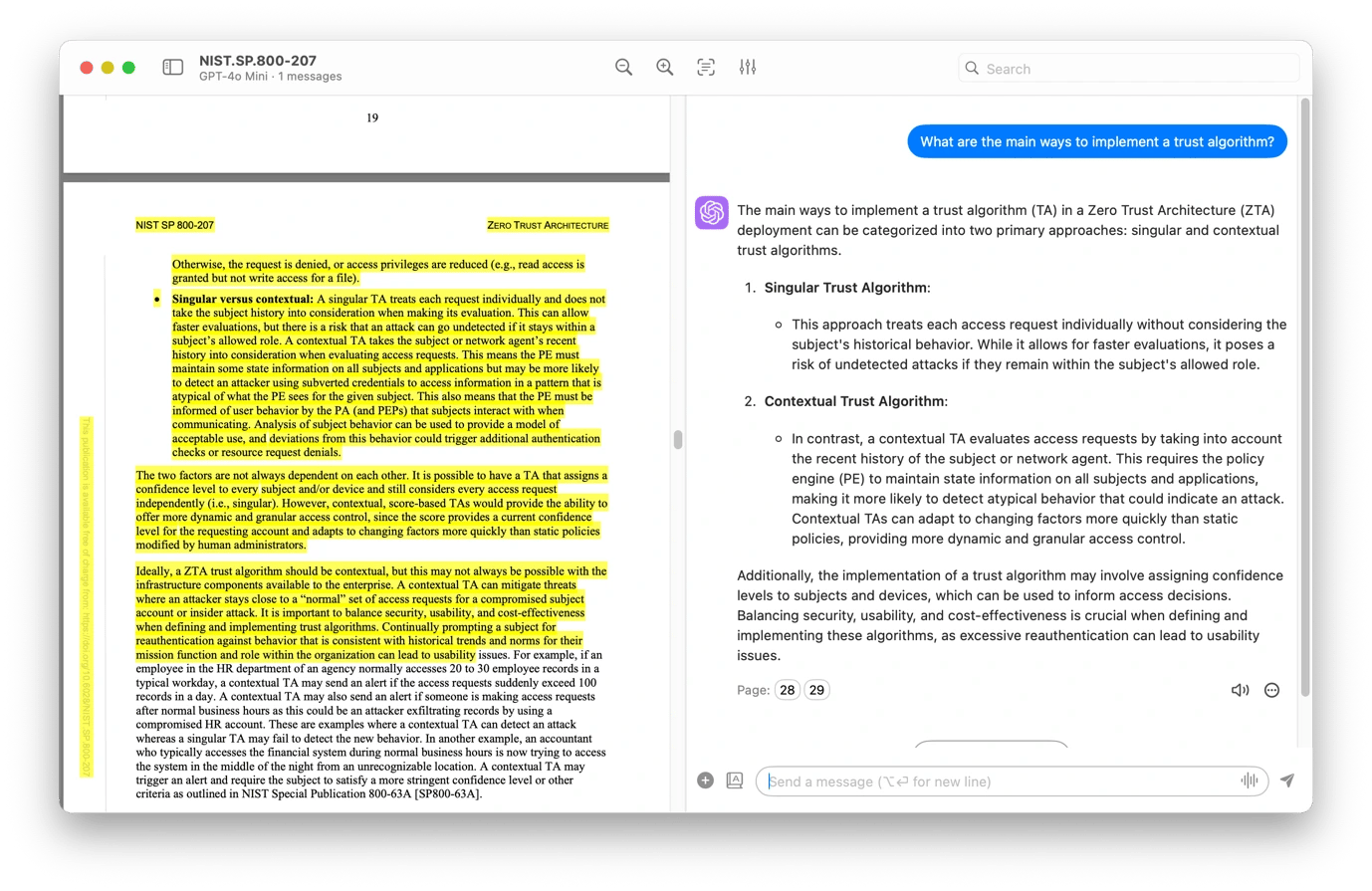
• PDF Pals — ask questions about lengthy PDFs with cited page references, entirely on-device.
To think through complex problems visually:
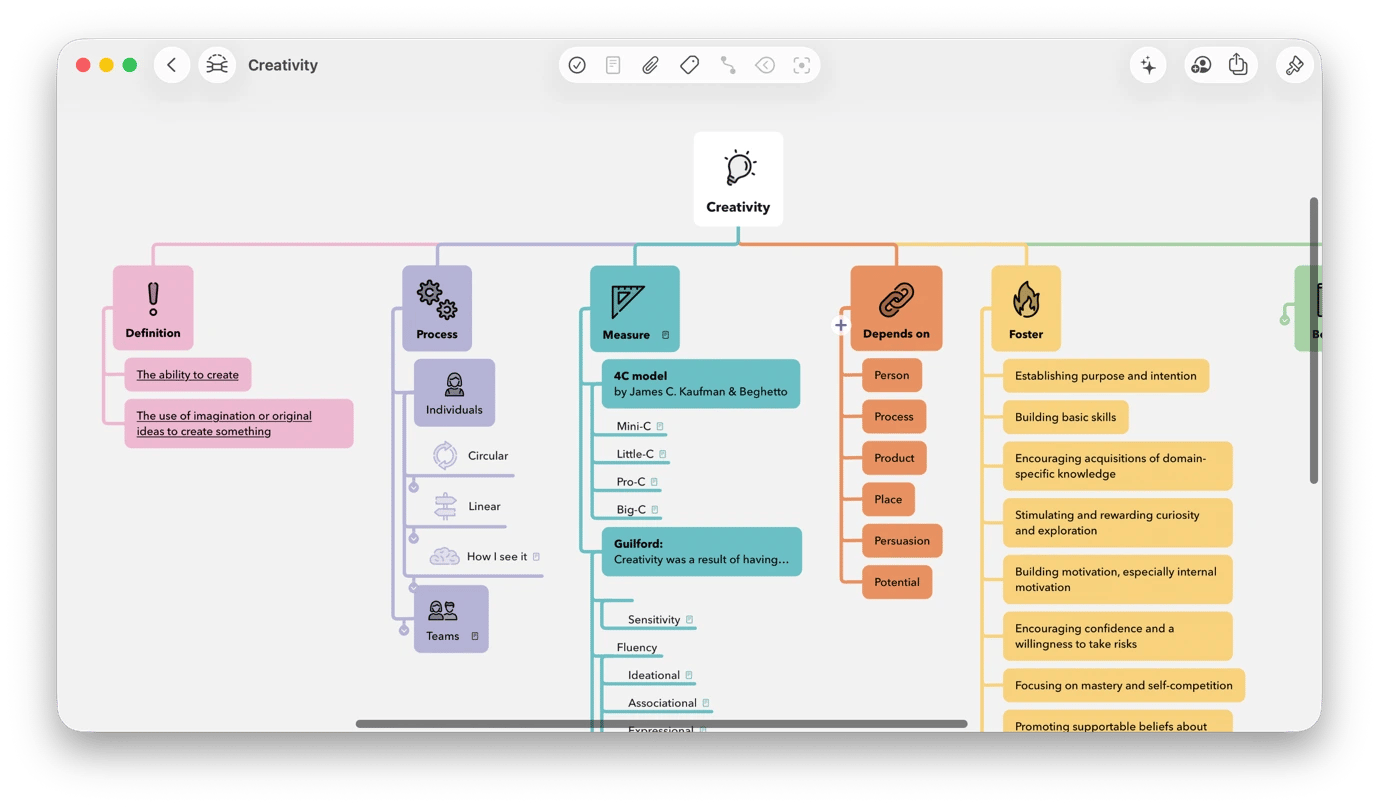
• MindNode Next — map ideas on an infinite canvas and export them as outlines or Markdown.
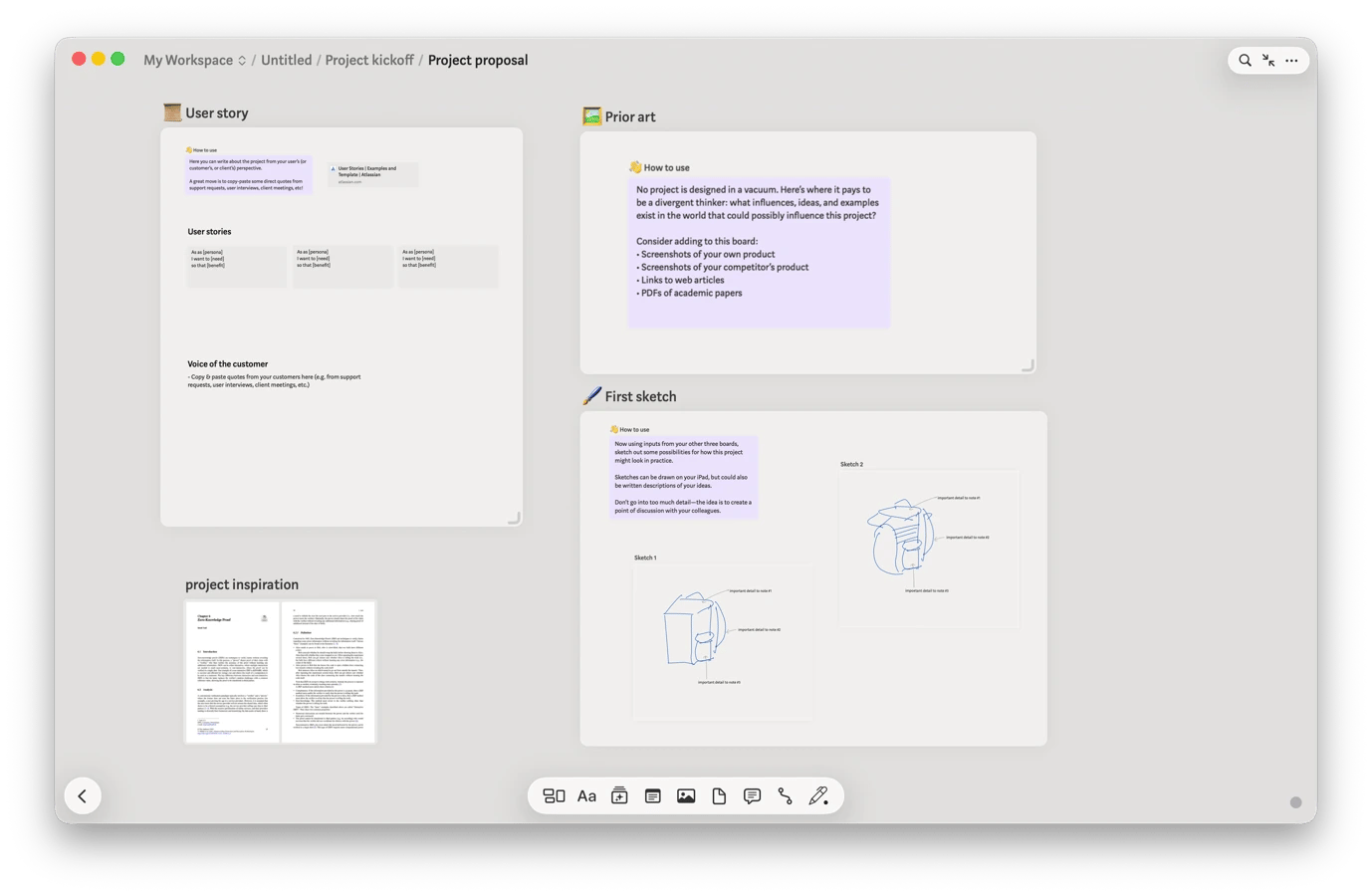
• Allume — arrange notes, PDFs, and diagrams on a freeform research board.
To use AI to process and extend your thinking:
• TypingMind — run extended AI research sessions with full context and access to 900+ models.
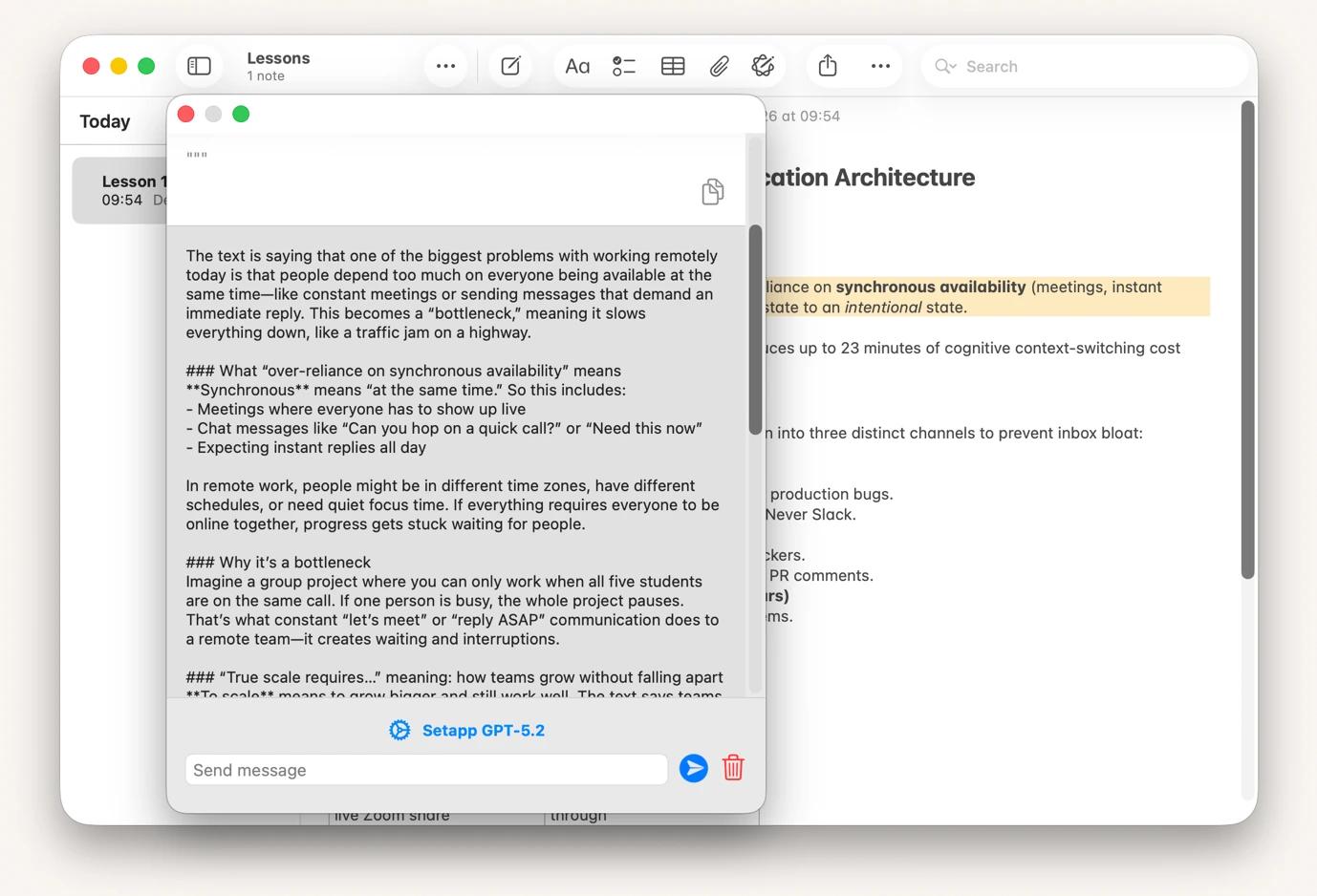
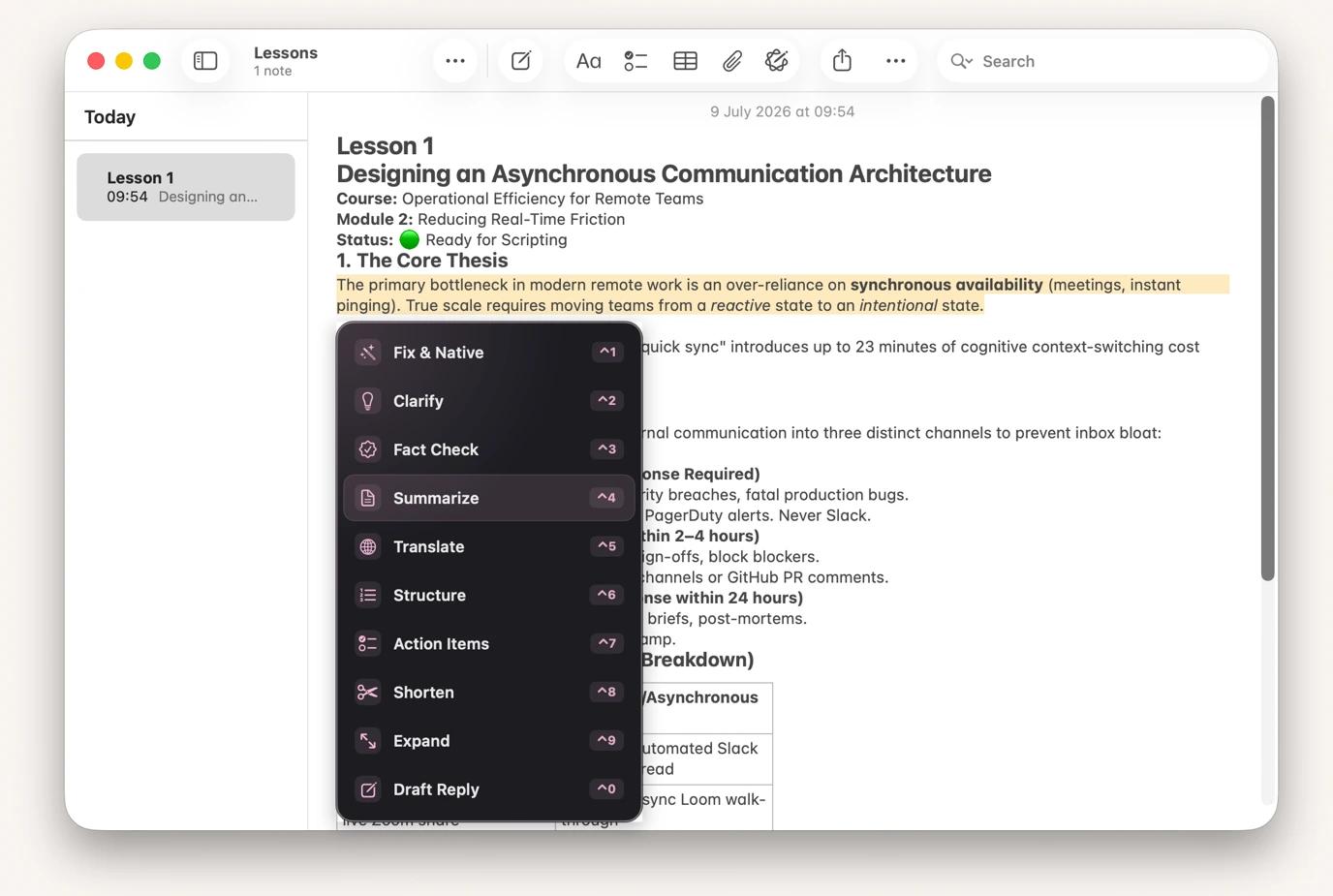
• Plus — explain, rewrite, or summarize selected text in any app via Option + Space. Try all 260+ apps FREE for 7 days on Setapp — cancel before Day 7, $0 charged.
If you process large amounts of information, manage complex projects, or turn research into reports, you know the feeling of information coming in faster than you can make sense of it.
Most knowledge workers — like engineers, data scientists, analysts, product managers, strategists, financial advisors, writers, editors, designers, content strategists, researchers, professors, market researchers, and others — solve this by piecing together a collection of apps for notes, PDFs, AI, and file management. It works well enough until it’s time to find a quote you pulled from a report three months ago.
Setapp brings together most of the tools you need for knowledge management into a single subscription. In this guide, I’ll walk you through the Setapp apps I find most useful for knowledge work and show you where each fits in the information workflow.
Which workflows can knowledge workers automate with Setapp: Quick overview
Before we get into the workflows, here’s a quick look at a few apps that cover the most common knowledge work bottlenecks.
Explains, summarizes, rewrites, or translates selected text without switching apps.
Capture knowledge before it's lost
Good ideas rarely arrive when you are sitting at your desk with a blank document open. You need apps that make it easy to capture information whenever it arrives and to find it later, and Setapp has several.
Build a second brain from everything you learn with BeeMind
BeeMind acts as your second brain, making it easy to quickly capture information and actually remember it, rather than have it get buried in Apple Notes. Instead of copying and pasting, you can just highlight text, right-click in any app > Services > Save to BeeMind. This can be new quotes, article links, new ideas, or just observations.
From there, you can just chat with BeeMind to reference saved information. For example, you can ask, "What did I capture about X last month?" You can even tell the app to write a draft outline based on what you’ve captured about a specific topic.
Over time, the knowledge will accumulate but still remain easily accessible even when you can’t clearly remember what you are trying to find.
Turn your documents into a searchable knowledge base with Elephas
After creating documents, you need a better way to reference them instead of opening multiple documents to look for a single sentence. Elephas lets you create a knowledge base made of your documents, PDFs, notes, and research.
From there, you can reference any information through natural language in a chat. Instead of opening 5 PDFs to remember how you approached a similar project, you can just ask "What were the main recommendations from our retail strategy work?" or "Summarize everything we've written about customer onboarding."
Elephas uses offline AI models to protect sensitive data, but you can still use online models for tasks such as generating content drafts from your knowledge base.
Find information across projects in seconds
For researchers, analysts, strategists, and project managers, work happens across PDFs, meeting notes, and project files that are scattered across client folders. To enhance productivity, Setapp offers several apps that simplify retrieval and project setup.
Find any file on your Mac with HoudahSpot
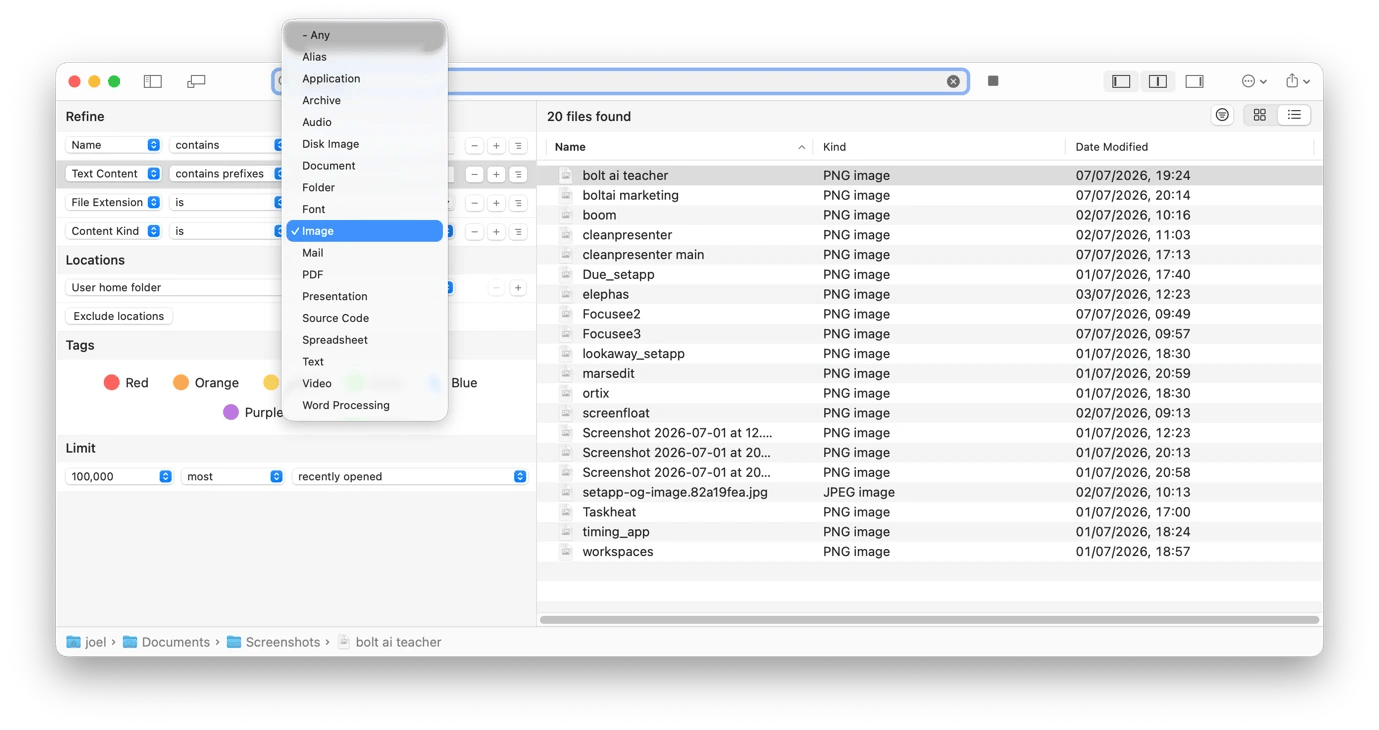
Spotlight works well, but it’s most effective when you have a clear idea of the file you are looking for. For the foggy memories of docs you can only recall through a specific word in the text, HoudahSpot is the go-to. It searches through your entire Mac in seconds to find any type of document.
What I like most about the app is that it understands the content in your files and the text inside images, so you don’t even need to remember the file names. Just type a single word, then use the filters provided to narrow your search.
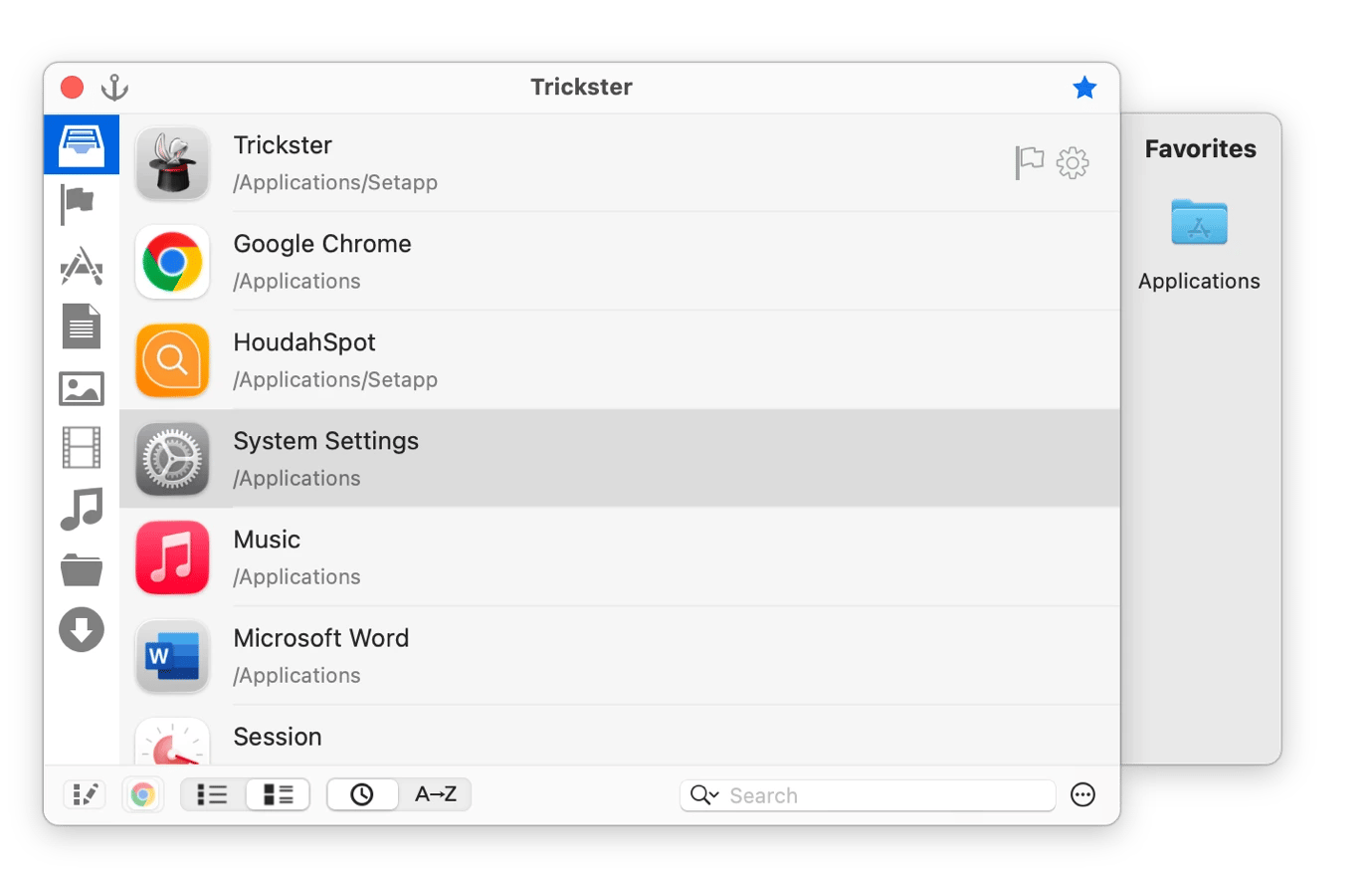
If you only want to quickly access your most recent files, you can combine HoudahSpot with Trickster. It keeps a live feed of the files and apps you’ve been working with to solve the "I was just working on that, where did it go?" problem that interrupts flow multiple times a day.
Keep notes, files, and your clipboard history within reach via Unclutter
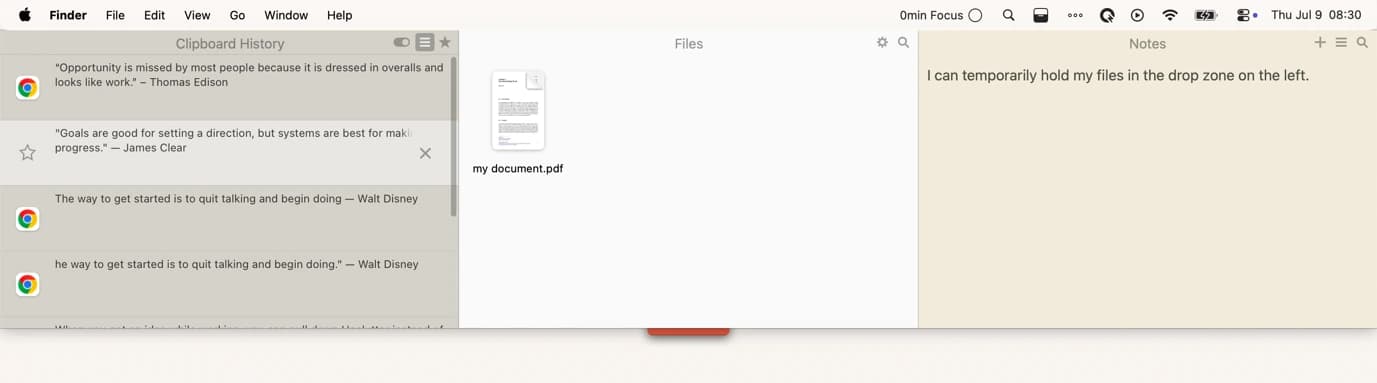
Most people often stop working to hunt for a specific snippet they copied 15 minutes ago, a scratch note they are sure they made, or a file that’s been misplaced during a move. Unclutter helps avoid all these by providing a persistent panel with your clipboard history, a quick notes section, and a file shelf. All three are accessible by simply swiping down from the top of your screen.
When you get an idea while working, you can pull down Unclutter instead of opening the notes app and getting distracted. You can also temporarily drop folders here instead of cluttering your desktop.
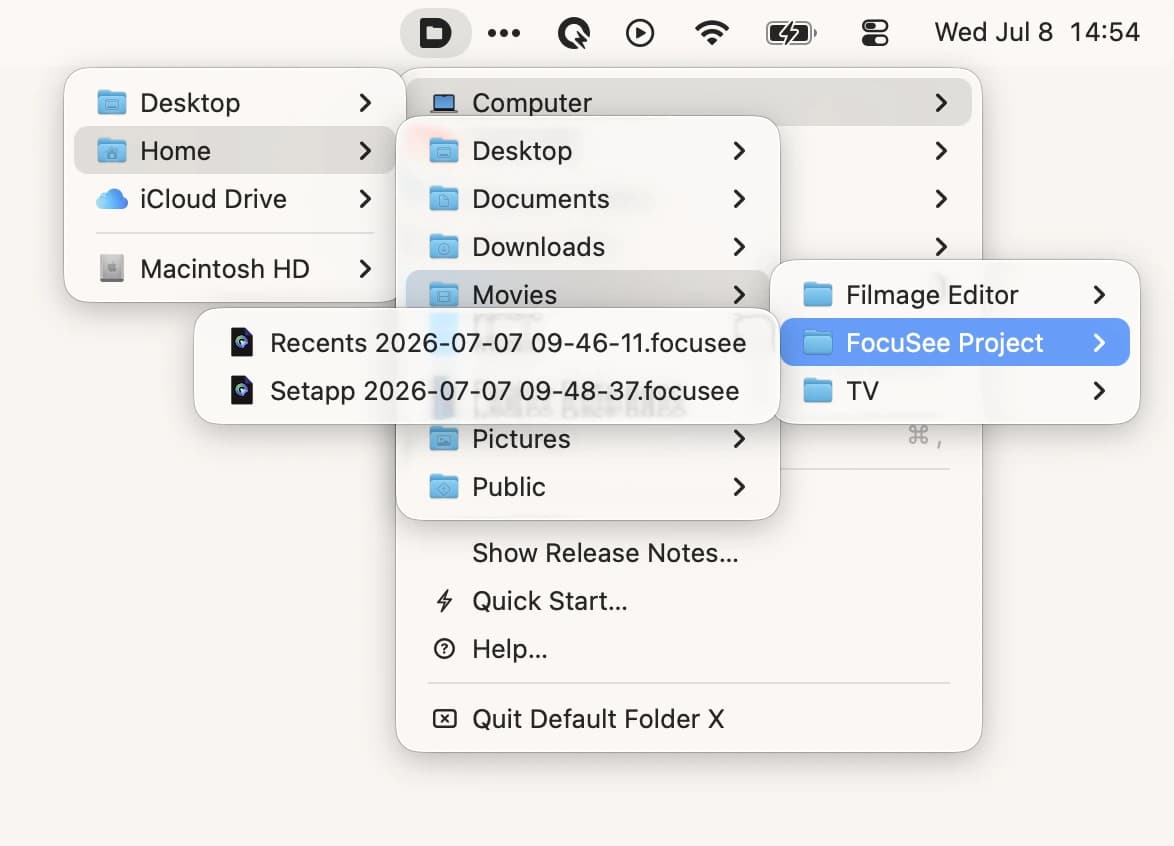
To make it even easier and faster to access folders while still in full-screen mode, you can install Default Folder X. After clicking the icon in the menu bar, you can navigate to different folders without manually opening Finder and clicking through.
My favorite feature here is that you can actually add a specific project folder and assign a shortcut to open it directly from any app.
Launch an entire project setup in one click with Workspaces
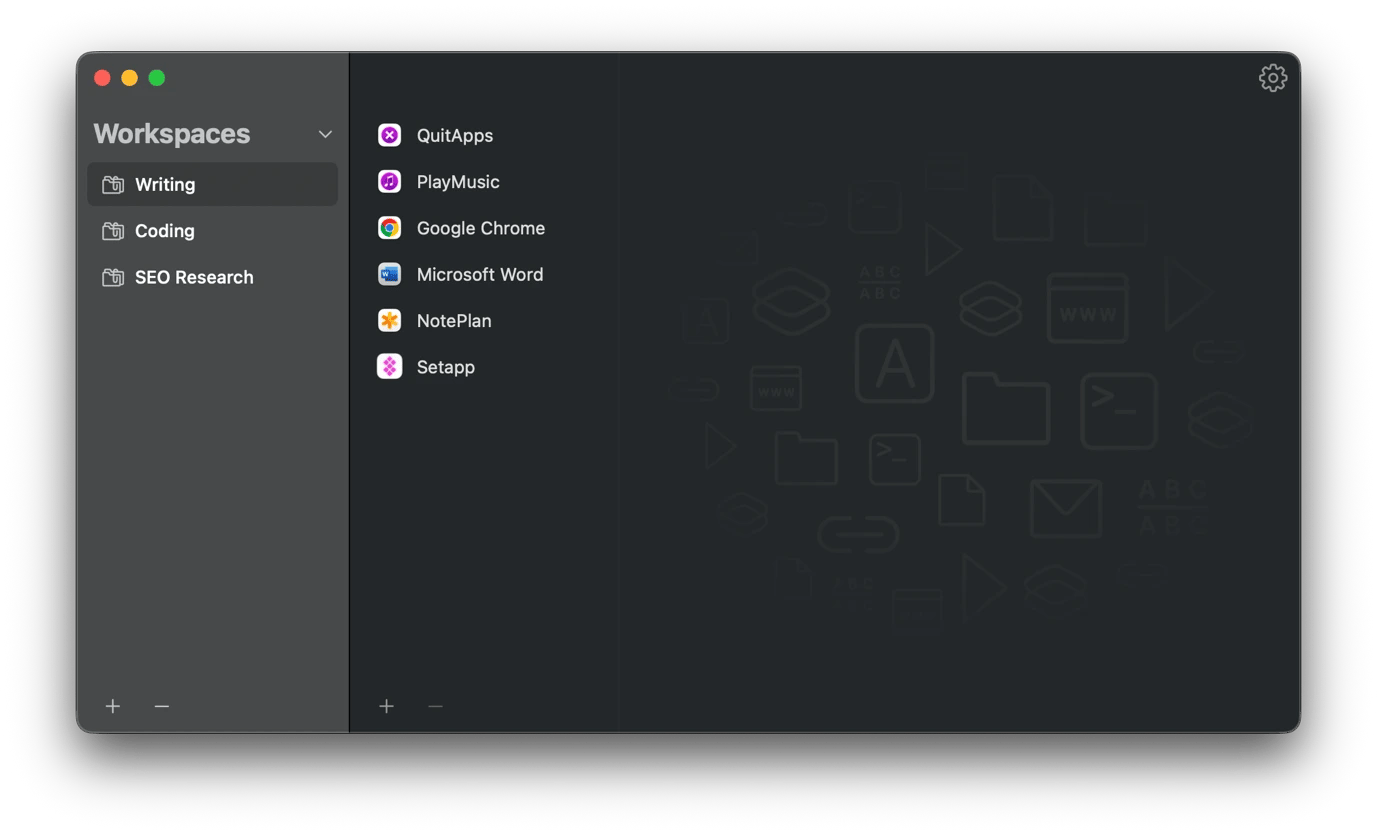
Workspaces helps reduce the mental overhead involved in switching from one project to another. Instead of spending ten minutes closing your current apps, opening the right ones, navigating to project files, and pulling up the right browser tabs, you can get everything ready with a single click.
The app allows you to build a complete project setup. You can build a workflow to close all open apps, play music, open specific apps, and navigate to different URLs. You can also build multiple projects and walk into a fully configured environment without manual assembly.
Read and analyze complex information
After collecting or finding the right documents, you then have to extract useful information. The apps below make it easier to review research papers, client reports, and technical documentation and create structured, usable output.
Read research papers actively with MarginNote
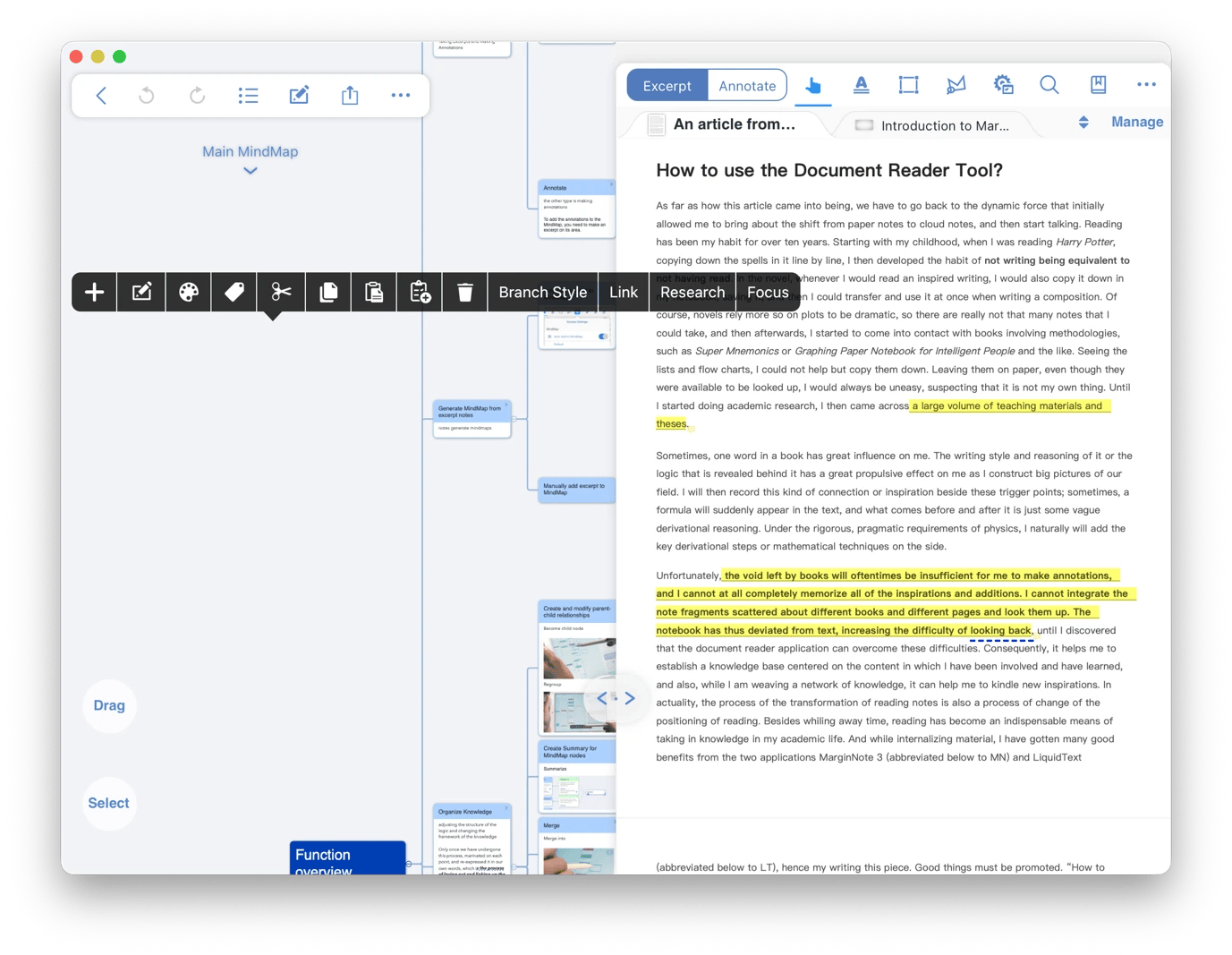
MarginNote is quite useful when you want to read and internalize the information. When you open a research paper in the app, you can turn it into a connected knowledge structure as you read. MarginNote lets you add a variety of annotations, and you can also highlight key passages, scribble, and even attach notes and images.
One thing that makes this app useful for knowledge workers is that your annotations aren’t just notes but interactive visual maps of the document. When you finish reading, you will have a structured summary, and you can even link concepts across multiple PDFs. You can also generate revision flashcards from your notes and tweak them as you like.
Ask questions across lengthy PDFs with PDF Pals
A 200-page document will make you work for an answer regardless of how simple the question is, but you can use PDF Pals to save the time and effort. When you open a PDF, the tool parses its contents. From there, you can just chat with your PDF in plain English without having to read every page. You can ask a question like "what are the main conclusions?" or "what does it say about X?"
One of the best features of the app is that it relies almost entirely on the PDF instead of the AI engine’s general knowledge to avoid hallucinations. In fact, it even cites the exact pages where it has extracted the answers, and you can click on them to go directly to the source for comparison.
Everything is processed on the device, which makes it useful when working with sensitive files.
Search thousands of PDF pages instantly with PDF Search
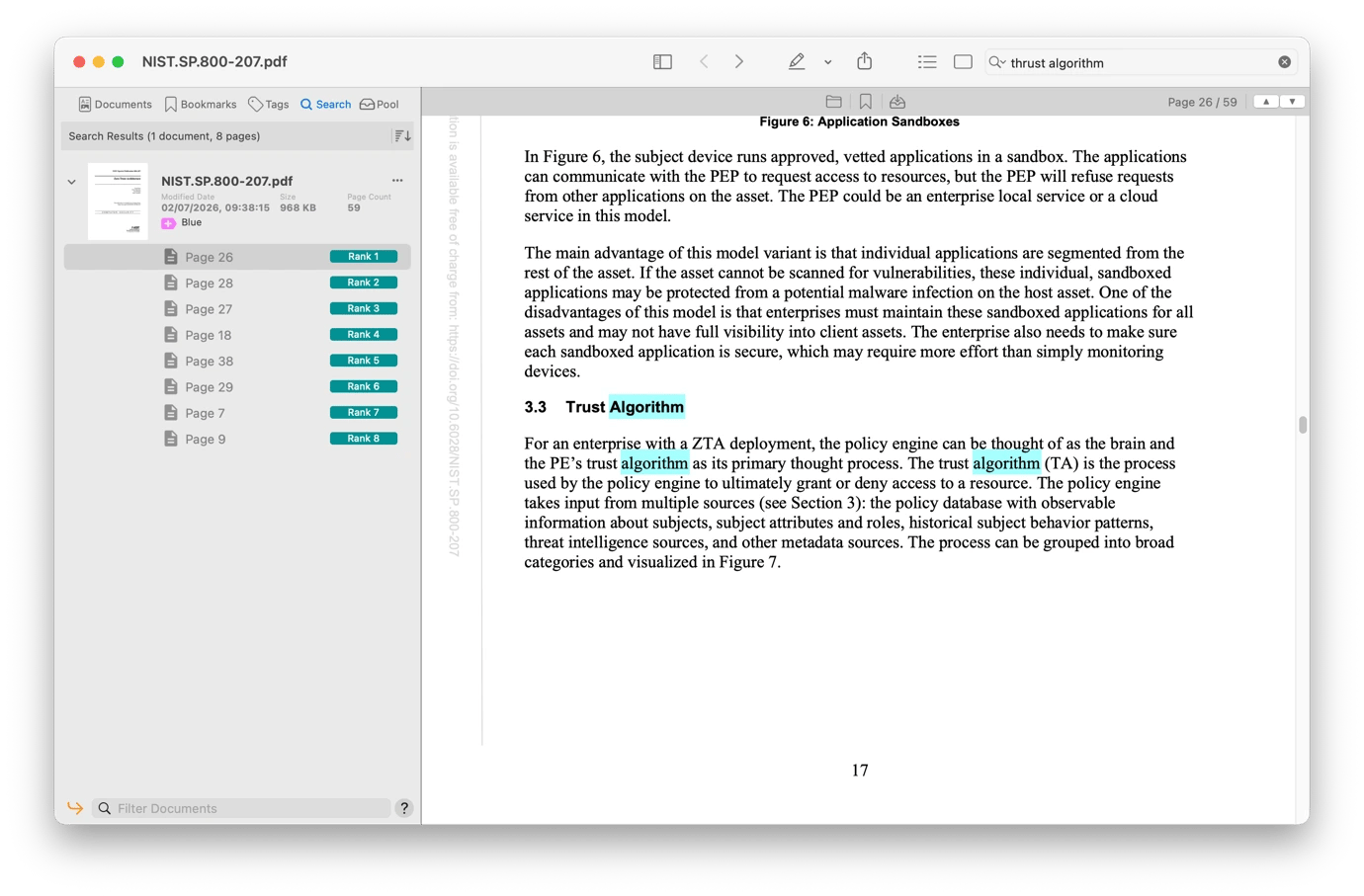
When you want to actually read the PDF, you can use PDF Search. While every other reader will let you search for specific words, this tool is AI-powered and does much more than that. When you search for a term, it gives you ranked results based on context. Headings are ranked higher than body text, and every result highlights the page where you’ll find it.
Besides that, PDF Search understands more than just words. If you misspell a word, it will know what you meant. Its fuzzy matching also corrects for typos and variant spellings within a document, which matters more than it sounds when working with government documents and long legal filings.
Think through complex problems visually
Before you can write any report or present your findings, you need to untangle your thoughts to create connections and a structure. The apps below are built for this stage and help convert thinking into visuals you can work with.
Build multimedia research boards with Allume
Allume (formerly Muse) is the perfect place to think, draft rough details, and bring together your research before anything becomes structured. It lets you arrange and rearrange all your ideas until they start making sense. You can write notes, create rough timelines, draw diagrams with your iPad, and even add PDFs and web links.
Everything lives side by side, and you can quickly move to a different part of your project as ideas come in. You can then arrange them to spot and create connections that a linear document would have missed.
Using the app is actually more like pinning sticky notes on a whiteboard until you uncover connections, except you don’t run out of space or throw away an important one.
Map complex ideas visually with MindNode Next
When you are dealing with a complex problem, it’s often easier to start with one central idea and let the details branch out naturally. MindNode Next is the best tool for that as it gives you an infinite canvas. You can then expand your central question with sub-problems, dependencies, open questions, and competing hypotheses. The structure that will emerge will be much stronger than the one you’d put down on a blank document.
As your thinking becomes clearer, you can switch to Outline View to transform your mind map into a logical hierarchy that’s ready to become a report, proposal, or recommendation. You can then export it to Markdown, OPML, or PDF to use as the basis for your document or report.
If you want a more streamlined, offline approach, check out MindNode Classic. It offers a similar workflow with fewer features, but it’s worth considering if you prefer speed over depth of organization.
Turn complex thinking into clear diagrams with Diagrams
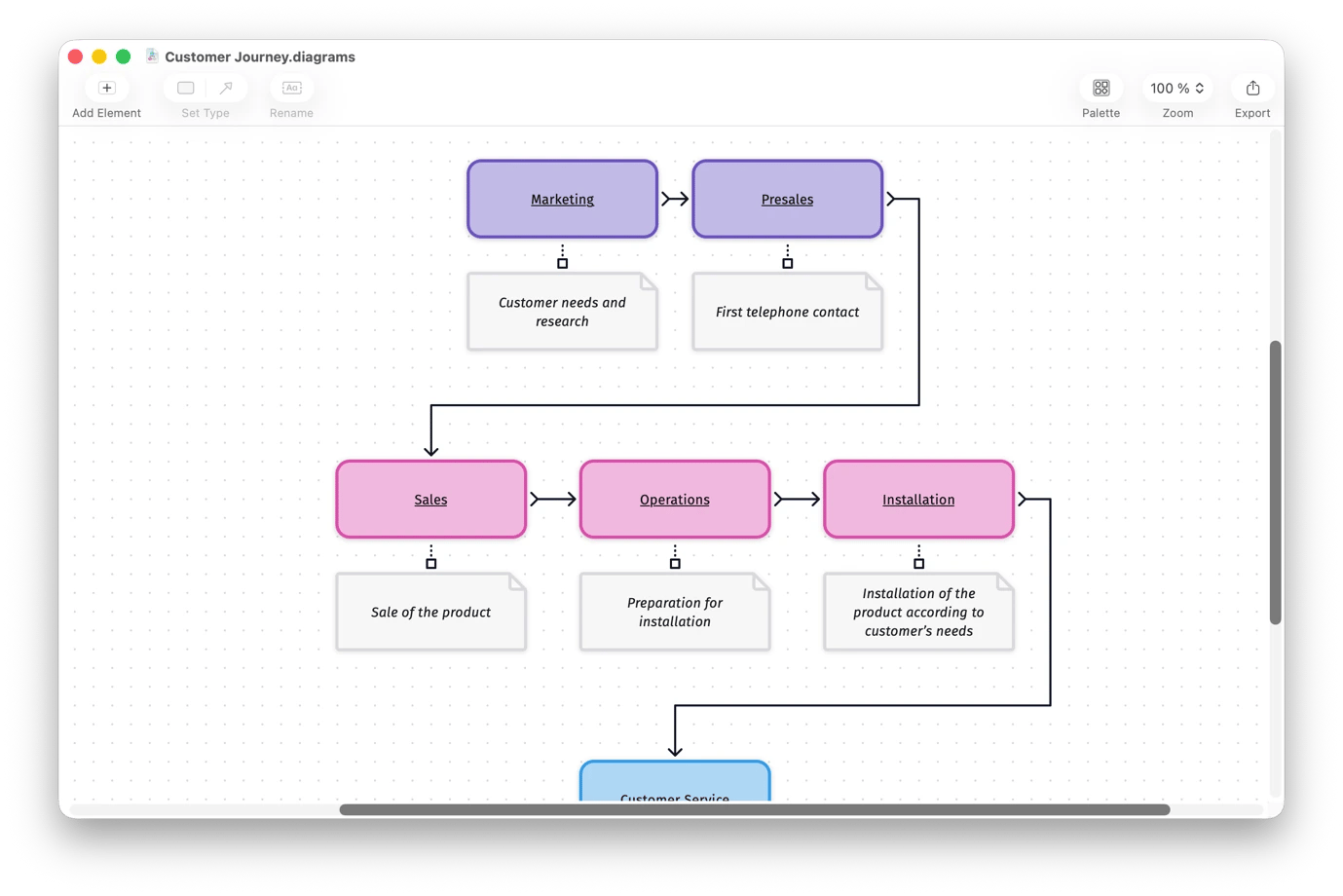
Once you have a clear idea of what you want to do, you can use Diagrams to build a flowchart of a process, a decision tree, a system map, or an entity relationship diagram without a design tool. It makes it easy to present your proposal to your team or managers.
You can map a customer journey, research process, or project lifecycle to make your thinking easier to understand. It saves a lot of words during presentations or a full page of explanation in a proposal.
Turn ideas into structured output
When your thinking is ready to become a document, brief, or report, the apps below can help you produce structured output without losing your train of thought.
Turn ideas into structured outlines with Bike
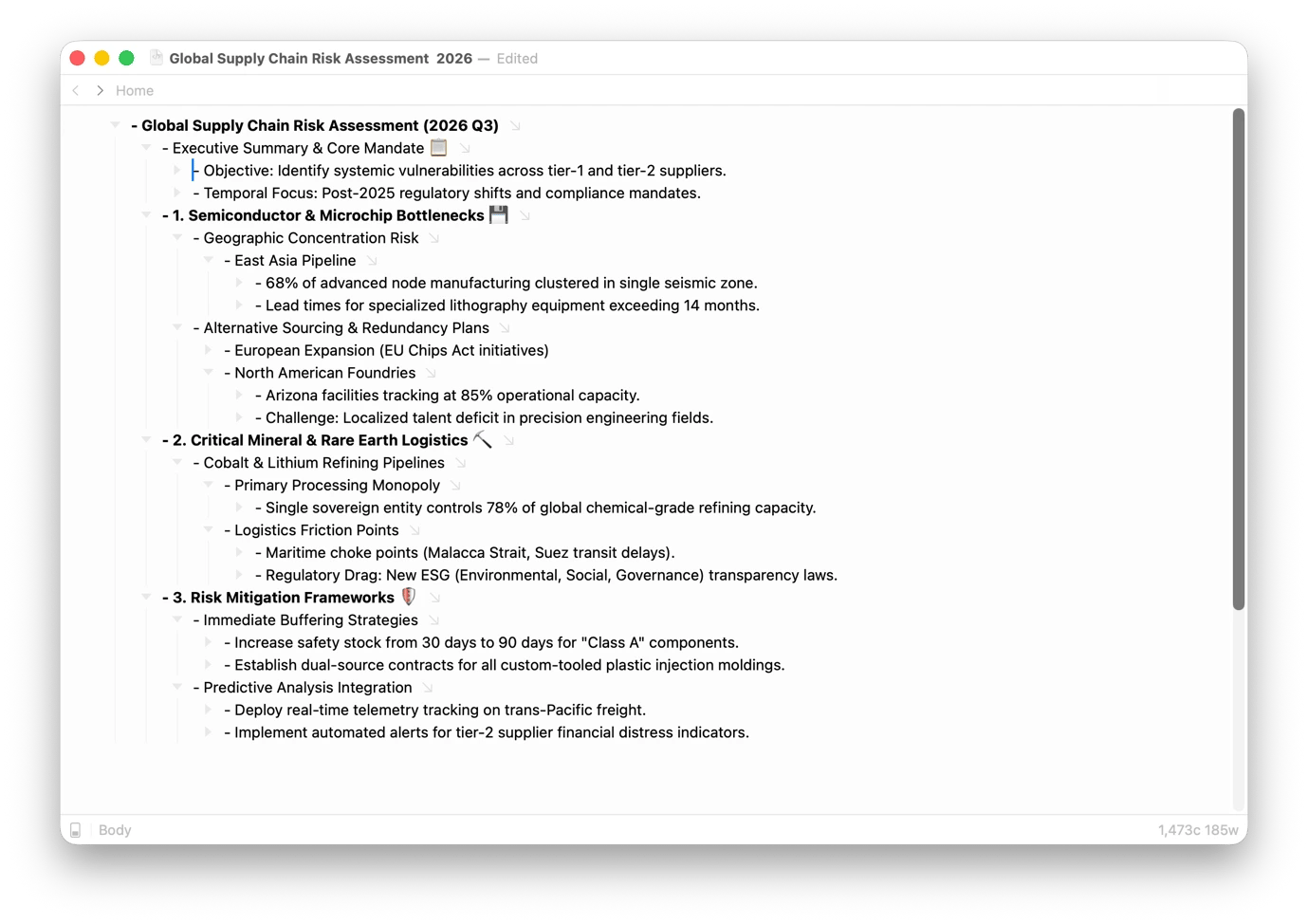
Bike makes it easy to develop an outline by providing structure and a focused environment. You can do everything using your keyboard, which makes it easier to reduce distractions and type faster. You can then add headings, notes, quotes, supporting documents, and action items to build an outline that’s halfway to a document.
One of Bike’s best features is that you can fold and unfold your branches to focus on one section of a complex argument. You can then move sections, nest ideas, and reorganize arguments entirely with your keyboard.
Important: If you plan to reuse your outlines, for example, for recurring briefs, try Cloud Outliner instead. It lets you turn outlines into templates, easily rearrange items, adjust indentation, and export the finished structure as OPML, PDF, or HTML.
Capture and work through ideas before they disappear with Antinote
Antinote is meant for the moments when an idea is too important to trust to memory but too small to justify opening your full notes app. It works best as a scratchpad for when you are still refining the idea and need a few minutes of unstructured thinking. You can summon it to float on any app you are using by pressing ⌥A (Option + A).
From there, paste a paragraph you are wrestling with, rewrite it, and copy the result back. It’s a very simple tool, but it’s still quite impressive, as you can also use it to start a timer or convert distances, weights, and currencies.
Do plain-English calculations alongside your notes with Soulver
Knowledge work often involves numbers that belong more in a notes app than in a spreadsheet, and that’s the gap that Soulver bridges. You can use it for your project outlines to quickly do an inline calculation in plain English as you write.
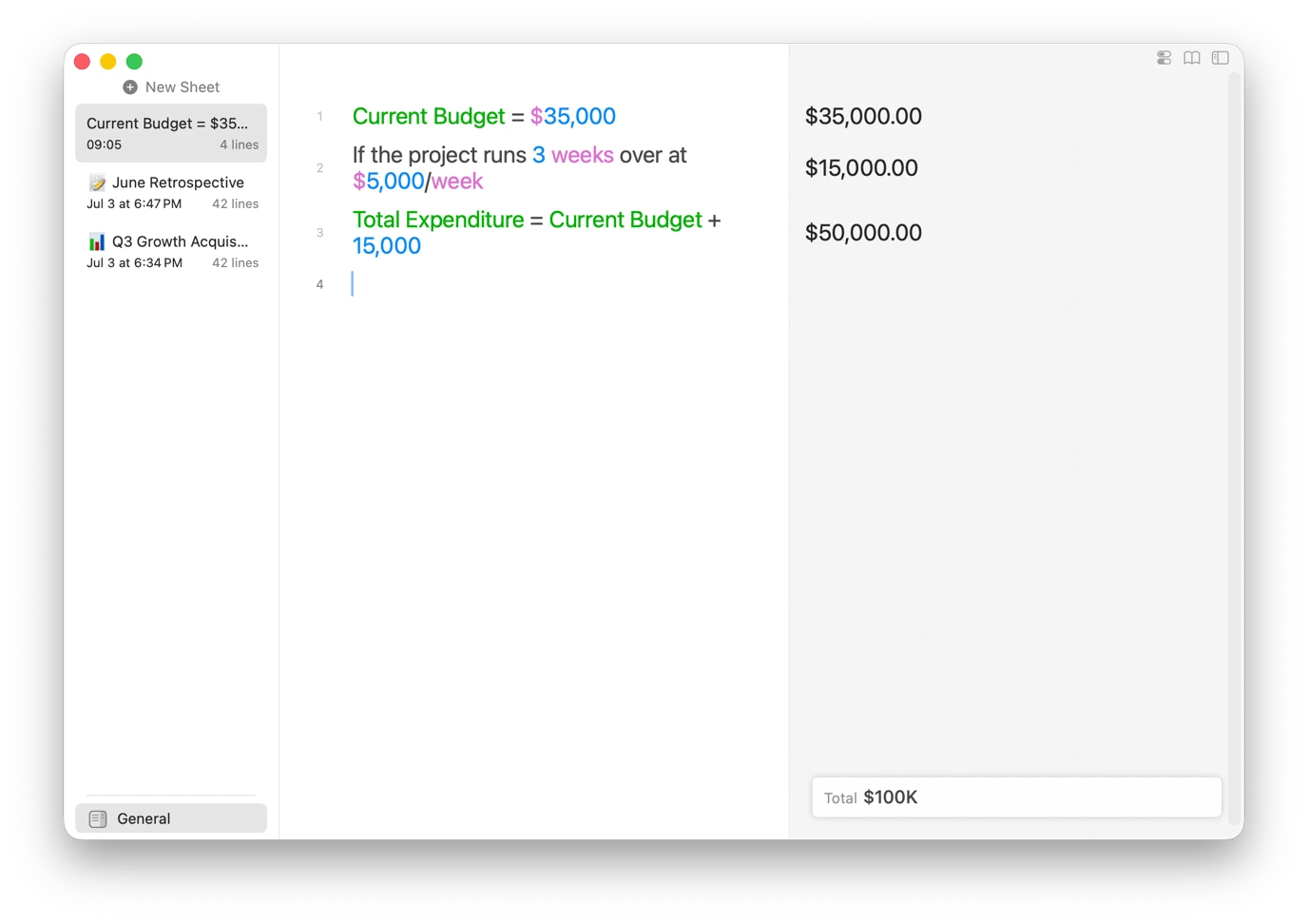
For example, you can write something like “If the project runs 3 weeks over at $5,000/week, that’s” and Soulver will do the math and write $1500 on the calculation column.
If you assign text to a figure (e.g., Current Budget = $35,000), Soulver will remember it throughout the sheet, and you can do your calculations using the text (Current Budget) instead of the figure. The logic stays easy to grasp, but you still get the numbers you need. It’s great for sharing calculation logic with a colleague.
Use AI to process and extend your thinking
Knowledge work mostly requires heavy context and downloading ideas from your head instead of working with an AI draft, which makes browser-based tools a bit less useful. Setapp’s AI tools let you reference your own documents, and they even come to the document or app you’re working on to improve what you already have.
Run extended AI research sessions with full context via TypingMind
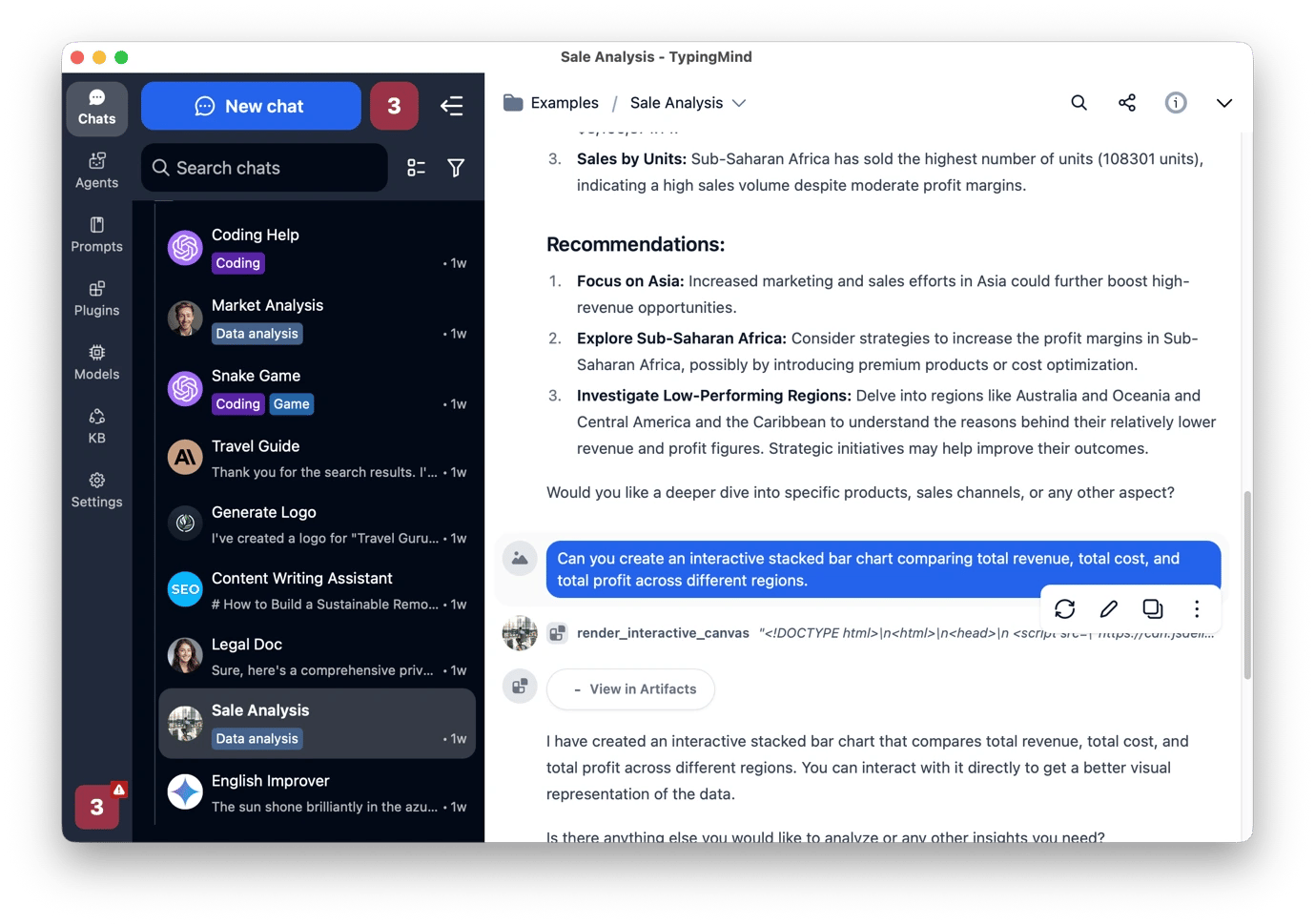
Most AI interfaces keep forgetting what you talked about just a few chats ago or when you open a new conversation. If your knowledge work requires extended sessions across a large body of information, that’s what TypingMind offers. You can use it to run long reasoning sessions, and the AI tool will remember the full thread instead of the last message.
TypingMind lets you choose from 900+ AI models. You can switch between models mid-conversation to see if they approach the same problem differently.
Another feature I really like is that it comes with lots of AI agents, and you can even create a custom one with specific instructions and its own knowledge base from your files.
Apply AI actions to selected text anywhere on your Mac with Plus
Plus is designed for mid-work moments when a specific piece of text needs AI action, but you don’t want to switch apps or break your flow. Maybe it’s a confusing passage in a research paper that needs better explaining, or your own text that needs tightening or proofreading.
You can summon Plus by pressing Option + Space, and it will float over your current app. It provides several actions you can choose from and then inserts your selected text. You can also add custom actions to adapt it to your workflow.
PinchBar is an alternative when you want an even lighter way to improve the text you are working on. Whenever you select any text in any app, its icon pops up on the side and gives you multiple options when you click on it. I use it mostly for fixing sentences as its changes are minimal and it floats around even when typing on another app.
Streamline tasks
Sometimes working smarter means working less and optimizing the processes that slow you down. These apps can help you do exactly that.
Keep the app's shortcuts visible with KeyCue
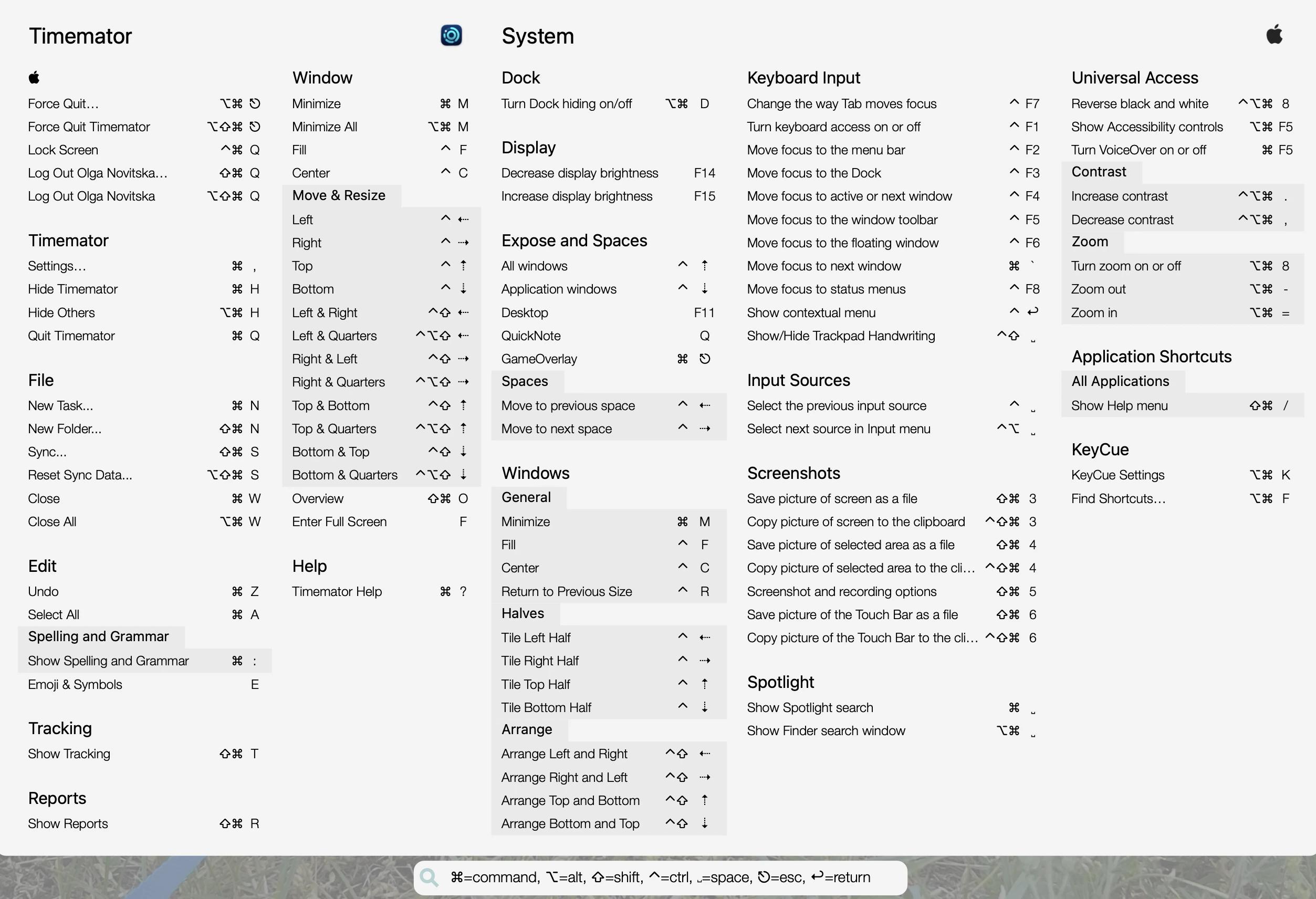
KeyCue shows you a table of keyboard shortcuts for the app you’re currently using, along with system-wide shortcuts. Just hold down the Command key, and the table appears right away. If you can’t remember the exact shortcut, start typing what you remember, and KeyCue will highlight all matching commands.
Here's what it shows for my time-tracker, Timemator:
Link your files, webpages, and PDFs with Hookmark
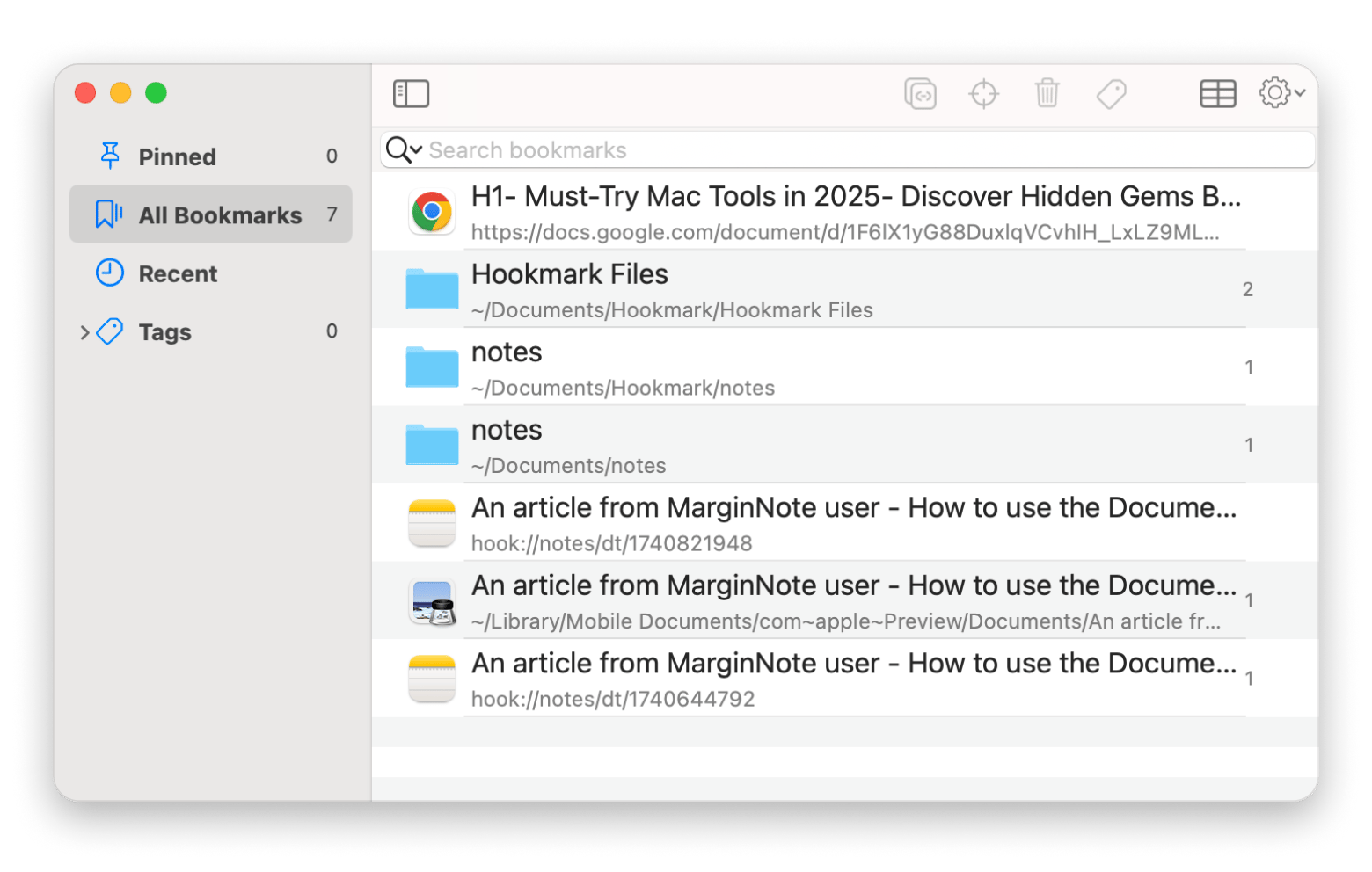
Working on big projects often means juggling tons of PDFs, specific PDF pages, emails, notes, webpages, and other resources. Hookmark helps connect them all right where you work. Simply press Control + H on the current file, webpage, or PDF to create a context-aware link. Save that link in your notes or in the app, and the next time you need the resource, you can jump straight to the right place instead of digging through files and documents on your Mac.
Support every stage of your knowledge workflow
Knowledge work is measured by how effectively you can turn information into decisions, recommendations, and ideas that move projects forward. Having the right tools is a key part of this as they help capture what matters, connect it to what you already know, and find it again when the next project needs it.
Setapp brings these tools under a single subscription to make it easier for knowledge workers to build workflows that enhance efficiency at every stage of their work. You can try them out, along with hundreds more, via Setapp’s 7-day free trial.






 Best solution
 Best solution