To plan lessons and manage the academic year:
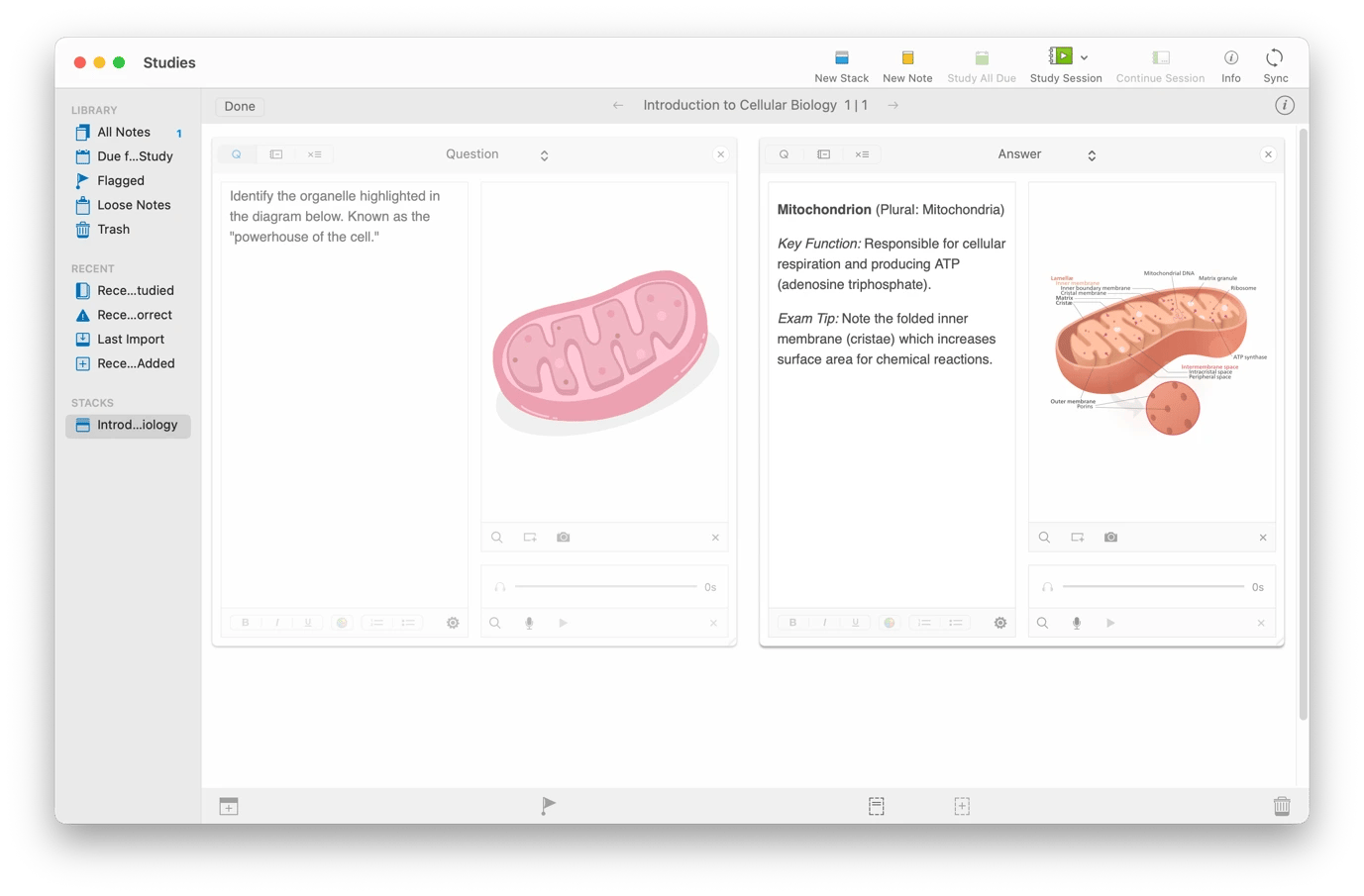
• Studies — build interactive flashcard decks with images, audio, and video.
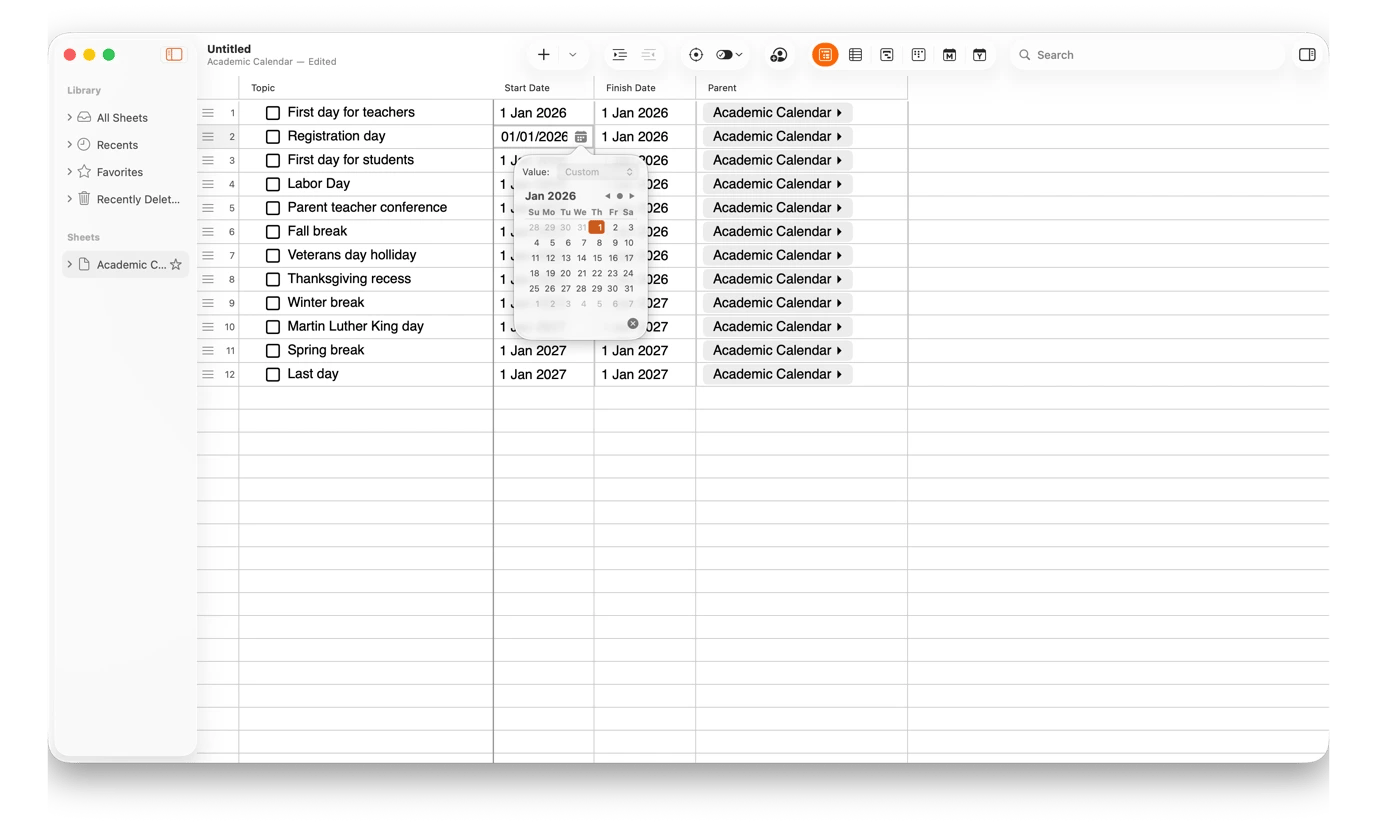
• SheetPlanner — plan the full term as a visual timeline with grades and deadlines.
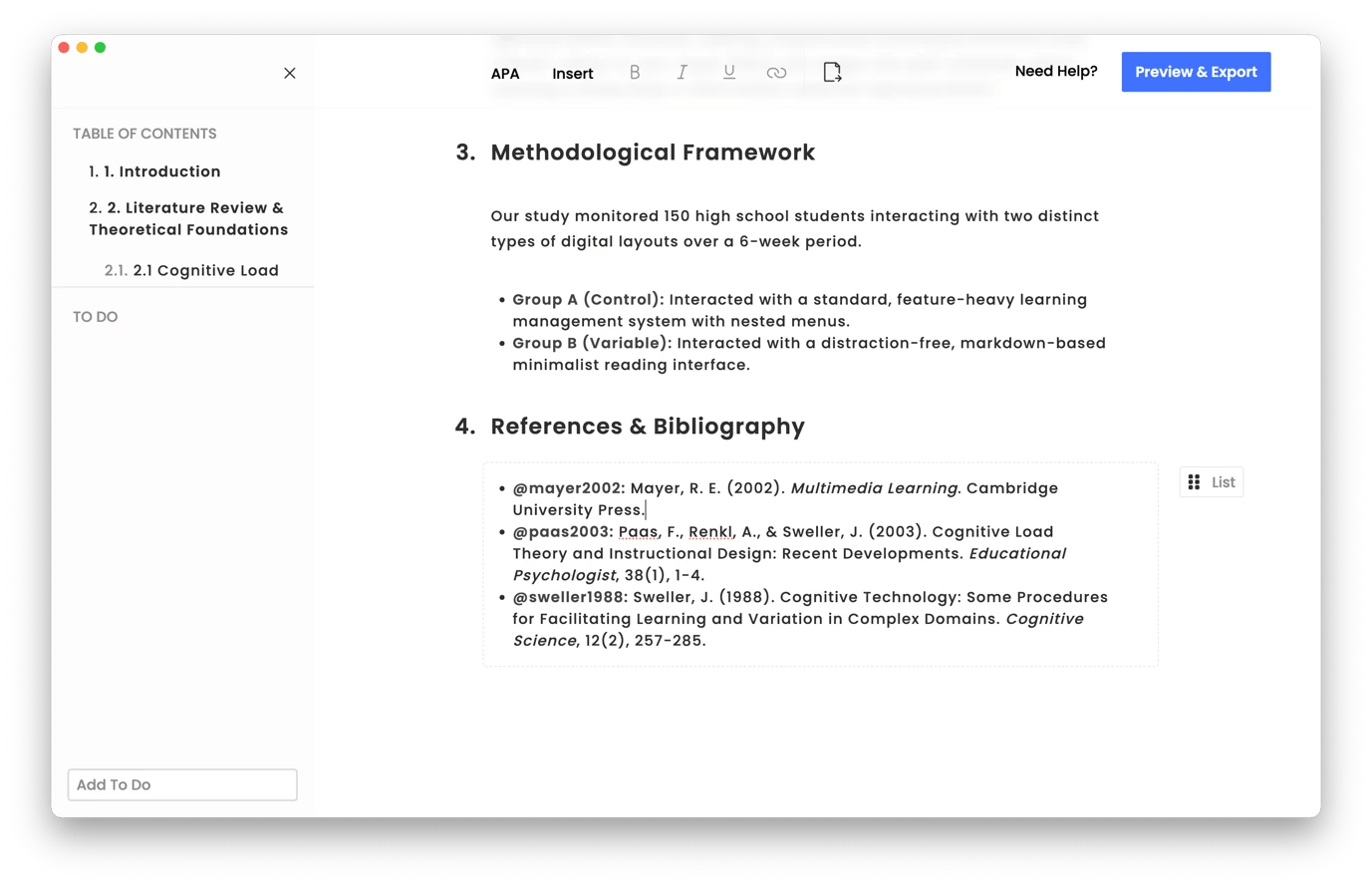
• MonsterWriter — write academic documents with built-in citations.
To record lessons and create explainer videos:
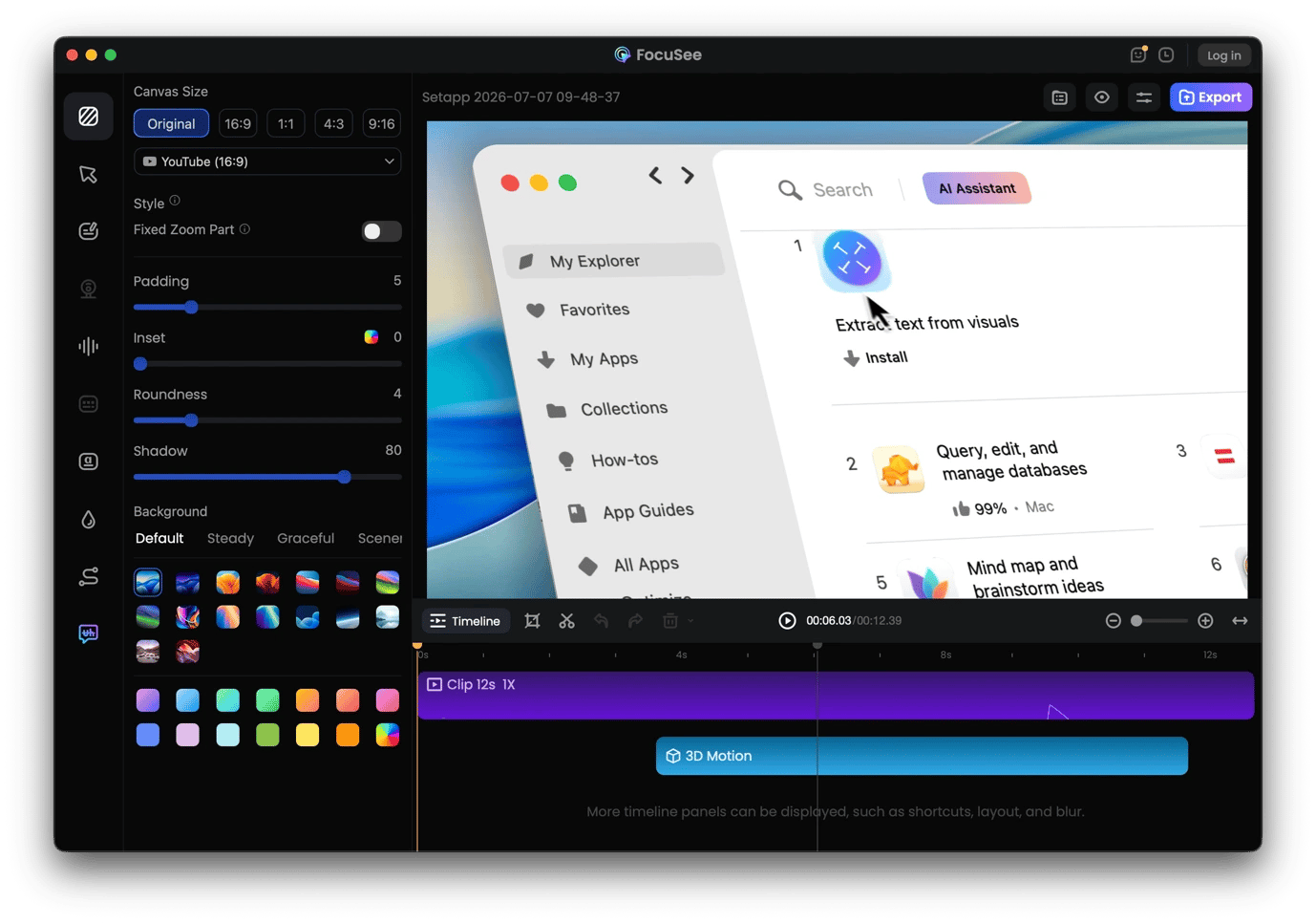
• FocuSee — record screen walkthroughs with auto-zoom, captions, and silence removal.
• VidCap — generate and embed captions for your lessons in 60+ languages automatically.
To deliver more engaging lessons:
• Presentify — annotate your screen, highlight the cursor, and draw on a whiteboard while teaching.
• Notchie — puts your teleprompter script in the notch so you can maintain eye contact with the camera.
To stay organized throughout the school year:
• BusyCal — combines timetables, parent meetings, and task deadlines in one calendar view.
To use AI for repetitive tasks:
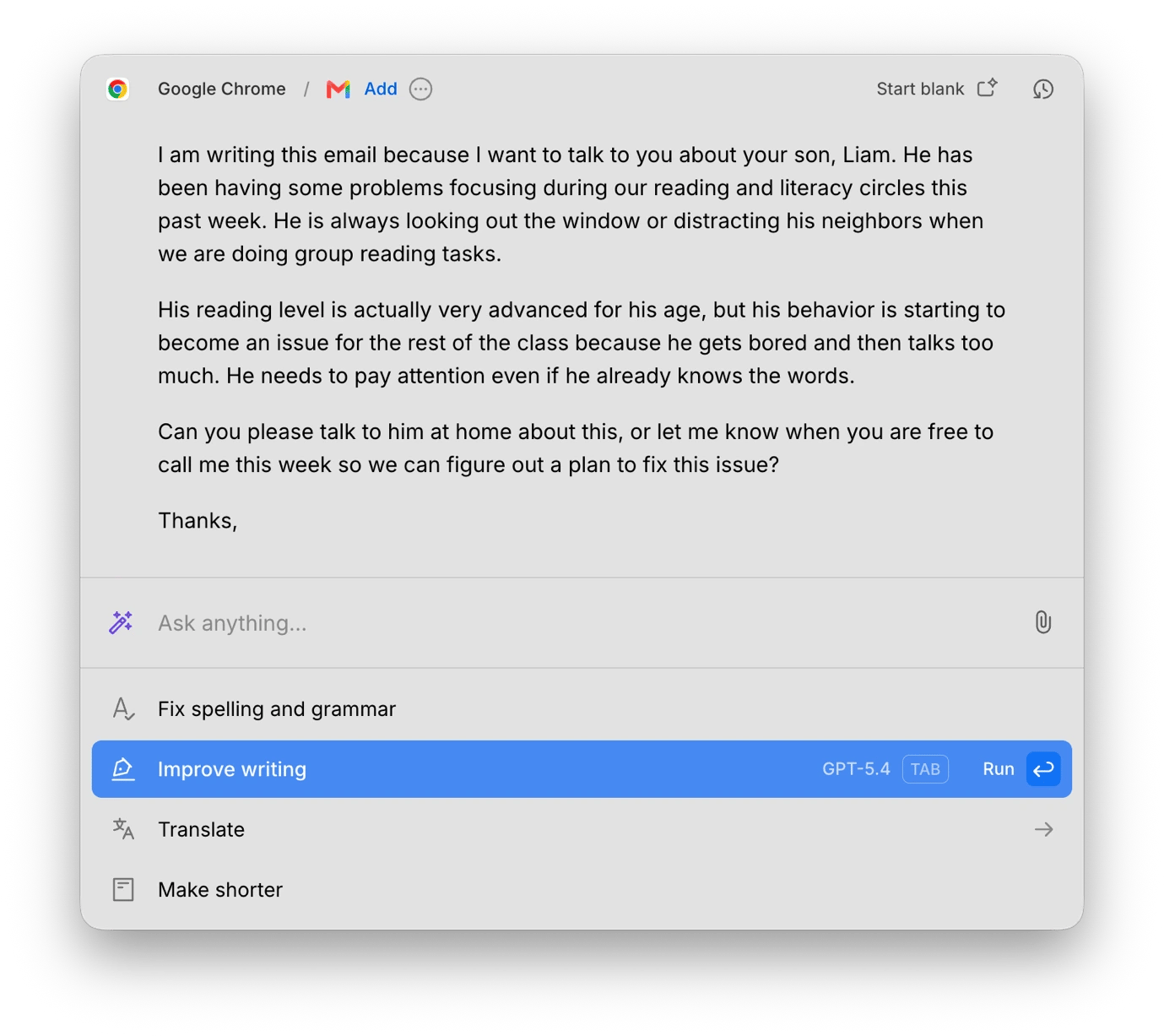
• Kerlig — improve reports and emails with AI inside any app, with an offline option for sensitive content.
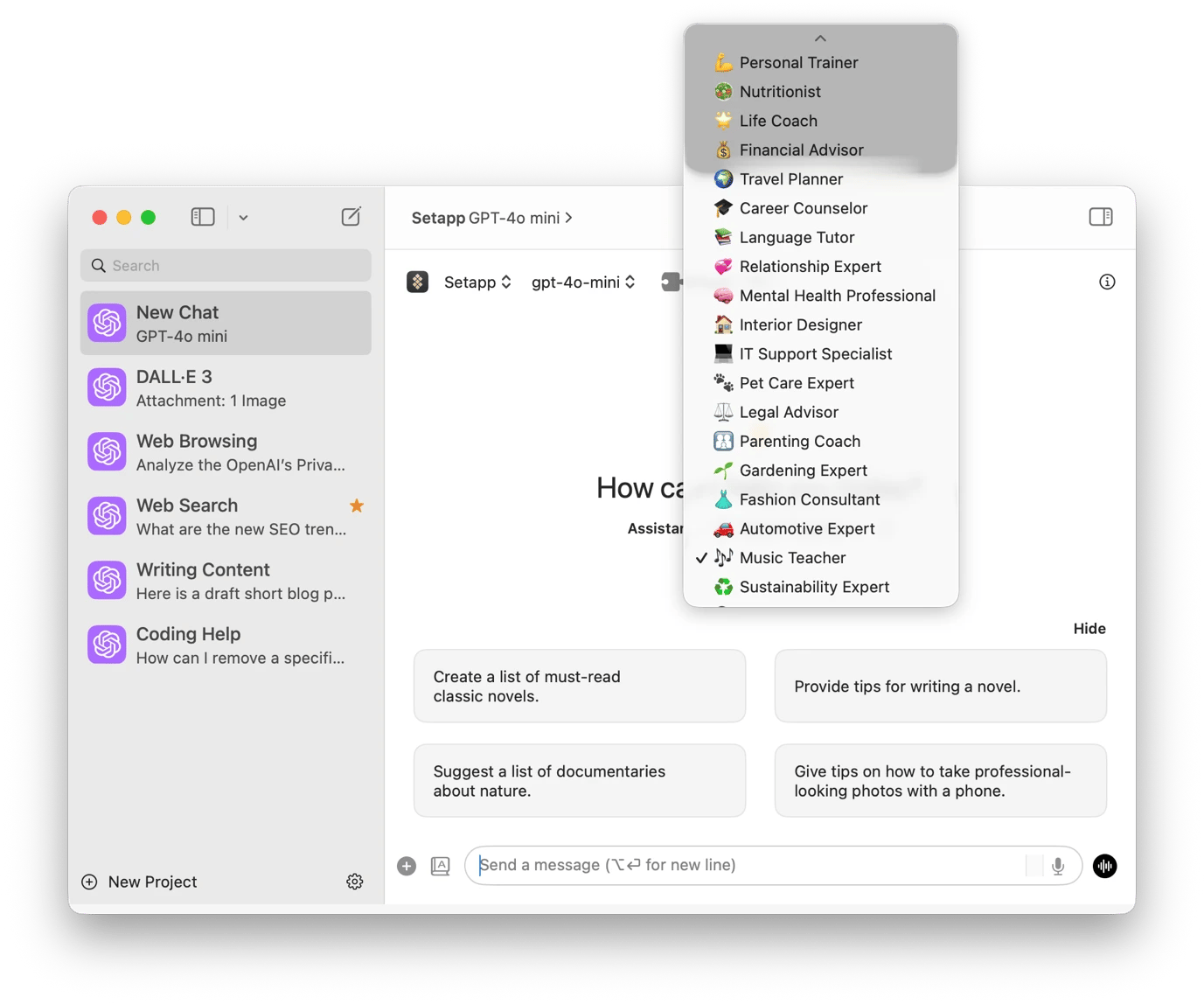
• BoltAI — generate lesson plans, parent letters, and quizzes using 30+ presets. Try all apps FREE for 7 days on Setapp — cancel before Day 7, $0 charged. The Education discount applies!
Teaching is one of those jobs that doesn’t end when the lesson ends. You need to plan tomorrow’s lesson, prepare student resources, respond to parent emails, and handle lots of other administrative tasks.
In this guide, I’ll take you through some Setapp apps that do the heavy lifting so teachers can spend more time on actual teaching. We’ll fit them into their specific workflows to make it easier to build the perfect teaching toolkit.
Creates timestamped transcripts from lessons and meetings.
Plan lessons and manage the academic year
Any great lesson starts with preparing teaching materials and mapping out lesson plans. The apps below can help get everything organized long before your students walk through the door.
Build interactive revision flashcards with Studies
Studies lets you create a flashcard deck for any topic. You can create a deck with your key concepts, dates, formulas, or scientific terms.
To get more out of the app, use it for the revision materials you want to share with your class. It’s quite effective at this as you can even add different media types. In areas where visual context matters, you can embed an image or even a video. If you want to insist on the correct pronunciation of a phrase, you can add an audio piece.
You’ll avoid creating revision materials from scratch for every class, and your students will get an interactive flashcard deck they can always revisit whenever they are preparing for a quiz or exam.
Plan the school term and track student progress with SheetPlanner
SheetPlanner lets you plan your full term or academic year as a visual timeline. Instead of always struggling to balance what you need to cover with school dates and events, you get a platform where your entire term calendar, activities, and events live side by side.
This makes it significantly easier to plan everything you need to do. You can map out all curriculum units, assessment dates, school events, and deadlines. You can also create rows for students, assignments, or lesson topics and add columns for grades, completion status, or learning objectives. To track progress, simply switch from the Table view to the Timeline or Board view.
Write academic documents without formatting headaches with MonsterWriter
Besides the quality of writing, we all know that academic writing comes with a huge formatting tax that’s just as important as the content itself. MonsterWriter is designed to make it easy to write your research papers, literature reviews, and other academic documents by handling all formatting within the app.
You can manage your citations and bibliographies inside the editor without installing a separate tool. You can also add your headlines, tables, footnotes, images, code sections, hyperlinks, and cross-references within your text.
When everything is ready, you can export to LaTeX, HTML, or PDF.
Record lessons and create explainer videos
Recording lessons no longer needs a camera and a tripod, a production assistant, an editor, and a subconscious prayer that you are audible. The apps below streamline the different stages of creating your digital lessons, revision videos, and narrated explanations.
Record polished screen walkthroughs and lectures with FocuSee
FocuSee is one of the best tools for creating your video lessons, as it has tools that help ensure that you don’t even need post-production editing. You can use it to make following a lesson easier for your students with its automatic 2D and 3D zoom-ins and click points.
One thing you’ll love about it is that it lets you customize all these to determine how your screen movement and mouse clicks appear. There’s also a teleprompter that can help you deliver scripted explanations smoothly.
You can capture your entire screen, a specific window, or an area, then use FocuSee’s automated editing features to polish the video. One of my favorites is Auto Cut, which removes silences and filler words. You can also automatically generate and add captions using a local AI engine.
Generate captions and subtitles for every lesson with VidCap
VidCap comes in after you’ve recorded your video to add captions your students can read as you speak. This makes it easy to follow along and comes in handy when students are studying in the library.
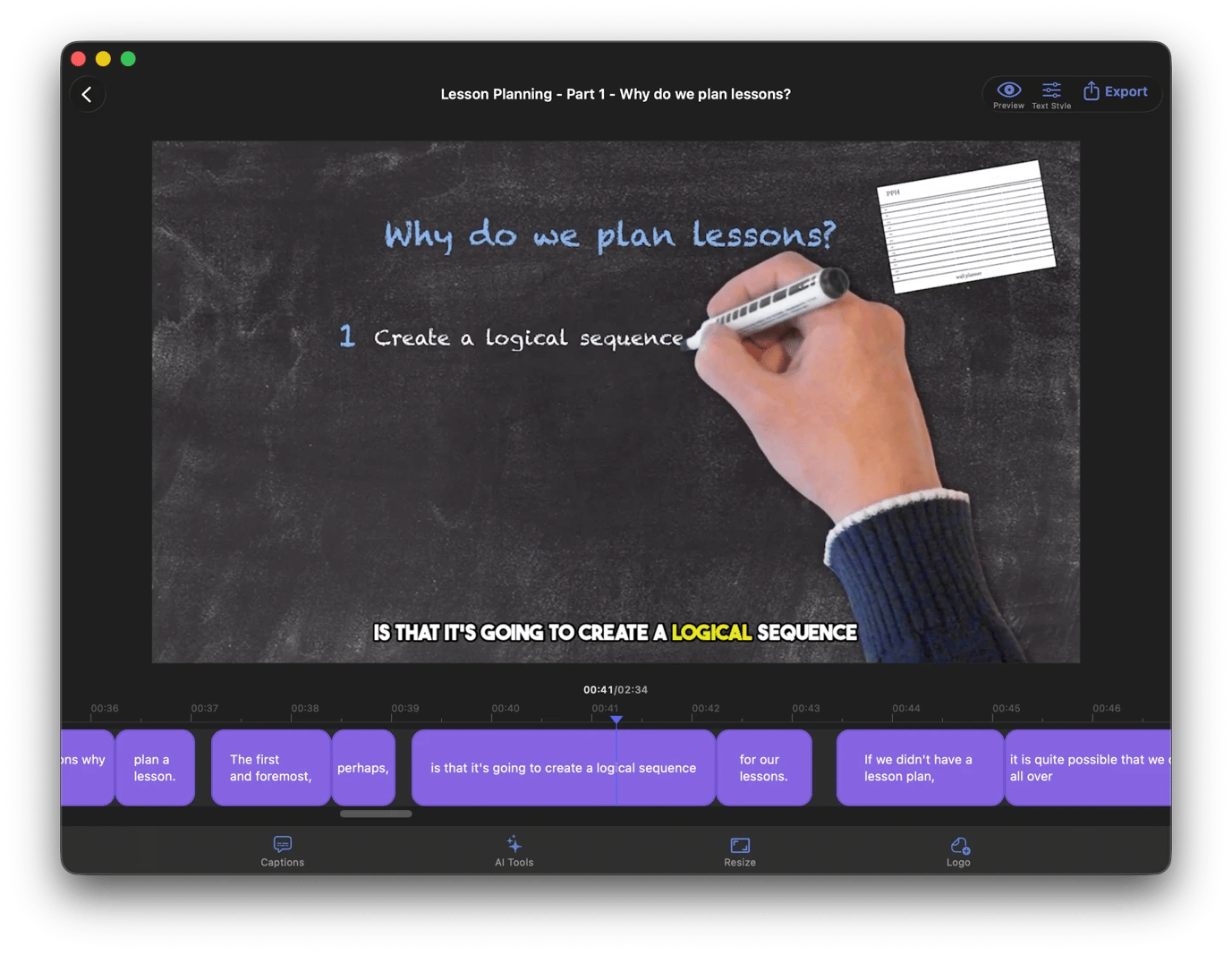
When you paste your video on VidCap, it will automatically generate captions and then embed them in the video while highlighting words as you speak them.
One of the best things about the app is that it supports over 60 languages, making it quite useful for international, multilingual, or foreign-language classes. It also includes several AI-enhancement features, such as a green screen behind the presenter, a blurred background, eye contact correction, and audio enhancement to remove background noise and echo.
Create narrated learning materials with Vexel
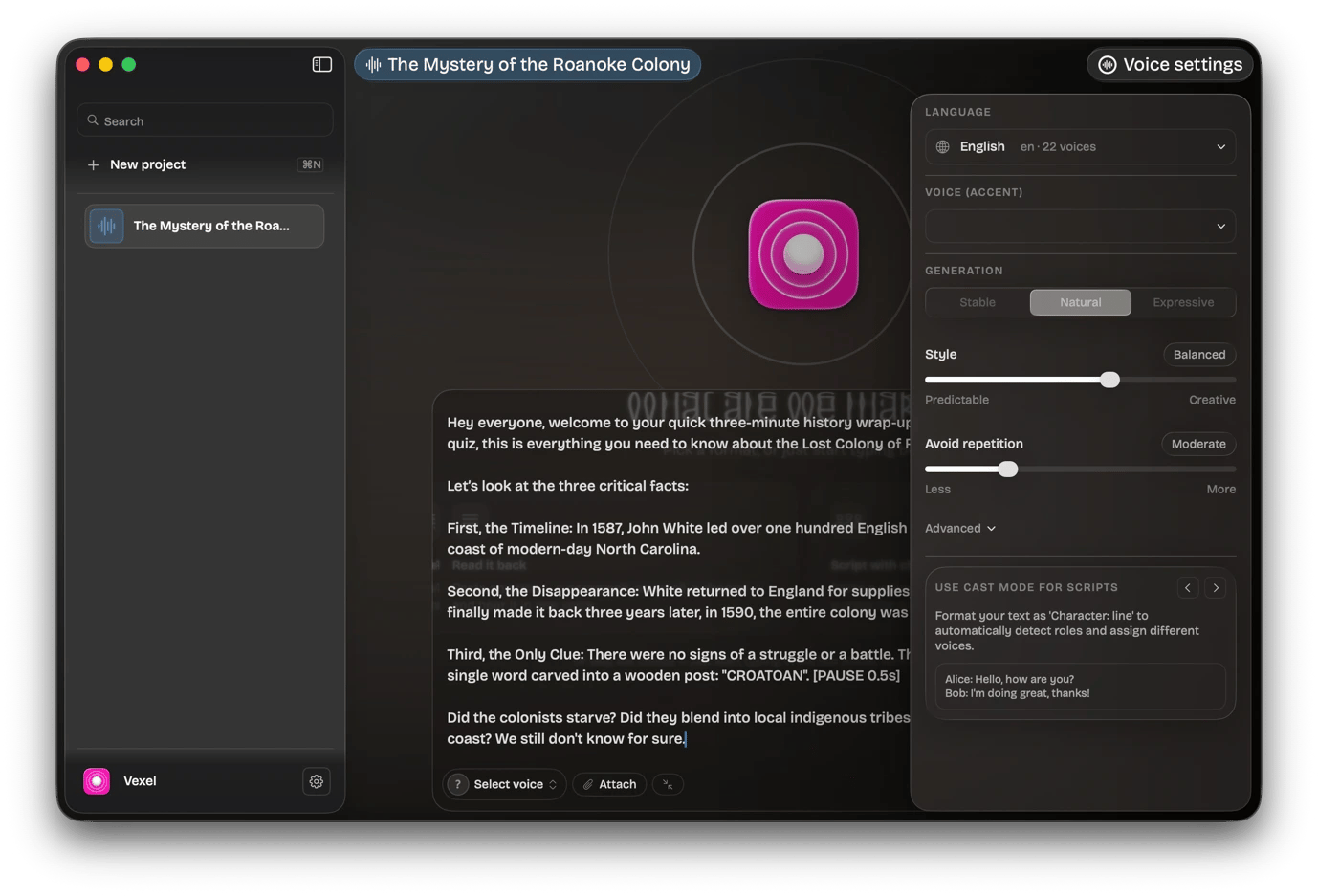
Some lessons or briefs don’t really need a microphone and a recording session, and that’s what makes Vexel a crucial teaching tool. When you’ve written your lesson summary or study guide, you can paste it into Vexel, and the tool will produce a voiceover you can share as an audio lesson. This saves a lot of recording time and effort. It’s also quite helpful for students with dyslexia or visual impairments, as they can access an audio version of your lessons.
Before or after pasting your text, you can choose from Vexel’s 30+ languages. English alone has 22 voices you can choose from, and Spanish and Chinese each have 18.
Turn recorded lessons into searchable notes with WhisperTranscribe
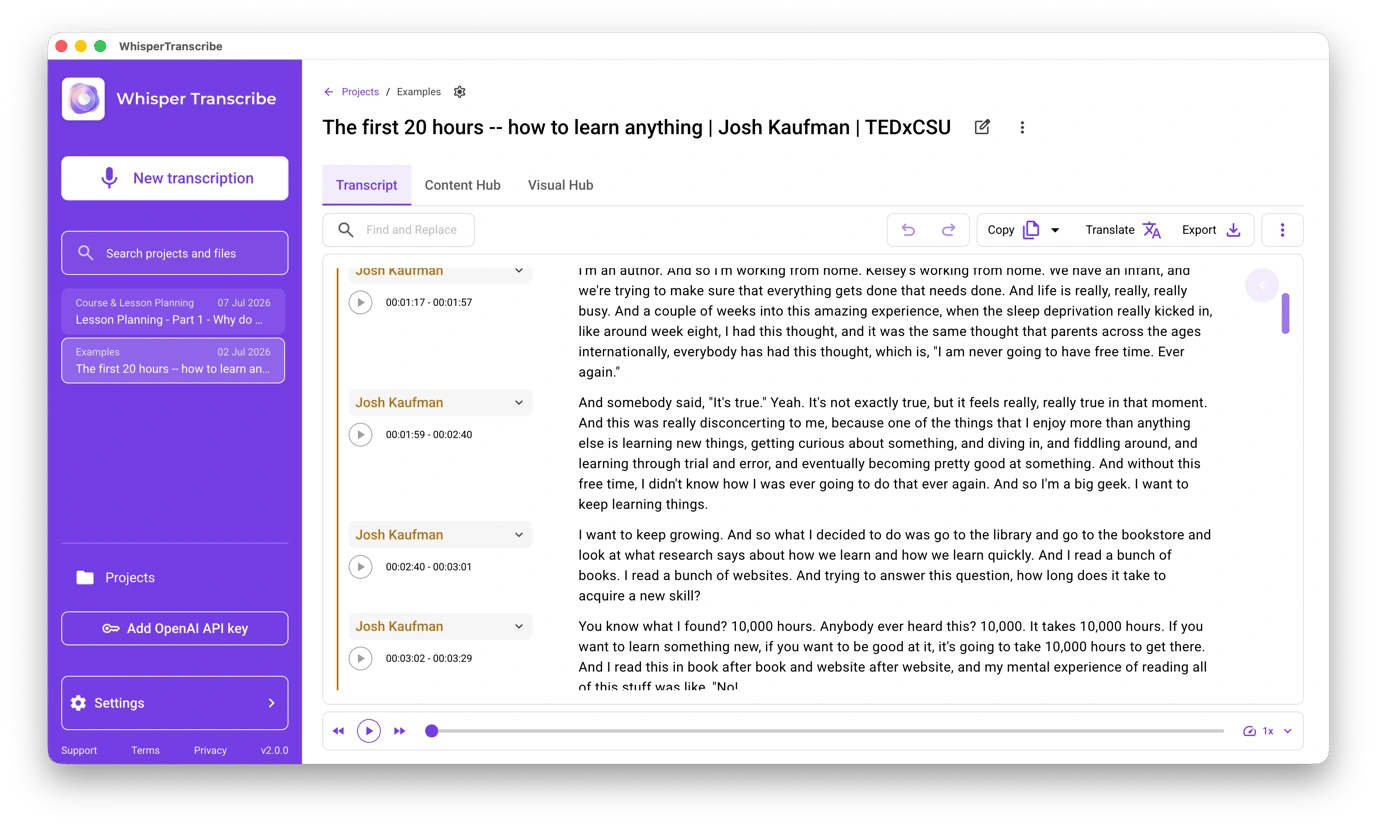
When you’ve recorded your lesson, you can use WhisperTranscribe to make it even more useful by adding a searchable, timestamped transcript. It’s a very convenient way to share your lessons as students don’t have to listen to or watch the whole lesson to refresh on a concept. When you include a transcript, they can use the text as their notes or quickly jump to a section they are looking for.
WhisperTranscribe is also quite useful in other admin tasks. You can drag in recorded staff meetings and convert them into searchable text for future reference. The tool also provides a summary of key talking points and tools to extract quotes and discussion questions.
Deliver more engaging lessons
When you are teaching in front of your class or in a remote environment, you need a way to share your screen, emphasize complex concepts, ensure your students follow along, and avoid notifications about your grocery shopping. These apps help ensure clean and flexible lesson delivery on Mac.
Annotate your screen while you teach with Presentify
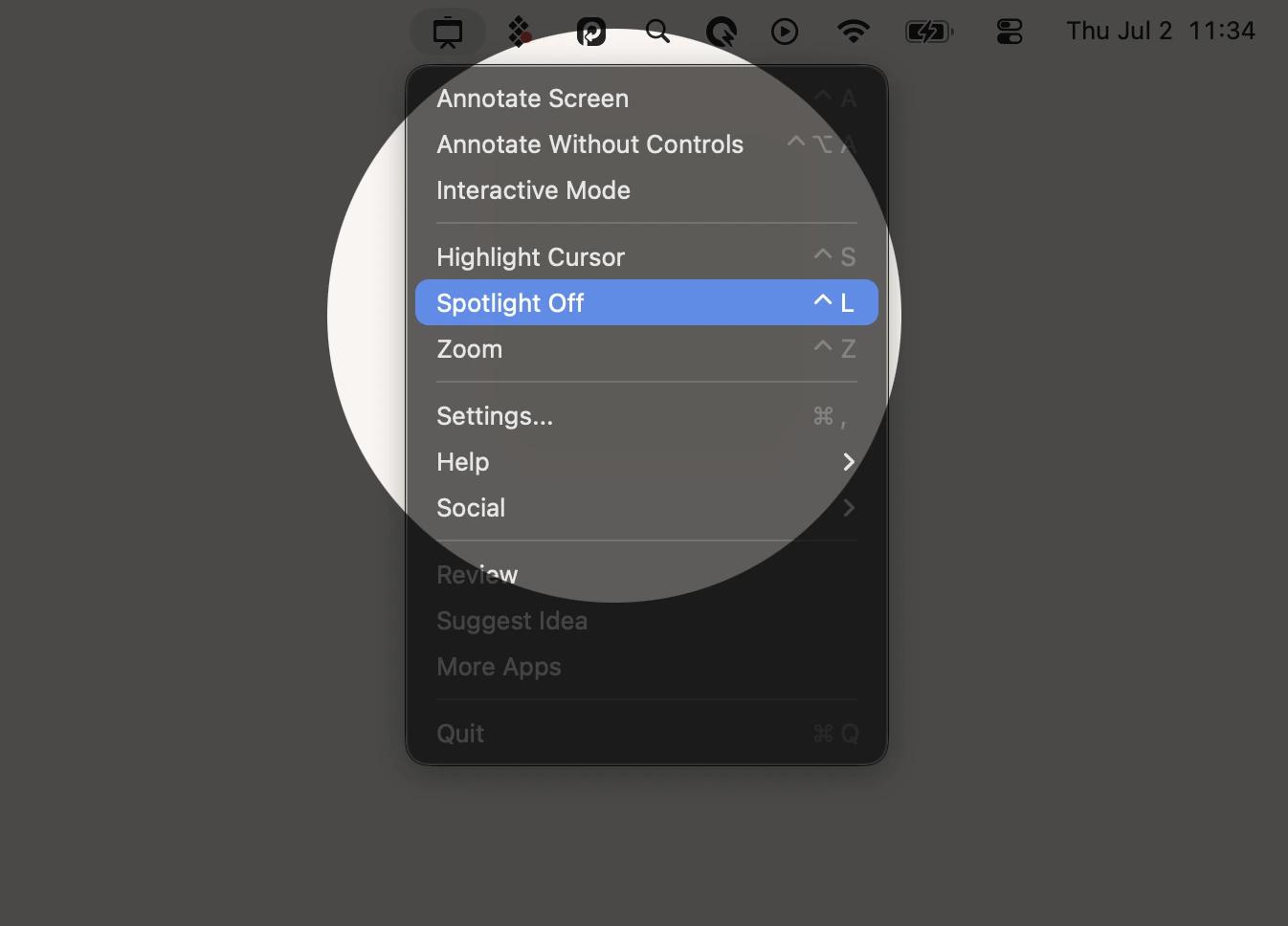
Presentify lets you show your students exactly what you are talking about. If you are trying to explain a concept or data set, you can use Presentify’s annotation mode to draw a diagram or simply circle key points in your presentation screen. And if you want to guide them through a few things, you can highlight your cursor and use the spotlight tool to ensure everybody follows along.
Presentify also has a whiteboard you can invoke by simply pressing W when annotating. It takes you from your notes to a clean board where you can sketch a concept from scratch. This works well alongside your regular screensharing or virtual meeting tool.
Hide notifications and distractions before presenting with PliimPRO
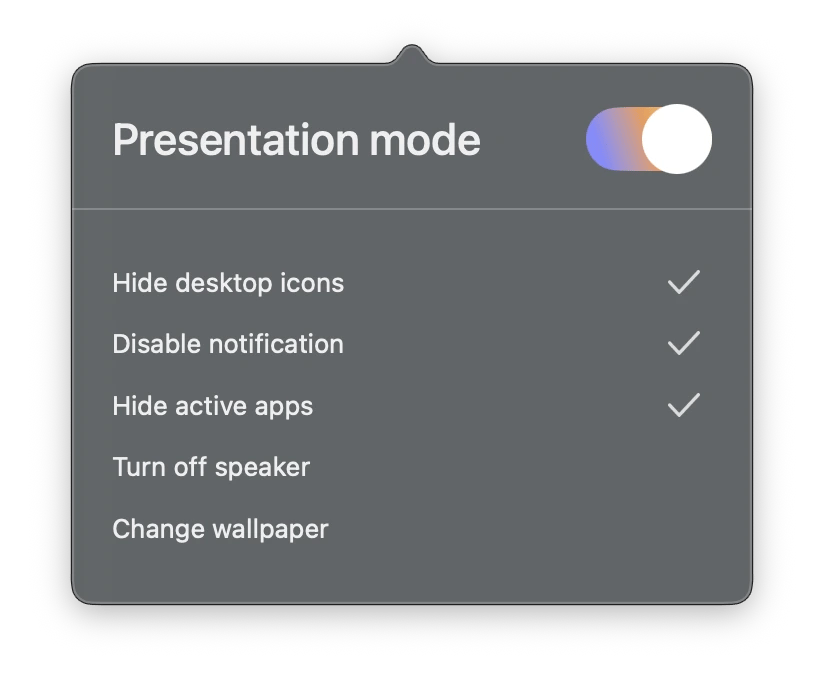
PliimPro lets you hide everything with a single click so that a personal notification doesn’t get projected on the screen in front of 30 students. You can use it to hide desktop icons, disable notifications, hide active apps, turn off the speaker, and change your wallpaper to get ready for a presentation within seconds.
Once you turn it on, it activates Do Not Disturb on your entire Mac to avoid digging into System Settings while students are watching. And once you are done with your lesson, toggling it off takes everything back to normal without manual resets.
Share your lessons with classrooms and remote students using CleanPresenter
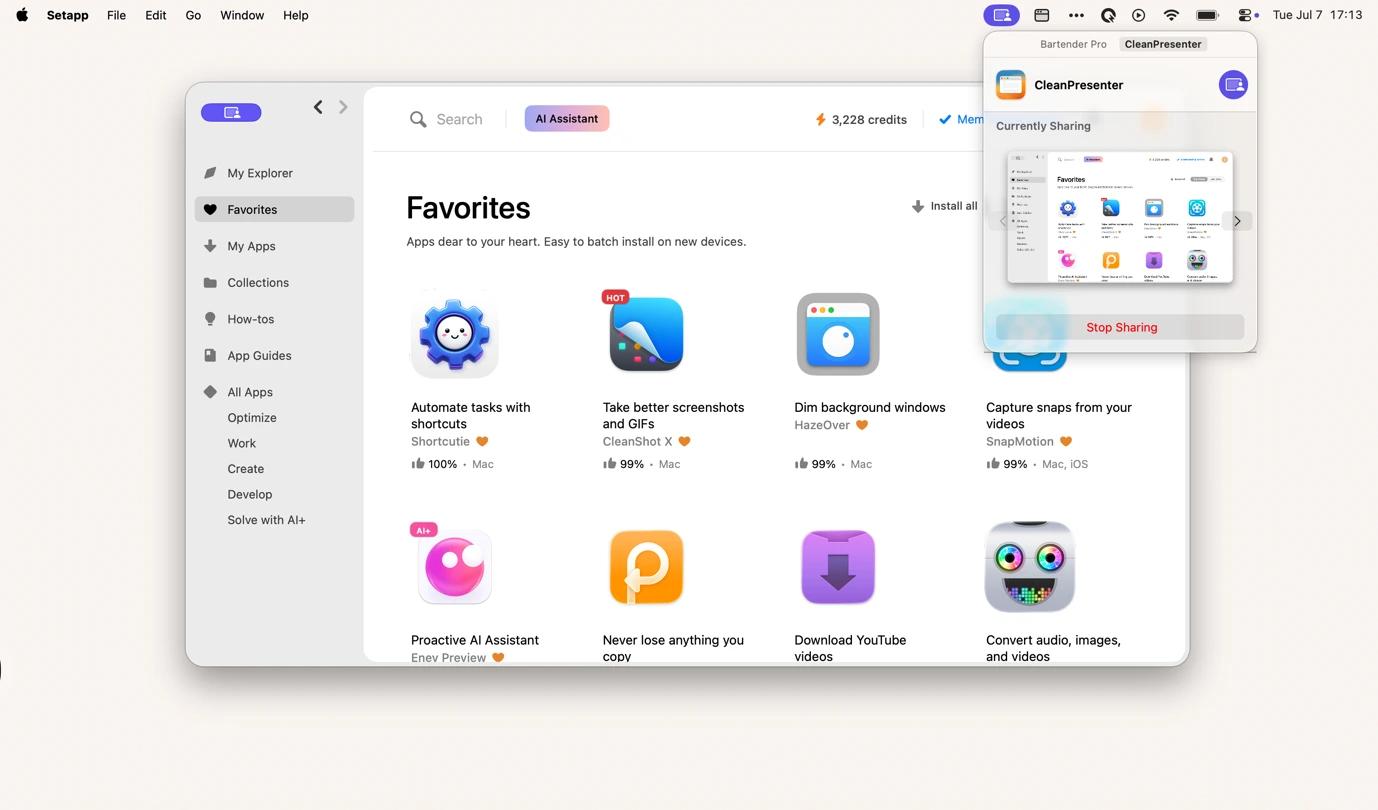
Sometimes, ensuring everything on your Mac is in order before you present or cast your screen is a lot of work. CleanPresenter eliminates the headache by letting you select a single app to present. This makes it easy to keep your apps and controls private while still projecting or sharing your notes with students via Zoom, Meet, or any other video conference tool.
I find that CleanPresenter comes in handy when you have teacher-only notes or references you’d like to view while presenting your lessons. You can also use the tool to project to a display or interactive whiteboard via AirPlay without cables.
Keep eye contact while reading lesson notes with Notchie
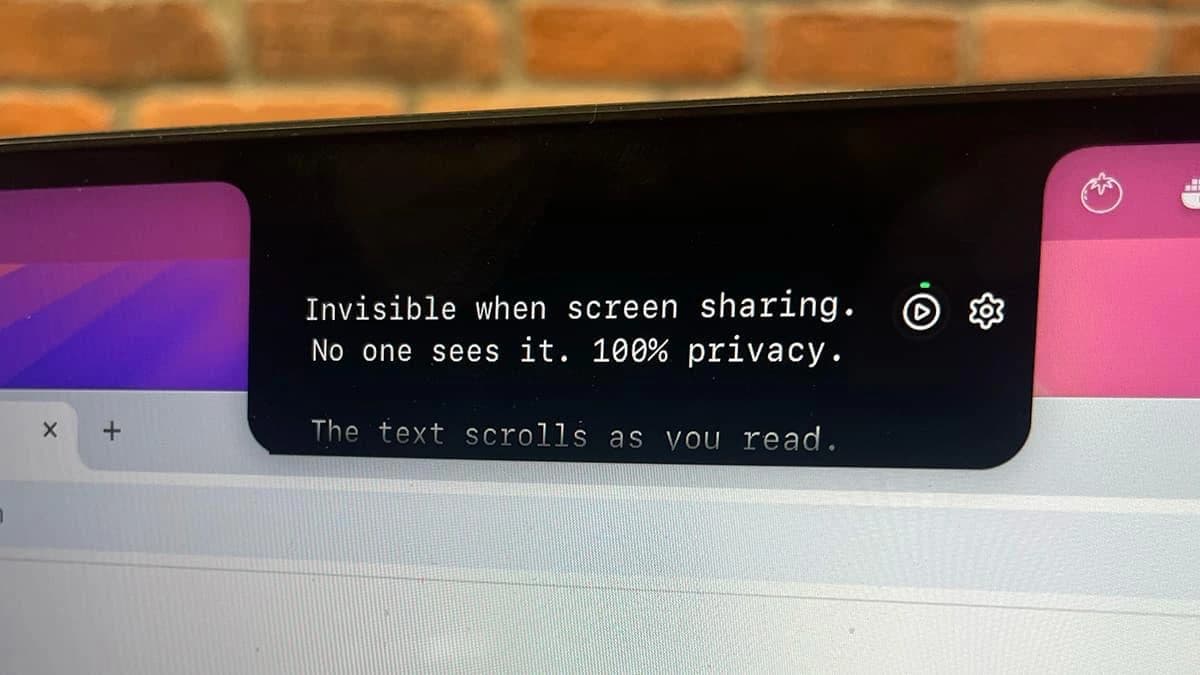
When you read your notes or script from the screen, your students will notice that there’s no direct eye contact, and your eyes keep moving from left to right. Instead, you can use Notchie as your teleprompter as it puts your script on the Mac’s notch, exactly where the camera is.
This means that reading notes and looking at the lens will become the same action. You can also record parent video updates or school communications while looking directly at the camera.
One thing I like about the tool is that it gives you complete control over your text’s appearance and scroll speed. In fact, you can even set the scroll to work automatically based on the part of the text you are reading.
Stay organized throughout the school year
Besides keeping an eye on the table, you still need to schedule time for parent and department meetings, set deadlines for different tasks, and ensure your school trip planning stays on track. This means you need tools that are more capable than sticky notes to stay organized.
Manage timetables, meetings, and deadlines in one place with BusyCal
Most teachers have their schedules spread across Google Calendar, iCloud, Outlook, or all three, depending on their school system and mobile OS.
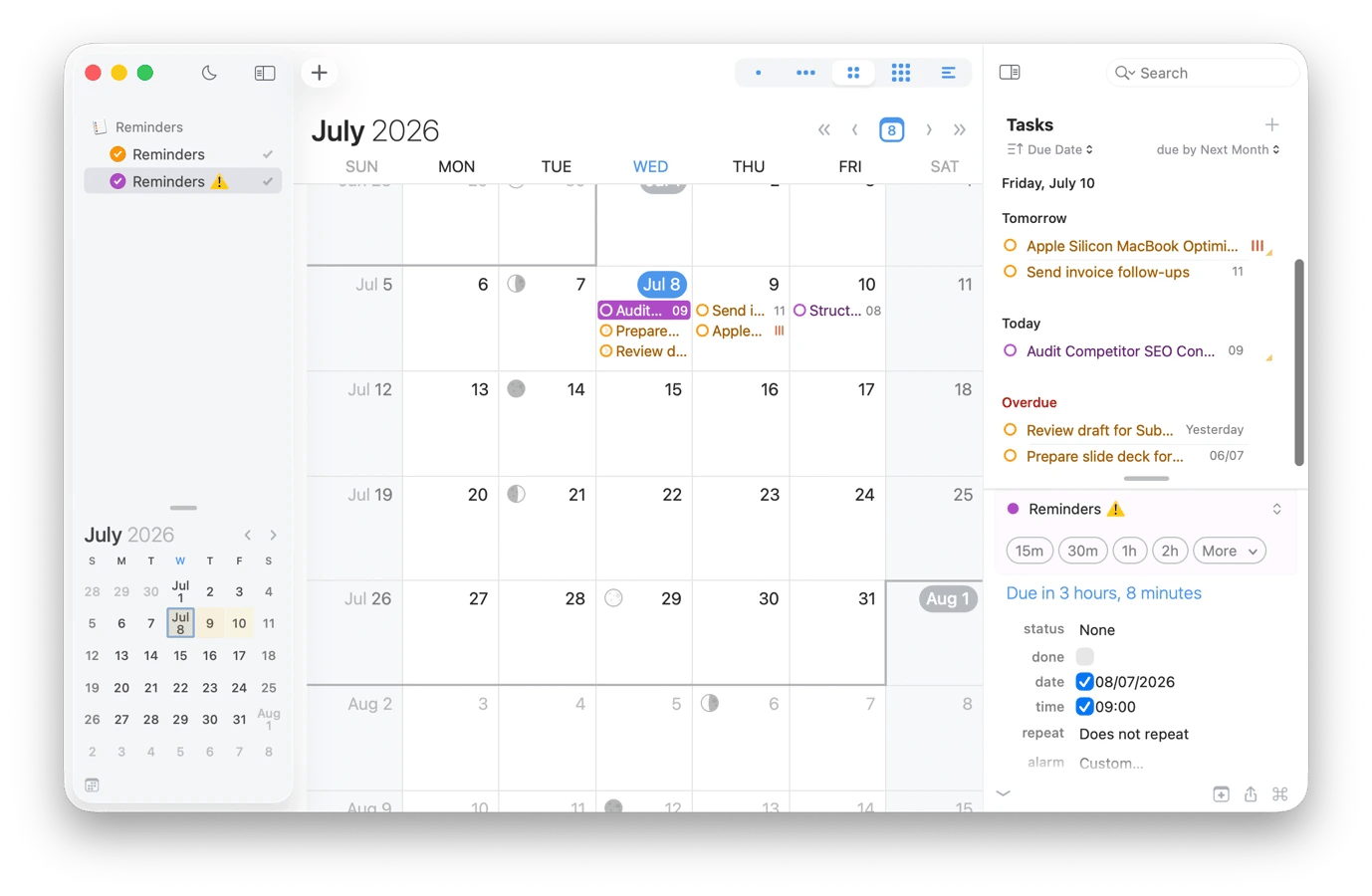
BusyCal is the best way to bring everything together as it combines the calendar with your tasks and reminders to ensure everything is organized. It syncs seamlessly across all three platforms, and you can use it to manage your class timetables, parent consultations, department meetings, and personal deadlines in a single flexible calendar view.
BusyCal’s built-in task panel is quite commendable, and you can use it for your lesson preparations and deadline management instead of switching to a new app. This way, everything will sit next to the schedule, giving you a clear idea of conflicts and what you can expect during the day or the week.
Use AI to reduce repetitive teaching tasks
Lesson plans, parent emails, reports, and the various worksheets teachers deal with are, for the most part, repetitive. Instead of redoing the same structures and formats, these apps bring AI into your teaching workflow to enhance efficiency.
Improve reports, emails, and feedback on any app with Kerlig
A teacher’s writing needs to appear almost perfect, and this applies across report cards, emails to parents, lesson notes, and meeting summaries. The problem is that these live in different apps, and some can’t even be copied to an online AI due to their sensitive nature.
Kerlig helps tap the power of AI writing within any app. When writing an email, you can call on the app to improve the writing, tighten the text, or adjust the tone without any copying and pasting.
In any app, highlight your text and press Option + Space (or your hotkey choice) to see the options. You can choose from any of the provided 350+ AI models, and there’s an offline option that is quite useful when working with sensitive student details.
Generate lesson plans, parent letters, and teaching resources with BoltAI
When creating something fresh, BoltAI gives you a starting point. It helps avoid blank-page blues, as you can use it to generate first drafts of your lesson plans, schemes of work, classroom activities, parent letters, quizzes, and other teaching materials. From there, you can just refine the output to get the final copy.
The app relies on OpenAI models, but its biggest strength lies in its packaging. It comes with 30+ presets you can use for different personas, and you can also create a custom one so that you don’t have to explain your role every time you write a prompt. You can also save a few prompts and add plugins to expand ChatGPT’s capabilities.
Spend less time on admin and more time teaching
Every teacher has a part of their job that causes the most frustration, whether that’s preparing lessons, managing the calendar, or staying organized. The best way to avoid wasting time when stuck or working on boring tasks is to bring in tools that handle or streamline the boring stuff, increasing efficiency.
Setapp provides a wide variety of these tools under a single subscription. There are no upgrade nudges or hidden features, and you can even check out any of them for free with the platform's 7-day free trial. Cancel before Day 7 = $0 charged. Sign up with your educational email and get 20% off the annual Mac + iOS plan.
Powerful apps live on Setapp
Ditch defaults and discover new gems on one app platform.






 Best solution
 Best solution