The native Mac shortcut for pasting without formatting is Command + Option + Shift + V. Apple calls this Paste and Match Style — it removes the source formatting and matches the style of the document you're pasting into. It works in TextEdit, Pages, Notes, Mail, and most Apple apps.
Different apps use different shortcuts. Google Docs uses Command + Shift + V. Microsoft Word has no shortcut — use Paste and Match Destination Formatting from the Edit menu. Notion desktop uses Command + Shift + V. Always check the Edit menu if a shortcut doesn't work.
You can make Command + V always paste as plain text. Go to System Settings → Keyboard → Keyboard Shortcuts → App Shortcuts, add a new shortcut, set Menu Title to "Paste and Match Style," and assign Command + V. This makes plain-text paste the default in all supported apps.
A clipboard manager like Paste makes this effortless. Its Get Plain Text feature strips formatting from anything in your clipboard history in one click — no shortcut needed, no switching apps. Rated 98% by 6,000+ users on Setapp.
The TextEdit workaround still works when nothing else does. Open TextEdit, switch it to plain-text mode (Format → Make Plain Text), paste your text there, copy it again, then paste it where you need it. Works in any app, zero extra software required.
Stop fighting formatting on every paste. Paste remembers your clipboard and strips formatting in one click. Try Paste free for 7 days — includes 250+ apps on Setapp.
I'm someone who uses Google Docs every day, and I spend hours copying and pasting text from one app to another. For years, I would right-click and select Paste without formatting to remove any fonts or colors from the text.
But then I found a few easier ways to paste without formatting that made my life a lot easier.
Here, I'll share how to paste without formatting on Mac, whether you're using Google Docs, Word, Pages, or other apps.
The native Mac shortcut for pasting without formatting
The good news is that Mac has a built-in shortcut that lets you paste text without formatting. The paste without formatting shortcut on Mac is:
Command + Option + Shift + V
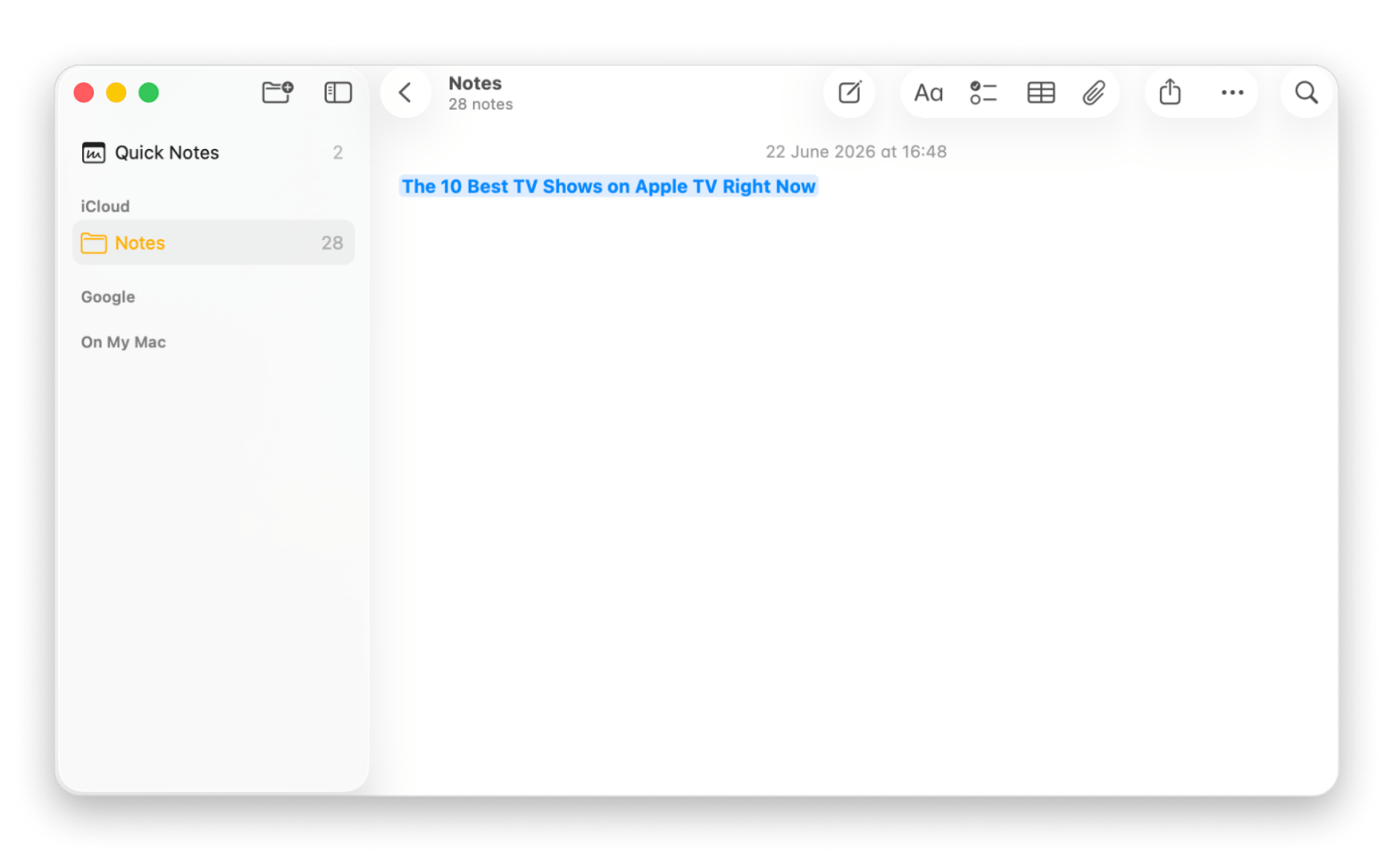
Apple calls this feature Paste and Match Style because it applies the formatting of the document you're pasting in and not of the source. For example, let's say you want to copy-paste this text that's bold and blue:
If you paste it with Command + V, the text will stay bold and blue. But if you use the Command + Option + Shift + V shortcut, the text will be pasted as regular body text.
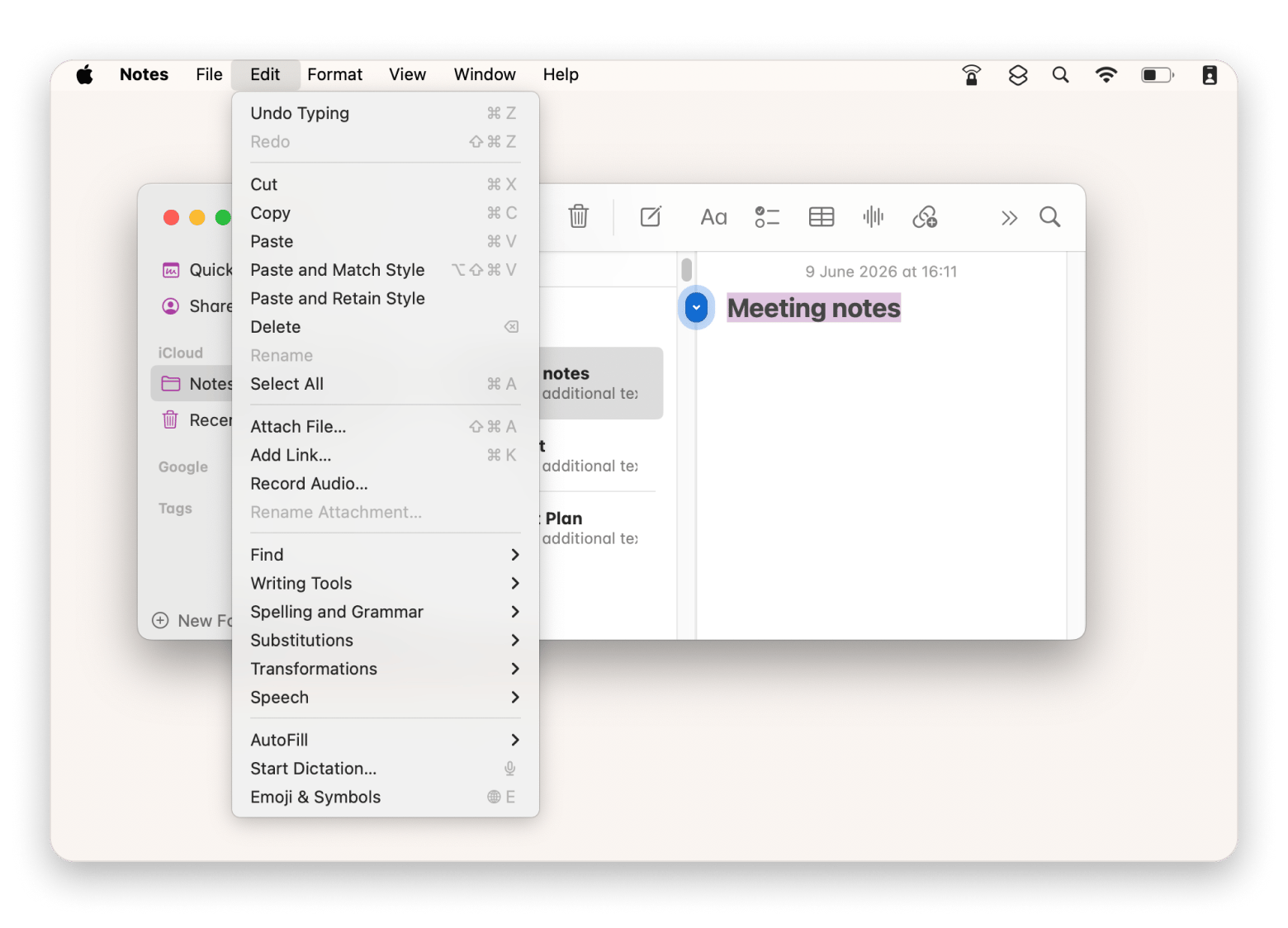
Almost every Apple app supports this shortcut, including TextEdit, Pages, Notes, and Mail. But some third-party apps might not, as they use their text systems or don't offer a plain-text paste option at all.
The best thing to do is check. If the shortcut doesn't work in a specific third-party app, check the Edit menu. If you don't see the Paste and Match Style option, then the app doesn't support the feature, and you'll need to use that app's own plain-text paste method.
I noticed the apps most likely to ignore it are Electron-based tools like Slack and Discord. They render text their own way and often strip or ignore macOS's native paste commands entirely. If a shortcut fails in one of those, right-clicking and checking the Edit menu is always worth trying first.
Not sure whether to remap Command + V system-wide or just use a clipboard manager for plain-text paste? The Productivity Tools assistant can help you think through which setup fits your workflow — especially if you're switching between multiple apps with different paste behavior.
How to paste without formatting in specific apps
There's no universal way to copy-paste without formatting on macOS in all apps. The exact steps depend on the app itself. Some apps support Apple's native shortcut, and others use their own commands.
App
Shortcut
Notes
Google Docs
Command + Shift + V
Opens a paste option in supported browsers.
Microsoft Word
No universal shortcut
Use "Paste and Match Destination Formatting" from the Edit menu.
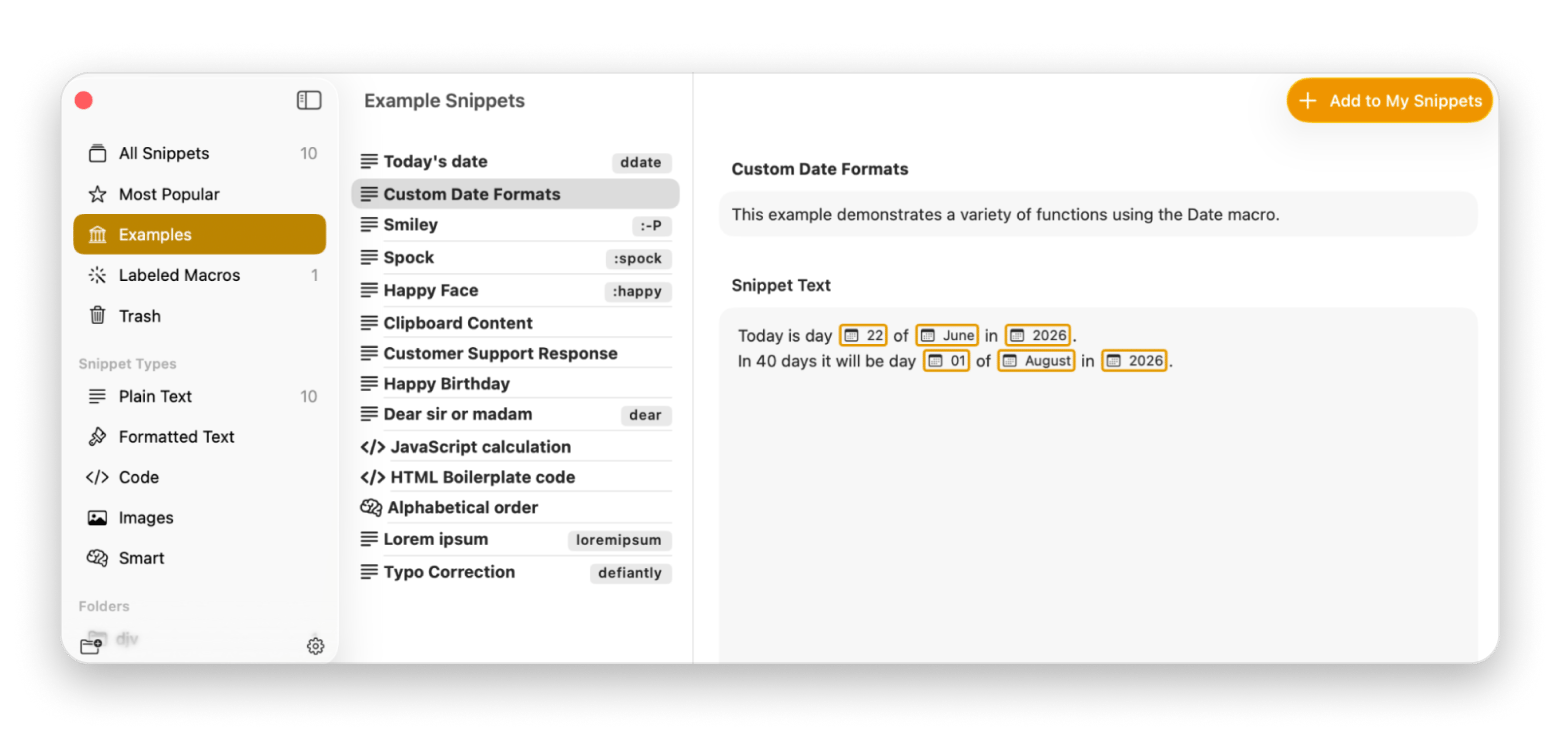
The hassle is that if you're copying and pasting the same email replies or templates over and over again a few times per day, it can get quite annoying. To make your life easier, you can install an app like Rocket Typist that stores text snippets and inserts them as plain text. Instead of copying and pasting, you type a short trigger, and Rocket Typist inserts the saved text as plain text automatically.
There are also examples of snippets you can use on your Mac or create custom ones:
Stop re-copying the same text — Rocket Typist inserts saved snippets as plain text with a short trigger. Type a short abbreviation, get the full text with no formatting or clipboard juggling. Free for 7 days. Try Rocket Typist on Setapp. Or get Rocket Typist standalone via Marketplace for $19.99 — no membership needed.
How to make Command + V always paste as plain text
But what if you never use the original formatting when pasting? Well, you'll be happy to hear that you can change your Mac so that Command + V pastes plain text by default.
In short, this will replace the standard paste command with Paste and Match Style. So every time you're pasting something, the text will be without any formatting, like bold or font color.
Here's how to set it up:
Open System Settings.
Go to Keyboard > Keyboard Shortcuts.
Choose App Shortcuts from the sidebar.
Click the + button.
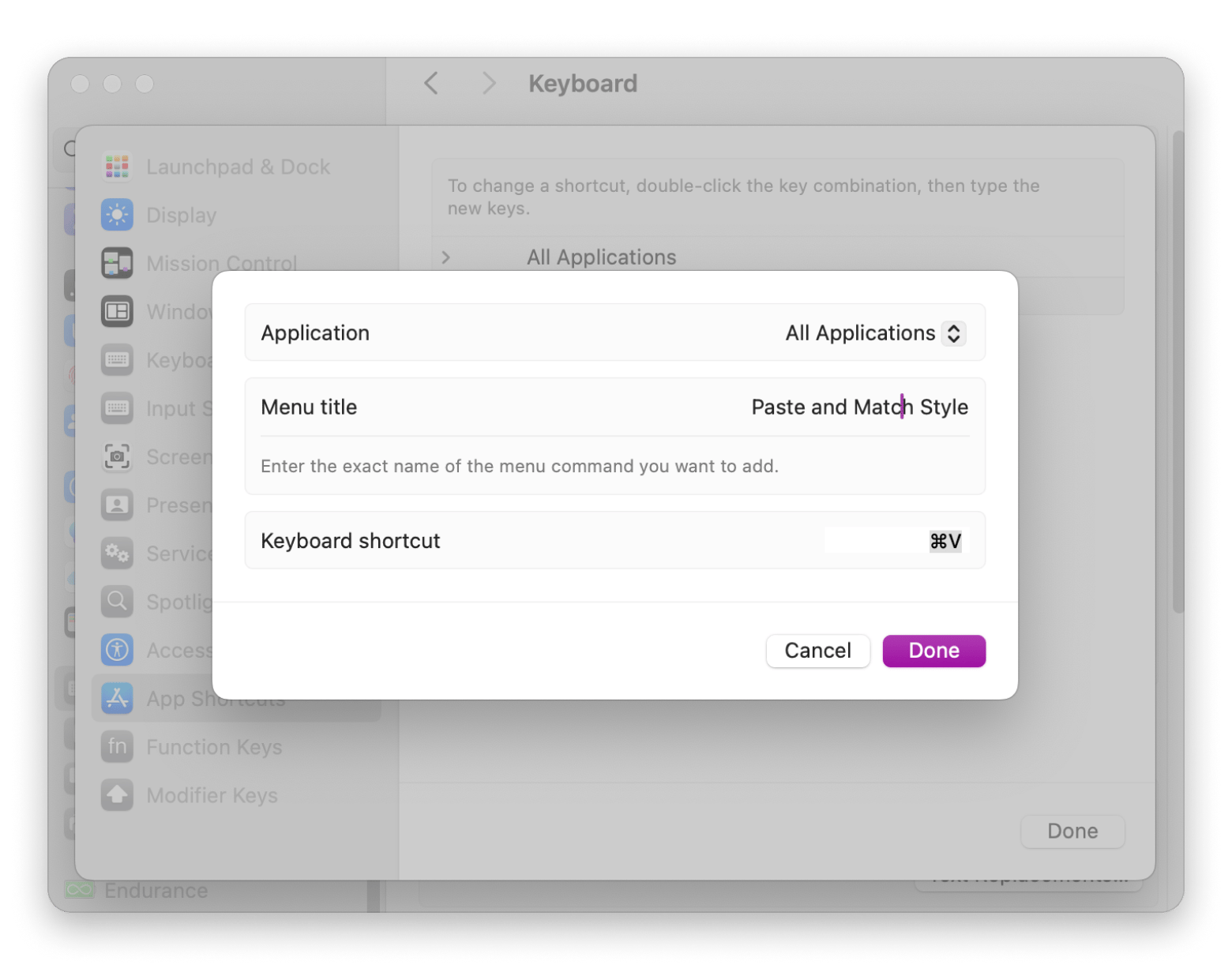
Set Application to All Applications.
Type Paste and Match Style in the Menu Title field.
Click the Keyboard Shortcut field and press Command + V.
Click Add.
Now every time you'll press Command + V, you'll be triggering Paste and Match Style in apps that support it. If you change your mind later, go back to Keyboard Shortcuts > App Shortcuts and delete the custom shortcut.
Some apps like Figma and Sketch don't pick up the system-level remap at all — they handle paste internally. So even after remapping, you may still need to use their own paste commands for design work.
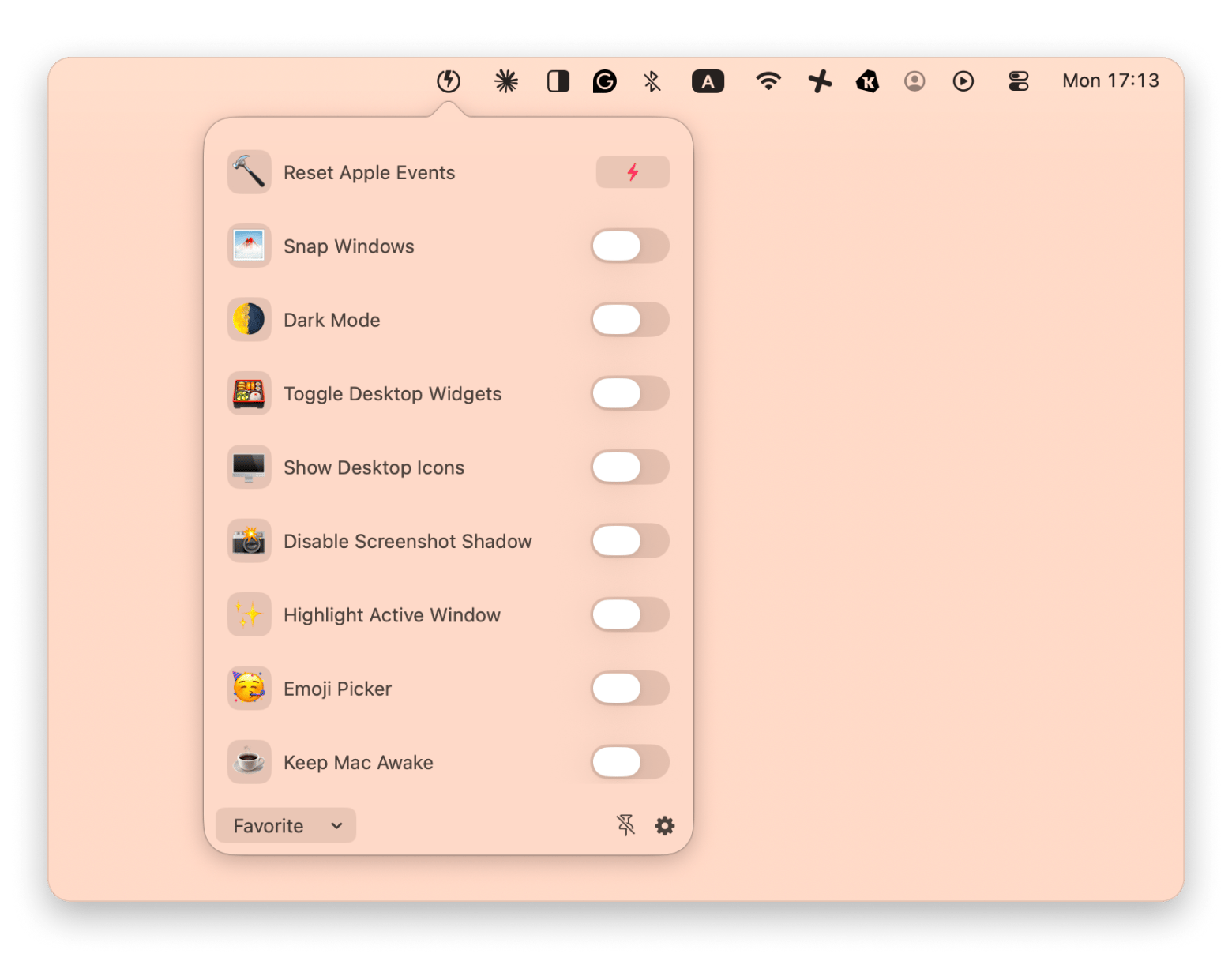
Do you want to stop certain apps from launching every time you start your Mac? Or keep your Mac awake during a large download, but don't know where to find the setting? The thing is that many macOS options are hidden in different menus. But if you get an app like Almighty, you'll see all macOS settings and shortcuts in one place, right in the menu bar for quick access. You'll be able to set up your device in a variety of ways you didn't know you could:
macOS hides its best settings across a dozen different menus — Almighty surfaces them all in one place. Stop losing time looking for the right toggle. Free for 7 days. Try Almighty Free.
The workaround method: Strip formatting through a plain text editor
Before plain-text paste shortcuts existed, Mac users used a simple trick. They pasted the text into a plain-text editor first, then copied it again and pasted it where needed.
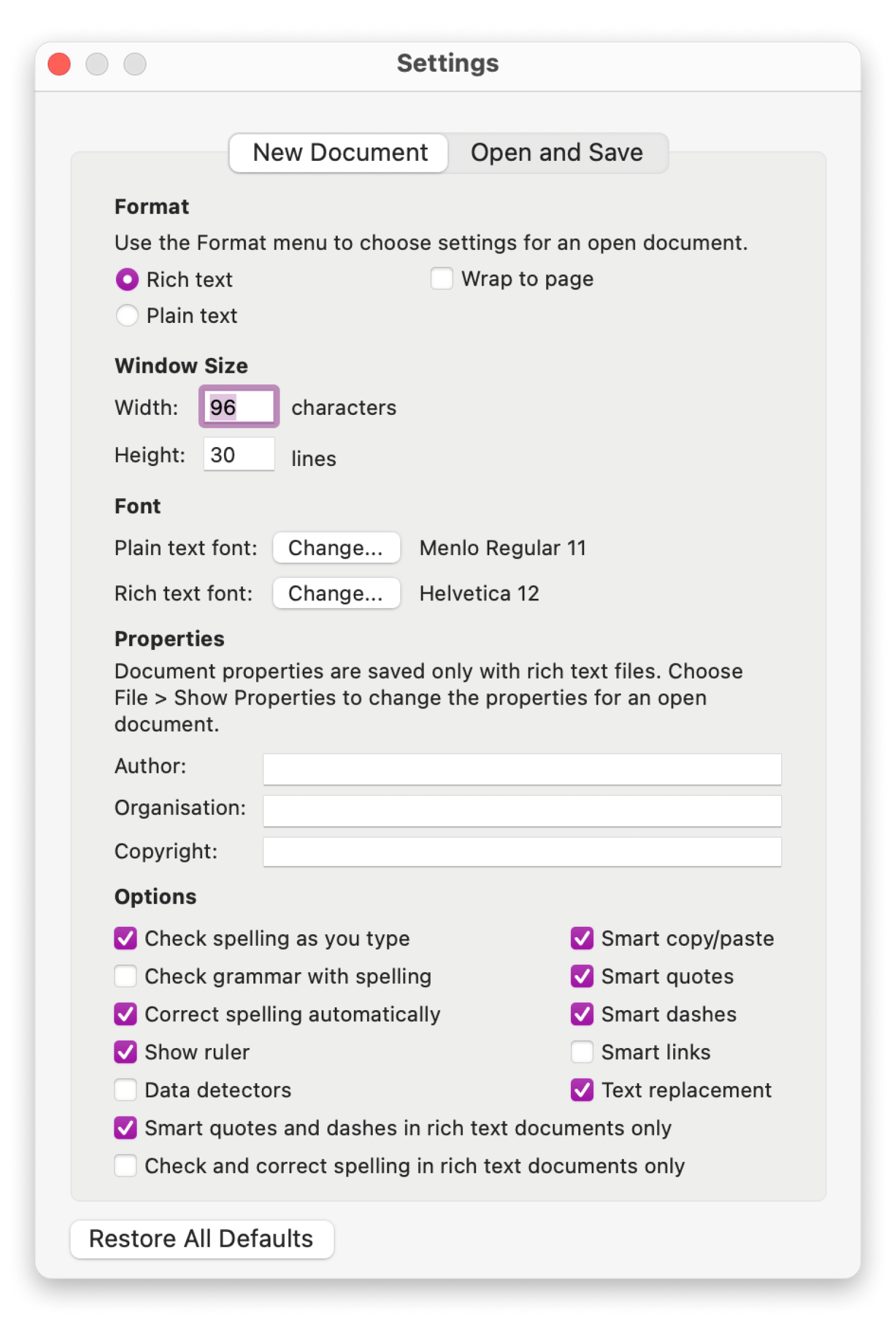
You can still do this on a Mac by using the TextEdit feature. But you have to set it to plain-text mode. I still use this method occasionally when I'm on a Mac that doesn't have my usual apps installed.
To do that:
Open TextEdit (from the Applications folder or Spotlight).
Click File > New in the menu bar.
Click Format > Make Plain Text in the menu bar.
Go to TextEdit > Settings in the menu bar.
Select Plain Text under New Document.
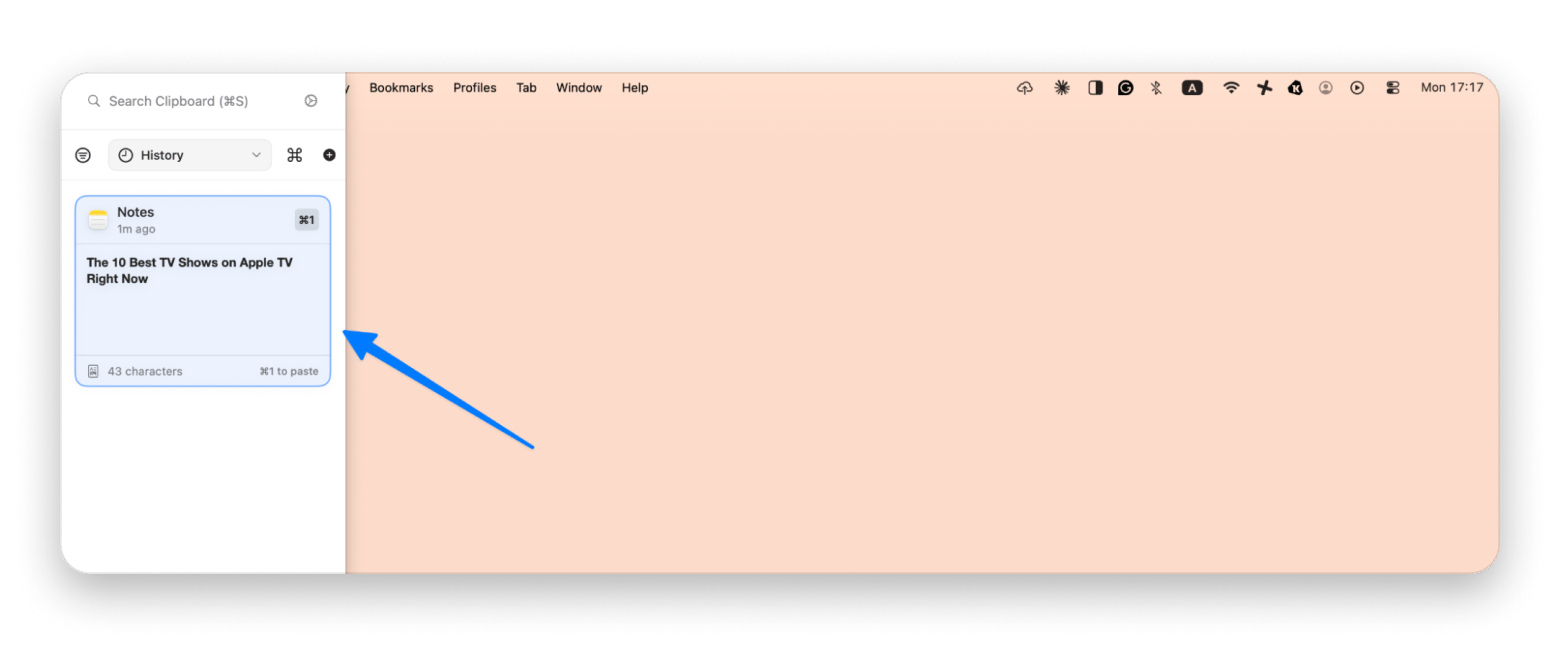
This method is slower than a keyboard shortcut, but it works in any app. Apps like iA Writer and Typora work in the same way. Or, if you prefer to automate the process, Quip can clean up copied text automatically by removing tracking junk from URLs and fixing messy spacing. Plus, the app shows not only the copied text but also exactly where you copied it from:
Using a clipboard manager to paste as plain text every time
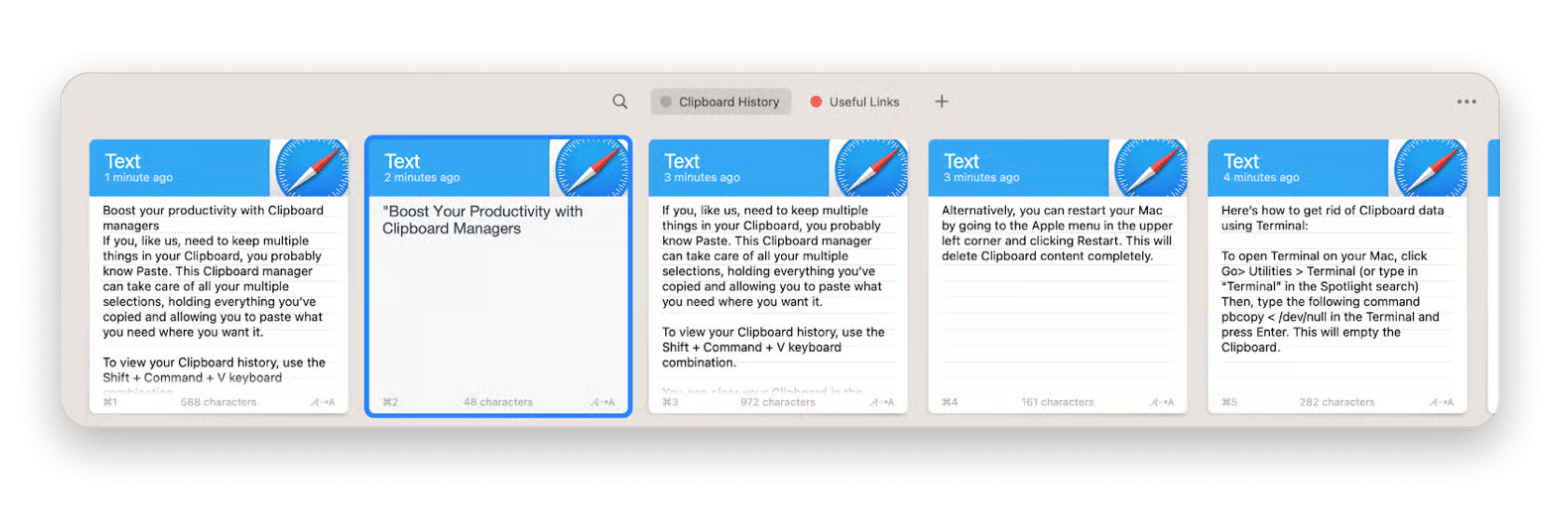
Clipboard manager stores your clipboard history and gives you tools to remove formatting before you paste.
Imagine you're a content writer who needs to update product descriptions. So you copy text from a CMS and paste it into a Google Doc. But the text is pasted formatted with different fonts, colors, links, and spacing. So then you waste time cleaning everything up. You can use a clipboard, but macOS can only store one item on your clipboard at a time. The solution to this hassle is using a clipboard manager.
You can copy the content, open your clipboard history, and choose to paste it as plain text. The formatting is removed automatically, so the text matches your document right away.
One amazing clipboard manager I use every day is Paste. It comes with a dedicated Get Plain Text feature that converts copied content into plain text within seconds. Here's how it works:
Copy the text.
Open Paste and access the clipboard history.
Right-click or select the item you want to use.
Choose Get Plain Text.
Paste the cleaned text into any app.
With clipboard history going back hundreds of entries, that problem disappears entirely and the plain text option becomes something I use for probably 80% of my pastes.
How to paste without formatting on Mac: Every method, ranked by effort
The fastest fix is Command + Option + Shift + V — it works immediately in most Apple apps and takes one second to learn. If you want plain-text paste everywhere, remapping Command + V in System Settings is a five-minute setup that saves hours over time.
For anything more complex — repetitive pasting, clipboard history, formatting cleanup — Paste handles it all in one tool, and Rocket Typist is worth adding if you paste the same content repeatedly.
A clipboard that remembers everything and pastes it clean — that's what Paste delivers, every time. Free for 7 days via Setapp Membership. Try Paste Free. Or get Rocket Typist standalone via Marketplace for $19.99 — no membership needed.
FAQ
Why does Command + V on my Mac paste with formatting instead of plain text?
Command + V pastes text exactly as it was copied. This includes fonts, colors, text sizes, links, and other formatting. If you want to paste plain text on Mac instead, you'll need to use a different shortcut, such as Mac Paste and Match Style, or use a clipboard manager.
Does Command + Option + Shift + V work in Google Docs and Microsoft Word?
This shortcut works best in Apple apps. Google Docs and Microsoft Word use their own paste commands. In Google Docs, try Command + Shift + V. In Word, use Paste and Match Destination Formatting from the Edit menu.
Is there a way to set my Mac to always paste without formatting by default?
Yes, you can set your Mac to always paste without formatting by default. You can do this by remapping Command + V to Paste and Match Style in your keyboard shortcut settings. This makes plain-text paste the default in supported apps.
How do I paste without formatting in Google Docs on a Mac when the shortcut does not work?
If the keyboard shortcut doesn't work, make sure your browser has permission to access the clipboard. You can also try right-clicking and selecting Paste without formatting if the option is available. If that still doesn't work, paste the text into a plain-text editor first, then copy and paste it into Google Docs.
Will remapping Command + V to paste plain text break anything in my existing apps?
No, in most cases it won't cause any problems. In apps that support Paste and Match Style, Command + V will simply paste plain text instead of keeping the original formatting. However, some apps don't support this feature, so the shortcut may not work there. If you find that you miss the original paste behavior, you can remove the custom shortcut at any time and restore the default Command + V command.
Powerful apps live on Setapp
Ditch defaults and discover new gems on one app platform.






 Best solution
 Best solution