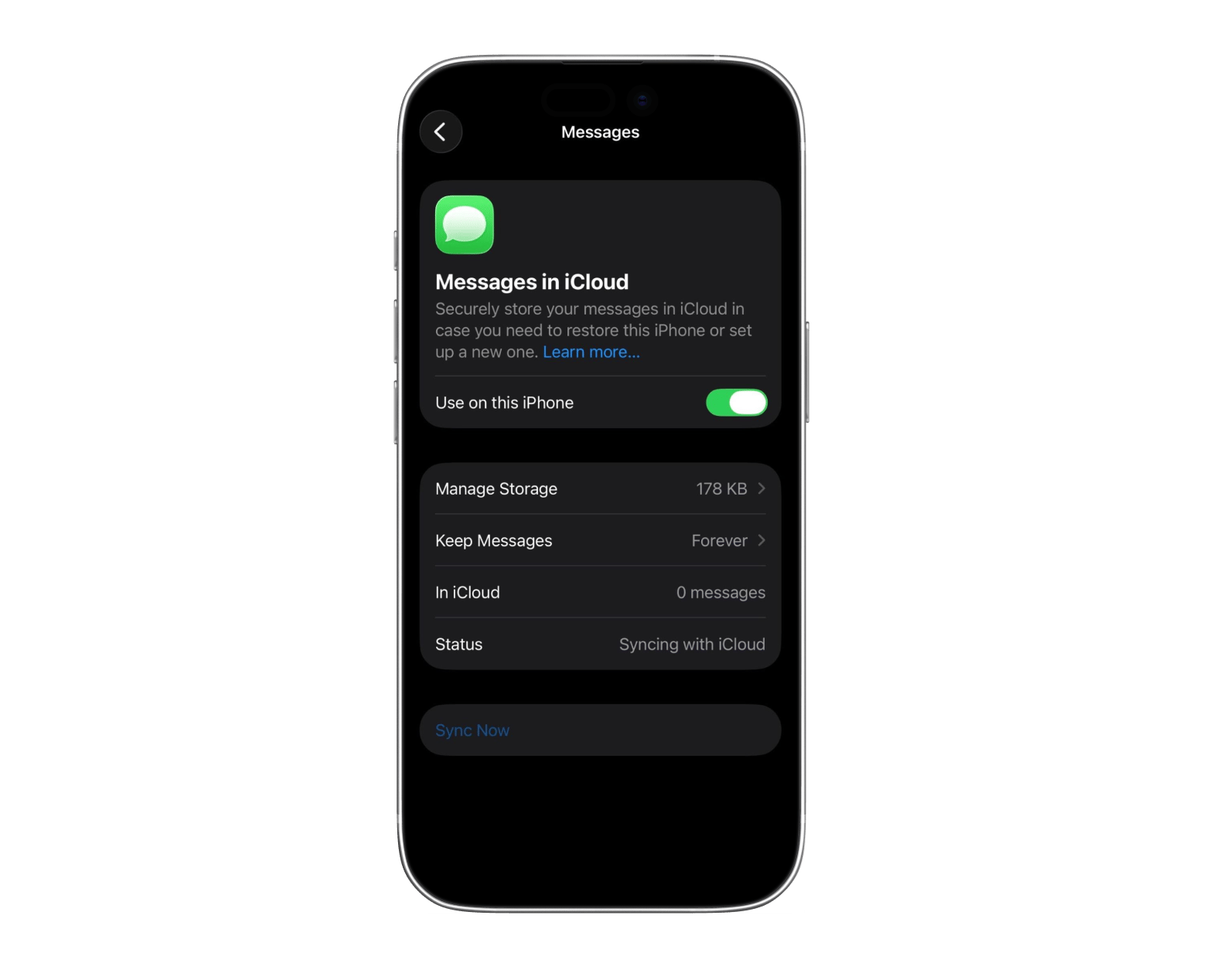
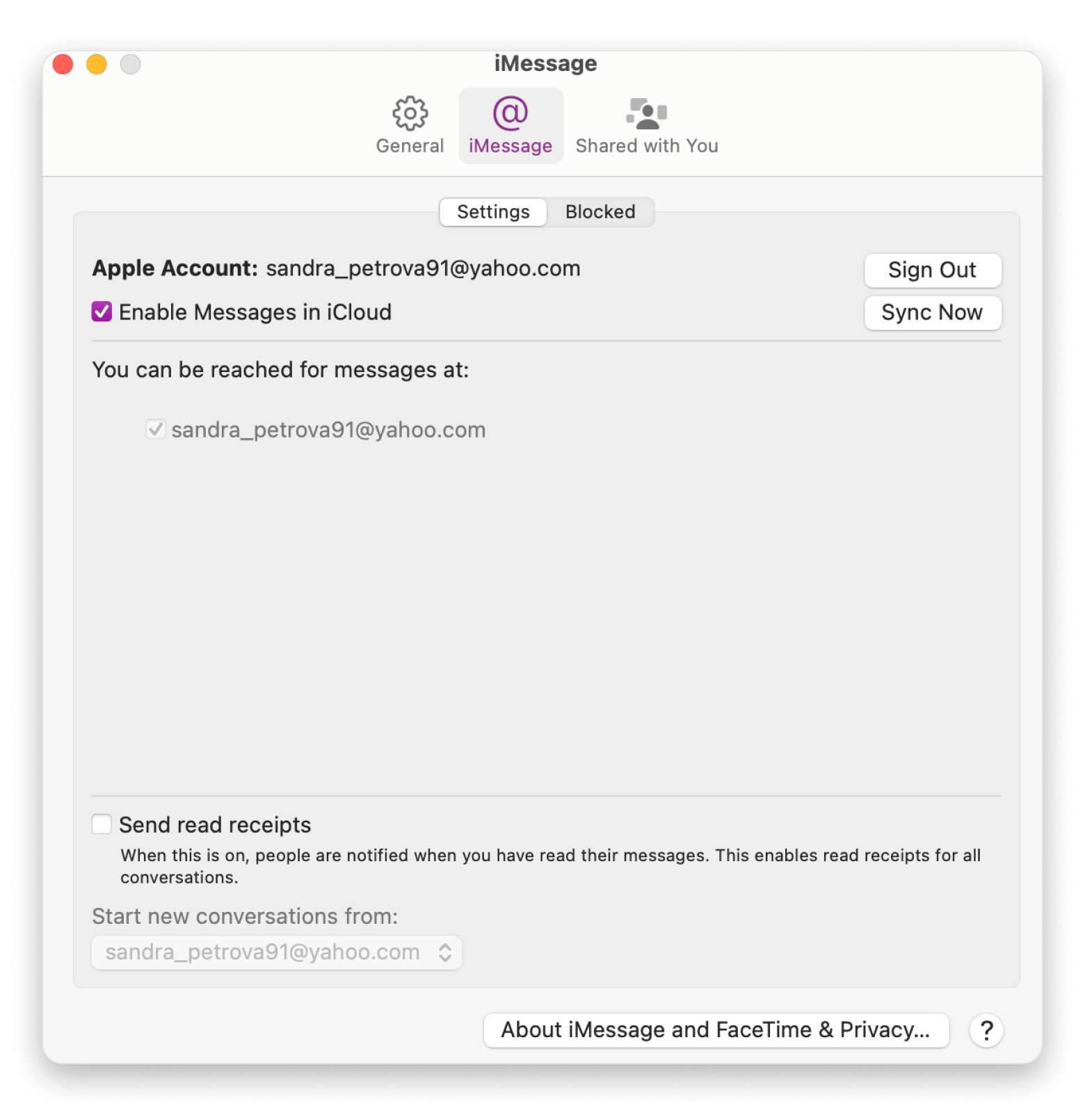
To sync iMessages to Mac, enable Messages in iCloud on both devices. On iPhone: Settings > Apple Account > iCloud > See All > Messages > Turn on. On Mac: Messages > Settings > iMessage > Select Enable Messages in iCloud > Click Sync Now.
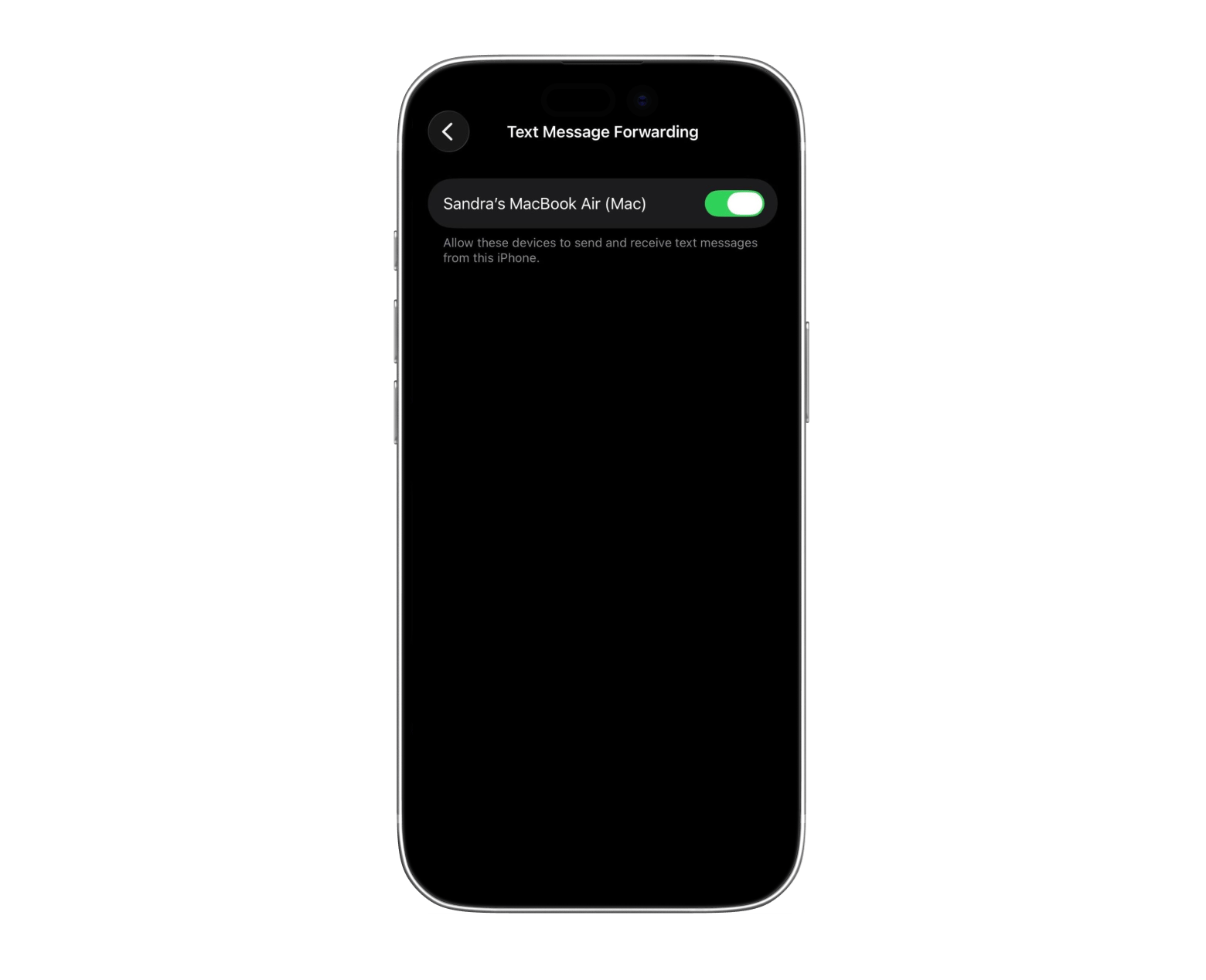
SMS and MMS texts need a separate setup. Messages in iCloud only syncs iMessages. To get green-bubble texts from non-Apple contacts on your Mac, turn on Text Message Forwarding: Settings > Apps > Messages > Text Message Forwarding > toggle on your Mac.
If messages aren't syncing, start with the Apple Account. Both devices must be signed into the same Apple Account. Mismatched accounts are the most common cause — check Settings > Apple Account on iPhone and System Settings > Apple Account on Mac.
Message attachments pile up fast. Photos, videos, and voice notes in conversations can take up several gigabytes over time. Change Keep Messages to 1 Year or 30 Days in Settings > Apps > Messages, and delete old group chats you no longer need.
iCloud storage fills up — and when it does, your messages stop syncing. CleanMyMac fixes that. Try CleanMyMac free for 7 days — includes 250+ apps on Setapp.
I remember a few months ago, I was texting back and forth with a friend on my iPhone. My battery died, so I tried to continue the conversation on my Mac, only to realize the messages weren't there.
That's when I discovered that my iPhone and Mac weren't syncing messages properly. After figuring out how to fix it, I decided to put together this guide so you can learn how to sync messages from iPhone to Mac (and don't end up as confused as I was).
Step-by-Step: Enable Messages in iCloud on iPhone and Mac
You need to enable Messages in iCloud on Mac and iPhone if you want to sync iMessages between your devices.
Here's the step-by-step process:
Open Settings on your iPhone.
Tap Apple Account at the top of the screen.
Choose iCloud.
Tap See All under Saved to iCloud.
Turn on Messages.
Then, go to your Mac and:
Open the Messages app.
Click Messages in the menu bar and select Settings.
Open the iMessage tab.
Tap Enable Messages in iCloud.
Click Sync Now.
If you're using an older version of macOS, go to Messages > Preferences > iMessage.
And that's it! Now your messages will stay updated automatically across both devices. For example, if you delete a message on your phone, it'll also be deleted on your Mac, and the other way around.
How to forward SMS and MMS texts from iPhone to Mac
To receive SMS and MMS texts on your Mac, you need to turn on Text Message Forwarding on your iPhone — Messages in iCloud alone won't forward these.
Here's how:
Go to Settings and scroll down to Apps.
Find Messages.
Tap Text Message Forwarding.
Turn on the toggle next to your Mac.
If you don't see your Mac in the list, check if it's signed with the same Apple Account as your iPhone.
Another good idea is to check your Send & Receive settings on both devices.
On your iPhone:
Go to Settings > Apps.
Scroll down to Messages, then tap Send & Receive.
Confirm that your phone number and Apple Account email address are correct.
On Mac:
Open the Messages app.
Click Messages in the menu bar and select Settings.
Open the iMessage tab.
Verify that the same phone number and Apple ID email address are listed and selected.
When these settings match, you'll receive both iMessages and standard text messages on your Mac.
Messages not syncing from iPhone to Mac — How to fix it
If your iPhone messages aren't syncing to your Mac, the cause is usually a mismatched Apple Account, a stalled iCloud sync, or not enough iCloud storage space. There's no need to panic!
Try these fixes:
Check if both devices use the same Apple Account: Go to Settings > Apple Account and System Settings > Apple Account on your Mac to confirm you're signed into the same account.
Sign out of iMessage on your Mac and sign back in: Open Messages > Settings > iMessage, click Sign Out, then sign in again with your Apple Account. For a full checklist of iMessage fixes, see how to fix iMessage not working on Mac.
Restart your Mac and iPhone: Sometimes, a simple restart is all it takes to fix the syncing issue. It's quick and painless.
Make sure you're connected to the internet: Both devices need a stable connection so that the syncing works. Preferably, they need to be connected to the same Wi-Fi network.
Do a manual sync: On macOS Sonoma and later, go to System Settings > Apple Account > iCloud > See All > Messages in iCloud > Sync Now. On older versions of macOS, open Messages > Preferences > iMessage and click Sync Now.
Check if you have available iCloud storage: iCloud won't sync new messages if you're low on storage space. Go to Settings > Apple Account > iCloud on your iPhone and see if your account is full or not.
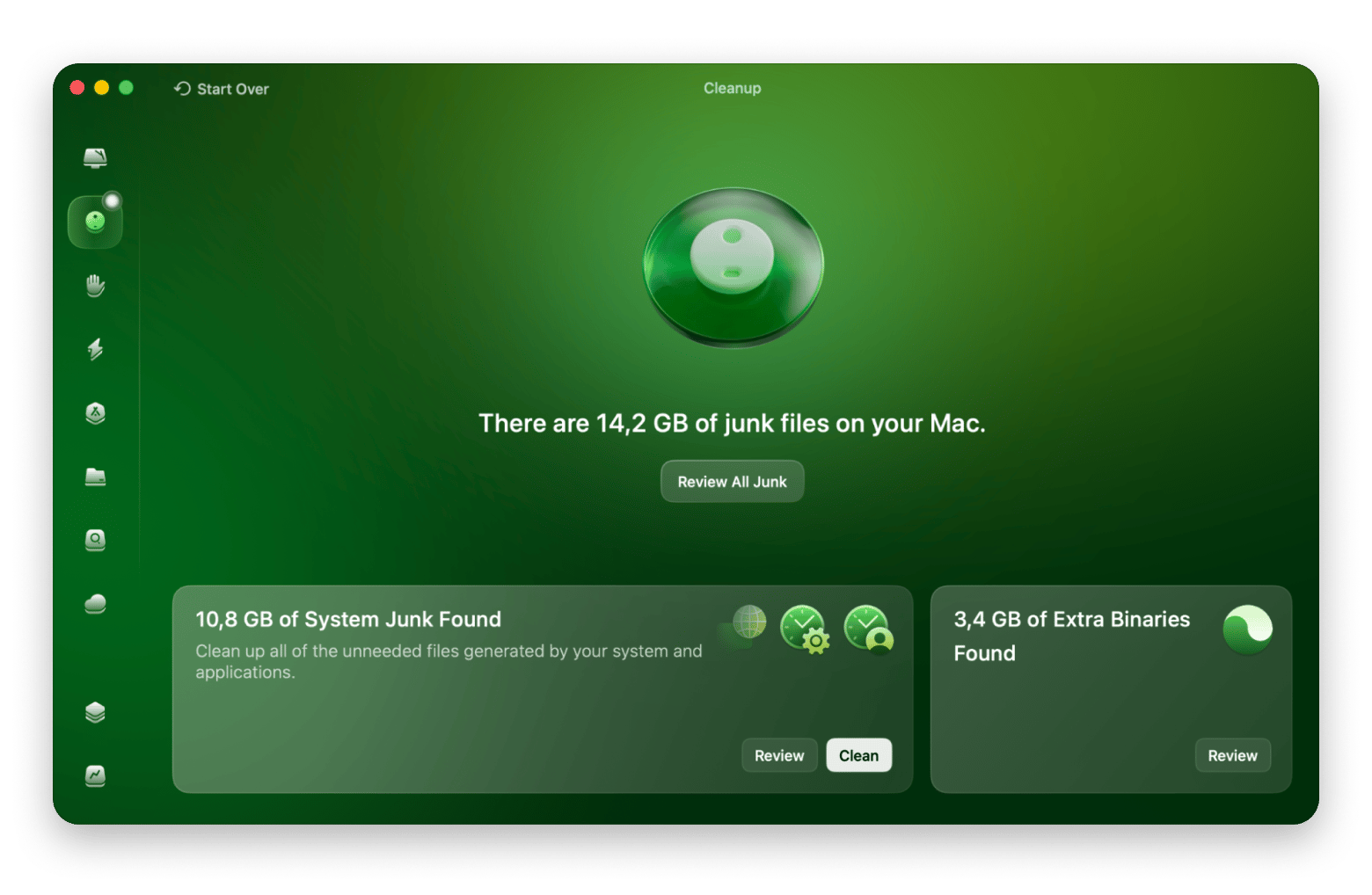
If your iCloud storage is full, delete unnecessary files to clear up some room for your messages to sync. One way to speed up the process is to use CleanMyMac, which scans your Mac and removes system junk, old cache files, and large unused files. It also has a dedicated iMessage not working on Mac fix — clearing the Messages cache — which you can do in one click from its Cleanup module:
Keeping your Mac organized once Messages are syncing
Once Messages is syncing, attachments like photos, videos, and voice notes can quietly accumulate and take up several gigabytes; a little regular maintenance prevents that.
These habits will keep your storage from building up over time:
Delete old conversations you don't need. Group chats, for instance, can contain lots of photos and videos.
Change how long Messages stores content. On your phone, go to Settings > Apps > Messages > Keep Messages and select 1 Year or 30 Days instead of Forever.
Review large attachments from time to time and remove files you no longer need.
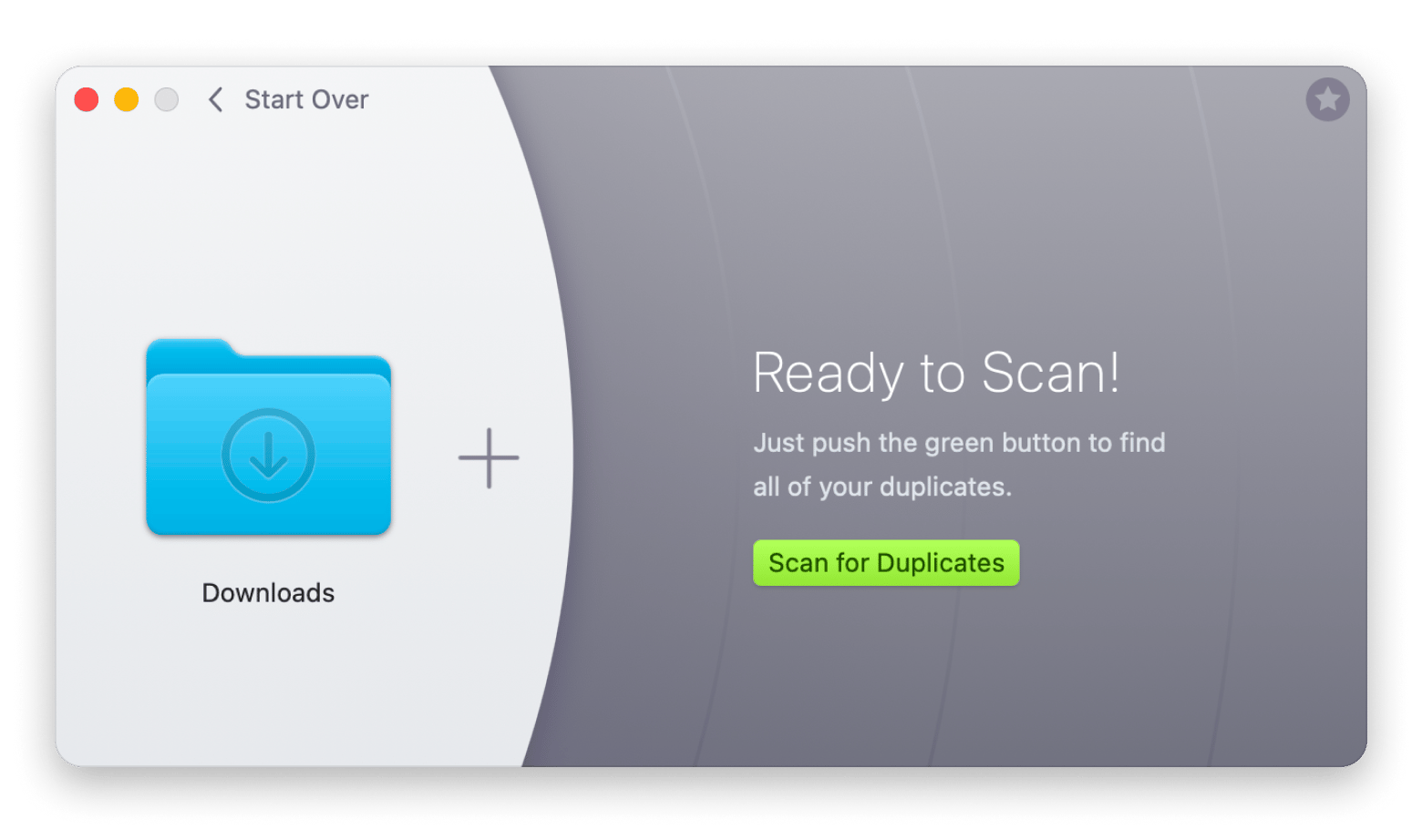
Another great app for keeping your storage space under control is Gemini. It helps you find and remove duplicate files that might take up gigabytes of space on your Mac, including files that come from Messages. You don't have to sort through duplicate files one by one. Gemini finds them for you and lets you clean them up in a single step.
There's also Gemini's menu bar feature, which lets you scan your Mac in real time and notifies you of any duplicates found. If you prefer to clean your Mac of junk right away rather than wait for it to pile up, this is a good solution:
You can sync messages between your iPhone and Mac using two different systems.
The first system is iMessage, which works through Messages in iCloud. But how to get iMessages on Mac? You need to enable the feature, and once you do this, your iPhone and Mac will sync conversations through your iCloud account. These messages appear as blue message bubbles, and you'll see them every time you're communicating with another iPhone user.
The second system is SMS and MMS forwarding. These messages appear as green message bubbles, and you'll see them every time you're communicating with non-Apple devices. They don't sync through iCloud. Instead, your iPhone acts as a relay and forwards them to your Mac using a feature called Text Message Forwarding.
Just make sure you're signed in with the same Apple account for both systems to work. If you're signed in with one account on your iPhone and another on your Mac, then messages won't stay in sync.
How to sync Messages from iPhone to Mac and keep things running smoothly
Syncing Messages between iPhone and Mac takes two separate setups: Messages in iCloud for iMessages and Text Message Forwarding for SMS and MMS. Once both are on and your devices share the same Apple Account, the sync runs automatically in the background. If it ever stops working, signing out and back into iMessage on your Mac fixes it most of the time.
For the storage side, CleanMyMac keeps your iCloud clear so syncing doesn't stall, and Gemini handles duplicate files that accumulate from message attachments.
Keep message syncing smooth — CleanMyMac handles the iCloud storage that gets in the way. Clears junk, cache files, and storage blockers so your messages sync without interruption. Free for 7 days on Setapp. Try CleanMyMac Free.
FAQ
Why are my iMessages not showing on my Mac even though I am signed into the same Apple ID?
Some of the most common reasons why iMessages aren't showing on your Mac are disabled Messages in iCloud, mismatched Send & Receive settings, poor internet connectivity, or a stalled sync. Make sure Messages in iCloud is enabled on both devices and check that you're using the same phone number and Apple Account email address in iMessage settings.
Does syncing Messages from iPhone to Mac also sync SMS texts from Android contacts?
Messages in iCloud only syncs iMessages, which are messages you receive from another Apple device. They appear as blue bubbles. To receive SMS and MMS messages from Android users on your Mac, you must enable Text Message Forwarding on your iPhone. This allows your iPhone to relay standard text messages to your Mac.
Will enabling Messages in iCloud delete my existing message history from my iPhone or Mac?
No. Enabling Messages in iCloud syncs your existing message history across devices, but doesn't erase it. All of your conversations will remain intact.
How do I sync old messages from my iPhone to a new Mac that has never had Messages set up?
Sign in to the new Mac using the same Apple Account as your iPhone, open the Messages app, and enable Messages in iCloud. Then click Sync Now in the iMessage settings. Your older conversations will begin downloading from iCloud and should appear once the sync process finishes.
Can I sync Messages from iPhone to Mac without using iCloud?
You can use Text Message Forwarding to receive SMS and MMS texts on your Mac without Messages in iCloud. However, you need to enable Messages in iCloud to sync your iMessages.
Powerful apps live on Setapp
Ditch defaults and discover new gems on one app platform.






 Best solution
 Best solution