Permute is the best HandBrake alternative for most Mac users. It converts video, audio, and images in drag-and-drop, supports 50+ formats, uses Apple Silicon acceleration, and doesn't require any configuration.
For DVD and Blu-ray ripping, MakeMKV is the most straightforward free option. It preserves the full original quality in MKV — but you'll still need a converter like Permute to reduce the file size afterward.
Apple Compressor is worth the $49.99 only if you're already in the Final Cut Pro workflow. It adds distributed encoding and Apple platform presets, but it's overkill for standalone conversions.
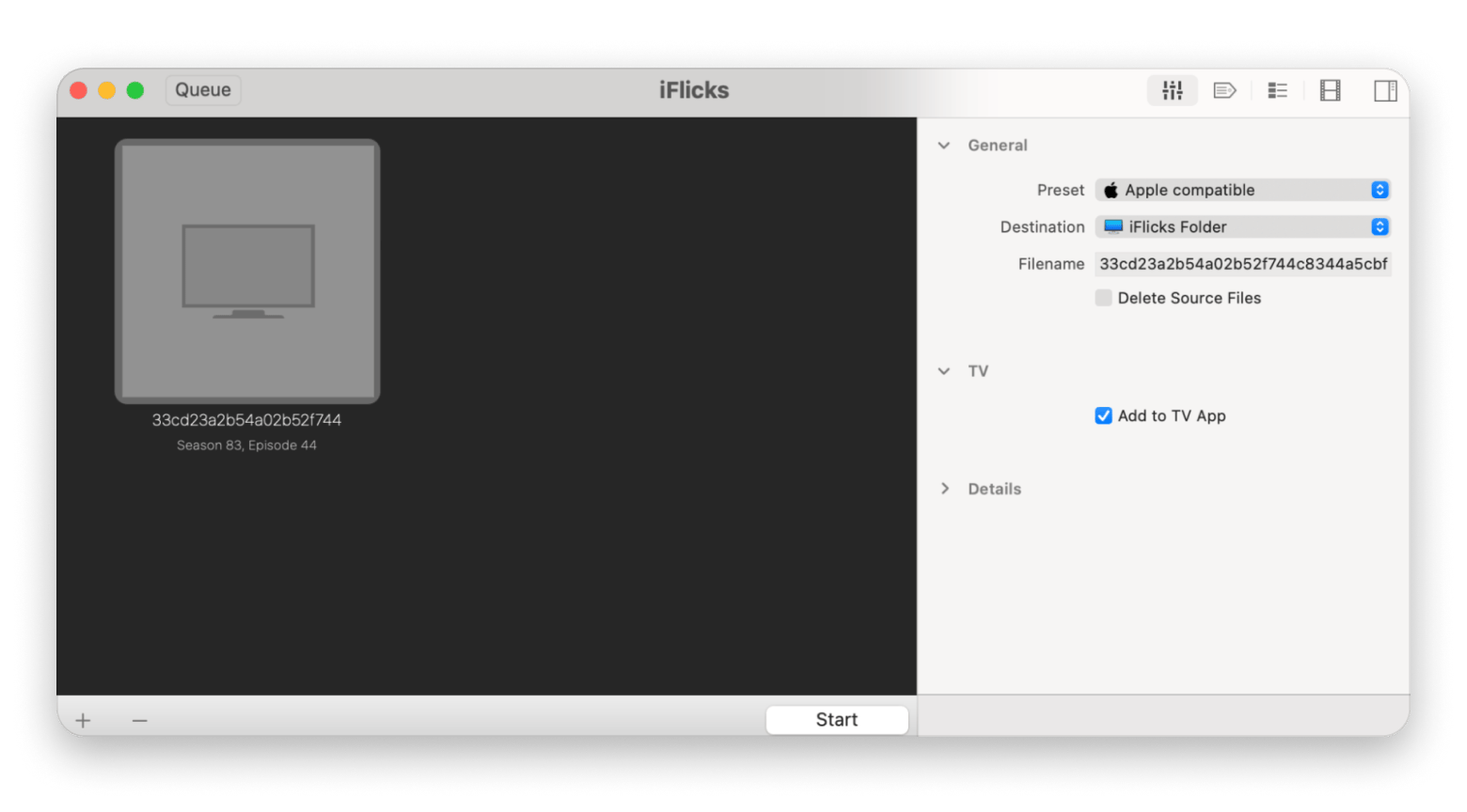
iFlicks fills the gap HandBrake leaves for Apple ecosystem users. It converts files to Apple-compatible formats, pulls metadata automatically, and drops everything into the TV app or Plex without re-encoding what's already compatible.
HandBrake is free. The workarounds it needs on Mac aren't. Permute converts any file using drag-and-drop. iFlicks handles your Apple library automatically. Both are in Setapp — 250+ apps.Start free for 7 days — cancel before Day 7, $0 charged.
HandBrake is free and open source, but it doesn't rip commercial discs, the interface feels nothing like a Mac app, and anything outside conversion requires workarounds.
Handbrake has been one of the go-to video conversion tools for years. It still is, but it also has significant limitations that forced me to look for alternatives.
If you're ready to move on or just need something alongside it, here are the 10 best HandBrake alternatives for Mac.
Top HandBrake Alternatives for Mac (detailed comparisons)
The alternatives we’ll look at will help you replace HandBrake, but they aren’t all similar. I like to see them as different products that share a similar objective:
Simple file converters that offer a better interface or Mac optimization
DVD/Blu-ray ripping and backup tools built for physical media workflows
Professional encoding and compression apps designed for editors, batch exports, and advanced format control
Here’s a quick overview before the detailed reviews:
If you're switching from HandBrake and unsure which alternative to target, this Video Editing Software for Mac GPT tool is a fast way to get an answer without digging through documentation.
1. MakeMKV: Best choice for DVD/Blu‑ray ripping to MKV (then compress elsewhere)
Best for: Ripping DVDs and Blu-rays into high-quality MKV files
Platforms: Mac, Windows, Linux
MakeMKV takes encrypted DVDs and Blu-ray discs and converts them to MKV files. While doing this, it preserves the original format, all audio tracks, subtitles, and other metadata. It doesn’t re-encode anything.
This means that it’s a great option if you are moving from HandBrake because it can’t rip discs. However, it also means that you’ll still need a file converter to reduce the size (from over 30GB in a movie) to a reasonable size and maybe a more compatible format.
You'll also want an app that can play MKV files on Mac without installing extra codecs.
Pros:
Excellent DVD and Blu-ray ripping quality
Very simple workflow compared to advanced encoders
Preserves original video quality well
Good for media archiving workflows
Cons:
Focused mainly on ripping, not compression
MKV files can be very large
Limited editing and conversion tools (needs a second tool)
Pricing: Free, $50 full license
2. VLC Media Player: Best option if you want playback + occasional quick conversions
Best for: Mac users who mainly need a media player with an option for the occasional conversion
Platforms: Mac, Windows, Linux
Source: cdn.neowin.com
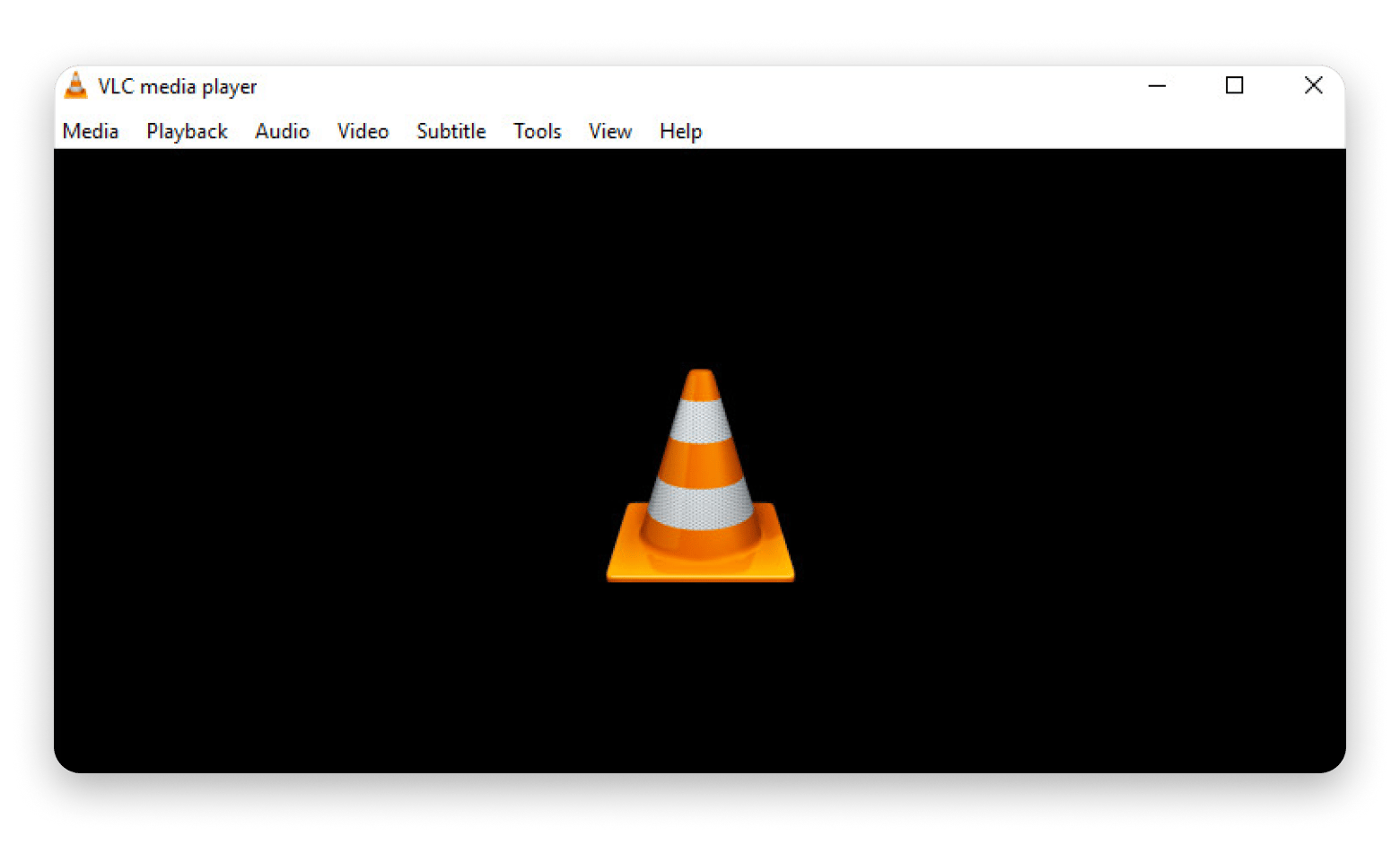
VLC has a built-in conversion tool that most users never find — it's hidden under File > Convert / Stream. It’s well known as a media player and is already part of the setup for most Mac users who deal with media files. But it also has a little-known conversion and transcoding tool hidden in the app. It’s tucked under File > Convert / Stream.
If you only do occasional conversions, this feature can get the job done without installing an extra tool. It supports common format conversions, but it won’t give you the controls you get in HandBrake.
Pros:
Free, open source, no need for extra codecs
Conversion feature is enough for common format changes
Streaming and network playback built in
Cross-platform and regularly updated
Cons:
Conversion UI is not obvious to new users
No batch processing
No advanced encoding control
Pricing: Free
3. Apple Compressor: Ideal for Final Cut Pro users and pro batch encoding on modern macOS
Best for: Final Cut Pro users handling professional encoding and batch exports
Platforms: Mac
Source: apps.apple.com
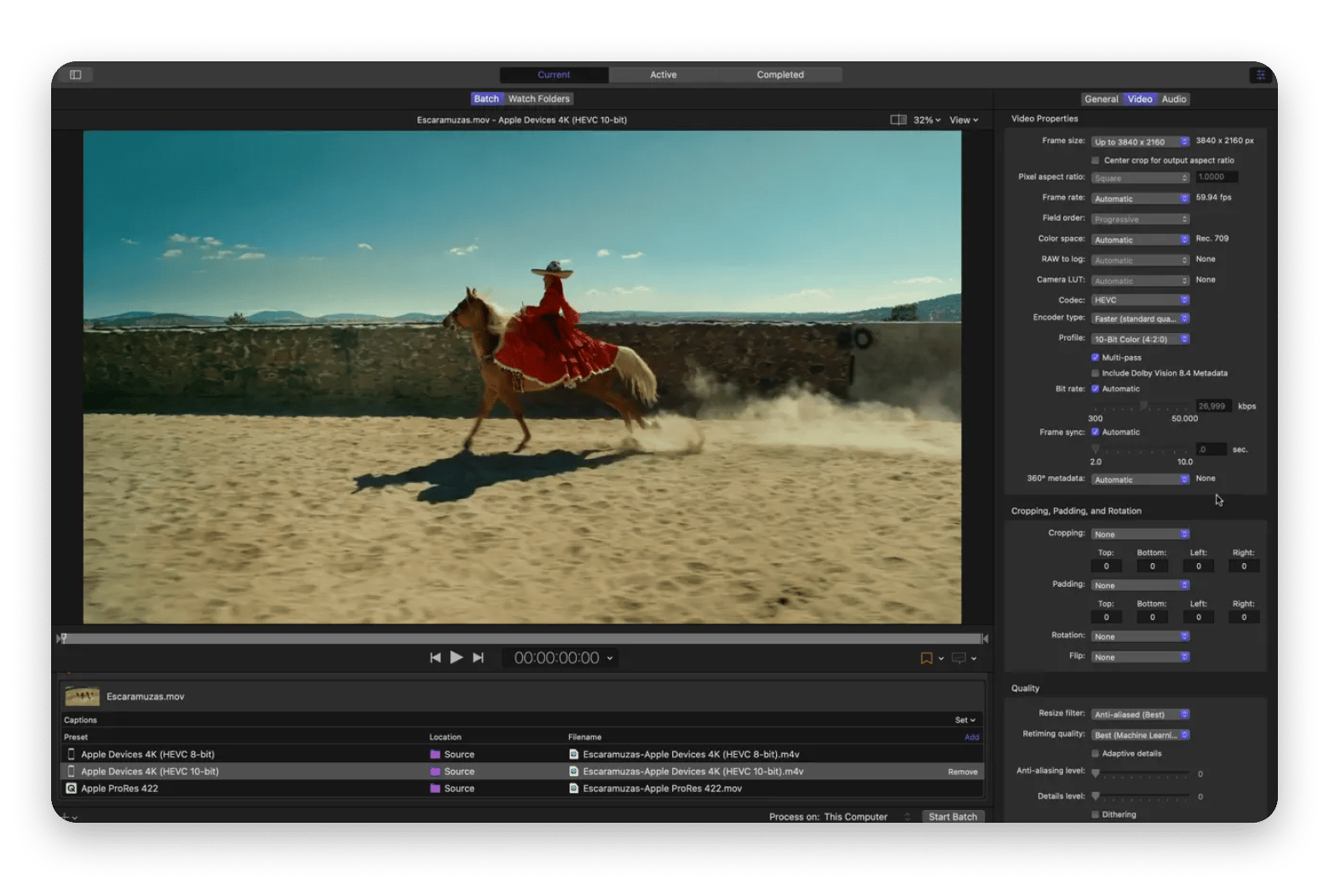
Apple Compressor is Apple’s encoding companion meant for pro users, especially those who already use Final Cut Pro. Being from Apple means that it’s much more optimized for Macs compared to HandBrake and other tools.
A feature I like is that you can share the encoding workload with other Macs in your network. It also connects directly with Final Cut Pro's share workflow to allow setting a destination.
Apple Compressor is meant for professionals and content creators, but it may be overkill for simple file optimizations.
Pros:
Tight Final Cut Pro integration
Professional delivery presets for YouTube, Vimeo, broadcast, and Apple platforms
Distributed encoding across multiple networked Macs
Optimized for Apple Silicon
Cons:
Steep learning curve
Only maximized if already using Final Cut Pro
Overkill for occasional conversions
Pricing: $49.99 one-time
4. Wondershare UniConverter: Best choice if you want a commercial GUI with presets and support
Best for: Mac users who want to pay for a polished, feature-full video toolkit with a real support team behind it
Platforms: Mac, Windows
Source: mms.businesswire.com
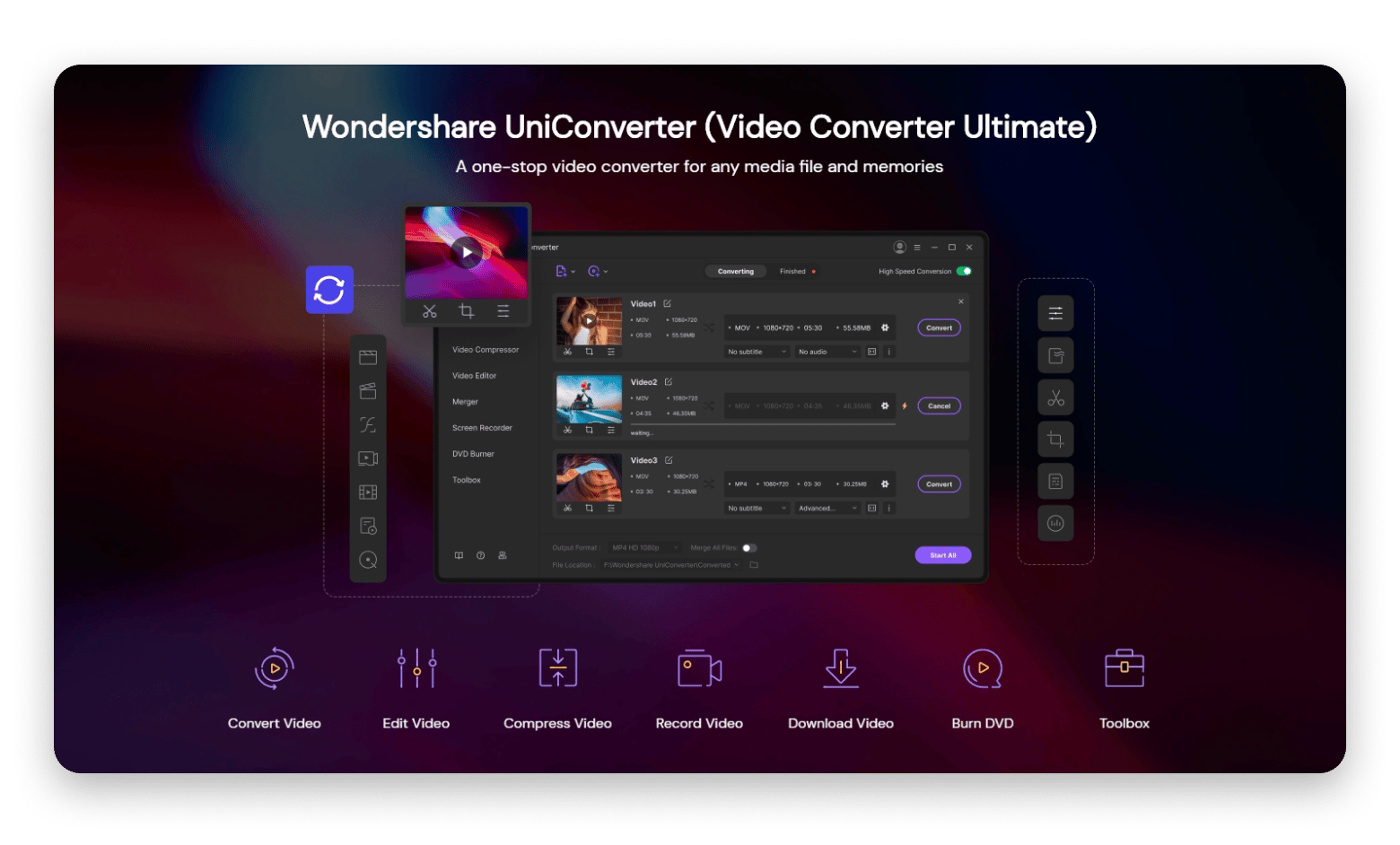
Wondershare UniConverter is the right choice if you want one app that covers conversion, compression, DVD burning, and basic editing, and you're willing to pay for it.
It’s the commercial all-rounder in the list. It's built to ensure beginners are comfortable, so it emphasizes the GUI to make tasks easier.
Its biggest plus is that it covers conversion (in up to 8K) as well as downloading, compression, DVD burning, and even basic video editing. There are also AI-powered features like a watermark remover, text-to-speech, video summarizer, and quality enhancer.
However, it’s heavily commercial with aggressive marketing and a price tag of $59.99 per year (plus $19.99 for AI tools). Everything HandBrake offers for free, UniConverter charges for, with upsells added on top
Pros:
Polished drag-and-drop interface with device-specific presets
AI features: auto-generated subtitles, video enhancement, smart trimming
Covers conversion, compression, editing, and DVD burning in one app
Actual customer support via phone and email
Cons:
Free trial is not really useful
Relatively expensive
Upsell prompts within the app can feel pushy
Pricing: From ~$19.95/month
5. Permute: Best option if you want maximum control, formats, and automation
Best for: Mac users who want a clean, native, all-in-one media converter
Platforms: Mac
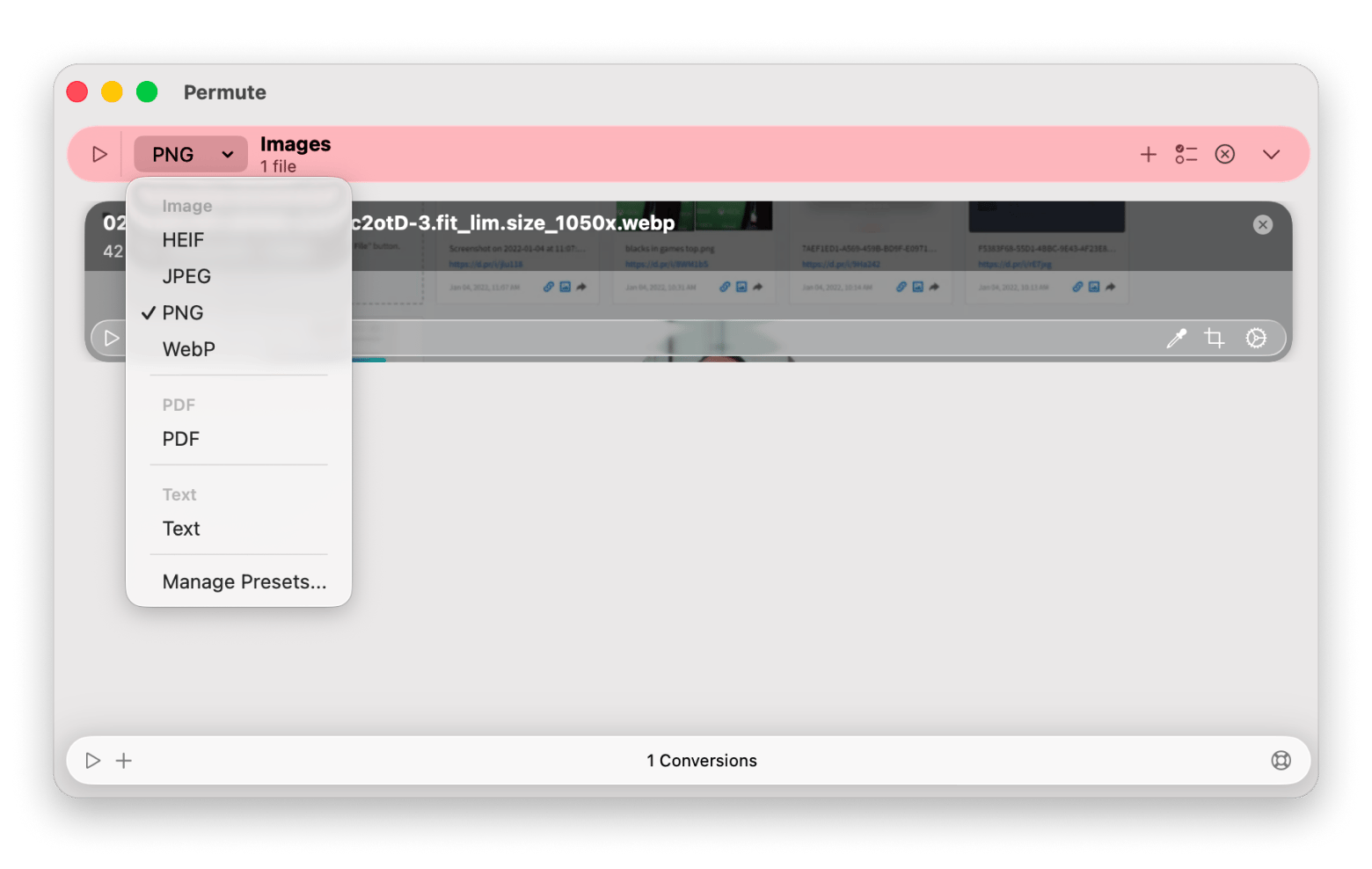
Permute is my favorite HandBrake alternative, and I’d also say the best video and media converter on Mac. Permute is built for Mac from the ground up. It uses Apple silicon acceleration and supports drag-and-drop with no settings required.
It’s great at converting videos as you just need to drag and drop files, then select a preset (from 30+ options). It supports 50+ file formats and goes beyond video conversion to offer image conversion, audio conversion, and PDF to image. It even has basic video editing like trimming, cropping, and volume adjustment.
A Mac native tool, visible in the interface, and speed
Converts video, audio, and images
Light editing built in
AppleScript and Automator support for workflow automation
Cons:
Fewer manual encoding controls than HandBrake
No DVD/Blu-ray ripping
Pricing: One of the main advantages of Permute is that it’s part of Setapp. This is a marketplace for curated Mac, iOS, and web apps that charges a single subscription. For $9.99 + tax a month, you can get Permute alongside hundreds of other premium Mac apps.
6. iFlicks: Ideal for optimizing videos for iPhone, iPad, Apple TV
Best for: Encoding and organizing video files for playback on Apple devices
Platforms: Mac
iFlicks is the right HandBrake alternative if your goal is getting video files into your Apple TV library or Plex without re-encoding what's already in a compatible format.
It’s a bit more specific than HandBrake and other tools in that it prepares files for the Apple ecosystem. It’s a Mac-native app, and when you drop a file, it converts it to an Apple-compatible format. From there, it fetches the movie or TV show metadata, artwork, subtitles, and chapters, and drops everything into the Apple TV app or Plex.
One of the things I like about the app is that it doesn’t waste time doing unnecessary re-encoding as HandBrake does. Instead, it checks inside the container to see if the video track is already in an Apple-friendly codec (like H.264 or HEVC/H.265). If so, it just extracts it and puts it in a compatible container.
Pros:
Automatic metadata, artwork, and subtitle lookups
Lossless passthrough for H.264 and HEVC (no unnecessary re-encoding)
Tightly integrated with the macOS TV app and Plex
Included in Setapp
Cons:
Only suitable for building an Apple ecosystem media library
Less advanced compression control than HandBrake
Not ideal for professional encoding workflows
Pricing: Available on Setapp. No extra purchase necessary.
7. EaseFab Video Converter Ultimate: Best choice if you want consumer-friendly batch conversion + compression tools
Best for: Users looking for a straightforward GUI converter with batch processing and compression tools
Platforms: Mac, Windows
Source: tipard.com
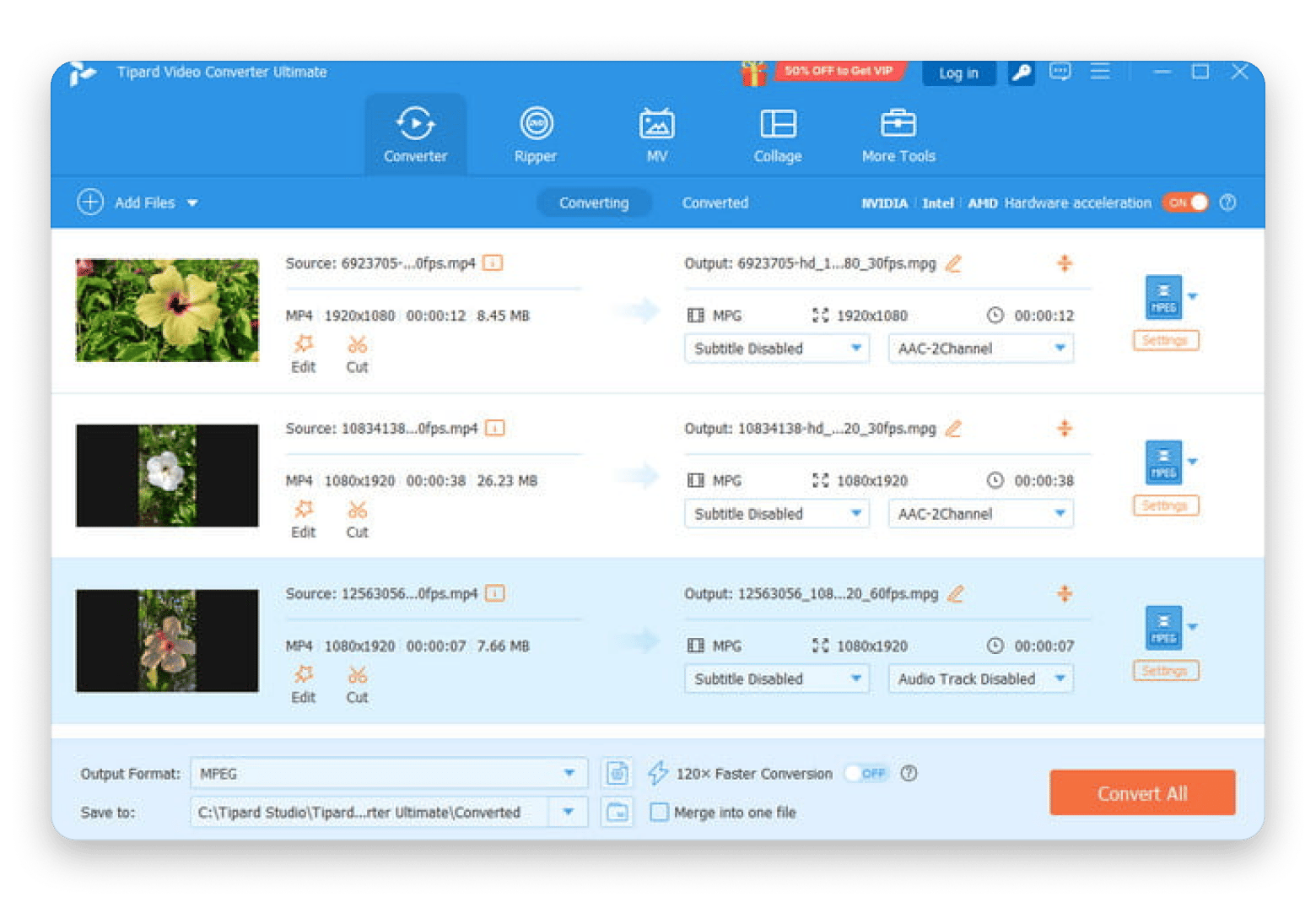
EaseFab Video Converter Ultimate is one of the best HandBrake alternatives for people who want to make the process as simple as possible. It heavily relies on presets. There are over 500 of these, and you just need to choose the device or format you are targeting.
The interface is outdated, but I like how straightforward it is. There are also several other useful features like compressing large files, ripping DVDs, and batch conversion.
Pros:
Simple interface with device-specific presets
You can target a specific file size for sharing and upload limits
Large library of device presets
DVD ripping, compression, and batch conversion support
Cons:
Less file control compared to HandBrake
Protected disc ripping isn't supported
Outdated interface that feels more consumer-oriented than professional
Pricing: $17.95/year or $27.95 lifetime
8. DVDFab: Best choice if you want a full disc backup/ripping suite (with metadata and protection claims)
Best for: Businesses that need to back up discs, rip large media libraries, and manage broader DVD/Blu-ray tasks in one place.
Platforms: Mac, Windows
DVDFab is the only tool in this list built specifically for businesses managing large disc libraries. It handles ripping, copying, ISO backup, conversion, and AI upscaling across 28 separate modules.
However, all the features are treated as different modules and sold separately. None of them comes cheap, and you’d have to pay about $300 to get all the features. It’s meant for businesses dealing with large media libraries.
Pros:
Works with DVDs and Blu-rays that have modern copy protections
Full suite: rip, copy, ISO backup, and convert + more
GPU-accelerated encoding on Mac for fast processing
Device-specific presets for Apple, Android, and more
Cons:
Free version is significantly limited (480p)
Overkill for users looking for simple video conversion (file-to-file)
Licenses are costly
The business model is heavily subscription/upgrade-oriented
Pricing: Module-based pricing ($59.99 to $129.99) or $279.99 all-in-one
9. Any Video Converter: Best option if you want a free tier plus downloader and basic edits
Best for: Users who want lightweight conversions alongside downloading and simple editing features.
Platforms: Mac, Windows
Source: any-video-converter.com
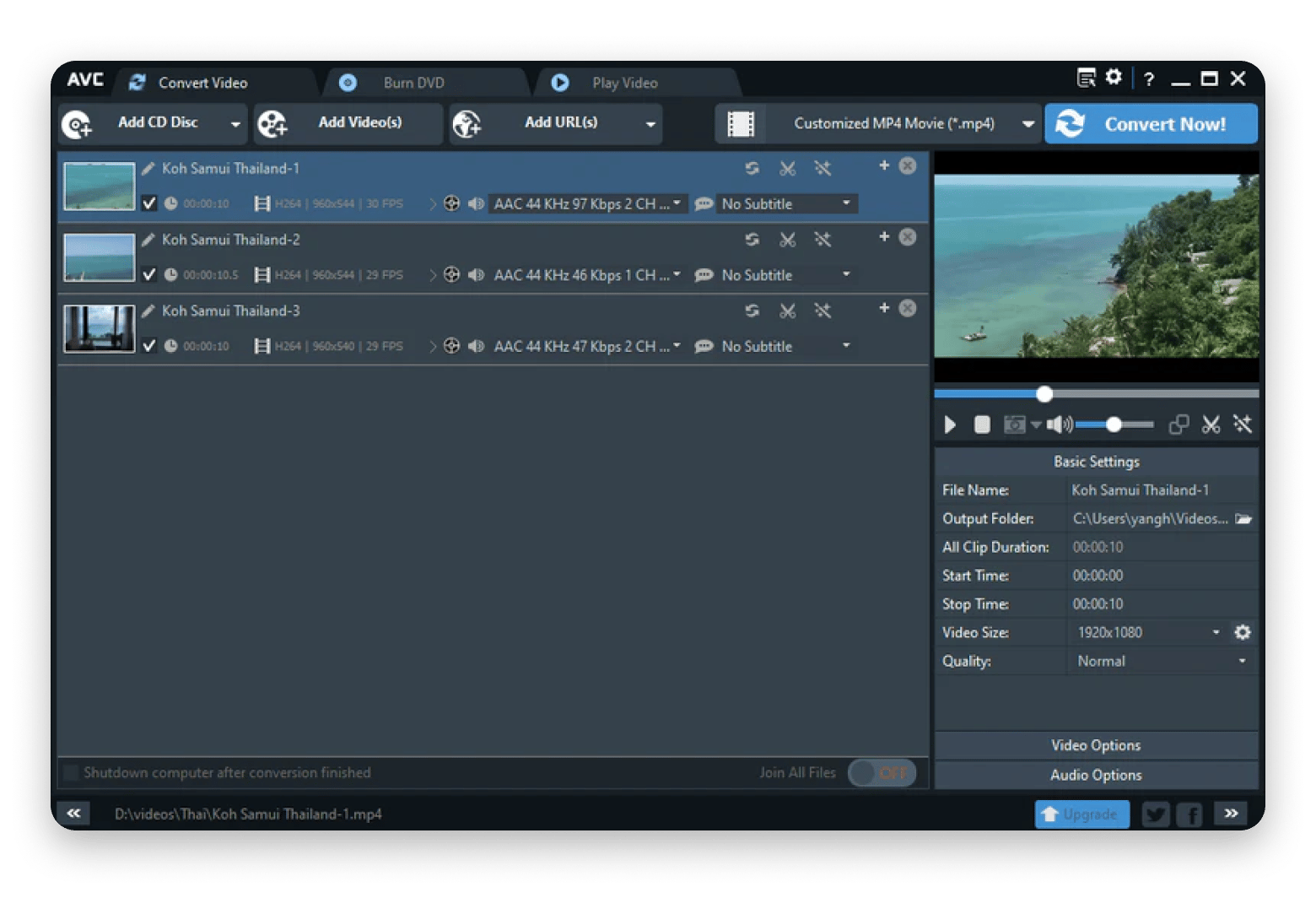
Any Video Converter (AVC) has made a name for itself as one of the best video and audio conversion tools, and the standard version is still free on Mac. The tool has a simple interface that lets you drag and drop a video, then choose the output format.
The Pro version adds more features like a custom download mode, curating your audio and subtitles, recording to screen, and burning to DVD. The Ultimate version then offers AI features like generating videos (Seedance 2.0) and auto-transcription.
Pros:
Free for standard use with no meaningful time or file limits
Beginner-friendly interface
Built-in video downloader
Broad format support and basic editing
Cons:
Less advanced encoding customization
Pushes premium upgrades heavily
Compression optimization is lighter than HandBrake’s
Best for: Windows users looking for a beginner-friendly video conversion tool
Platforms: Windows
Freemake is a popular video converter on Windows for those looking for a simple and GUI-oriented way to convert videos. However, it currently doesn’t have a Mac version. While it's often mentioned among HandBrake alternatives, avoid downloading files that claim to install the media converter on Mac as they contain malware.
If you are moving from Windows and already have a license, the only way to run the app on Mac is through virtualization. You can check out more on how to run Windows on Mac.
Choosing the right HandBrake alternative on Mac
The right HandBrake alternative depends on what's missing from your workflow.
If you want DVD and Blu-ray ripping, MakeMKV is the most straightforward option, but DVDFab is better for businesses dealing with large files. If you are already working with Final Cut Pro, Apple Compressor will fit in better than other tools.
VLC and Any Video Converter also work well for the occasional conversion. However, if you are looking for a Mac native experience and a tool that can convert any file, Permute is the best HandBrake alternative for Mac. iFlicks also offers a similar feel if you want to create files for Apple devices or Plex.
HandBrake is powerful. It's also a workflow tax — every Mac workaround it requires is time spent on the wrong thing. Permute and iFlicks are both in Setapp: drag-and-drop conversion and Apple library management in one plan. 250+ Mac apps.Start My Free 7-Day Trial.
FAQ (HandBrake alternatives on Mac)
What is the best app to compress videos on Mac?
The best app to compress videos on Mac for most users is Permute. It offers a clean interface, supports all video formats, and offers control of the file size and bitrate.
Is VLC or HandBrake better?
VLC is a media player for the most part, but it also offers a basic media conversion feature. HandBrake is more dedicated to video encoding and offers greater control over the output quality. It’s more capable for conversions.
Can HandBrake be trusted?
Yes, HandBrake can be trusted as it’s well-established and the code is open-source. You just need to ensure you download it from the official site, handbrake.fr.
Is HandBrake completely free?
Yes, HandBrake is completely free and open source. It has no paid tier, feature caps, or upsells.
What's a faster, less hassle alternative to HandBrake?
Permute is the fastest and easiest to use alternative to HandBrake. It has a drag-and-drop interface that allows you to select a format or preset and convert any media in a few seconds. Wondershare UniConverter is another option, but it’s heavily commercial with high prices and upsells.
Get a universal media converter
Permute quickly converts files in a required format.






 Best solution
 Best solution