Aesthetic Mac wallpapers work best when they're high-resolution, muted in tone, and leave space around your menu bar and Dock. Quiet luxury, dark academia, lo-fi city, botanical minimal, and personal collage all follow this formula.
A photo collage wallpaper is easy to build yourself. Find your Mac's native resolution, pick three to five photos, arrange them in a grid or blended layout, then export and apply the file.
Match the colors across your collage withSip. Its color picker samples tones straight from your own photos so the final background feels cohesive instead of mismatched.
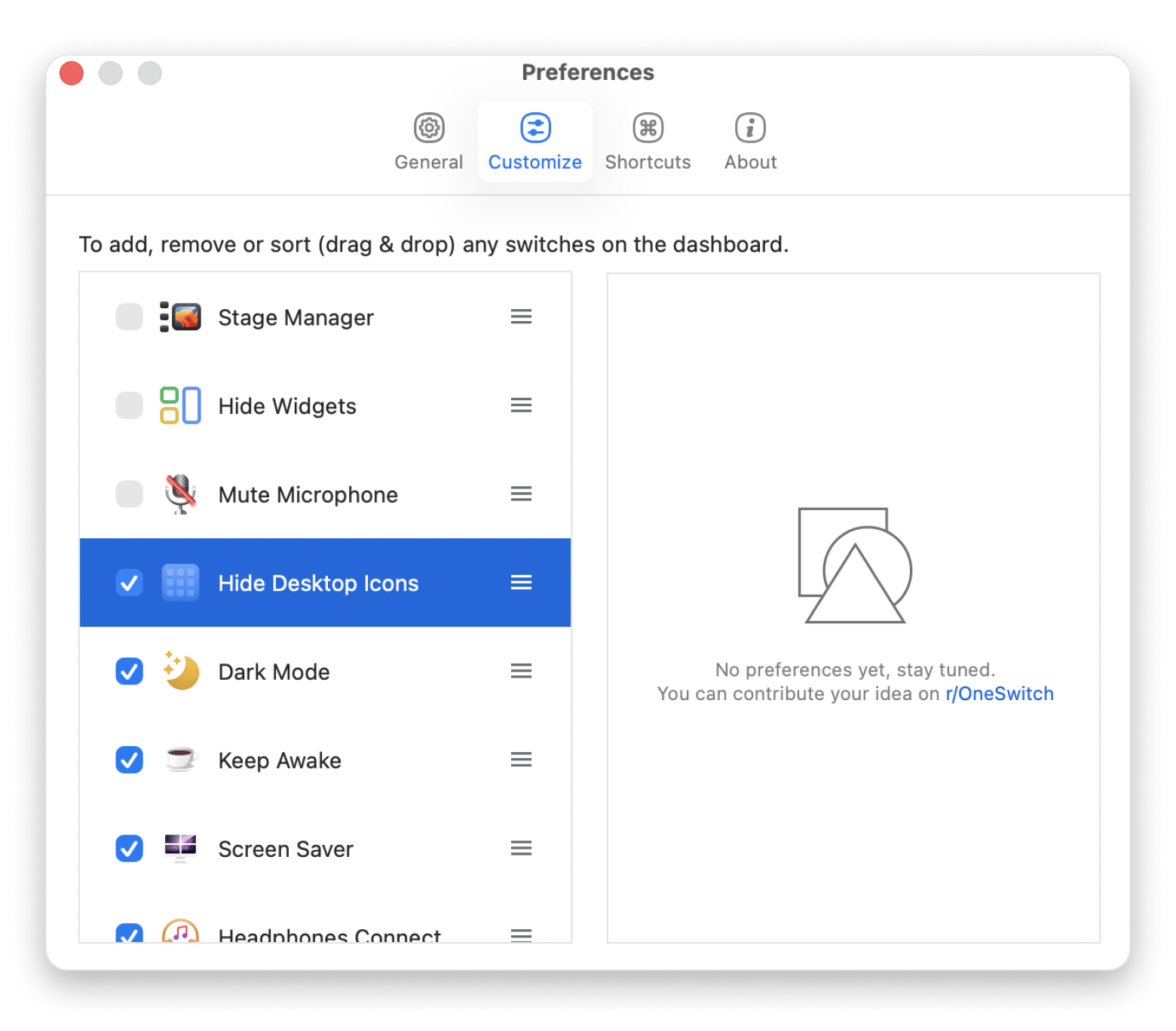
Keep the rest of your desktop as clean as the wallpaper.One Switch hides desktop icons, HazeOver dims inactive windows, and Desktop Composer saves the whole look as a one-click profile.
For more aesthetic Mac wallpapers, try a high-definition picture of a cityscape or a minimalistic style.
Aesthetic wallpapers aren’t all about the looks. A cluttered desktop always bogs me down, and my desk is my home for 8 hours a day. I was surprised at how much better everything was when I stopped focusing on pretty wallpaper for computer aesthetics and focused on using it as a way to stay organized. I organized files, cleaned up my desktop, hid icons, and I felt much better.
Here’s why your wallpapers don’t look aesthetic:
Problem
Why it happens
Solution
Setapp app
Blurry, pixelated wallpaper
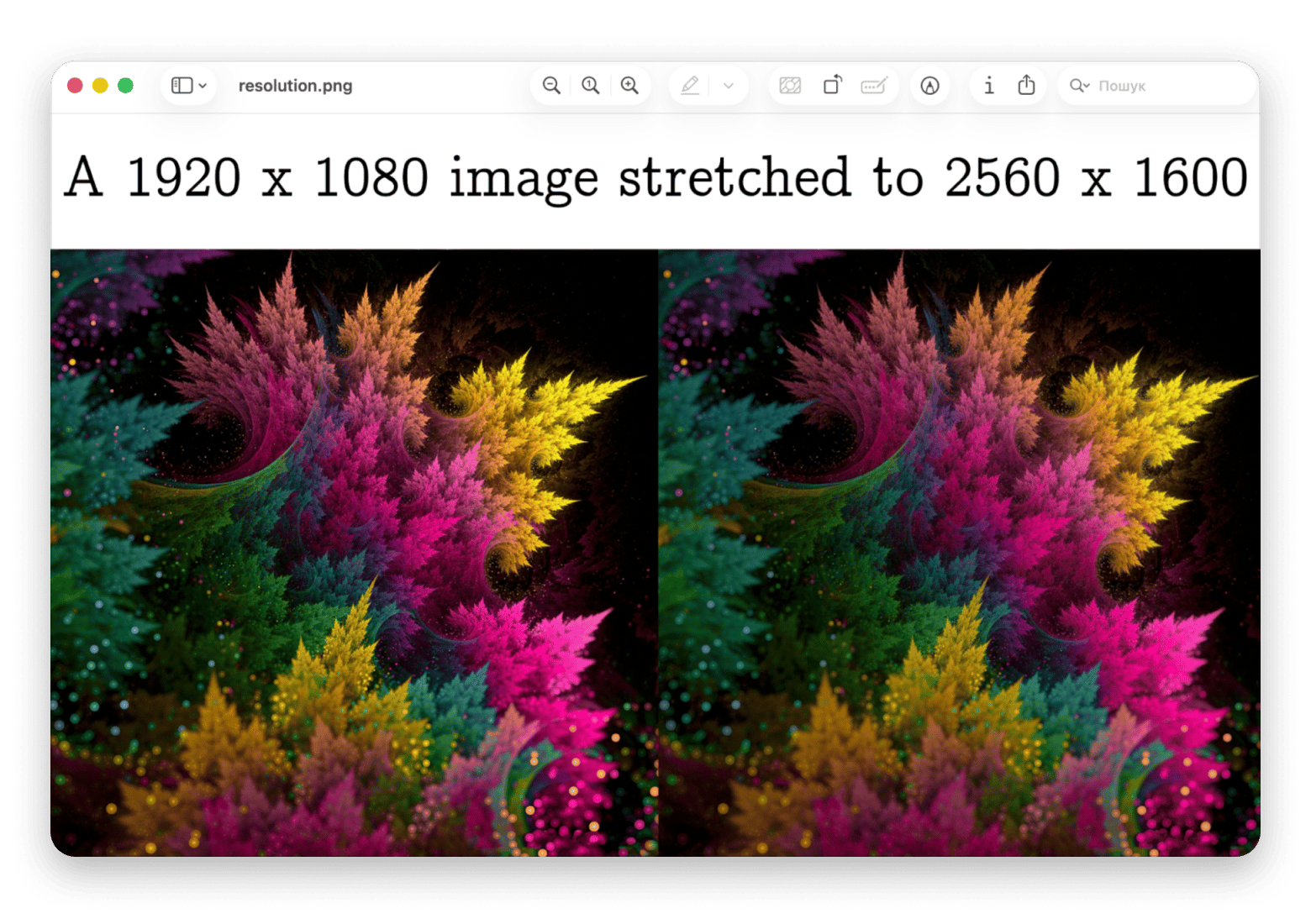
Making a low-resolution picture fit the screen
Download images that match your exact Mac resolution
—
Hard-to-read file names
Busy patterns or areas with a lot of contrast surround the icons.
Pick simple designs with lots of empty space or use Stacks to group files together.
One Switch — hide desktop icons when you want a completely clean background.
Harsh glare at night
The picture is too bright or has neon colors.
Set wallpapers that change with Dark Mode or choose muted tones for the background.
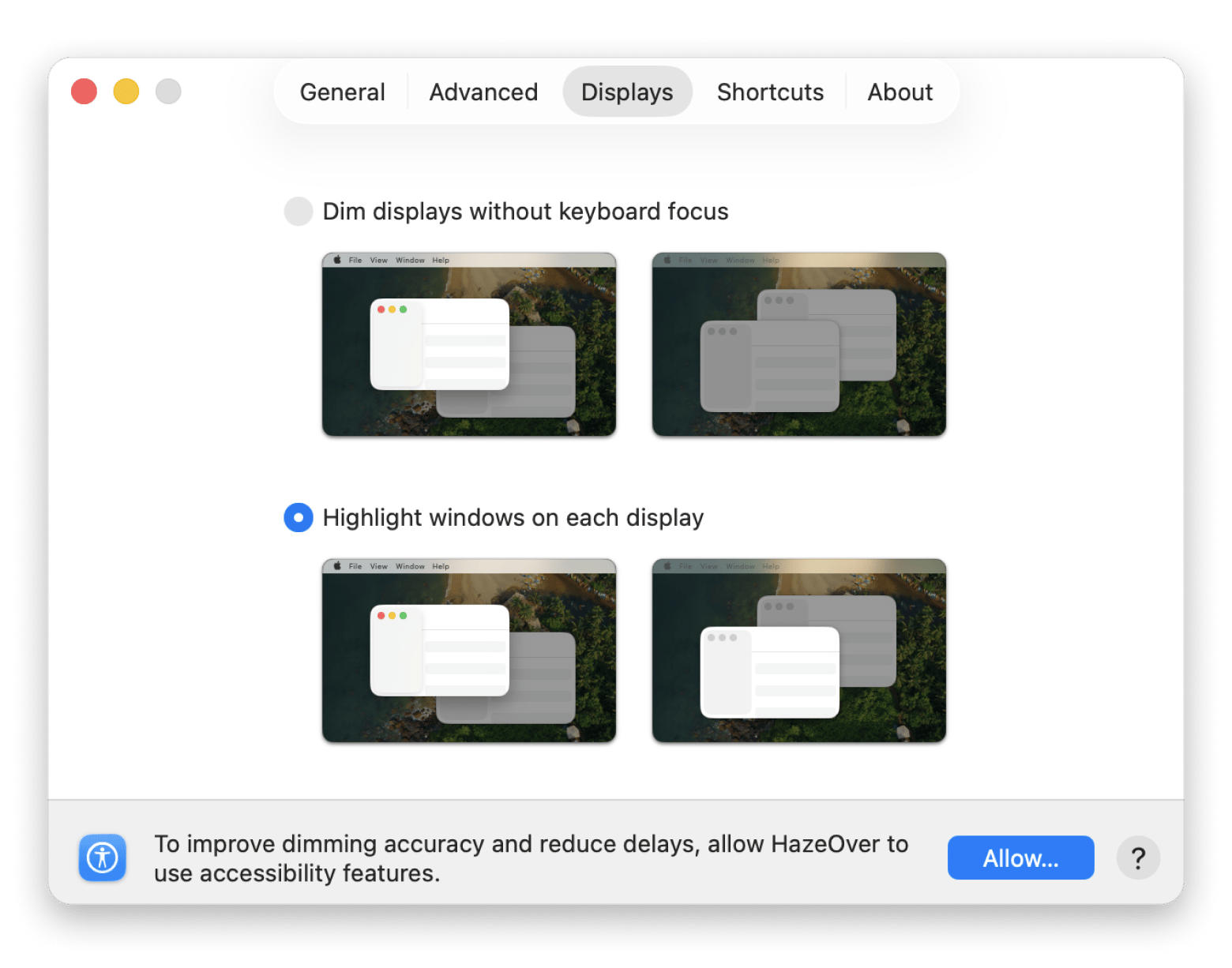
HazeOver — dim inactive windows and reduce visual distractions when you’re working
What makes a wallpaper actually aesthetic on a Mac
The best aesthetic Mac background should be bright, high-resolution, and have some white space around the menu bar. This makes the menu bar and file names more easily seen. Beyond that, a good background should keep your workspace neat and stay easy on the eyes:
Clear the workspace: Simple designs free up desktop space.
Visibility: A good wallpaper leaves the top and bottom edges free.
Muted tones with a natural color palette on desktop: Soft shades are easier to relax with and more comfortable to your eyes during long periods of time in front of a screen.
Even if you love the wallpaper on your phone, don't use it on your Mac. In order to fit, macOS must zoom in and crop the vertical image. When you stretch a standard phone picture to create an aesthetic background for a MacBook screen, the lines turn soft, blurry, and pixelated.
Tip: I usually work with a dozen windows, notes, and messages open, which makes it hard to focus. I use HazeOver on Setapp to fix this. It dims all my inactive background windows and keeps an active project in full view.
Five aesthetic styles that work well as Mac wallpapers
The best five styles for a wallpaper use balanced colors and simple layouts that fit the macOS display.
Quiet luxury
Quiet luxury is built on soft textures and warm neutral tones, like raw linen weave, aged parchment, and soft terracotta. It’s the ideal base for a minimalist Mac setup for writers, editors, or anyone looking for a distraction-free screen. The menu bar and files are easy to see because this aesthetic doesn’t have any high-contrast spots.
Source: unsplash.com
Search on Unsplash for “neutral linen texture” or “minimalist design.”
Dark academia
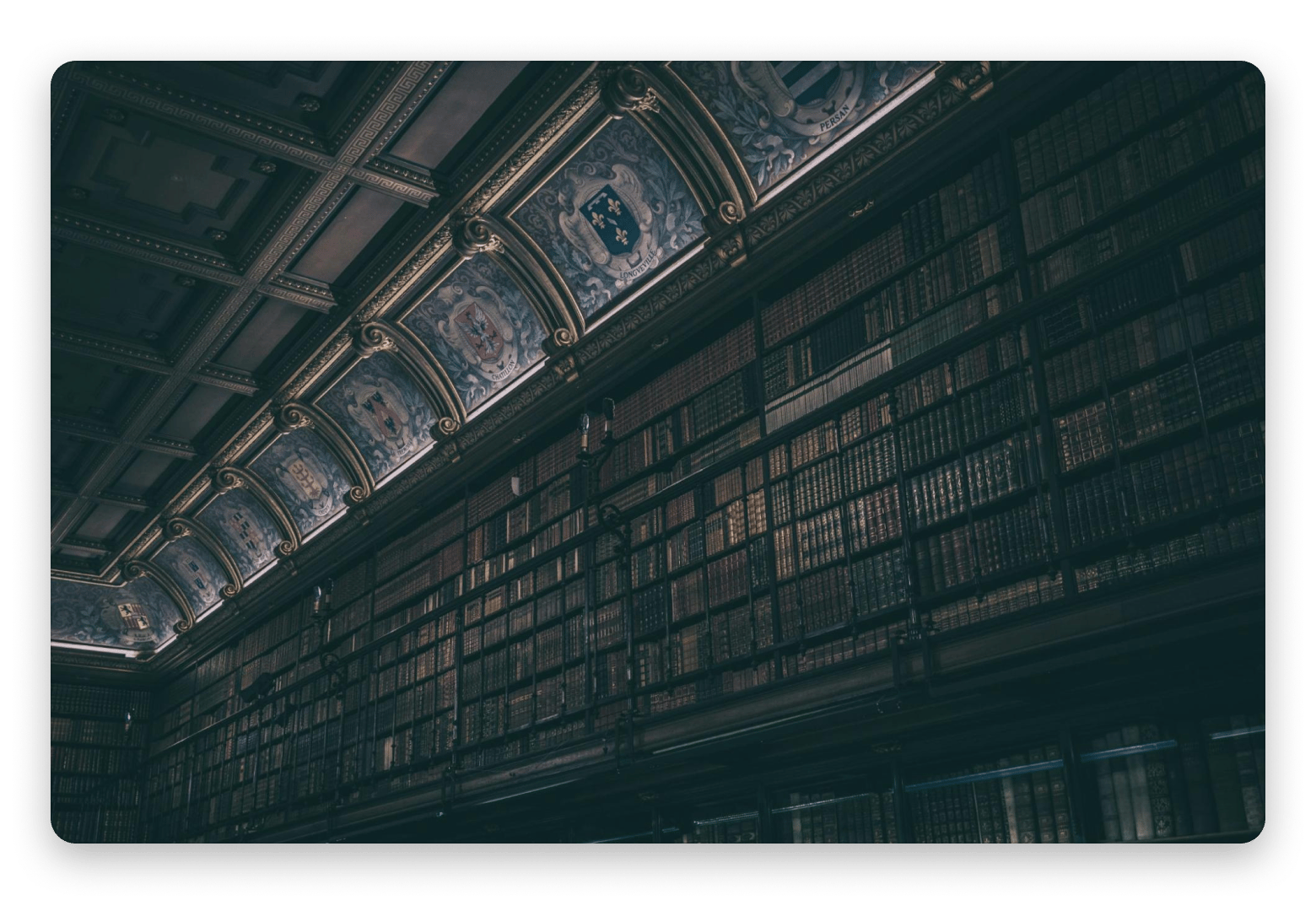
Dark academia is built around dark forest greens, candlelight, worn leather, vintage books, and stone architecture. It's popular among students, since the calm mood works well for long study sessions. Its dark palette also matches macOS Dark Mode and makes your Dock stand out more.
Source: unsplash.com
Search for "vintage books" or "renaissance architecture mood" on Unsplash.
Lo-fi city
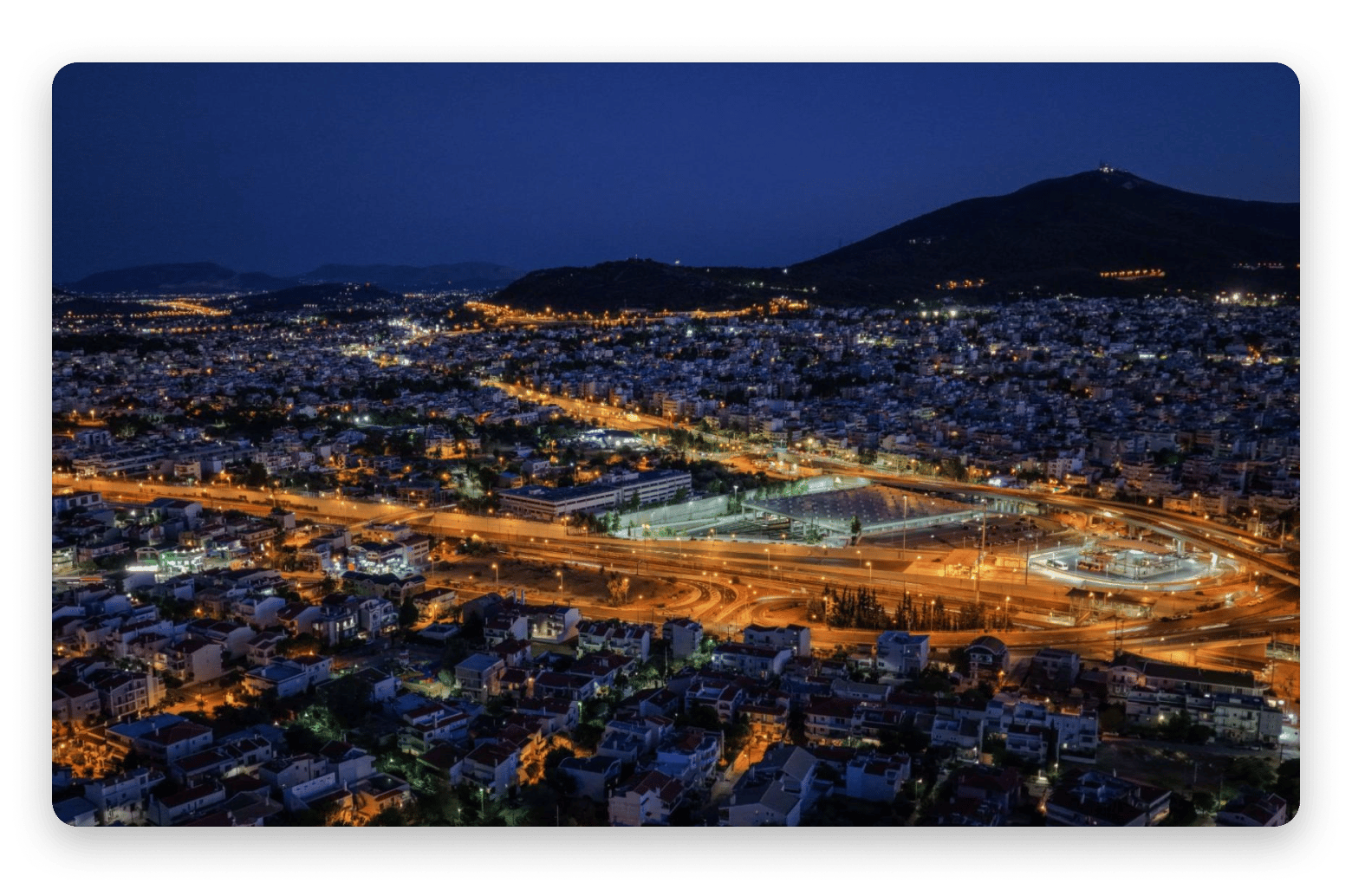
Pictures with a lo-fi aesthetic show rain on apartment windows, streetlights, and gentle neon glows on the ground. The colors are soft and muted.
Source: pexels.com
Search for "rainy window city night" or "lo-fi street night" on Pexels.
Botanical minimal
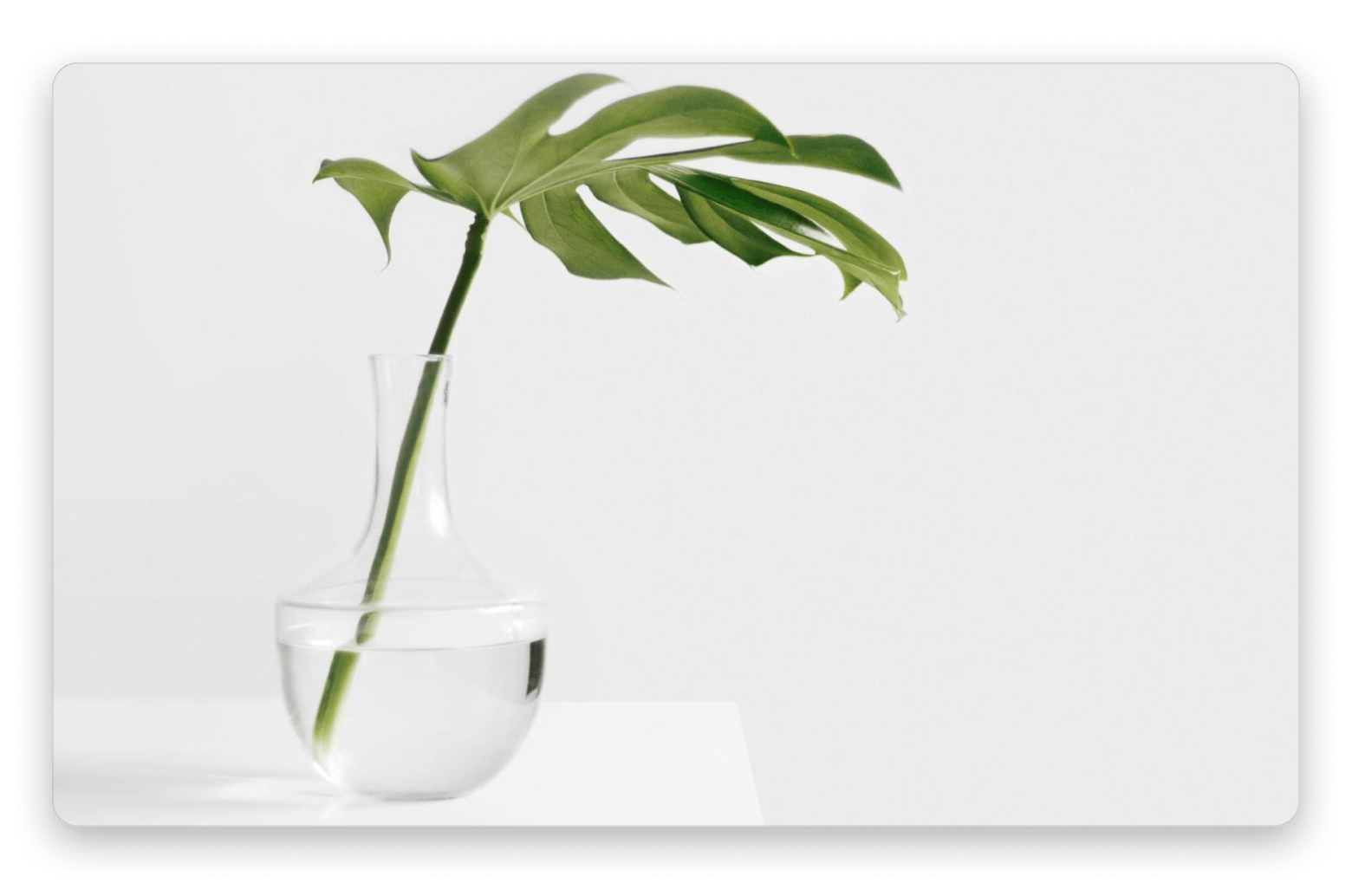
Botanical minimal is based on delicate organic shapes with a clean, open negative space. Imagine a single green monstera stem against a chalk white wall, macro vein patterns on a leaf, or dried eucalyptus branches on sandstone. The visual weight is on one subject, so your desktop files stay easy to find on either side of the screen. This wallpaper works great on light and dark modes.
Source: unsplash.com
Search for "single leaf on white" or "dried flowers neutral background" on Unsplash.
Personal collage
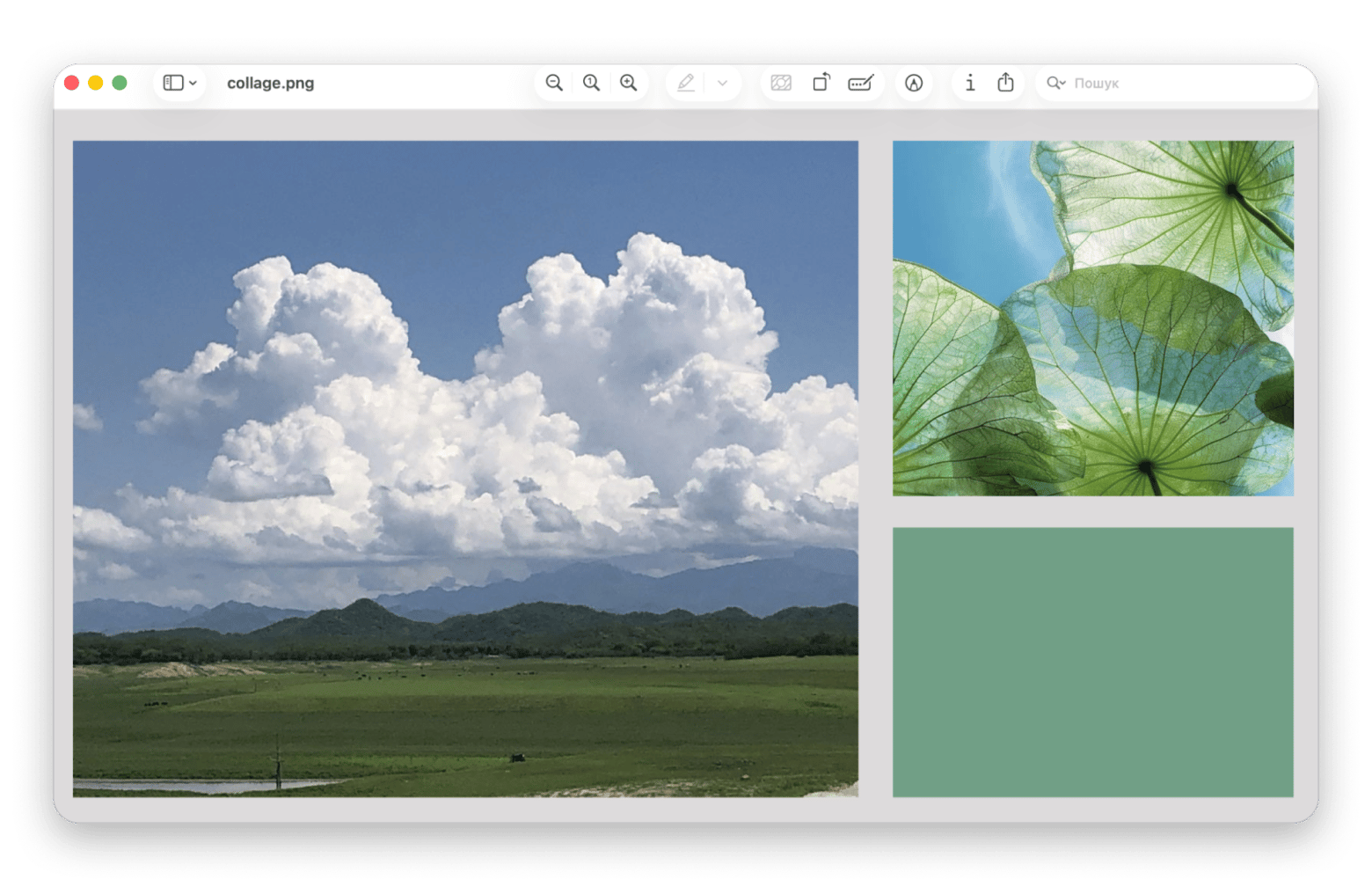
A simple way to get motivated every day is to make your own wallpaper. A random beautiful stock photo will never make your workspace feel personal. Create your own mood board background from travel shots, family photos, favorite artists, or characters.
I made one on my Mac. I added a photo from my mountain hiking trip, a note with a motivational quote, and my dog. Do you want to make your own collage? Follow the guide below.
Search for "vintage paper scraps" or "aesthetic film moodboard" on Pexels to decorate your collage.
How to build a collage wallpaper for your Mac from scratch
To make a unique collage wallpaper for computer screens, do the following.
Find your native display resolution
Open System Settings > General > About to check your screen dimensions. You could also go to Apple menu > About This Mac > More Info. As long as you know your resolution, the final picture will be clear and sharp.
Collect 3 to 5 images
Start with three to five pictures. You can use your own photos or get them from Unsplash and Pexels. Beyond that, the screen gets crowded, and it's harder to find your files.
Arrange your layout
Open any design app and create a canvas the size of your screen. Then pick a layout:
Grid: place the images in neat tiles with thin, neutral borders.
Seamless blend: overlap photos with similar tones so the edges fade into each other.
Export and apply your wallpaper
Export the collage as a high-quality PNG or JPEG. Then go to System Settings > Wallpaper, click Add Folder or Add Photo, and select the file.
Test across Mission Control and Spaces
Swipe up to open Mission Control and look at your setup on every screen. Your file names should still be readable, and the Dock shouldn't cover anything important in the wallpaper.
Save your setup as a profile
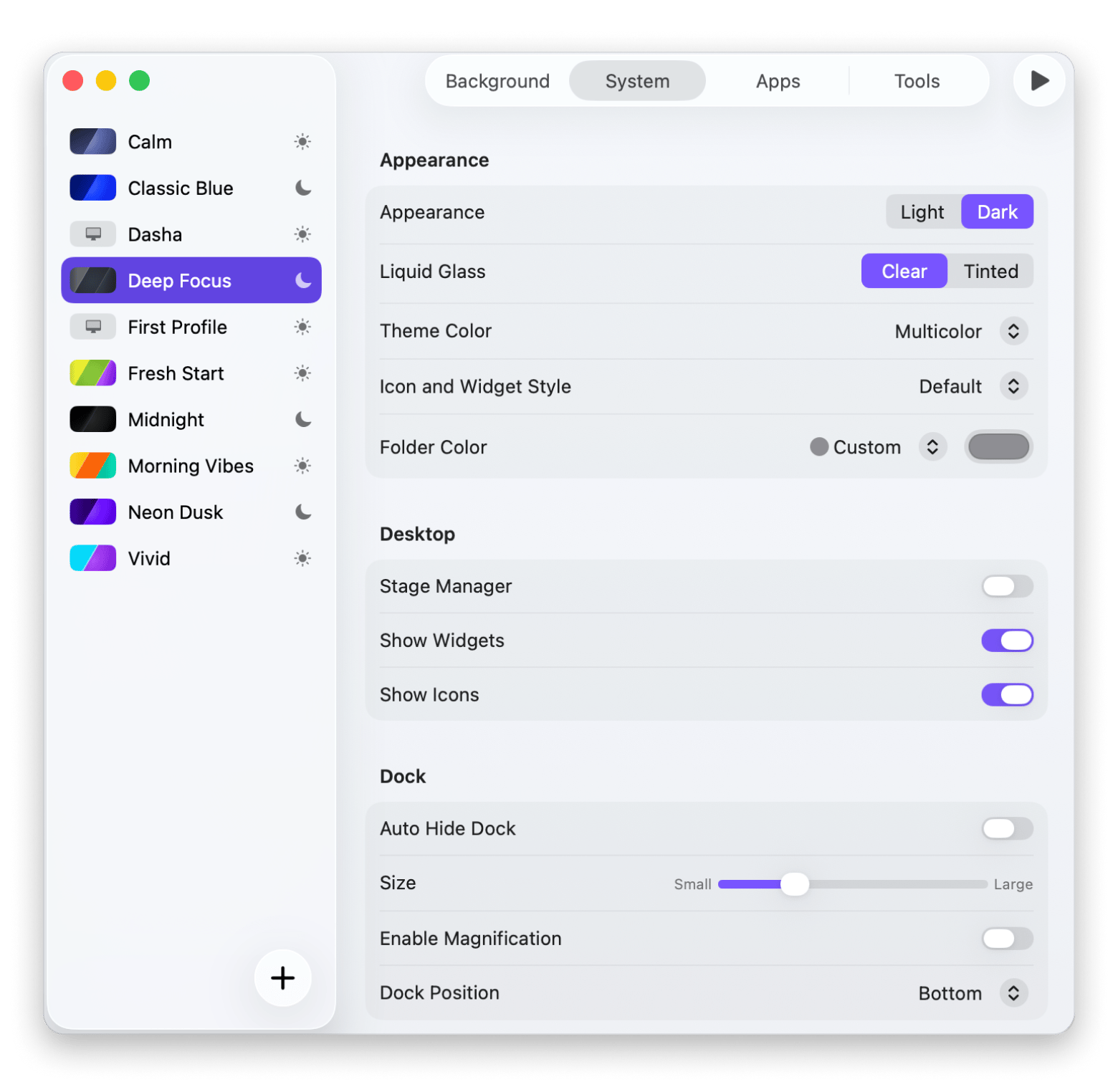
Save your collage in Desktop Composer from Setapp with your Dock position, folder colors, and widget layouts. Then you can switch between setups in one click. For example, keep one profile with a simple botanical background and another with your collage.
Rebuilding your clean setup every time you switch projects gets old fast. Save My Setup Free.
Where to find ready-made aesthetic wallpapers for Mac
If you'd rather not make wallpaper for computer aesthetic setups, these sites are a good place to start:
Unsplash: Sharp photos with clear personal-use licenses. The collection has many moody street scenes, textures, and buildings.
Pexels: It's best for clear pictures that would let you clearly see app icons.
Pinterest: Good for ideas, but terrible for downloads. Pinterest compresses images heavily. To get a detailed file, find the original page and save the original picture.
Reddit communities (r/MacSetups, r/wallpaper): You can see real people’s wallpapers. Most posters drop links to the full files in the comments.
For a cute aesthetic wallpaper desktop look, stick to the highest resolution available.
Try these exact search terms to find beautiful images:
"bokeh window rain" for moody, lo-fi city nightscapes.
"linen texture neutral" for a quiet luxury aesthetic.
"dried flowers neutral" for clean botanical setups.
"minimal aesthetic pattern" for subtle, non-distracting geometric backgrounds.
"aesthetic desktop background neutral" for clean, balanced layouts.
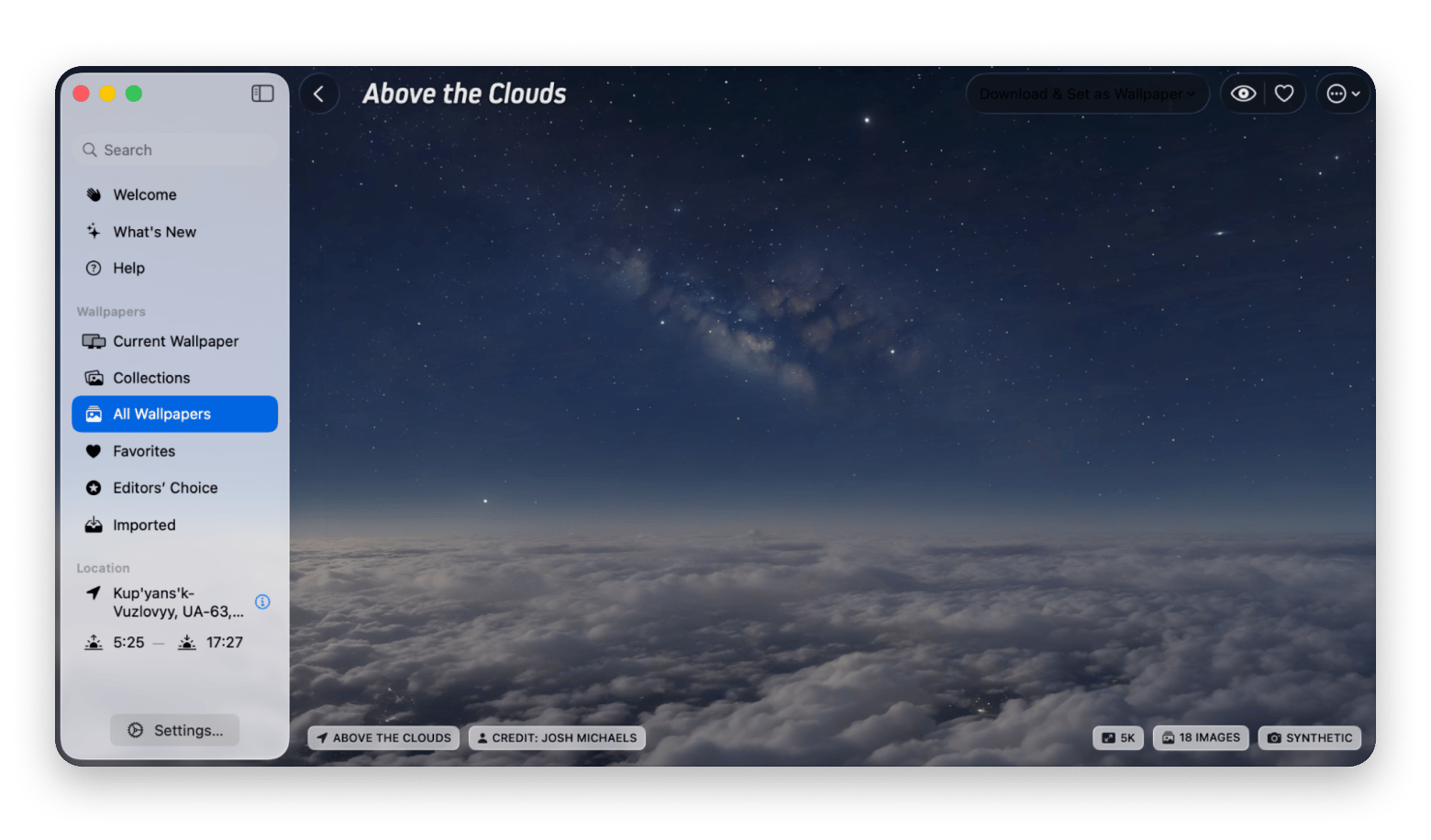
If you don't want to spend time searching for images each time you need a new background, you can set it up automatically. Try 24 Hour Wallpaper from Setapp. The huge library of high-resolution scenes changes slowly throughout the day to match your local time.
Keeping your aesthetic desktop consistent beyond the wallpaper
Setting a warm, aesthetic desktop wallpaper on Mac made my screen look great right away. But that good feeling did not last. Loose desktop files, red notification badges, and bright system colors quickly ruined the view.
A desktop customization only works if the rest of the interface matches the wallpaper. Try these settings instead:
Hide desktop icon: Open System Settings > Desktop & Dock and switch off On Desktop under Show Items. Loose files will stop covering your wallpaper.
Auto-hide the Dock: In System Settings > Desktop & Dock, turn on Automatically hide and show the Dock. The bottom of your screen stays clear.
Match your accent color. Go to System Settings, then Appearance, and pick a shade that pulls from your wallpaper palette.
By going over your macOS wallpaper settings along with these display changes, you can improve your workspace.
Tip: Adjusting system settings by hand breaks your workflow when you just want a clean screen. Whenever my desktop gets cluttered, I use One Switch from Setapp. With one click, I can hide any icons that are getting in the way of my wallpaper.
Build your ideal aesthetic wallpaper setup for Mac
A good Mac wallpaper needs high resolution, gentle colors, and a tidy desktop to keep your screen readable. Tools like One Switch and HazeOver clear away desktop clutter and background windows, while Sip helps balance the colors in your custom collages. If you want ready-made backgrounds, 24 Hour Wallpaper changes scenes throughout the day, and Desktop Composer lets you save different screen setups into one-click profiles.
A great wallpaper is step one. The rest of Setapp handles the other nine. Sip, One Switch, HazeOver, 24 Hour Wallpaper, and Desktop Composer are all included with one Setapp membership. Get 300+ Apps.
FAQ
What resolution should my wallpaper be if I have a Retina display on my MacBook Pro?
Here are common MacBook Retina resolutions:
13-inch: 2560×1600
14-inch: 3024×1964
15-inch: 2880×1864
16-inch: 3456×2234
If I have two monitors, can I use the same wallpaper without it looking stretched or out of place?
Yes, you can set up each screen separately. To do so:
Click the Apple menu > System Settings > Wallpaper.
Turn off Show on all Spaces.
Choose your screen in the drop-down menu.
Choose the image.
What can I do to set my Mac's wallpaper to change every hour?
To set my Mac's wallpaper to change every hour:
Click the Apple menu > System Settings > Wallpaper.
Scroll down, click Add Folder, and choose the folder with your images.
Open the drop-down menu next to its name, and pick Every hour.
If you want the wallpaper to follow the time of day instead, install 24 Hour Wallpaper from Setapp, open it, and pick any 24-hour photo.
How can I make a photo collage wallpaper for free if I don't know how to design?
You can make a photo collage wallpaper for free without any design skills using Keynote, Canva, or Figma. Keynote is a particularly simple option if you have a Mac:
In the Keynote window, click New Document, and choose a blank white presentation.
Click Document in the top-right corner.
Set Slide Size to Custom Slide Size and type in the screen resolution.
Drag your photos onto the slide, resize and arrange them as you like.
Go to File > Export to > Images to save your wallpaper. Select PNG and click Next.
If you prefer working in a browser, Canva lets you create a collage using ready-made grids and simply drop your photos into them. Figma is another option if you want more control over the layout — you can set the canvas to your screen size and position each photo exactly where you want it.
How do I stop the mess of my desktop icons on macOS?
You can clean up a cluttered Mac desktop in two ways: automatically organize your icons with Stacks or hide desktop icons completely.
To group icons automatically:
Right-click an empty spot on your desktop (or tap with two fingers on a trackpad).
Choose Use Stacks. macOS will sort your icons into neat piles, such as Images, Documents, and Screenshots.
To hide desktop icons completely:
Open the Apple menu > System Settings > Desktop & Dock.
Find Show Items and turn off On Desktop. Your files stay safe in the Finder "Desktop" folder, but the screen itself stays clear.
Own a wallpaper collection
Juggle desktop backgrounds with Wallpaper Wizard app.






 Best solution
 Best solution