You can rotate a video on a Mac quickly using built-in tools. For a fast fix with no installs, QuickTime Player lets you rotate a single video in seconds and export it without complicated settings.
Choose the tool based on whether you need playback, batch work, or editing. VLC is useful for temporary playback rotation, Permute is ideal for rotating multiple videos at once, and Filmage Editor works best when the video is part of a larger project with a timeline.
iPhone videos often need re-encoding to fix orientation issues. iPhone clips rely on orientation metadata, which can break on Mac or other platforms. Apps like QuickTime, CameraBag Pro, Filmage Editor, and Permute permanently fix this by re-encoding the video.
Professional control matters for quality and consistency. CameraBag Pro offers precise angle control, color correction, and presets, while Filmage Editor provides frame-level editing and multiple export formats without sacrificing quality.
Setapp gives you all the right tools under one subscription. Instead of juggling separate apps, you get CameraBag Pro, Filmage Editor, and Permute in one place, making it easy to rotate, edit, and export videos professionally. You can try them all with the 7-day free trial.
Maybe you shot a quick video on your iPhone or received footage from a client, only to find that it's sideways when you play it on your Mac. In moments like this, knowing how to rotate a video comes in handy as you can quickly correct a mistake or align a clip to fit in with the rest of your project.
The good thing is that Mac gives you plenty of options to rotate video clips, from built-in tools like QuickTime Player to more feature-rich editors like CameraBag Pro and Filmage Editor. There are also free apps like VLC and even online ones.
In this guide, I’ll show you different ways to rotate a video on a Mac, from quick fixes to a setup that gives you more flexibility and control.
Here’s a quick overview of how to rotate video on a MacBook:
You want to…
Do this
Rotate a video quickly with no installs
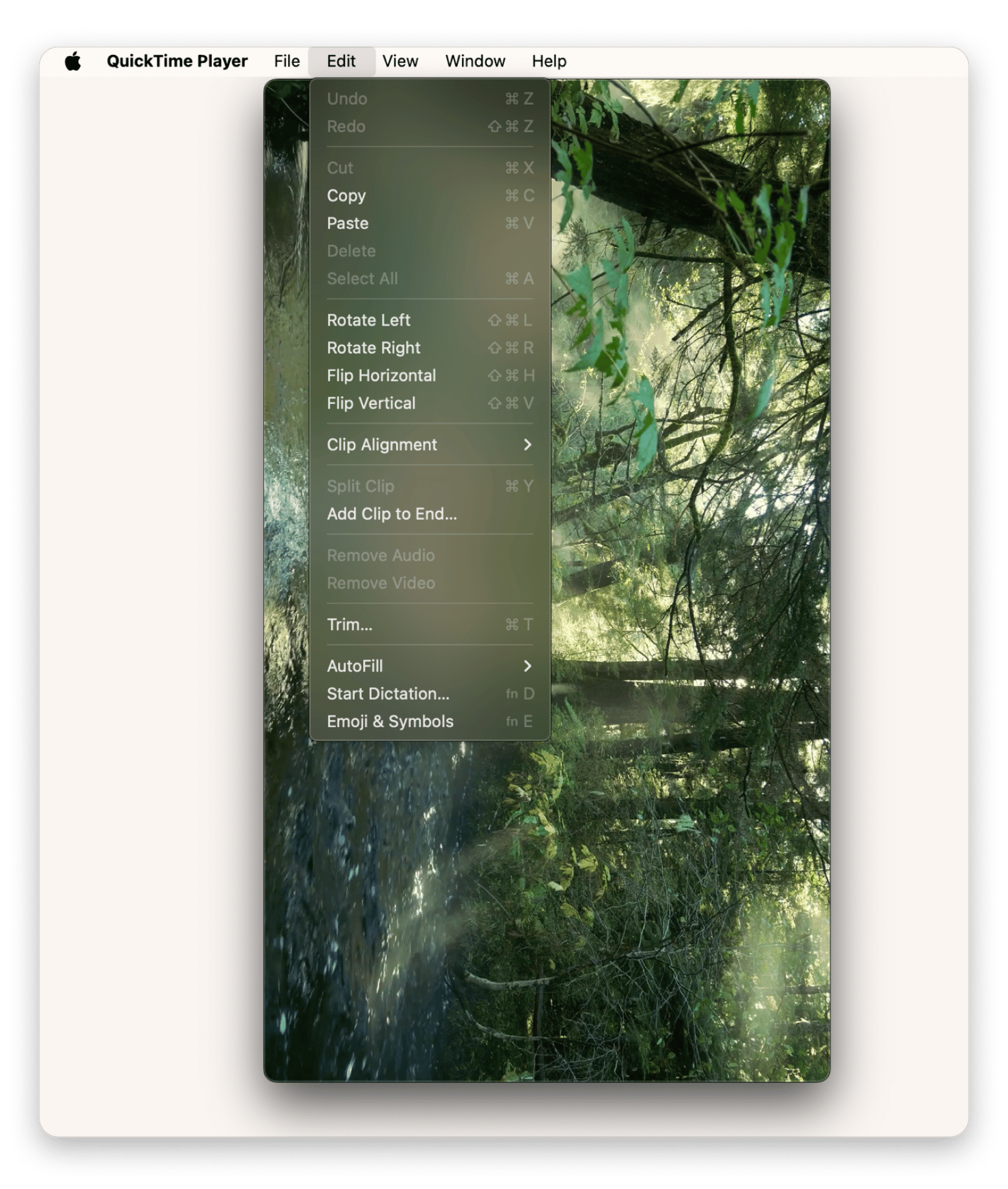
Use QuickTime Player > Edit > Rotate Left/Right and export.
Rotate video playback
Use VLC
Rotate multiple videos at once
Open files in Permute > Settings > Transformation > Convert.
Rotate an iPhone video without losing resolution or aspect ratio
If you only have a single clip you want to rotate, the quickest way to do it is through QuickTime Player. The tool is built in, easy to use, and entirely free.
Step-by-step guide for QuickTime rotation
Here’s how to rotate a video on a Mac using QuickTime Player:
Double-click the video to open it in QuickTime Player.
Go to Edit > Rotate Left or Rotate Right.
Go to File > Export As > Resolution.
Type the name and click Save.
It’s as simple as that, and the conversion is instant as there’s no rendering required.
Pro tip: Instead of moving your cursor around, you can use Command + L to rotate left and Command + R to rotate the video right.
Pros and cons of QuickTime
Pros:
Free and pre-installed on every Mac
Super easy to use, so suitable for beginners
Safe, fast, and stable
Keeps your original file intact
Cons:
Can only rotate one video at a time
Limited export settings
Not ideal for professional editing
Rotate a video with CameraBag Pro
If you want to edit several videos or you want a bit more creative control, CameraBag Pro is the best method to rotate videos on Mac. The rotation itself is just as easy and quick as using QuickTime Player, but you also get lots of other advanced features. You can correct colors, adjust lighting, increase the speed, and try various presets.
How to rotate a video in CameraBag Pro
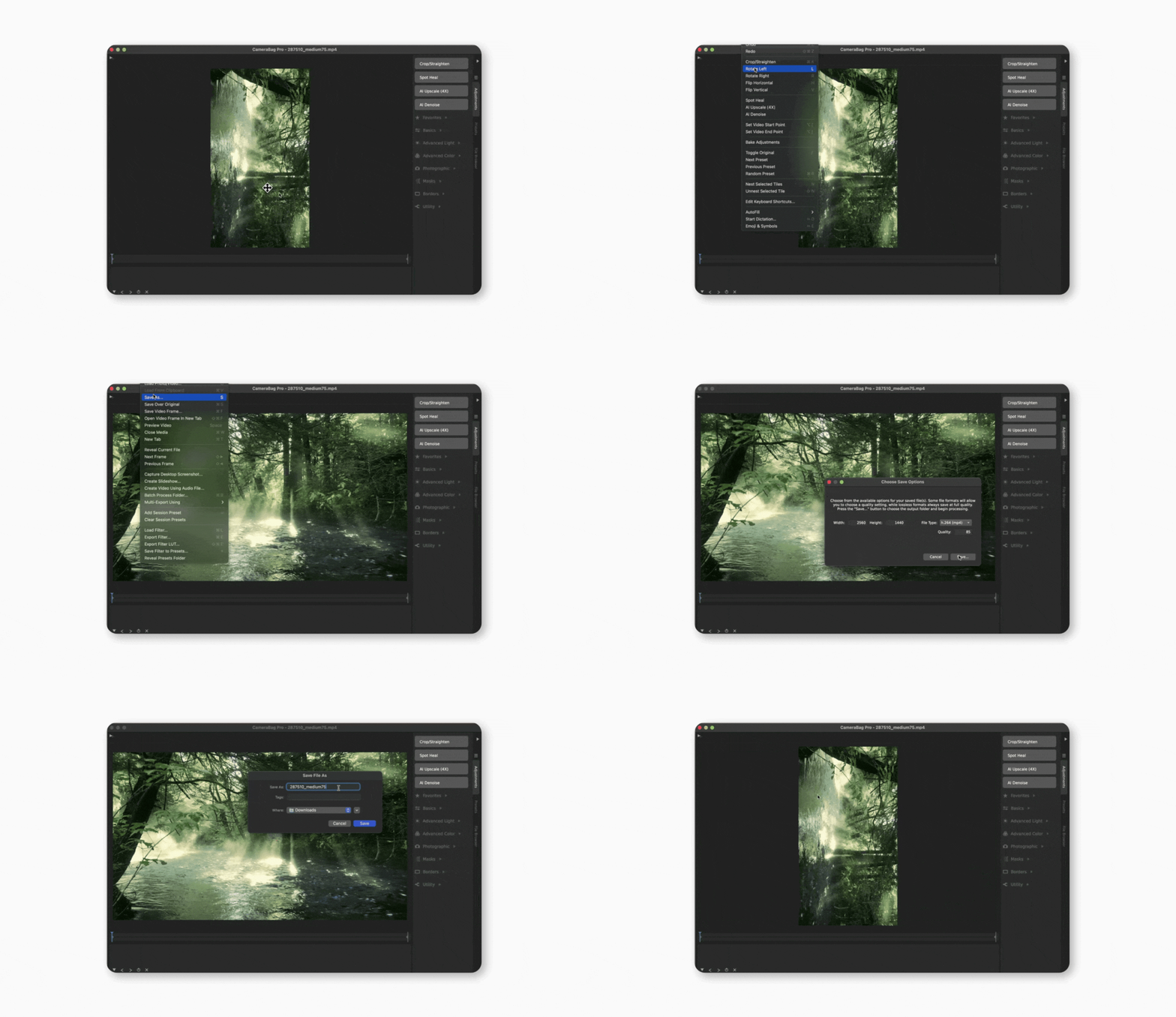
Here’s how to rotate a video on Mac using CameraBag Pro:
Open CameraBag Pro.
Drag and drop the video.
Go to Edit > Rotate Left or Rotate Right.
Go to File > Save As > Save.
Name the file and click Save.
If you have multiple videos you want to rotate, you can click the “+” icon below the traffic light buttons to add multiple tabs, one for each video.
Key benefits of CameraBag Pro
CameraBag is the sweet spot between a quick fix like QuickTime and more advanced editors like Final Cut Pro.
Here’s why it suits most Mac users, from casual users to power users:
It allows batch rotation by adding tabs for each video.
Includes professional editing tools like LUTs, color grading, and tone curves.
It offers angle control, not just left and right flips.
It has tens of presets that casual users can rely on for quick picture and video enhancements.
Has a minimalist Mac-native interface
It’s the go-to Mac video editing tool for professional results without complex setups.
Rotate a video using Filmage Editor
Filmage Editor goes further than CameraBag Pro, breaking your video into frames so that you can edit specific parts. If you are a content creator, it’s the perfect option as you can make your videos more fun and engaging with stylish animated titles, stickers, logos, and images.
But besides all that, it still rotates your video.
Step-by-step rotation in Filmage Editor
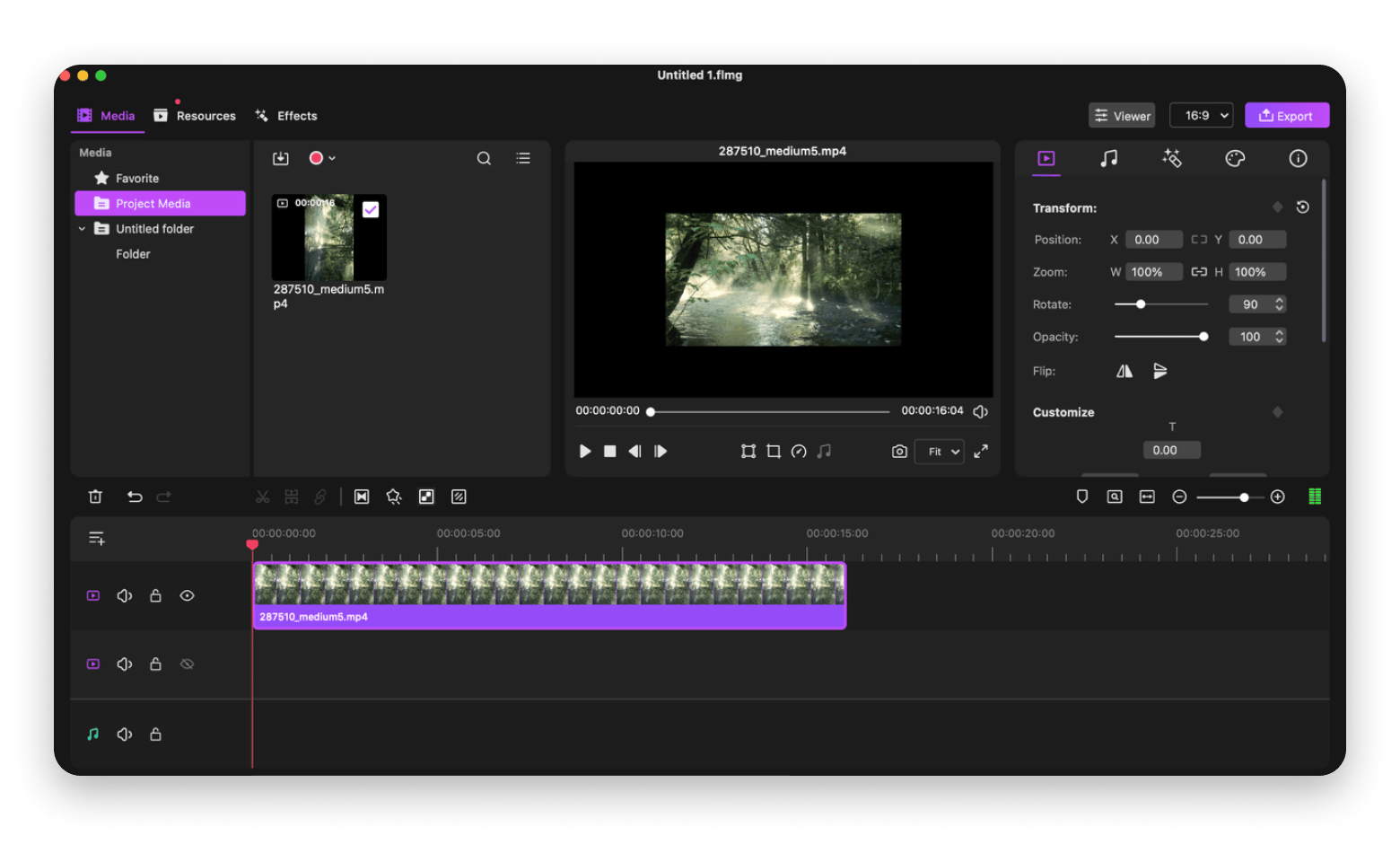
Here’s how to rotate a video on Mac using Filmage Editor:
Launch Filmage Editor
Import or drag and drop your video.
Drag the video to the timeline.
Click Viewer on the top right side.
Drag the rotation slider or input the rotation angle value.
Click Export > Export.
The export option gives you 15+ video format options, an audio conversion option, and even presets for different devices.
Advantages over QuickTime
Although the rotation procedure is a bit more complex than the other apps we’ve looked at, you’ll appreciate the flexibility of having a video timeline, as it opens up lots of possibilities.
It offers complete frame-by-frame editing.
You can delete, blur, or add stickers to something you’d like to hide in the video.
You can export to multiple formats.
It preserves original quality.
While QuickTime rotates, this one rotates and edits.
Rotate a video with Permute
Permute is the best video editing software for Mac when you want to rotate a video and convert it at the same time. It’s lightweight, fast, and super-easy to use. Plus, it lets you control the quality of output, which comes in handy when you want to minimize the size for sharing.
The app uses a drag-and-drop workflow, and its file handling is almost instantaneous.
Step-by-step guide for Permute rotation
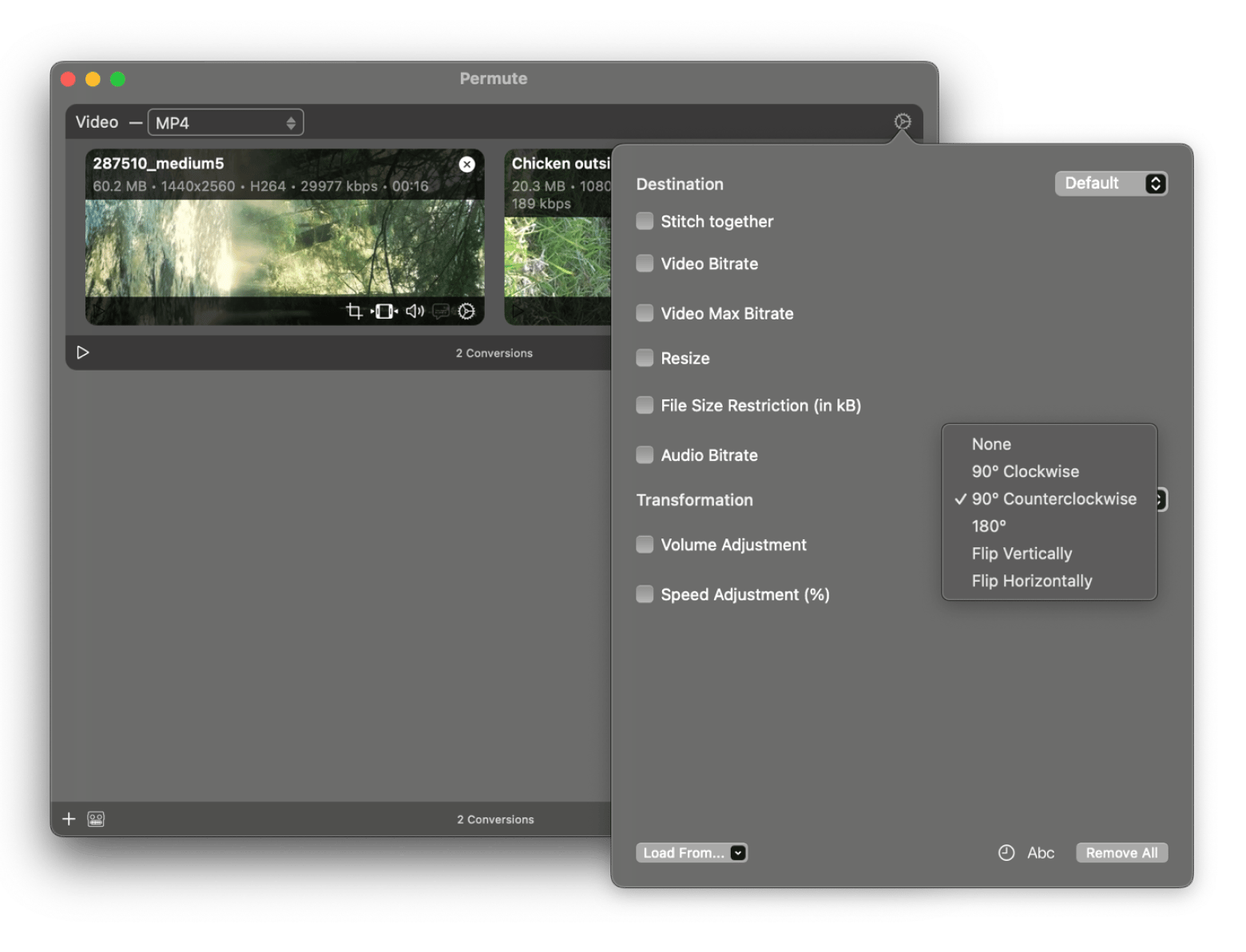
Here's how to rotate a video on Mac using Permute:
Open Permute.
Drag and drop the video.
Click the Settings button > Transformation.
Set conversion format.
Click the convert button.
One of the best things about Permute is that you don’t have to add tabs for each video you want to rotate. In fact, it’s the only app I’ve come across that allows you to set the rotation once and have it automatically applied to multiple files.
Benefits of using Permute
Here’s why Permute is a huge upgrade from QuickTime:
It handles multiple videos at once (batch rotation).
Besides left/right, there’s also 180 and flipping horizontally/vertically.
It maintains full resolution even after rotation.
You can export the output in any video format you want.
It has presets for various devices.
It’s also a converter, not just a viewer.
Despite the added control and flexibility, the learning curve is largely negligible.
Rotate iPhone videos on Mac
An iPhone video can be perfect on your phone, but appear sideways or inverted when you move it to a Mac. This mostly happens as iPhones use metadata to tag the orientation. You can notice it when you’ve switched orientation mid-recording, you are playing the video using a third-party tool, or after uploading it to an online platform.
If you are having issues with the orientation, you can rotate video iPhone clips with QuickTime, Filmage Editor, CameraBag Pro, or Permute. Doing so will re-encode the video with the proper orientation to ensure nobody will have trouble playing it.
Rotate a video using VLC on Mac
If someone sends you a video that you just want to watch and not share, you can use VLC to play it in the correct orientation. However, note that the VLC rotate video feature is only for playback. It doesn’t allow you to save or export the transformed video.
Here’s how to use the VLC rotate video tool:
Open your video in VLC.
Go to Window > Video Effects.
Click the Geometry tab.
Enable Transform and choose the rotation angle.
This will quickly adjust the orientation for viewing, but you’ll need one of the best video editing software for Mac to permanently re-encode the video.
Common issues when rotating videos and troubleshooting
Rotating a video sounds simple, as you only need to open the video, flip it, and save it. However, sometimes, things can go wrong just because they can. Maybe your audio goes out of sync, important sections are cropped, or the video is saved in the wrong format.
Here are some of the issues you might run into and how to fix them.
Audio is delayed: VLC flips the video but doesn’t touch the audio, so you try other apps like QuickTime, CameraBag Pro, and Filmage Editor.
Resolution changes: In CameraBag Pro and Filmage Editor, don’t touch the resolution or aspect ratio. Otherwise, lock them before exporting.
File won’t open after using online tool: Re-export using Permute to save in MP4 or your preferred format.
Video looks correct in playback, but saves wrong: Use a tool that allows permanent re-encoding, not VLC. QuickTime and CameraBag Pro work well.
Video doesn’t line up with the rest of the project: Use Filmage Editor or CameraBag Pro to adjust aspect ratio, crop, or do precise rotation.
Note that some simple videos are better rotated with a tool like QuickTime, as it doesn’t change much. However, you may need to use a video editing software Mac tool when working with detailed projects, as you’ll get more flexibility to correct issues.
It’s always possible to record something great only to find that the video plays sideways. Maybe you held your phone vertically during a landscape moment, the orientation doesn’t carry over for some reason, or your GoPro mount just decided to do its thing.
Common scenarios for video rotation
While personal videos on your iPhone may not bother you much, sharing them with other people or on social media requires that you know how to rotate a video on a Mac.
This will help you in many scenarios:
A vertical clip in a landscape project
A GoPro or action-camera clip that recorded upside down
A webcam recording that mirrors automatically in Zoom or FaceTime
The footage you received was in the wrong orientation.
When you rotate the clip, the video or project will appear more professional.
Consequences of unrotated videos
If you decide to leave a video that’s part of a project without rotating it, it can easily derail your entire project. Viewers won’t be comfortable watching it, a platform may stretch or crop it incorrectly, or frames may appear distorted on social media.
Plus, it’s a significant disruption to your editing flow when you start zooming in or forcing a video to fit into a larger project. You can just rotate it in a few seconds to avoid all that.
Final thoughts on rotating videos on Mac
Once you know how to rotate a video on Mac, it will be easy to transform or fit any video into your project. The trick is knowing the tools to use and when to use one over the other. QuickTime only needs a few seconds and doesn’t touch your resolution or metadata, so it’s best for quick edits. VLC is also great when you simply want to play a video and not worry about saving it in the correct orientation.
But when you factor in quality control, batch videos, formats, resolutions, and fine touches, you’ll need a more capable tool. CameraBag Pro will let you rotate quickly and fine-tune the video with presets, while Filmage Editor will give you control over timelines to add a more professional touch. There’s then Permute, which is excellent when you want to rotate multiple files at once with a uniform video format.
These three tools are available on Setapp under a single subscription. You can check out of them, alongside 260+ others, using the platform’s 7-day free trial.
FAQs
How do I rotate a video on a Mac for free?
You can rotate a video for free using QuickTime Player, as it’s built into macOS. It’s fast, easy to use, and reliable. If you only want to watch the video (not save it), you can also use VLC.
Can I rotate multiple videos at once on a Mac?
Yes, you can rotate multiple videos at once using Permute. It allows you to drag and drop multiple videos, set transformation details for all videos, and export them with a single command.
How do I rotate a vertical iPhone video on a Mac?
You can rotate a vertical iPhone video on a Mac using QuickTime, CameraBag Pro, or Filmage Editor. QuickTime makes the process fast and easy, while CameraBag Pro and Filmage Editor give you more control over the aspect ratio to ensure that videos are not cropped.
Can I rotate a video using VLC on Mac?
Yes, you can use VLC to rotate videos temporarily when playing them. However, it doesn’t have a regular tool for exporting the video, unless you switch the default settings and then switch them back.
Why is my rotated video blurry or out of sync?
A rotated video can become blurry or out of sync when the video is resized during export or the audio isn’t re-encoded alongside the video. To avoid this, don’t use VLC or rotate video online, as there are better options like QuickTime Player and CameraBag Pro.
Curious how others get more done with Setapp?
See how real users apply Setapp apps for writing, creative work, productivity hacks, and beyond.






 Best solution
 Best solution