- Many people spend over $1000/year on various subscriptions
So gather every subscription and one-time purchase from the App Store, developer sites, and third-party platforms. Include all payment methods to get a full picture of your yearly app costs.
- Compare monthly and yearly costs
Log each app’s cost, calculate annual totals for monthly subscriptions, and break down yearly subscriptions into monthly equivalents. This helps reveal how small charges add up over time.
- Rank apps by usage frequency
Categorize apps as daily, weekly, monthly, or rarely used. Remove unused apps and consolidate tools to avoid paying for redundant or low-value software.
- Set a budget and prioritize spending
Use a framework like the 70/20/10 rule to allocate your software budget: 70% for essential apps, 20% for occasional high-value tools, and 10% for experimentation. Stick to a yearly cap to control costs.
- Two ways to simplify spending with Setapp
Setapp Membership offers 270+ Mac, iOS, and web apps for a single subscription, replacing multiple individual payments with predictable pricing. Setapp Marketplace lets you buy or subscribe to individual apps with flexible payment options (monthly, yearly, or one-time purchases). Both help you explore new tools without overspending.
The average American is spending more than $1,000 a year on various subscriptions, so those “just a few bucks a month” apps quietly snowball into a four-figure yearly Mac software budget. Hidden charges, scattered subscriptions, and forgotten renewals make it hard to see the full pictureб until your bank statement delivers the shock.
The truth is, keeping track doesn’t need to be complicated. With a few simple strategies that I discovered, you can spot waste, trim costs, and still keep the tools that matter. Time to avoid Mac app overspending, and I’ll show you how.
How to track yearly Mac app spending?
Start by stepping back and getting the full picture of all your Mac apps — subscriptions and one-time purchases alike. Then, decide what’s essential and what can go. Clarity, visibility, and prioritization are key to controlling costs and building a smart yearly Mac app budget. Here’s the 3-step guide on how to track app subscription costs.
Step 1 — List all software subscriptions and one-time purchases
First of all, gather everything from all sources, including app lists and recipients. That means:
- Inspect all app categories: Design tools, writing apps, password managers, backup utilities.
- Check all app lists: Desktop, toolbar, app settings, maintenance utilities.
- Include all deal types: Freemiums, subscriptions, and one-time purchases.
- Audit all sources: App Store, developer sites, third-party vendors, Setapp.
- Search messages and notifications: Emails, iCloud messages, texts.
- Review payment platforms: Apple account, bank statements, credit cards, and PayPal activity.
You need to look past the obvious to really figure out the true cost of your app stack.
Step 2 — Break it down into monthly and yearly totals
Log all apps from your master list into categories in a spreadsheet or subscription tracker. Then calculate costs clearly:
- Monthly subscriptions: Record the amount and multiply by 12 to see the annual cost.
- Yearly subscriptions: Divide by 12 to understand the monthly impact.
- Side-by-side comparison: Line up monthly and yearly totals for clarity.
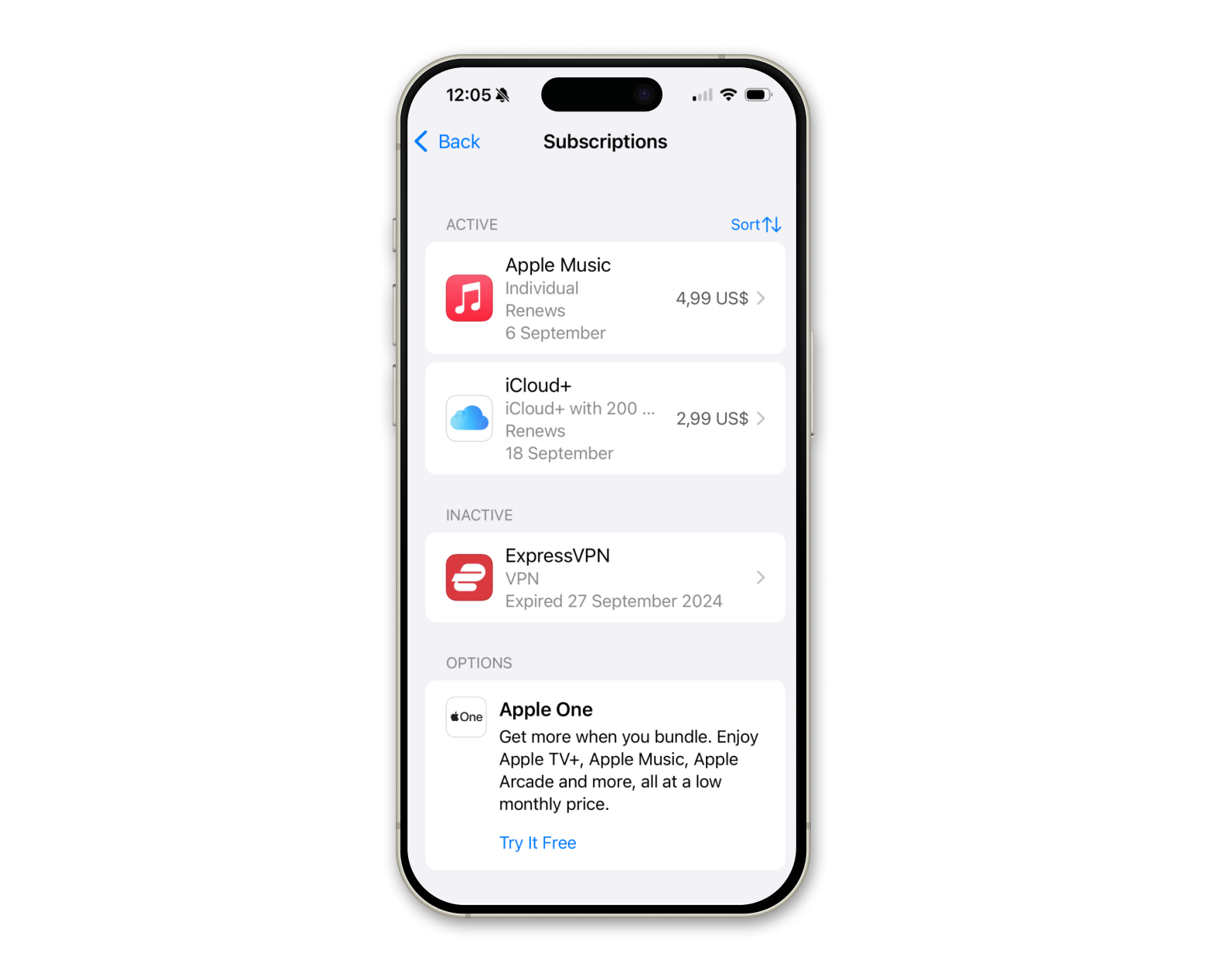
Zooming out on annual costs reveals how small charges can quickly add up. This bigger-picture approach is key to smarter budgeting and avoiding Mac app overspending.
Step 3 — Label by usage frequency
Rank your apps to separate essentials from dead weight:
- Create categories: Daily, Weekly, Monthly, Rarely Used.
- Mark unused apps: If an app hasn’t been opened in months, consider removing it.
- Evaluate value: Apps used daily or weekly are usually worth keeping; occasional-use apps may not justify their cost.
- Look for consolidation: One tool might replace multiple redundant apps.
You have to be honest when prioritizing what you need and what you don't. Labeling your apps helps generate a clearer roadmap for reducing your annual spending list.
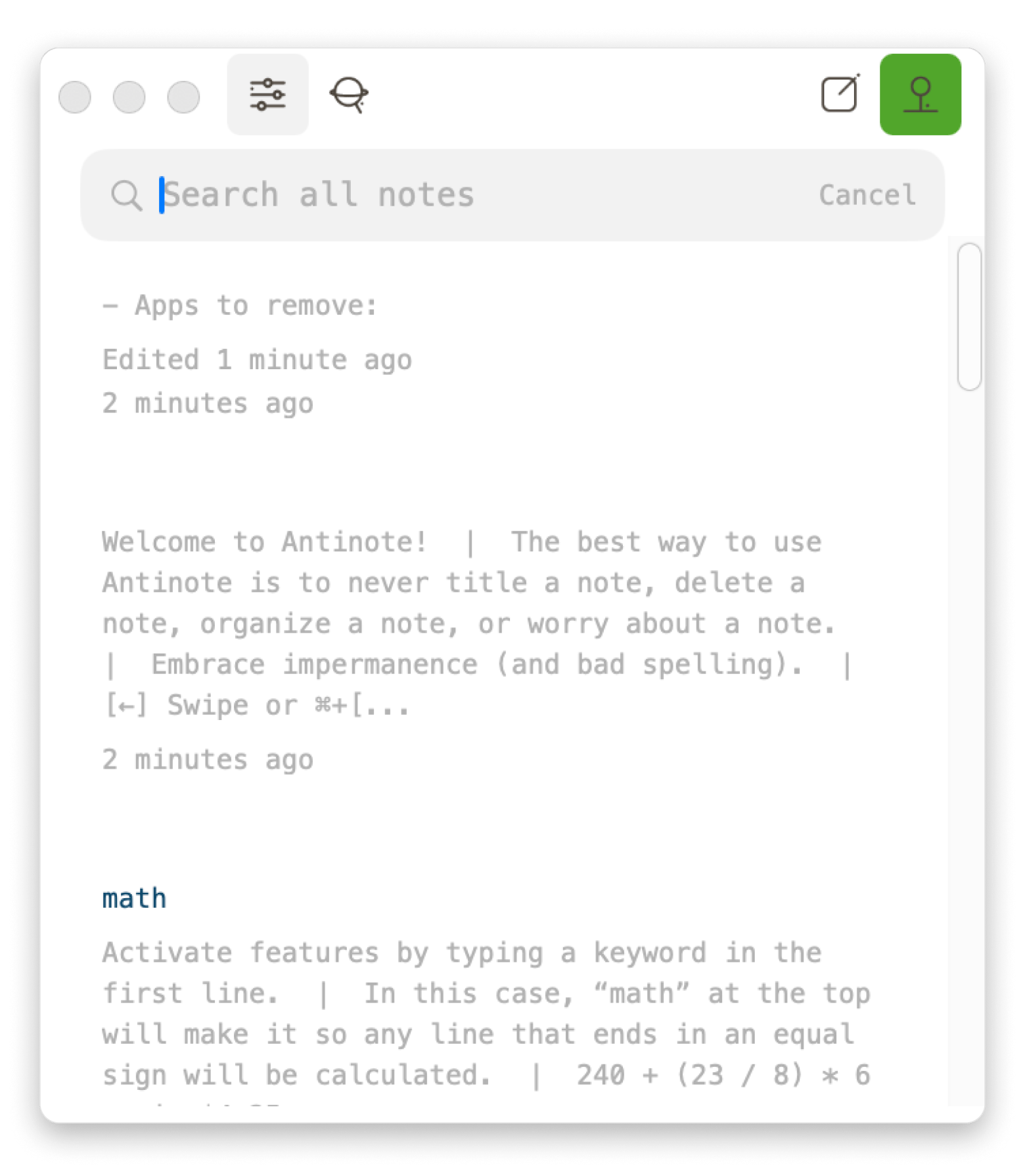
TipFor such a task, Antinote from Setapp is a pretty good option for temporary notes, quick calculations, and light text manipulation.. It launches quickly with a shortcut, so you can jot down notes instantly. Plus, you can make lists comparing apps you want to keep or remove, and it even calculates the total yearly cost of your apps, saving you the hassle of doing it separately. Everything's all in one place, so it’s a must-have in my opinion.
|
Sample breakdown — What annual Mac app spending might look like
Let's light things up with more visuals. Here's a table demonstrating how app costs can quietly pile up:
| App name | Category | Monthly cost | Annual cost |
| Adobe Photoshop & Lightroom | Graphics and design | $19.99 | $239.88 |
| Bear Pro | Writing and creativity | $2.99 | $29.99 |
| Grammarly Premium | Writing | $14.00 | $168 |
| Ulysses | Writing
| $5.99 | $39.99 |
| Paste | Clipboard management
| $2.49 | $29.99 |
| Dropbox Plus | File sharing and backup | $15.00 | $180 |
| Backblaze | Backup | $9.00 | $108.00 |
| CleanMyMac | System maintenance | $9.95 | $119.40 |
| 1Password | Password manager | $3.11 | $37.32 |
Total annual: $962.57
Even small monthly costs can quickly snowball into nearly $1000 per year. Without tracking, it’s easy to lose sight of how multiple low-cost subscriptions quietly inflate your Mac software budget.
Budgeting frameworks: How can you plan smarter for Mac app costs?
Whether you shop for apps for investment or personal needs, there’s an easy way to plan app costs.
The 70/20/10 rule for Mac users
Random app spending won’t get you far. To make the most of your Mac app budget, align spending with priorities. The 70/20/10 rule is a simple framework to keep your costs under control:
- 70% for core apps: Essential productivity tools like Ulysses, Dropbox, or 1Password. These keep your workflow running smoothly.
- 20% for occasional but high-value apps: Design tools, PDF editors, or apps you use weekly or monthly for specific tasks.
- 10% for experimentation: Try new, “shiny” apps guilt-free without risking your budget.
Using this rule helps ensure your software investments reflect real needs, not impulse. For extra guidance on managing finances digitally, check out the best personal finance apps for Mac.
Set a yearly app cap and stick to it
Setting a yearly app cap keeps your budget in check and prevents those “How did I spend this much?!” moments.
Start by assessing your needs:
- Light users: A few hundred dollars a year covers basics.
- Freelancers or students: $500–$700/year for specialized apps.
- Power users: $1,000+ for premium tools like Adobe Creative Cloud and professional utilities.
Hard limits focus your spending on value, curb impulsive purchases, and make Mac app budgeting predictable.
Why does annual app spending often go unnoticed?
You're more likely to lose track when a subscription is billed annually compared to monthly or shorter cycles. I mean, your desktop can fill up with apps you're unaware of, especially regarding their immediate impact on your finances. Look at it over a year, and accountability practically disappears.
Some interesting takes on annual app spending:
- The psychology of annual pricing: You know those ads that say just $3.99 a month or only $49.99 a year? They make it seem super cheap and affordable. But add a dozen more, and suddenly you’re spending hundreds or even thousands of dollars each year.
- Decentralized tracking: Some apps charge you through the App Store. Others send random invoices to your email. Some are billed monthly, others annually, and a few claim to be “one-time” but pop up again for upgrades. The costs are spread across different accounts and payment methods, and tracking them can be a headache.
- Numbing the mental pressure: Yearly subscriptions tempt us with their “set-and-forget " appeal.
What is the problem with monthly subscription fatigue?
Subscription fatigue is the mental overload of juggling too many low-cost apps, forgetting half of them exist, and wondering why your budget always feels tighter than it should.
Yearly subscriptions can sting, but monthly ones often fly under the radar. A $4.99 note-taking app here, a $9.99 utility there. Because the charges are small and scattered, most people don’t give them a second thought.
Here's what I mean by subscription fatigue:
- The shiny-app syndrome: Monthly billing can quickly lead to subscription fatigue. It starts with a $4.99/month service that surprises you, then a $9.99/month favorite that everyone discusses. Soon, you're overwhelmed financially, with your spending habits changing drastically in just weeks.
- The emotional rollercoaster: Unlike annual plans, monthly charges feel constant. Every few days, there’s another notification, another decision, another dent in your budget. Frustration builds, overwhelm sets in, and the mental toll of juggling subscriptions becomes heavier than the price tag itself.
No central place for tracking expenses
Decentralized subscriptions make it tough to see the full picture, and here’s why:
- Without a single dashboard, it’s easy to miss how much you’re actually spending. Your bank statement quietly bloats, and your budget runs away before you even notice.
- Most users only realize the scale of their Mac app spending after it’s already accumulated.
- Tracking is a headache when apps are scattered across the App Store, developer sites, and third-party platforms.
- Payment methods vary, too, such as Apple Wallet, PayPal, and credit cards, making it even harder to get clarity.
For practical Mac app spending tips, keeping a centralized view of all apps and subscriptions is essential to prevent hidden overspending.
5 Smart tips to avoid overspending on Mac apps
Once you see the full picture of your Mac app spending, it’s time to reclaim control without cutting out the tools you actually need. Here are the five smart tips to avoid overspending:
- Create a dedicated software budget: Allocate a fixed amount and stick to it. This forces you to prioritize, question new purchases, and avoid casual signups that quietly add up.
- Apply a three-tier priority system: Categorize apps into essential (1Password, Dropbox, Ulysses), helpful but optional (Paste, Bear Pro), and disposable (rarely used or replaceable apps)
- Audit regularly: Review subscriptions quarterly or monthly to catch creeping costs.
- Know when to pay monthly vs. annually: Monthly billing is flexible; annual billing often saves 10–30% and reduces statement clutter. Use whichever aligns with your usage and budget goals.
- Explore alternative cost-saving methods: Look for seasonal deals, bonuses, and bundle platforms. Setapp Membership gives you 270+ high-quality Mac and iOS apps under one subscription. Or if you only need a few specific tools, Setapp Marketplace lets you buy or subscribe to individual apps with flexible payment options. Both offering the same curated quality.
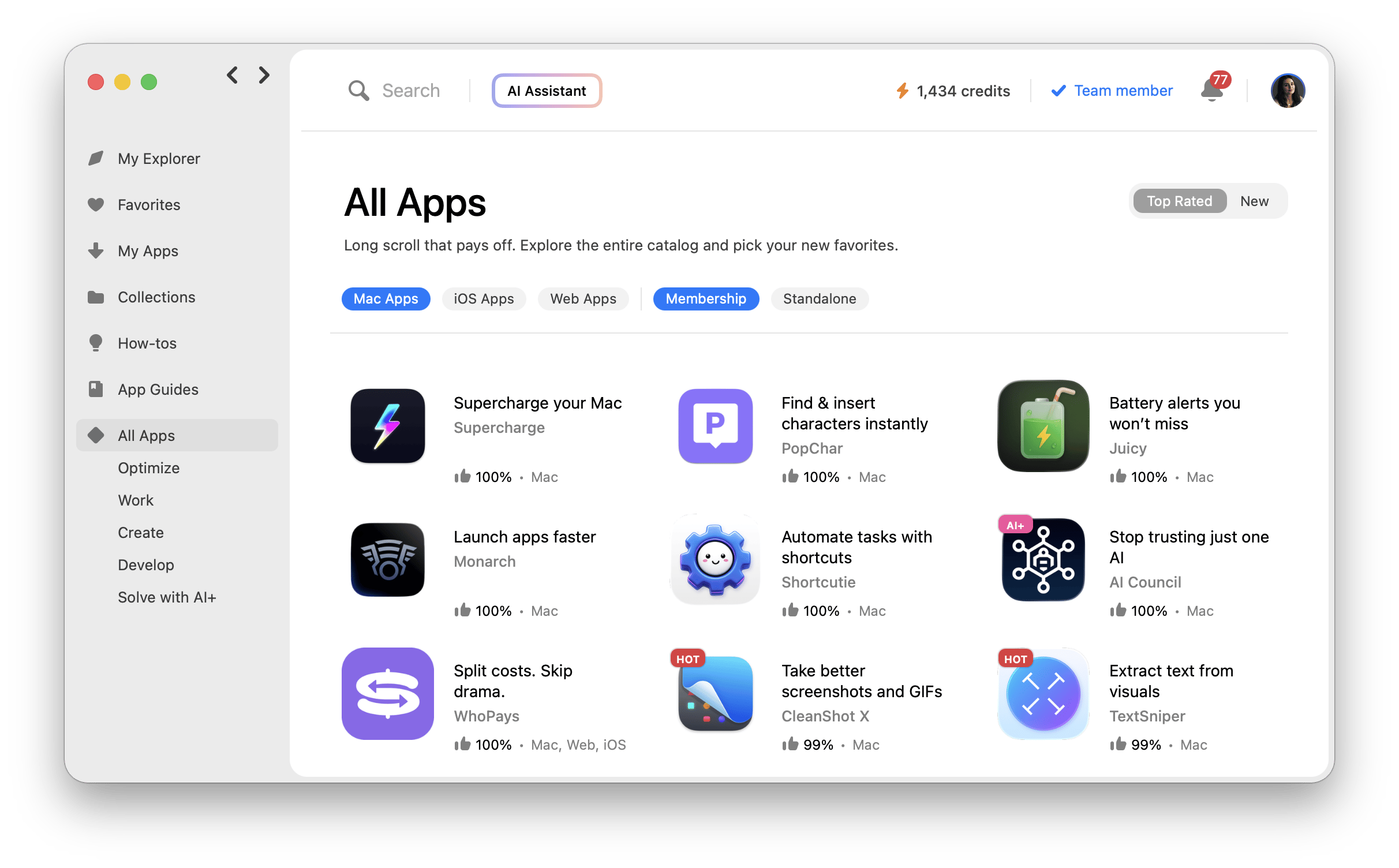
Before buying an app for a one-off task, check your existing toolkit. For instance, you can unblur an image using tools already available on Setapp.
Why Setapp (or bundled platforms) helps you stay on budget
A premium app bundle like Setapp Membership can rescue you from spiraling software costs by tackling multiple challenges at once:
- Unites a fragmented app space: All essential tools from different categories in one place under a single subscription plan.
- Stops wallet leaks: Predictable pricing replaces surprise charges. Check out the basic Setapp pricing and what’s included.
- Encourages safe exploration: You can try new apps without committing to individual subscriptions, as they are all part of your subscription plan.
Setapp functions like an all-you-can-eat buffet of premium apps. Whether you prefer a simple approach or want to explore extensively, it helps you stay lean and focused, keeping your yearly Mac app expenses within budget. This makes managing subscriptions much easier.
Let me show you how you can save on Mac apps annually with Setapp.
One subscription, many tools
Setapp’s premium library covers every corner of your Mac experience, from productivity and writing to design, backup, and utilities.
Despite the wide variety, you don’t deal with bloat or duplicate billing. Even if multiple apps offer similar features, you only pay one predictable subscription. This means you get access to a broad set of tools without juggling multiple payments, effectively replacing several individual subscriptions with a single, streamlined solution.
Predictable pricing = easier yearly budgeting
One of the biggest benefits of app bundles like Setapp Membership is predictability. Instead of random charges or surprise renewals, you pay a single affordable monthly rate.
This stability removes uncertainty from your yearly budget. The cost stays the same regardless of how many new apps you explore or updates you install. With predictable pricing, planning your software spending becomes simple, stress-free, and fully under your control.
For those who prefer even more control, Setapp Marketplace offers one-time purchase options alongside subscriptions. Buy an app outright, own it permanently, and eliminate recurring charges entirely. It's ideal for tools you know you'll use long-term.
Flexible vs. fixed costs
While pay-as-you-go offers flexibility, it often brings surprises and hidden costs.
In contrast, fixed-cost bundles like Setapp give you full control: one subscription covers all apps, features, and updates, with no unexpected fees.
If you want to learn more, check out the overview of Setapp benefits.
Bonus: Tools to help you track app spending automatically
Manual tracking can be tedious, which is why many users fall behind and get surprised by charges. So, here’s my list of Setapp’s budgeting apps that you can use to track app spending easily:
- MoneyWiz 2026: Offers robust financial tracking (like data import from banking apps and multiple file support) and reporting capabilities, and allows you to manage your finances effectively.
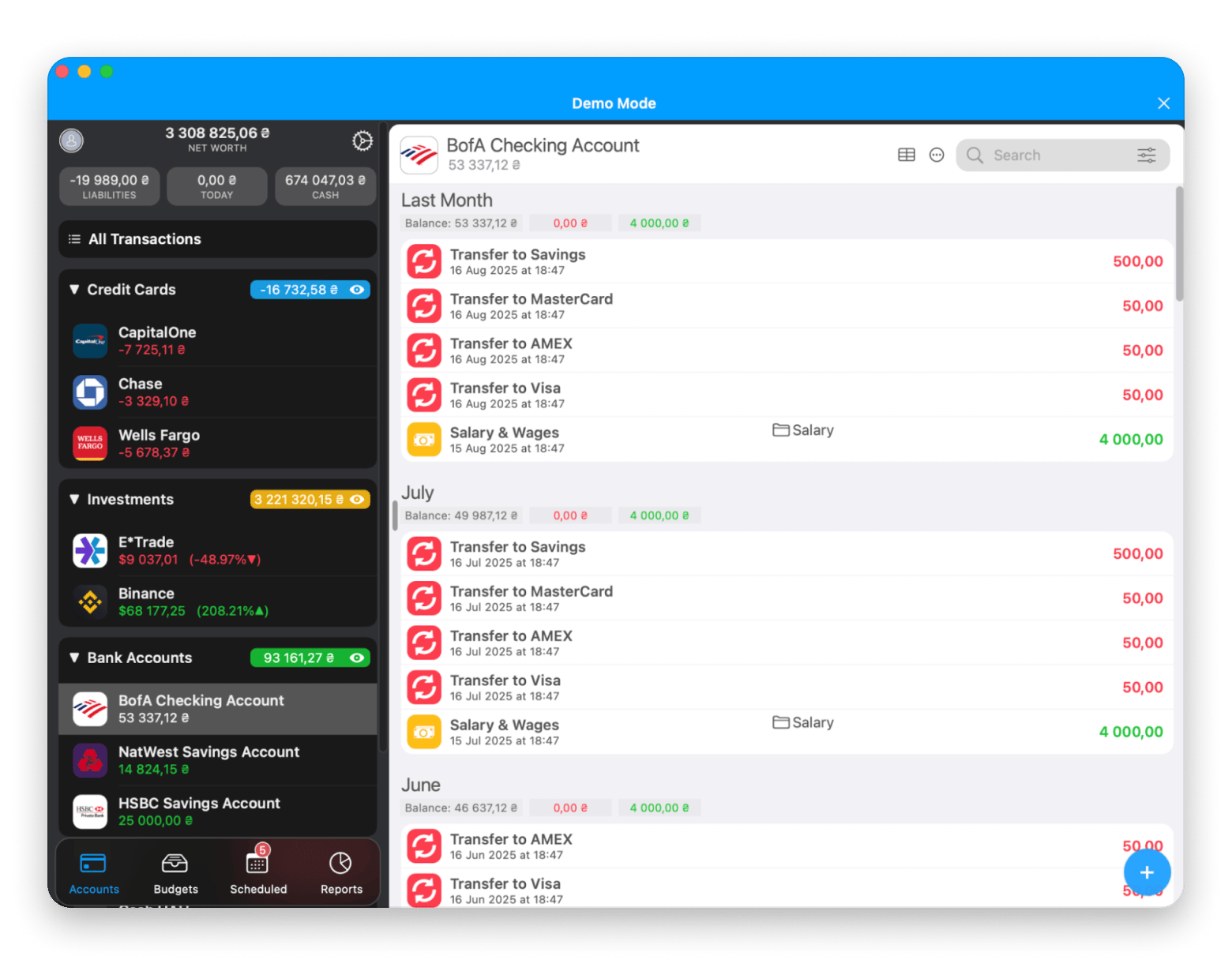
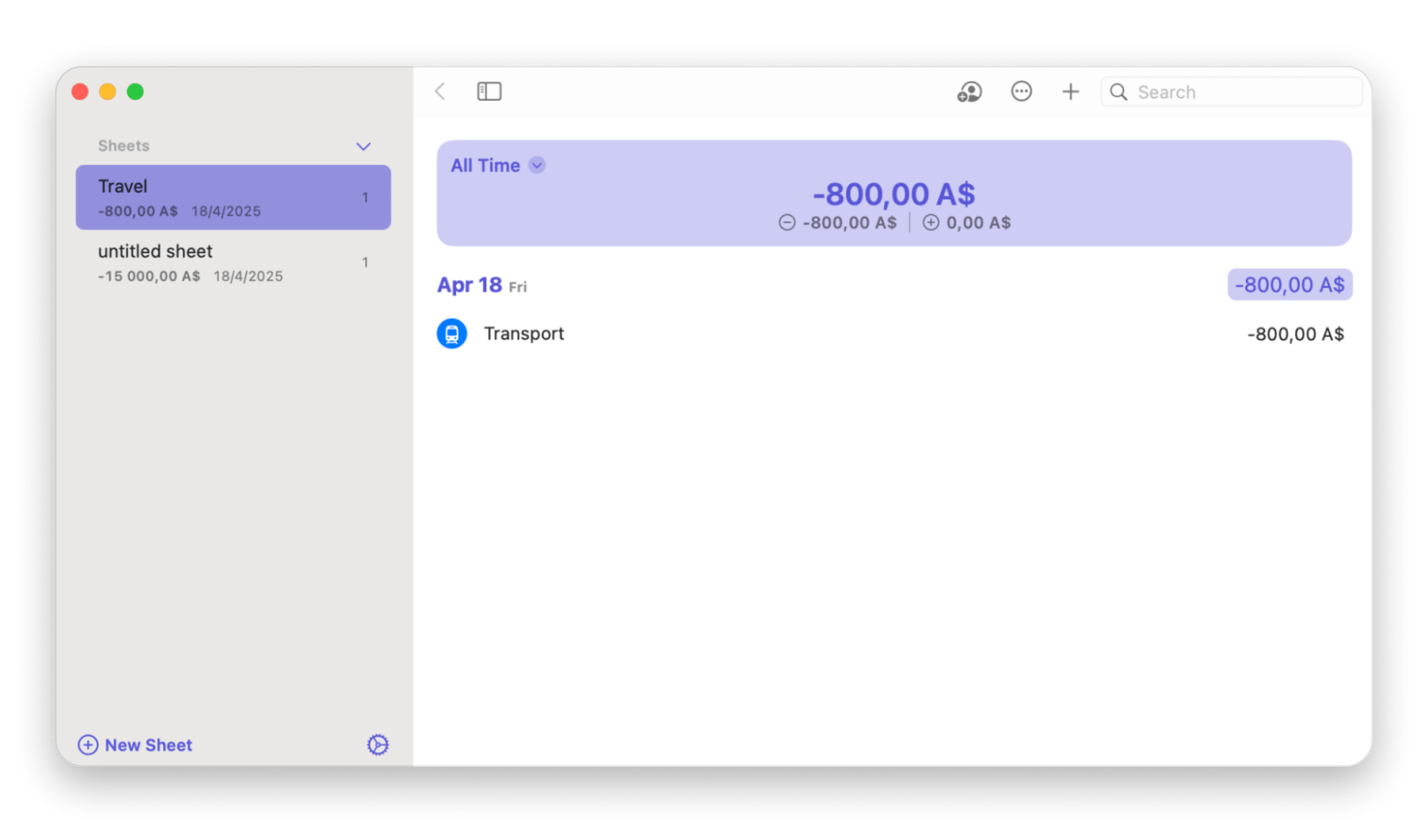
- Expenses: Helps you track your spending by logging expenses and income, analyzing spending trends over time, and keeping an eye on the big picture.
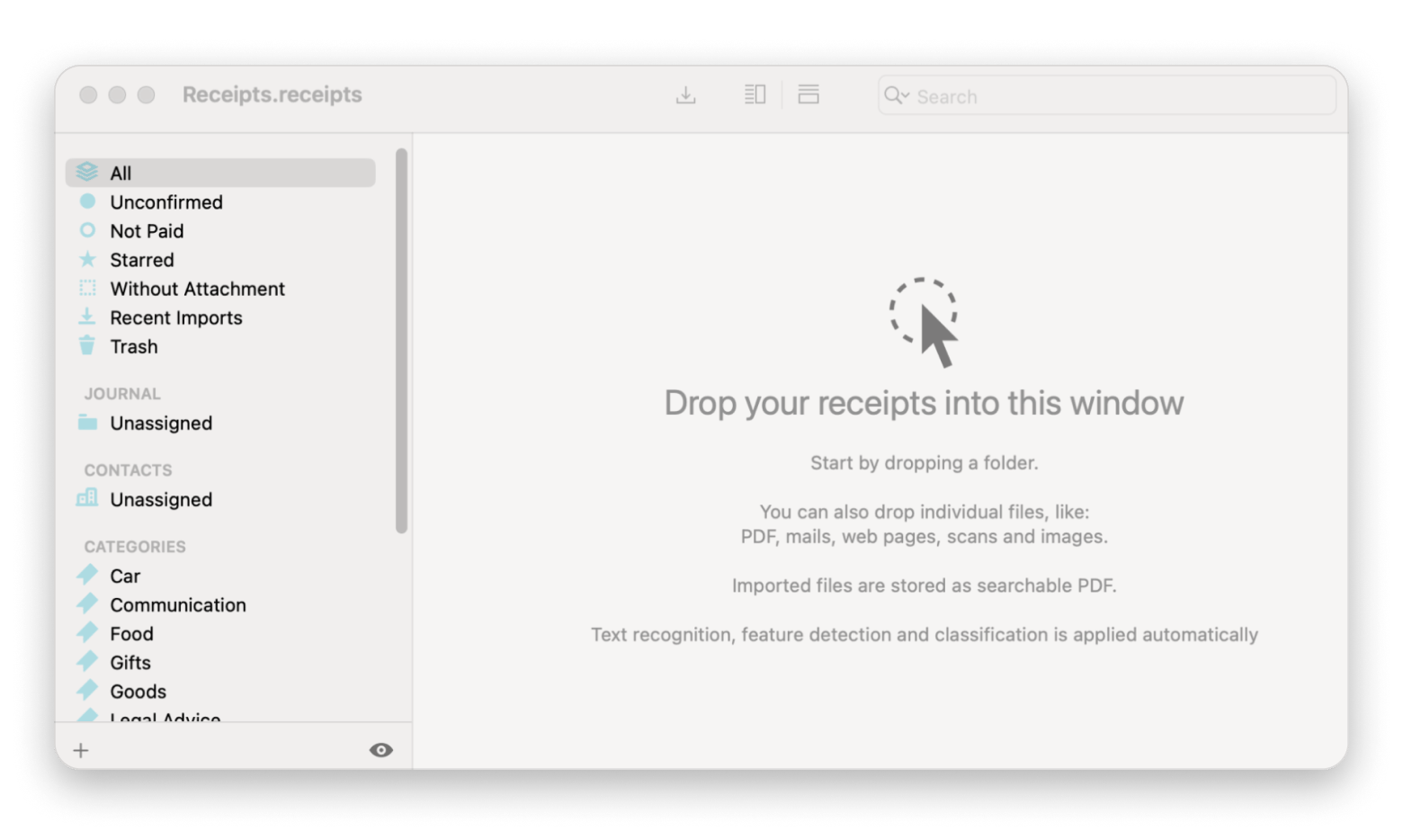
- Receipts: You can invoice using OCR technology on your Mac, simplifying receipt and expense management.
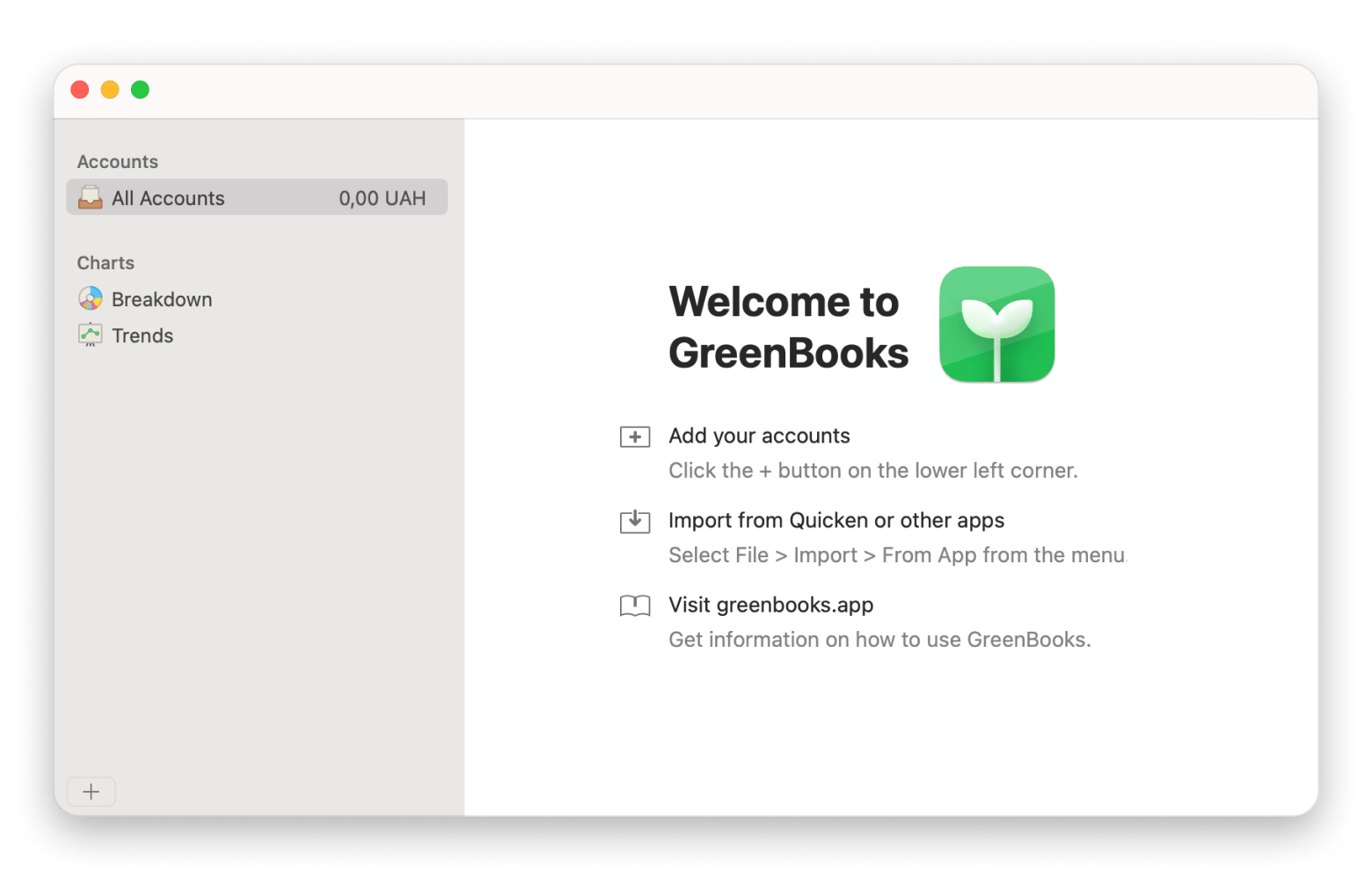
- GreenBooks: Provides intuitive charts to help you understand your finances through visual representations.
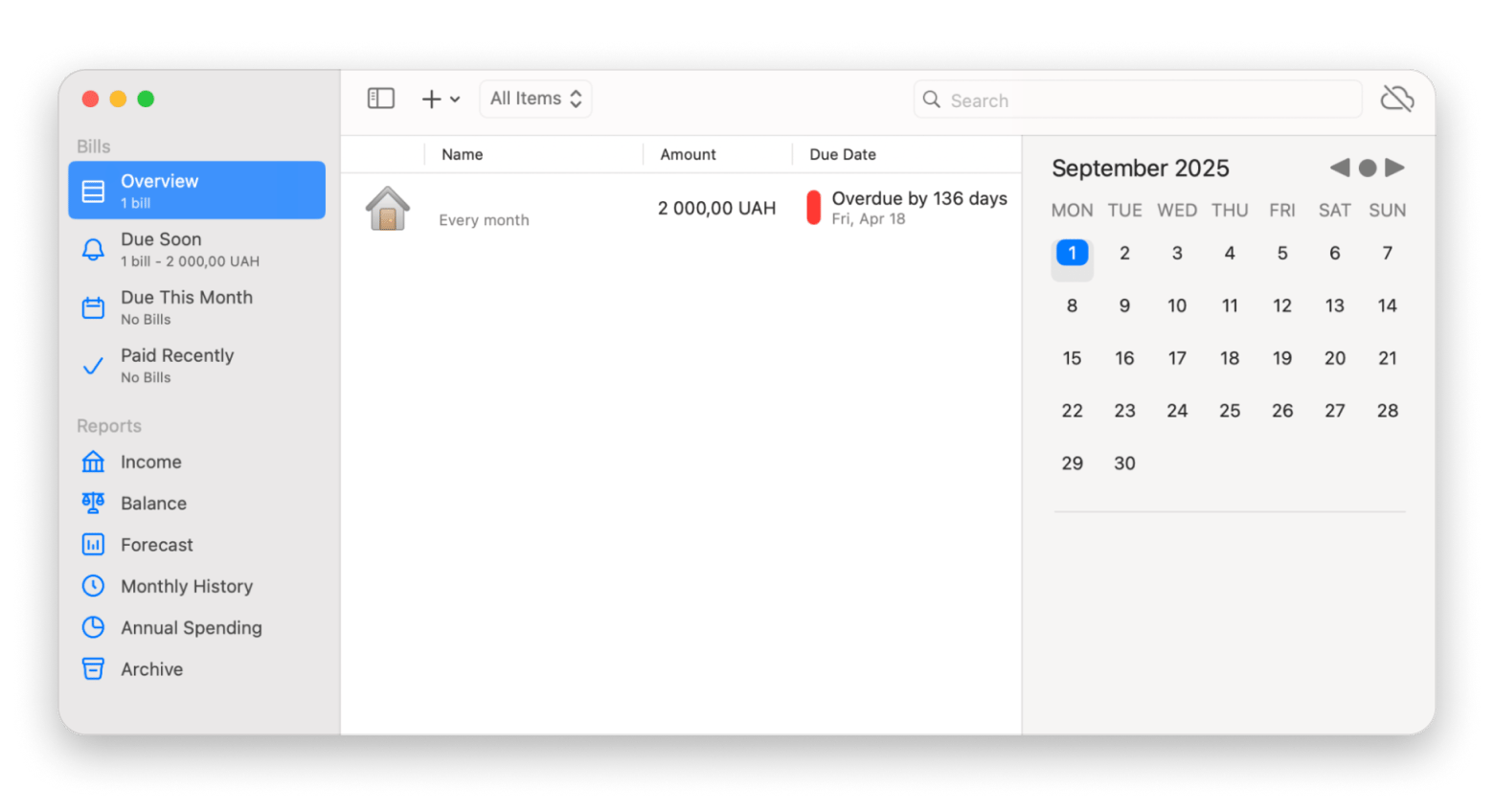
- Chronicle: Focuses on tracking your bills and when they are due, sending notifications to ensure you never miss a payment.
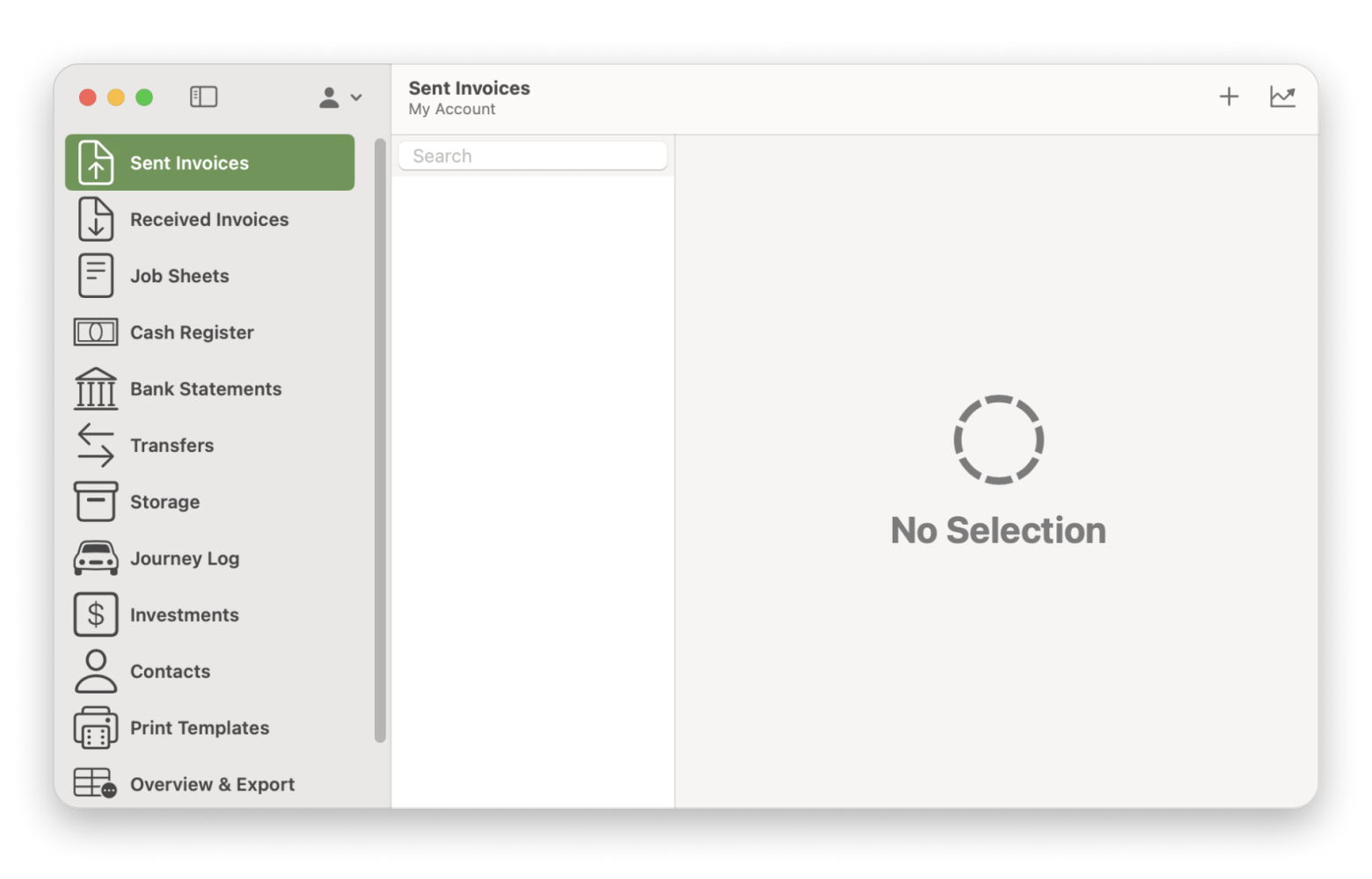
- Invoice Rex: It’s a useful addition if software costs are part of your work and your company or clients reimburse you for them. Invoice Rex keeps invoices, bank statements, and other payment records in one place, making it easy to see which app subscriptions are personal and which are related to work or a specific client.
Final thought — Control your software stack, control your costs
Your Mac is only as powerful and as expensive as the apps you run. Smart app management starts with tracking subscriptions, prioritizing essential tools, and taking advantage of bundle deals. That’s why I rely on Setapp in 2026.
With Setapp Membership, you can:
- Access a wide range of premium tools for a single flat fee.
- Gain clear visibility into your entire app ecosystem.
- Avoid bloat and redundant subscriptions.
- Experiment with new apps freely, without hidden charges.
Or choose Setapp Marketplace if you prefer targeted purchases:
- Buy or subscribe to individual apps with flexible payment options
- Own tools outright with one-time purchases
- Get the same quality-tested apps without the full subscription
Either way, you stay in control, cut unnecessary costs, and make every purchase work for you. All while keeping productivity high and your budget intact. Want to explore the full library? Start with a free 7-day trial of Setapp Membership and test all the apps.
FAQs – Yearly Mac app spending
What is the best budgeting software for Mac?
The best budgeting apps are MoneyWiz 2026, Expenses, Receipts, and Chronicle. They offer detailed customization tools to help you track your spending in ways that make the most sense to you. The best part is you can try all these apps with a Setapp Membership with a 7-day free trial before committing.
How to track my yearly app spending?
To track app spending, start by listing all your Mac apps and subscriptions in a spreadsheet or a tracker app. Record both monthly and annual costs, and review regularly to spot hidden renewals and make quicker decisions.
How to reduce my Mac app subscriptions?
Categorize your apps by usage: daily, occasional, or rarely used, and remove the ones you rarely use. Track spending with tools like MoneyWiz 2026 or Expenses to spot unnecessary subscriptions. Instead of multiple subscriptions, consider Setapp Membership for access to 270+ apps under one plan, or Setapp Marketplace if you only need one or two specific tools with flexible payment options.





 Best solution
 Best solution