Siri Shortcuts and the Shortcuts app are the same thing. A Siri Shortcut is a workflow you build in the Shortcuts app. You give it a name, and that name becomes the voice command you say to Siri to run it.
You can run shortcuts without using your voice. Double-click any shortcut in the Shortcuts app, pin it to the menu bar or Dock, or run it from Spotlight. Voice commands are optional.
Short shortcut names work best. Siri mishears long names, especially in noisy environments. Two to three words — "Work Mode," "Morning Focus" — is the right length.
Siri Shortcuts have real limits. You can't trigger hidden menu items, automate based on Wi-Fi network, or grab selected text and send it elsewhere natively. Shortcutie adds 70+ actions that fill these gaps inside the same Shortcuts workflows.
As a writer and creative, I start my mornings the same way (I'm quite predictable). I open YouTube to play some music, then Chrome, Slack, and my email. But I learned how to use Siri Shortcuts, and now I can do all of that with a simple voice command.
I love the practicality of this feature so much that I'm going to show you how to run Siri shortcuts on Mac, along with a few tips that can make your automation workflows faster and more reliable.
What you want to do
How
Create a Siri shortcut
Shortcuts app > + button > Add actions > Name it.
Run with voice
Say the shortcut name to Siri.
Run without voice
Double-click in Shortcuts app, menu bar, or Dock.
Fix Siri not responding
Check "Siri" or "Hey Siri" in System Settings > Apple Intelligence & Siri.
Do things Siri Shortcuts can't
Pair with Shortcutie, Keysmith, or BetterTouchTool.
A Siri Shortcut is a workflow you build in the Shortcuts app — you give it a name, and that name becomes the voice command you say to Siri to run it.
Do you, like many other people, think that Siri Shortcuts and the Shortcuts app are different? Well, they're actually the same feature.
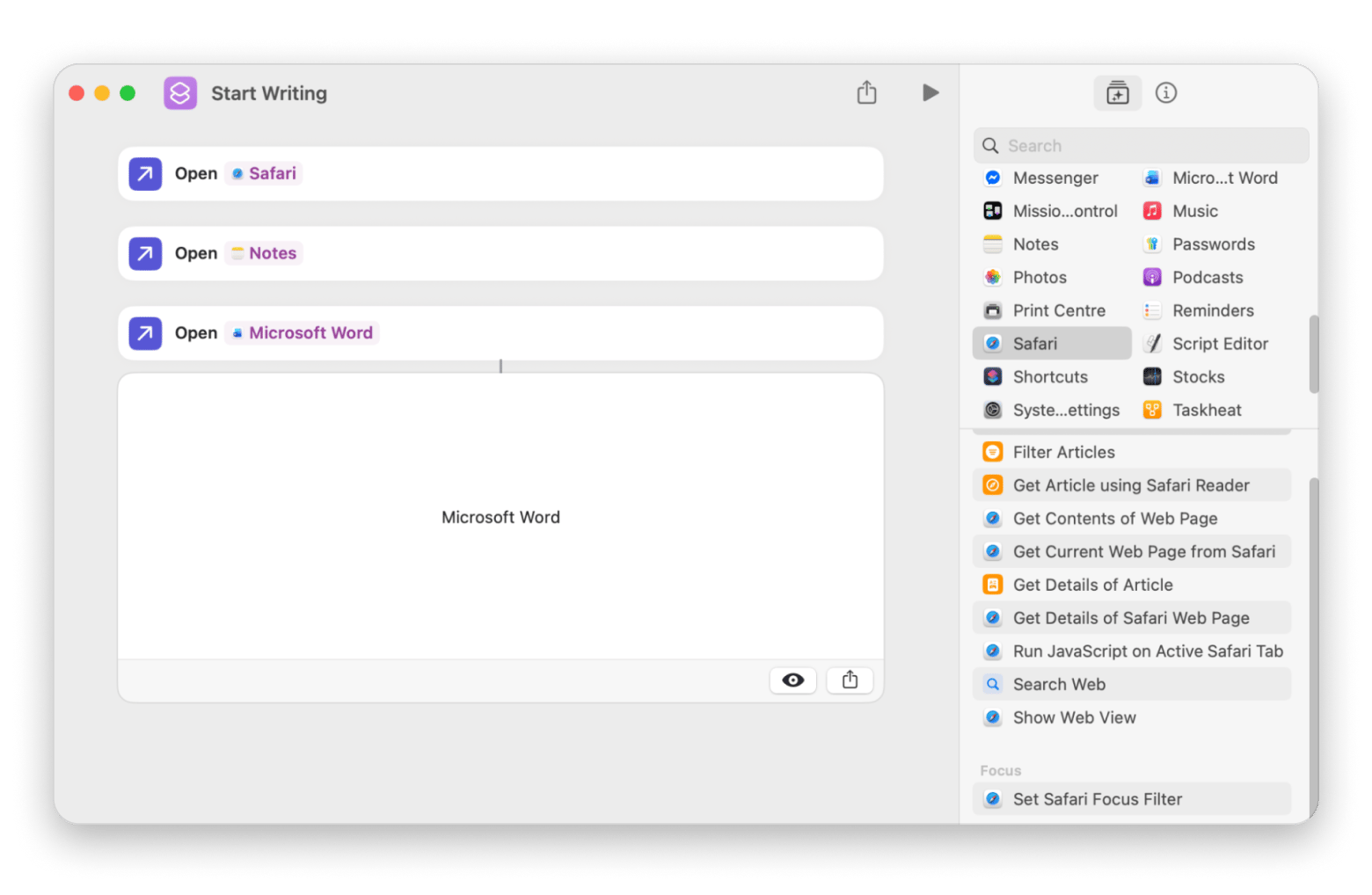
For example, you can create a shortcut called Morning Focus. You just go to Siri and say, "Morning Focus," and Siri will open Mail, Calendar, and Slack, turn on Focus mode, and launch your notes app. All at once!
There are all kinds of things you can do with Siri Shortcuts. You can use them to open a group of apps, send a pre-written message, log information into a file, open a website, and more.
And the best part is that they work with third-party apps. MindNode Classic is one app that supports Siri Shortcuts. It lets you automate tasks inside your mind maps, such as creating, opening, renaming, and searching documents, adding or editing nodes, and finding tags.
If you want to get more out of Siri on Mac in general, the guide on how to use Siri on Mac covers setup, voice commands, and tips beyond shortcuts.
How to create a Siri shortcut on Mac: Step-by-step
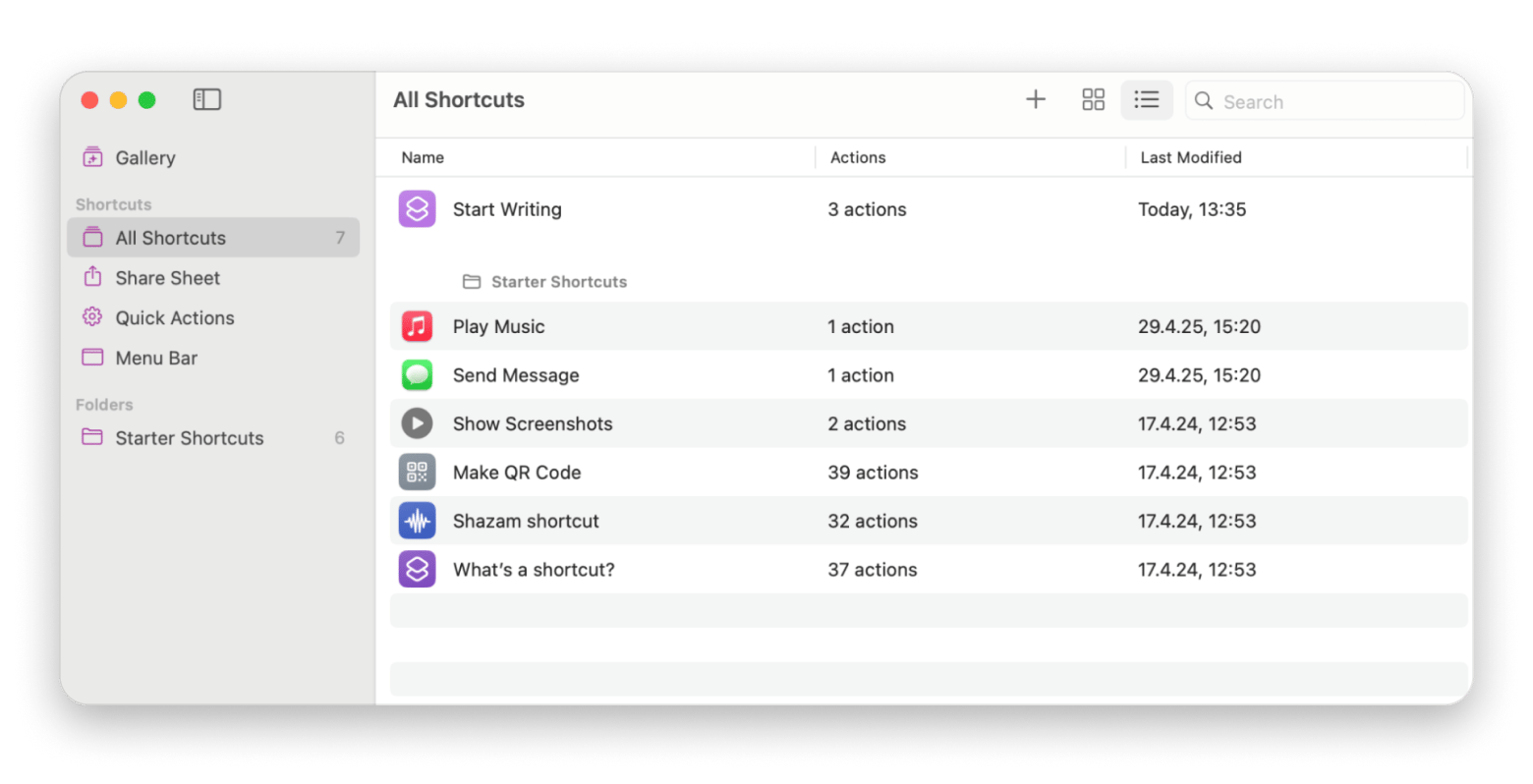
To create a Siri shortcut on Mac, open the Shortcuts app, click the + button, add your actions, give the shortcut a short name, and save it. That name becomes your Siri voice command.
Here are step-by-step instructions for how to create Siri shortcuts on Mac:
Open the Shortcuts app from your Applications folder, or press Command + Space to open Spotlight Search and type "Shortcuts."
Click the + button in the top-right corner to create a new shortcut. A new window will open.
Add actions. There are actions to open an app, send a message, create a note, open a website, and more. You can use a single action or combine several into one workflow.
Name your shortcut. Keep it short and simple. This is your Siri command. Every time you want to run the shortcut, just say its name to Siri. I prefix my work shortcuts with "Work" and personal ones with "Home"
Save the shortcut.
Test it with Siri. Activate Siri and say the shortcut's name. If the shortcut is set up correctly, Siri will run the workflow.
How to run shortcuts with Siri on Mac
There are three ways to run a Siri shortcut on Mac: by voice command, directly from the Shortcuts app, or from the menu bar or Dock.
Now let's activate the shortcut. I'll walk you through each one.
The first option is to run it with Siri. Here's how:
Activate Siri by saying "Siri" or "Hey Siri" or opening it via Spotlight Search.
Say or type the shortcut's name as you saved it.
Wait for Siri to run the workflow.
The second way to activate Siri shortcuts is to run a shortcut from the Shortcuts app. To do so:
Open the Shortcuts app on your Mac.
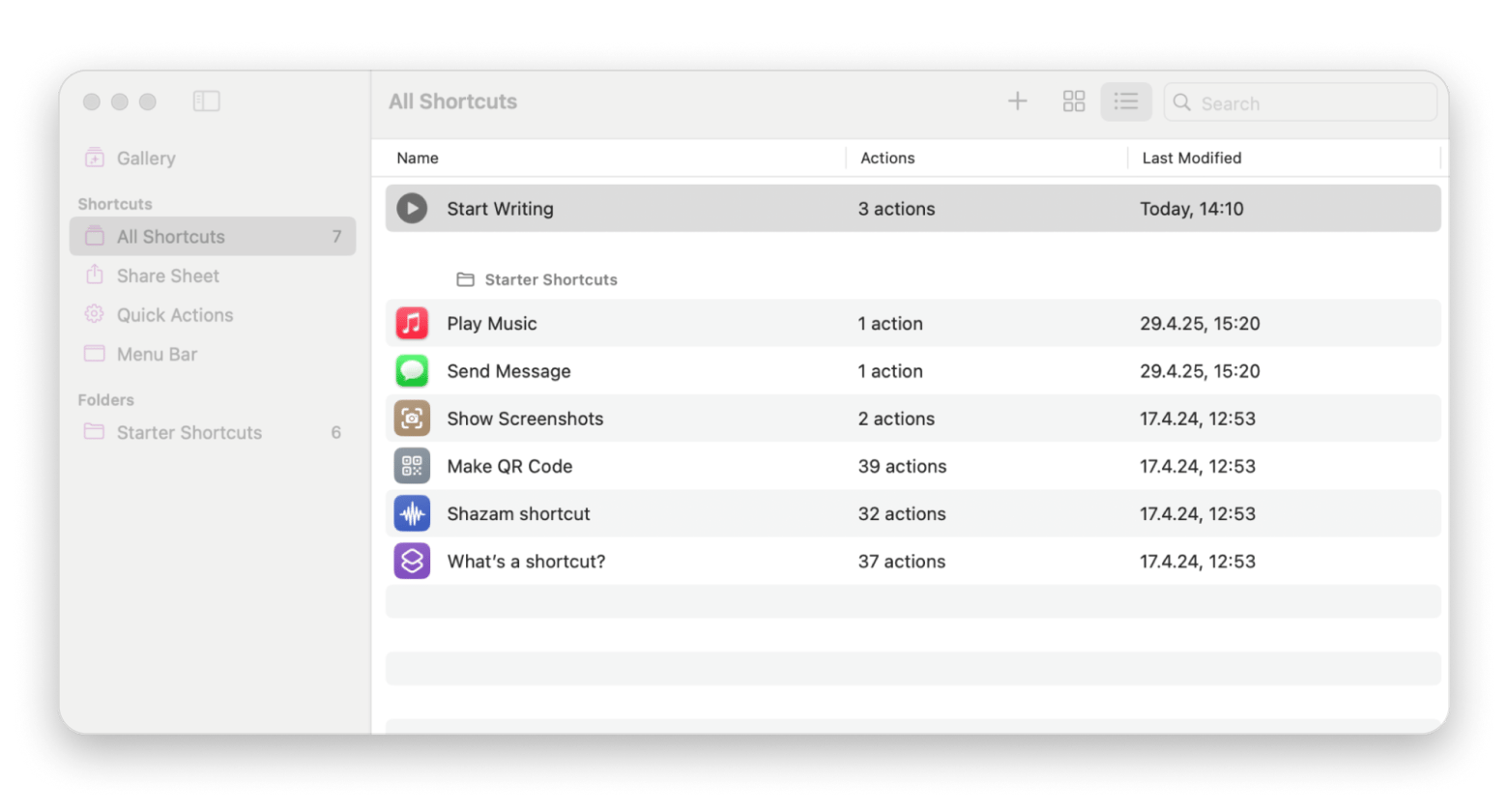
Go to All Shortcuts or the folder where you saved the shortcut.
Find the shortcut and double-click it.
Use this option when you don't or can't speak to Siri.
And finally, you can run a shortcut from the menu bar or Dock:
Open the Shortcuts app.
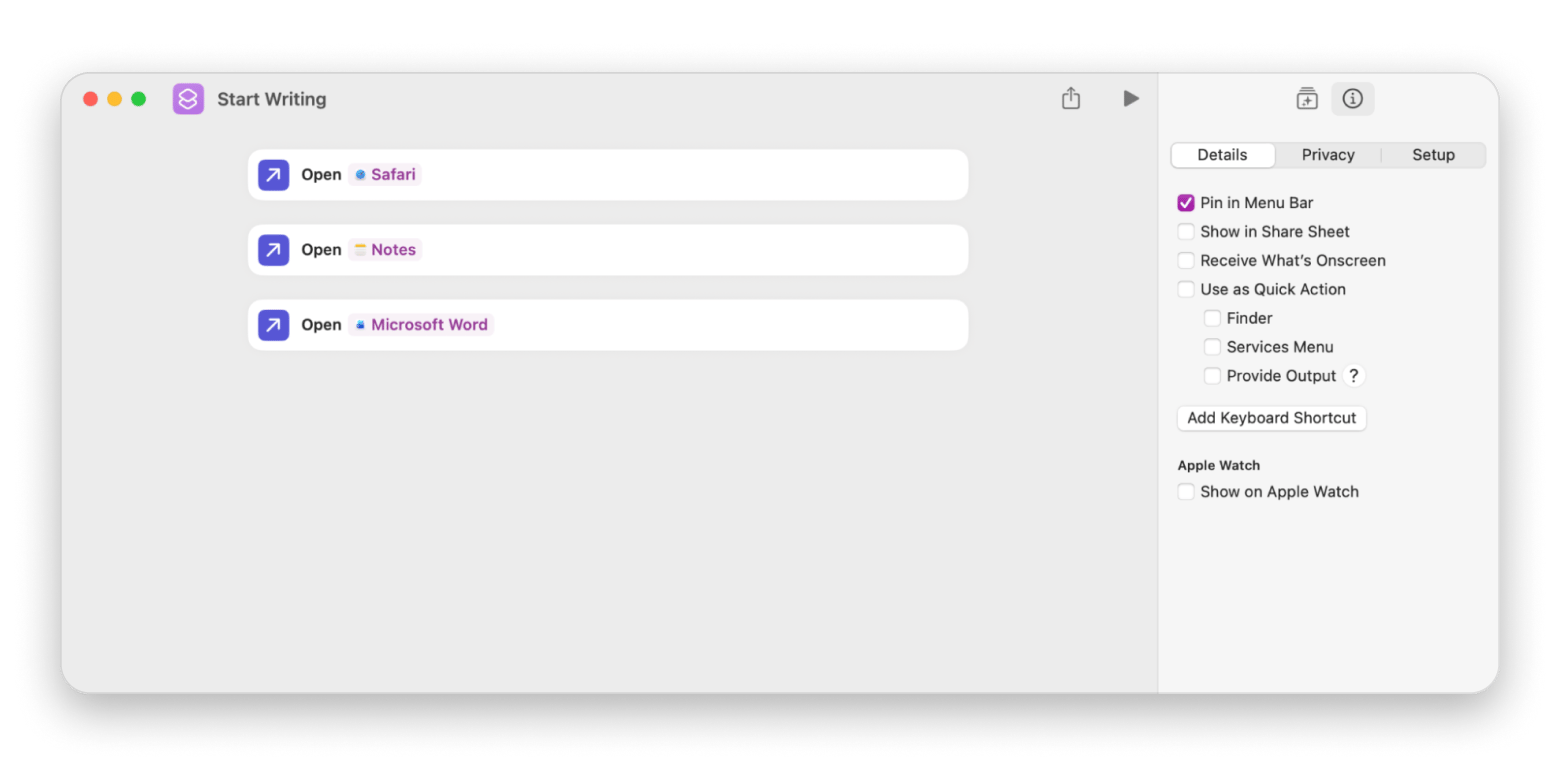
Double-click the shortcut you want to pin.
Click the information button or open the shortcut settings.
Turn on the option to show the shortcut in the menu bar or Dock.
Close the shortcut window.
Click the shortcut from the menu bar or Dock whenever you want to run it.
Use this option for shortcuts you use daily.
What do you do if a shortcut works in the Shortcuts app but doesn't run when you try to open it with Siri?
Try going to System Settings > Apple Intelligence & Siri. Then, check if you have "Siri" or "Hey Siri" enabled. If no, enable it. If this doesn't fix the problem, go to the Shortcuts app and check the shortcut name. Fix the name if it's too long or if it contains special characters.
Siri Shortcuts work well for basic automation, but they can't trigger hidden menu items, respond to Wi-Fi context, grab selected text, or handle complex multi-step workflows reliably.
Siri Shortcuts are awesome for basic automation. But once you start building more advanced workflows, you'll discover that the feature has a few limitations.
Here are some of the most common limitations you can expect:
You can't trigger menu items inside apps: For example, you can't create a shortcut that clicks a hidden menu command like Developer > Empty Caches in Chrome.
You can't run shortcuts automatically based on your Wi-Fi: This means you can't trigger different workflows when you're at work or at a co-working space, for instance.
You can't grab selected text and send it somewhere else: Let's say you highlight some text on a webpage. With Siri Shortcuts, you can't send it to another app, like a translator app or ChatGPT.
There's limited browser automation: You'll need extra tools for tasks like managing tabs or interacting with web pages.
Complex workflows are lacking: Multi-step automations that require an app to be open or windows to be in a specific state may not behave as expected.
So, if you tried some of these things and hit a limitation, the good news is that Siri Shortcuts works with third-party apps. Simply download an additional app and pair it with Siri Shortcuts. One of the best tools for this is Shortcutie. It adds 70+ extra actions that work inside the same Shortcuts workflows you've already created.
It's worth reading about AutoHotkey alternatives for Mac — there are tools that handle the gaps Siri Shortcuts can't fill natively.
More Mac automation tools worth knowing
If Siri Shortcuts aren't enough for your workflow, two tools cover what the Shortcuts app can't: Keysmith, and BetterTouchTool.
Siri Shortcuts work best for voice commands. But if you prefer a different way to automate tasks, other tools might be a better fit.
Keysmith: Shortcuts for any action
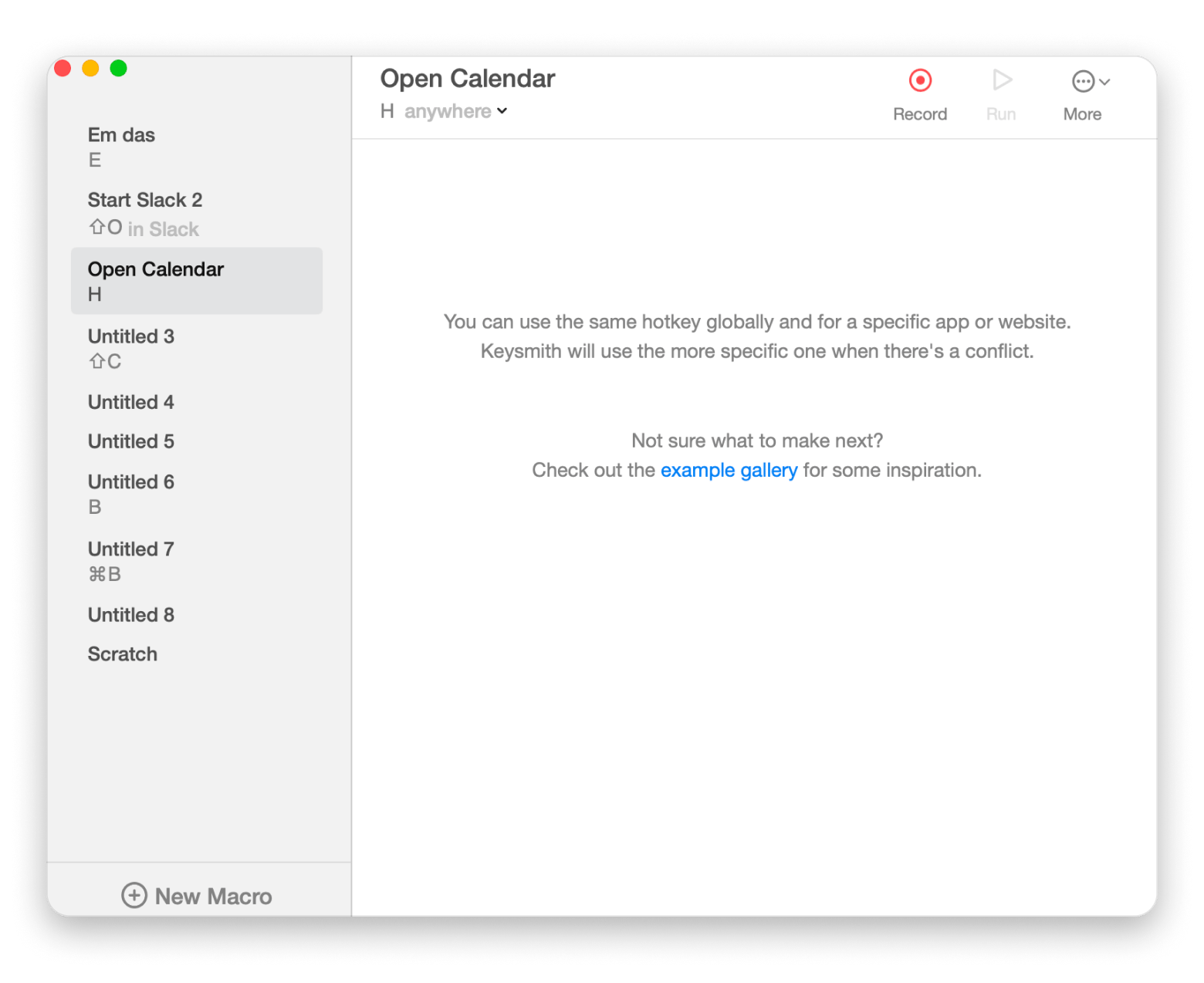
With Keysmith, you don't have to build workflows action by action. Just click Record, perform the task, and Keysmith will turn your actions into a reusable macro.
If, at the start of every workday, you open Slack, check a certain channel, open a Google Docs file, and check your email, you can record the process once and assign it to a keyboard shortcut. The next time, Keysmith can perform the entire sequence for you in seconds.
What surprised me about Keysmith was that it also catches the in-between steps, like waiting for a page to load before clicking the next thing. I expected to have to build in manual delays, but the recordings are smart enough to handle that automatically.
BetterTouchTool: Custom actions for keyboard, trackpad, mouse, and more
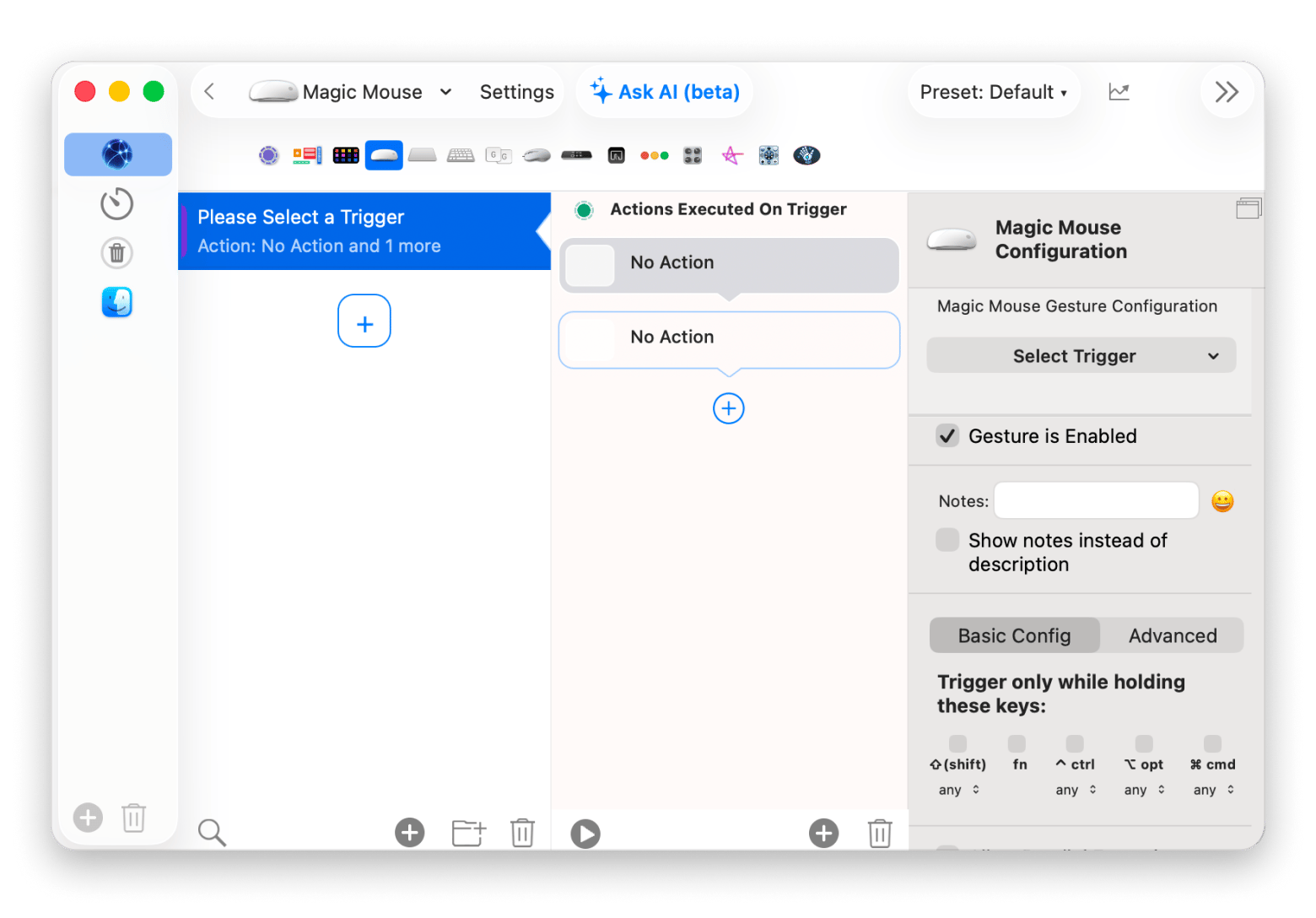
If you want to control your Mac with gestures and clicks, check out BetterTouchTool. It lets you assign actions to trackpad gestures, mouse buttons, keyboard shortcuts, Touch Bar controls, and more.
For example, you can create a three-finger swipe that opens your writing apps and launches your favorite playlist.
How to get the most out of Siri shortcuts — Practical tips
Creating shortcuts doesn't have to be complicated. Keep these practical tips in mind when using the Shortcuts app on Mac, and you shouldn't have any issues:
I've mentioned this already, but it's that important! Aim for your shortcut to contain two or three words, such as "Work Mode" or "Relax Time."
If you have a dozen or more shortcuts, it's smart to create folders so you can easily find what you're looking for. Consider creating separate folders for work and personal tasks.
Run a shortcut directly from the Shortcuts app before trying it with Siri. This helps you catch any problems early. If a shortcut works in the Shortcuts app but fails with Siri, the name is almost always the problem.
Adding your favorite shortcuts to the menu bar makes them faster and easier to access.
Avoid creating one massive workflow. Instead, create smaller shortcuts that perform individual tasks, then have one shortcut run another.
There are many ready-made shortcuts in the Shortcuts Gallery. They're created by Apple and the community. You can use them as they are or customize them to better fit your workflow.
How to use Siri shortcuts on Mac and go further when they're not enough
Siri Shortcuts handle the basics well: opening app groups, setting focus modes, running morning routines with a single voice command.
Once you hit the limits, Shortcutie fills the gaps without making you rebuild your workflows from scratch. For anything that needs recording or gesture-based triggers, Keysmith and BetterTouchTool are the natural next step.
Go further than Siri Shortcuts — Shortcutie, Keysmith, and BetterTouchTool cover what Apple left out. Add 70+ Shortcuts actions, record macros, and assign gestures to any workflow. All on Setapp, free for 7 days. Try Setapp Free. Or start with Shortcutie standalone for $12.00 — no membership needed.
FAQ
Why is Siri not responding to my shortcut name on Mac even though the shortcut is set up correctly?
If Siri is not responding to your shortcut name on Mac, check whether you have Siri enabled. Go to System Settings > Apple Intelligence & Siri and make sure Siri is turned on. Another reason might be the shortcut name. Long names and special characters can confuse Siri and prevent the shortcut from running.
Can you run Siri Shortcuts on Mac without using your voice?
Yes, you run Siri Shortcuts on Mac without using your voice. You can launch Siri Shortcuts directly from the Shortcuts app, the menu bar, the Dock, Spotlight, and other supported locations. Voice commands are convenient, but if you can't speak, then these other methods can come in handy.
What is the difference between Siri Shortcuts and Automator on Mac?
The difference between Siri Shortcuts and Automator on Mac is that Siri Shortcuts are Apple's modern automation system and are built into the Shortcuts app. Automator is an older automation tool that still works on macOS but has a more technical interface and fewer modern integrations.
Do Siri Shortcuts sync between iPhone and Mac automatically?
Yes, in most cases, Siri Shortcuts sync between iPhone and Mac. If you're signed in with the same Apple Account and iCloud syncing is enabled for Shortcuts, your shortcuts will automatically appear on both devices. Keep in mind that some shortcuts may depend on apps or actions that are only available on one platform.
What are the best Siri Shortcuts for productivity on Mac?
Some of the most useful productivity shortcuts include opening a group of work apps, starting a Focus mode, launching a writing workspace, preparing for meetings, and creating notes or reminders. The best shortcuts are usually the ones that automate tasks you repeat every day and save several clicks.
Powerful apps live on Setapp
Ditch defaults and discover new gems on one app platform.






 Best solution
 Best solution