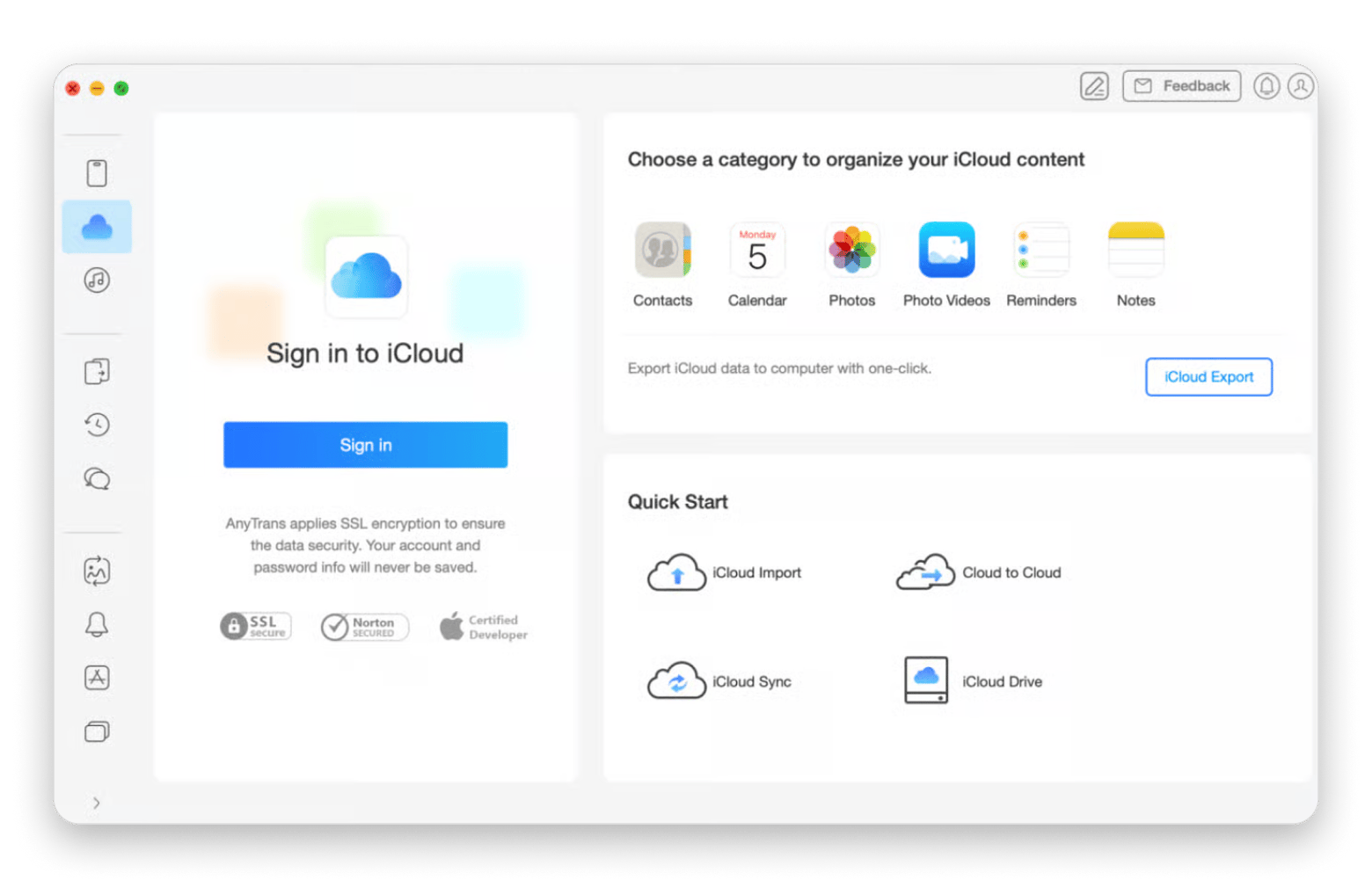
USB cable is the most reliable method to connect an iPhone to a MacBook for large transfers. Connect with the right cable (Lightning or USB-C, depending on your iPhone model), open Finder, and manage your device from there. For more granular control over what gets transferred, use AnyTrans for iOS.
Wi-Fi sync requires a one-time cable setup. Connect via USB first, enable Show this iPhone when on Wi-Fi in Finder, then disconnect. After that, your devices sync automatically whenever they're on the same network.
Bluetooth enables Continuity features, not file sync. Use it to activate Handoff, Universal Clipboard, AirDrop, and Personal Hotspot — not to move files directly. Both devices need to be signed in to the same Apple Account.
iPhone Mirroring lets you control your iPhone from your Mac. Available on macOS Sequoia with Apple silicon or T2 chip. Your iPhone stays locked while you use it remotely — keyboard, mouse, and trackpad all work.
Switching between iPhone and Mac eats time. AnyTrans for iOS handles transfers, backups, and WhatsApp exports — all in one place. Try AnyTrans free on Setapp — free for 7 days.
As a content creator (both for work and as a hobby), I'm constantly sending files between my Mac and iPhone. If it weren't for AirDrop, my life would be a thousand times harder.
But AirDrop is only one of the many features you get when you connect your iPhone to your Mac. iPhone Mirroring, Continuity Camera, Handoff, and Universal Clipboard can make your workflow much faster and save you from constantly switching between devices.
I'll show you how to connect your iPhone to your MacBook, plus what you can actually do once the connection is set up.
Connect the iPhone to the MacBook with a USB cable
The easiest way to connect your iPhone to a Mac is to use a USB cable. If you need to transfer large files, go with this option. For example, let's say you're a photographer. By connecting your iPhone with your Mac, you'll be able to transfer large RAW photos to your Mac for editing.
Here's how to do this:
Get the right cable. The cable you need depends on your iPhone and Mac model. Older iPhones use a Lightning-to-USB-A or Lightning-to-USB-C cable, while iPhone 15 and newer models use a USB-C to USB-C cable. If the cable and port types don't match, get an adapter.
Connect your iPhone to your MacBook. You might get a Trust This Computer prompt on your phone if this is your first time connecting the two devices.
Tap Trust on your iPhone. Then enter your iPhone passcode. Your Mac will now be able to access your device.
Open Finder on your Mac. Find your iPhone in the sidebar under locations (if you're using an older Mac, you'll find your iPhone in iTunes).
Manage or sync your iPhone. Click your device in Finder to access sync settings, create backups, transfer files, update iOS, or restore your iPhone if needed.
One little problem is that Finder works best for basic syncing. But it doesn't let you choose exactly what you want to move. You can try an app like AnyTrans for iOS that gives you more control over what you want to transfer, like messages, WhatsApp chats, photos, or apps.
Sync iPhone with MacBook over Wi-Fi
Connecting your two devices with a cable might be straightforward, but what if you don't want to bother with cables? In this case, you can pair an iPhone to a Mac wirelessly.
Here's the step-by-step process:
Connect your iPhone to your MacBook with a USB cable.
Open Finder and select your iPhone from the sidebar under Locations.
Open the sync settings. Click the General tab if you're not yet on it.
Scroll down and check the box next to Show this iPhone when on Wi-Fi.
Click Apply in the bottom-right corner to save your changes.
Disconnect the cable.
Once you're done with the setup, you can unplug your iPhone. Now, your iPhone and Mac are synced (as long as they're connected to the same Wi-Fi).
Connect the iPhone to the MacBook via Bluetooth
Bluetooth on iPhone and Mac powers Apple Continuity features like Handoff, Universal Clipboard, AirDrop, and Personal Hotspot but it doesn't sync files directly.
Some of the things Bluetooth enables are:
Handoff: Start an email, note, or webpage on your iPhone and continue it on your Mac.
Universal Clipboard: Copy text, links, or images on one device and paste them on the other.
AirDrop: Send files between your iPhone and Mac without using a cable.
Personal Hotspot: Connect your Mac to your iPhone's cellular data connection when there's no Wi-Fi.
For example, you can copy a tracking number from an email on your iPhone and paste it into a spreadsheet on your Mac without typing it again.
If this is something you want to enable, here's how:
Go to Settings on iPhone > Bluetooth.
Turn on Bluetooth.
Go to System Settings on Mac > Bluetooth and turn on Bluetooth.
Make sure both devices use the same Apple Account.
Keep both devices nearby.
Turn on Wi-Fi. Features like Handoff need both Bluetooth and Wi-Fi to be enabled.
You're all set! The Continuity features will now work automatically in the background.
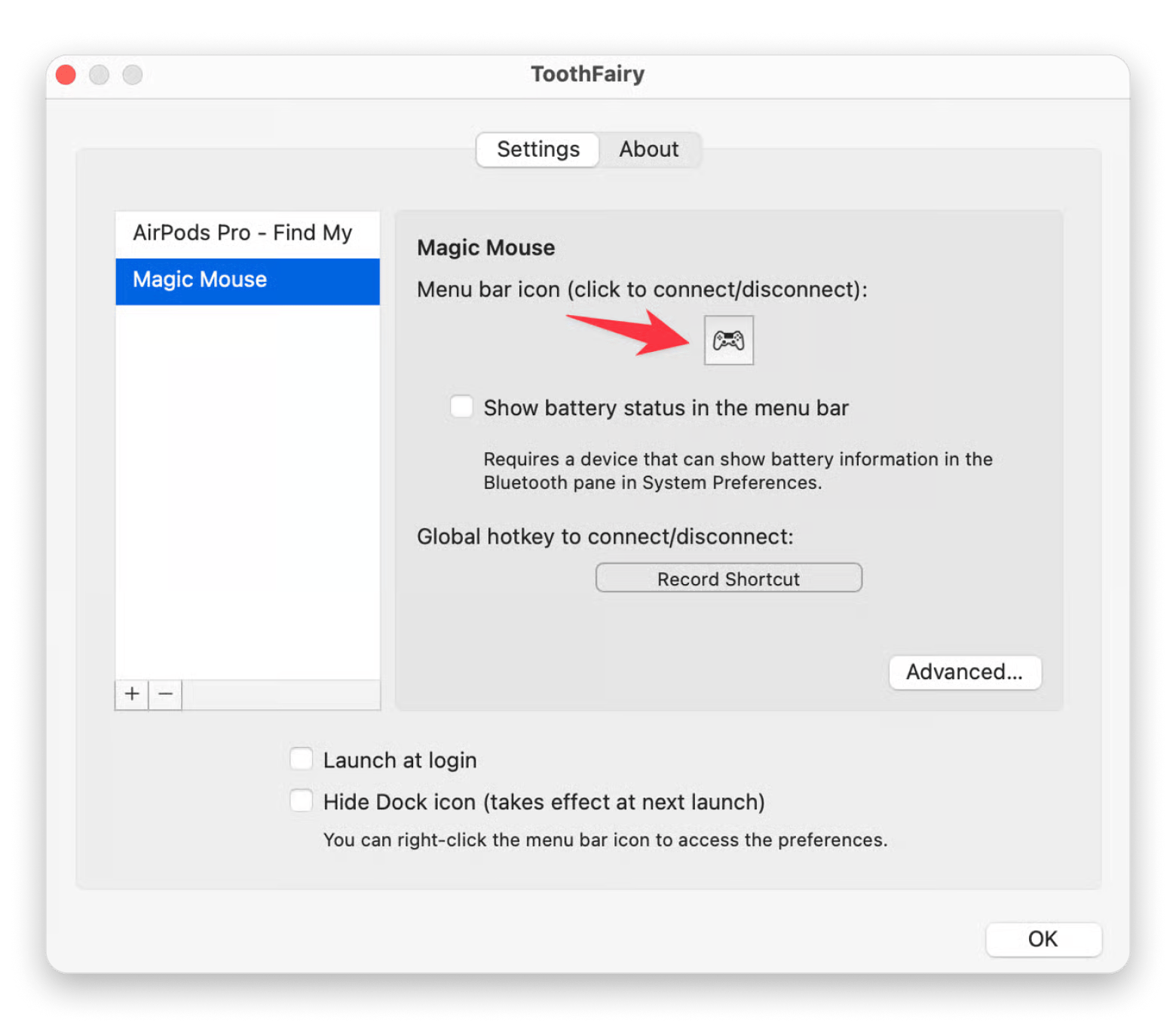
To make using Bluetooth even easier, add ToothFairy to your apps stack. It adds shortcuts to your Mac's menu bar, so you can connect or disconnect Bluetooth accessories like your AirPods with a single click.
Use iPhone Mirroring on macOS Sequoia
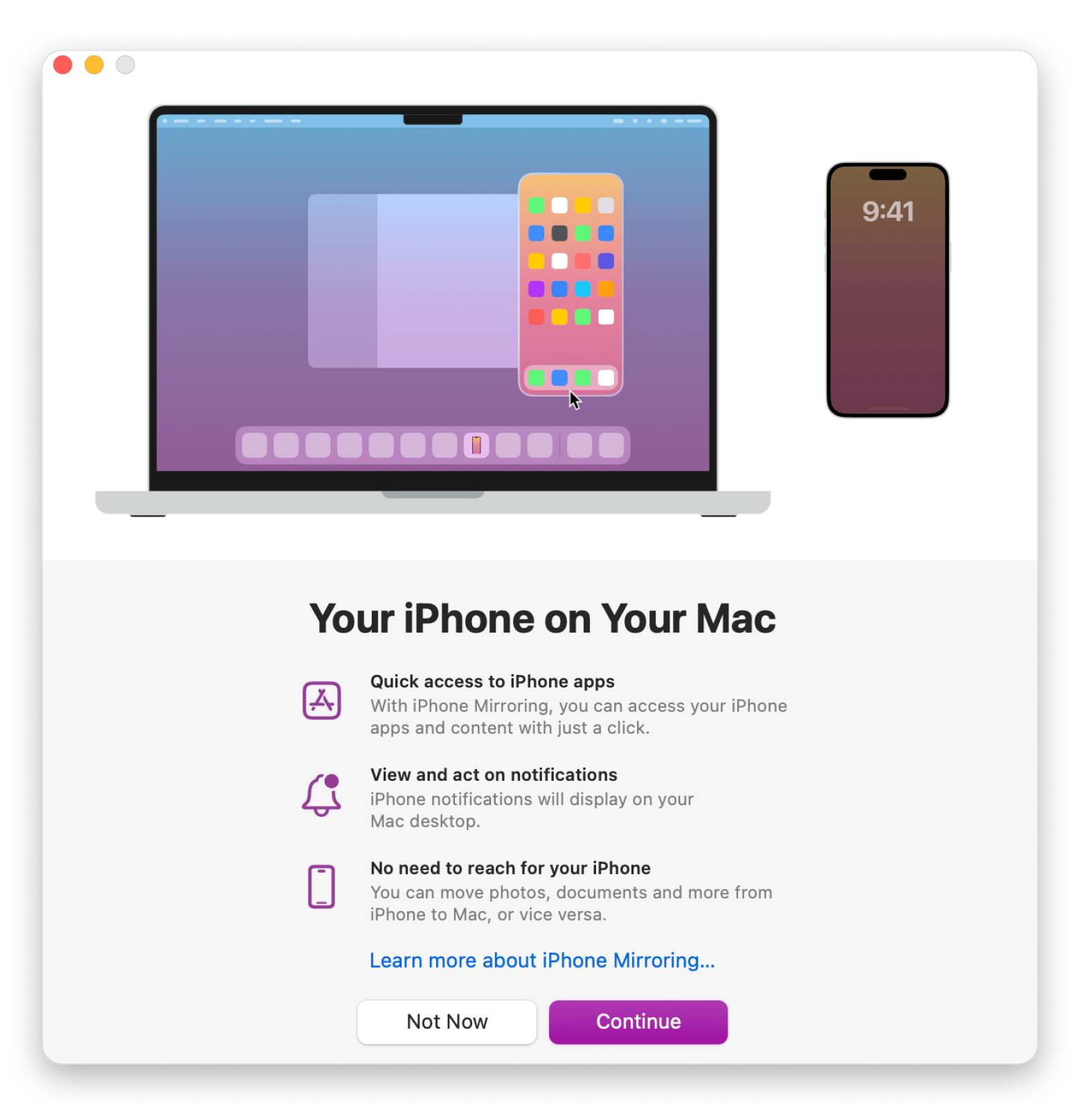
iPhone Mirroring is an amazing feature that's available with macOS Sequoia and later. It lets you see and control your iPhone from your Mac. You can open apps, type with your Mac keyboard, click with your mouse or trackpad, and receive iPhone notifications on your Mac.
Before you set it up, make sure that:
Your Mac is running macOS Sequoia or later and must have Apple silicon (M1 or later) or a T2 security chip.
Your iPhone and Mac are signed in with the same Apple Account.
Wi-Fi is turned on on both devices.
You have your iPhone nearby and locked.
Once you go through this checklist, you're ready to set it up. Here's how:
Open the Applications folder and launch iPhone Mirroring from your Mac.
Follow the instructions.
You may be asked to enter your passcode on your iPhone.
Start using your iPhone from your Mac.
Just keep in mind that this feature has its limitations. For example, some audio from iPhone apps may not play through the mirrored window, and behavior can vary by app. Plus, your iPhone must stay locked while you're controlling it from your Mac. If you unlock and use the iPhone directly, the mirroring session pauses.
What you can actually do once the iPhone and MacBook are connected
Congrats! You now know how to link an iPhone to a MacBook! Here's a summary of all the things you'll be able to do:
Send all kinds of files between the two devices: This includes photos, videos, documents, music, and podcasts.
Use your iPhone's camera for video calls on your Mac: This is an awesome feature because iPhone cameras are better than the camera on your Mac.
Control your iPhone from your Mac with iPhone Mirroring: You'll be able to interact with iPhone apps using your Mac's keyboard and mouse.
Make and receive phone calls: Your Mac can make and receive calls through your iPhone. For instance, maybe your iPhone is charging in the other room. You can just answer the call from your Mac.
Send and receive text messages with SMS Relay: Everything appears inside the Messages app, so you don't have to switch devices.
Share your internet connection: Let's say your Wi-Fi goes down. You can connect your MacBook to your iPhone's Personal Hotspot and continue working using your cellular data connection.
Work across devices: Features like Handoff and Universal Clipboard let you start a task on one device and continue on the other. For example, you can copy a link on your iPhone and paste it directly into a document on your Mac.
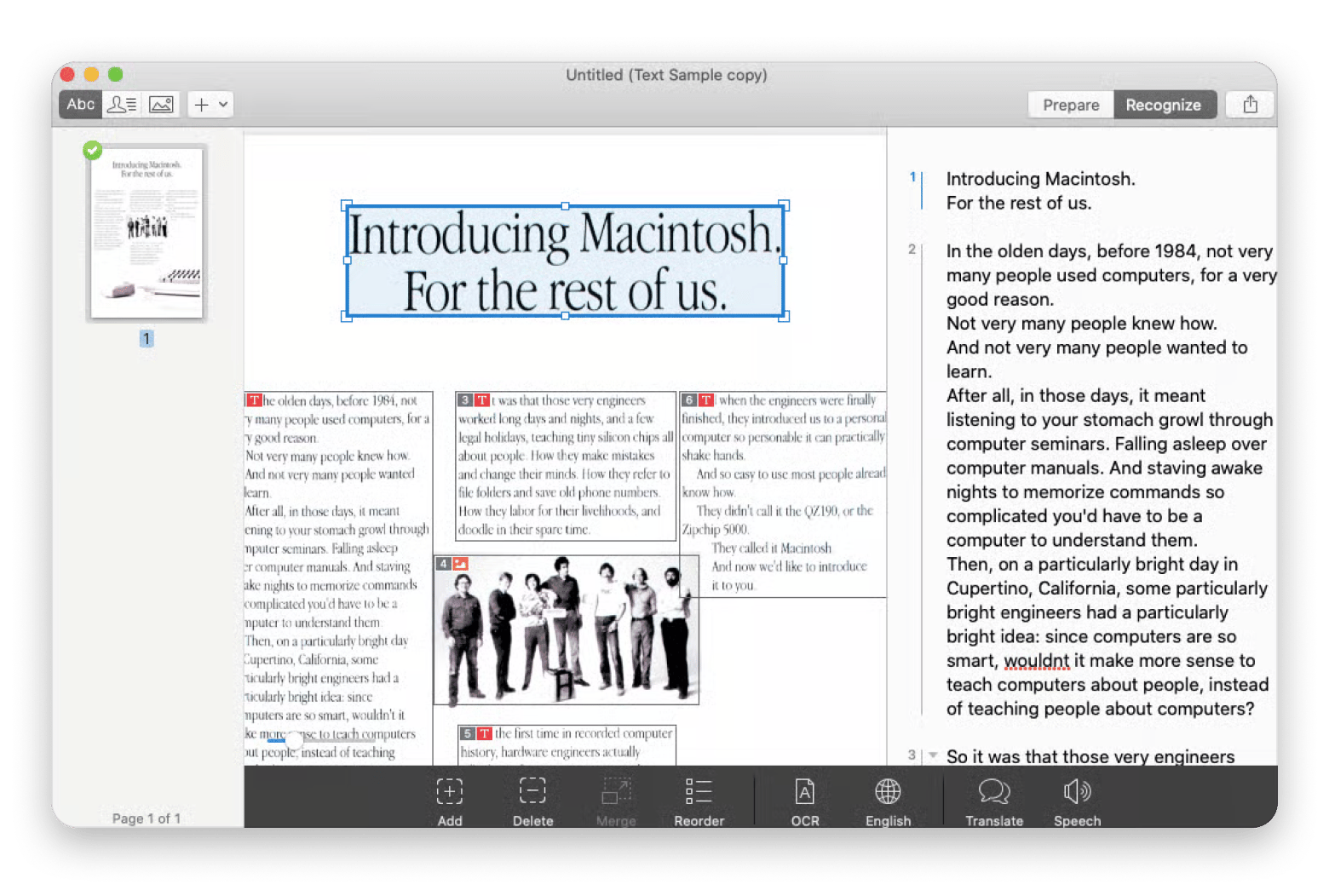
You can extend these workflows with third-party apps. One such app is Prizmo, which is great for scanning documents with your iPhone's camera and accessing them on your Mac. It's quite handy if you often have to deal with paperwork for work or school.
Connect iPhone to MacBook: Use smarter solutions
Connecting your iPhone and MacBook opens up more than just file transfers — it unlocks a whole layer of features that make switching between devices feel seamless. Whether you're using USB for bulk photo imports, Wi-Fi sync for hands-free backups, Bluetooth for Continuity, or iPhone Mirroring to control your phone without picking it up, the right method depends on what you're trying to do.
Your iPhone and Mac work better together but only if the right tools are in place. Setapp gives you AnyTrans for iOS, Commander One, ToothFairy, Prizmo, and 250+ more in one subscription. One flat price. No per-app billing. Cancel anytime. Start My 7-Day Trial. Already using one app? Browse Setapp Marketplace for standalone options.
FAQ
Why is my iPhone not showing up in Finder when connected via USB?
This can happen due to a faulty cable, or maybe your iPhone is locked. Another reason is that you tapped Don't trust when the Trust This Computer prompt appeared. Unlock your phone, reconnect the cable, and then restart both devices. Your Mac must be running a more recent version of macOS.
Can you connect an iPhone to a MacBook without a cable and without Wi-Fi?
Yes, but only for certain features. Bluetooth can enable Continuity features like Handoff and Personal Hotspot. However, syncing files, photos, music, and backups typically requires either a USB connection, Wi-Fi syncing, iCloud, or a combination of these iPhone and MacBook connection methods.
Does connecting an iPhone to a MacBook drain the iPhone battery?
No. When your iPhone is connected to a MacBook with a USB cable, it usually charges at the same time. Wireless features like Bluetooth and iPhone Mirroring use some battery power, but the impact is generally small during normal day-to-day use.
What is the difference between iPhone Mirroring and using AirPlay to a Mac?
iPhone Mirroring lets you fully control your iPhone from your Mac using your keyboard and mouse. AirPlay only mirrors the iPhone's display on your Mac screen for viewing. With AirPlay, you still interact with the iPhone itself rather than controlling it from the Mac.
Can you transfer WhatsApp messages or iMessage history from an iPhone to a MacBook?
iMessages can sync automatically through Messages in iCloud when both devices use the same Apple Account. WhatsApp messages don't transfer to the Mac in the same way. For backups or exports, you'll usually need WhatsApp's backup tools or a third-party app such as AnyTrans for iOS.
Powerful apps live on Setapp
Ditch defaults and discover new gems on one app platform.






 Best solution
 Best solution