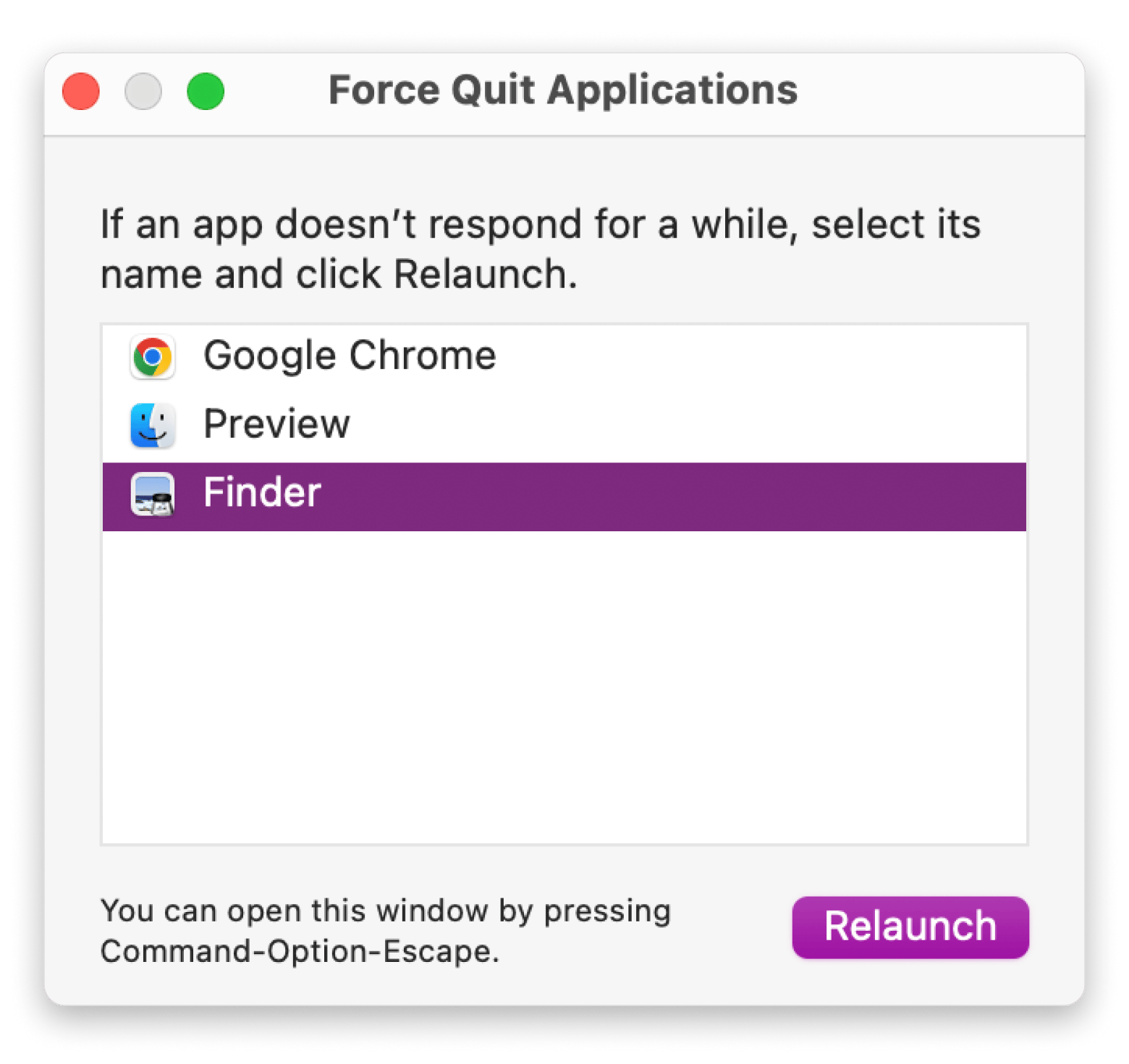
Force quit or restart first. If an app freezes, press Command + Option + Escape to force quit it, or restart your Mac. This clears temporary processes and often resolves the issue without any further steps.
Corrupted files cause more crashes than you'd think. Deleting an app's .plist preference file from ~/Library/Preferences/ or clearing its cache from ~/Library/Caches/ removes corrupted data that the app recreates automatically — and usually fixes the problem.
Dragging to Trash isn't a full uninstall. Support files stay in ~/Library/Application Support/ and cause recurring crashes. CleanMyMac detects leftover files automatically whenever you move an app to the Trash.
Low storage and background processes are silent culprits. Keep at least 10–15% of your drive free, and use App Tamer to spot and throttle any process hogging CPU resources.
Most Mac app crashes trace back to a problem CleanMyMac can fix automatically. Try CleanMyMac on Setapp — free for 7 days.
To fix crashing apps on your Mac, you can either start with quick troubleshooting — force quitting, restarting, or updating the app — or dig deeper to find the root cause.
No need to dig through system settings or read developer manuals. Every fix you need is in this guide.
A word of advice: don't delete any files or change system settings right away. The problem might not be serious, and there are a few quick fixes you can try to get things working again.
Force quit the app
Maybe the app is stuck in a temporary loop and stops responding. Try force-quitting the app to close the frozen process. Here's how:
Press Command + Option + Escape.
Choose the app from the list.
Click Force Quit.
Open the app again.
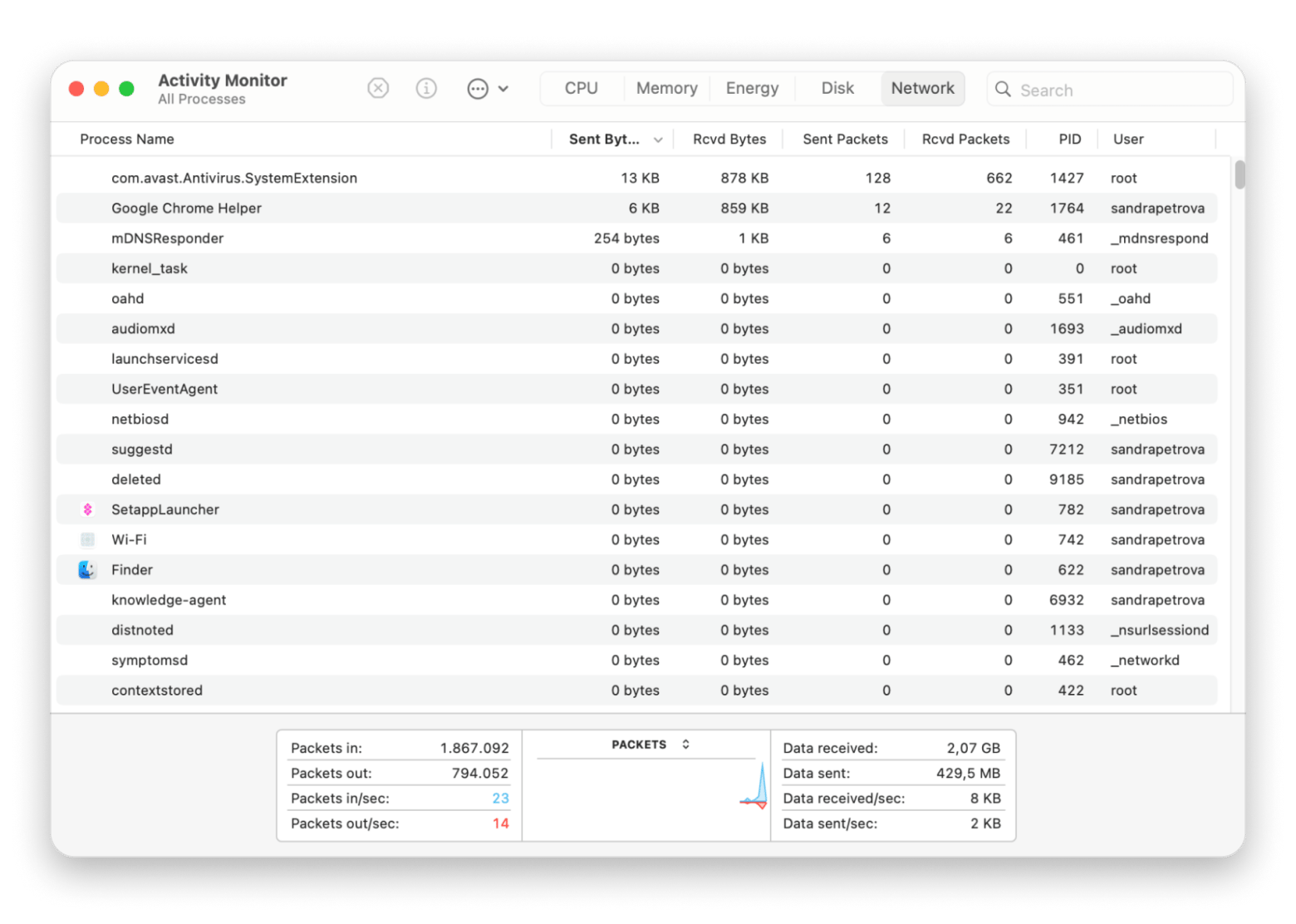
Another way is to use Activity Monitor:
Go to Finder > Applications > Utilities > Activity Monitor.
Choose the app that's not responding.
Click the X button at the top of the window.
Choose Force Quit.
Restart your Mac
A quick way to get your app working again is to simply restart your Mac. A restart clears temporary files and frees up RAM, and often that's all it takes.
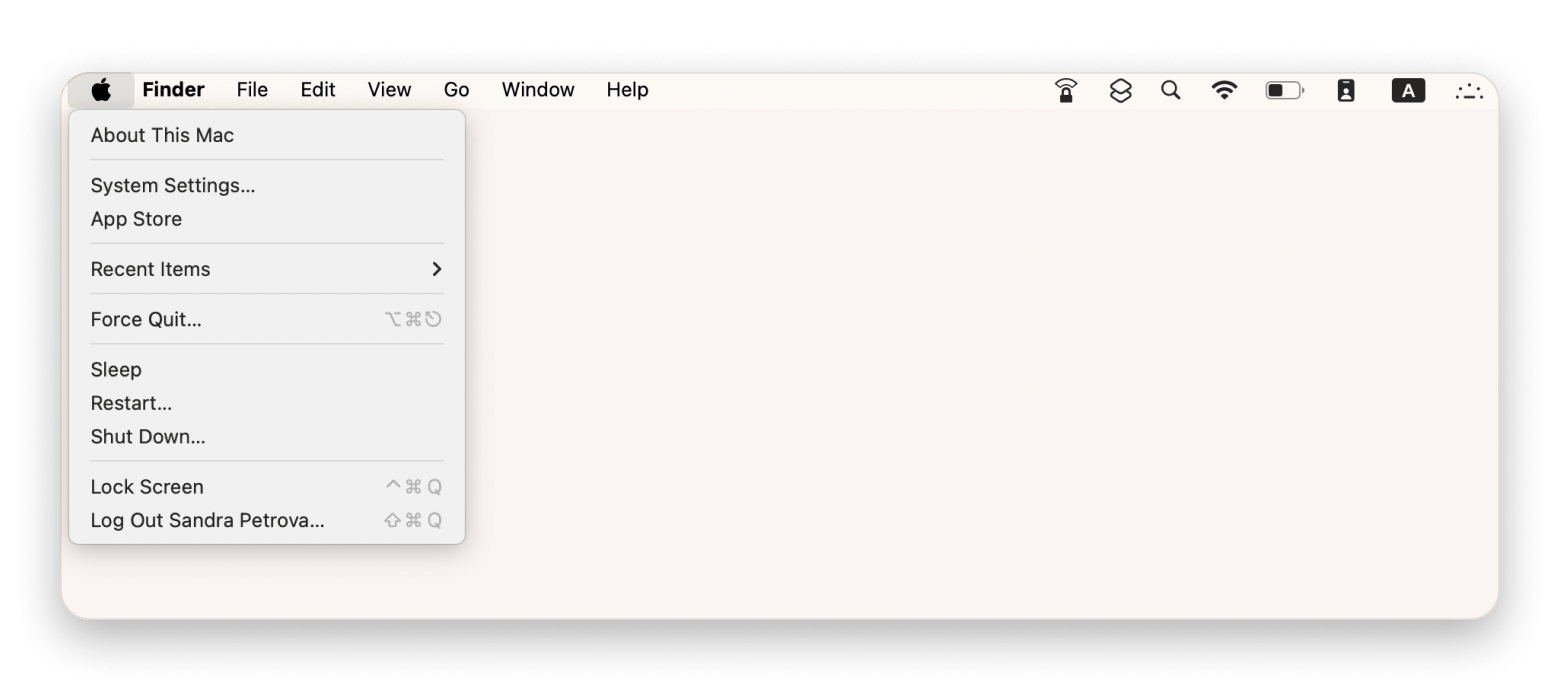
To restart your Mac:
Click the Apple menu in the top-left corner.
Choose Restart.
Wait for your Mac to boot up again.
Open the app and check if it's working.
Update the app
If these two quick fixes didn't work, then the next thing to try is to check for app updates. The developer of the app might have released an update that fixes a bug or improves performance.
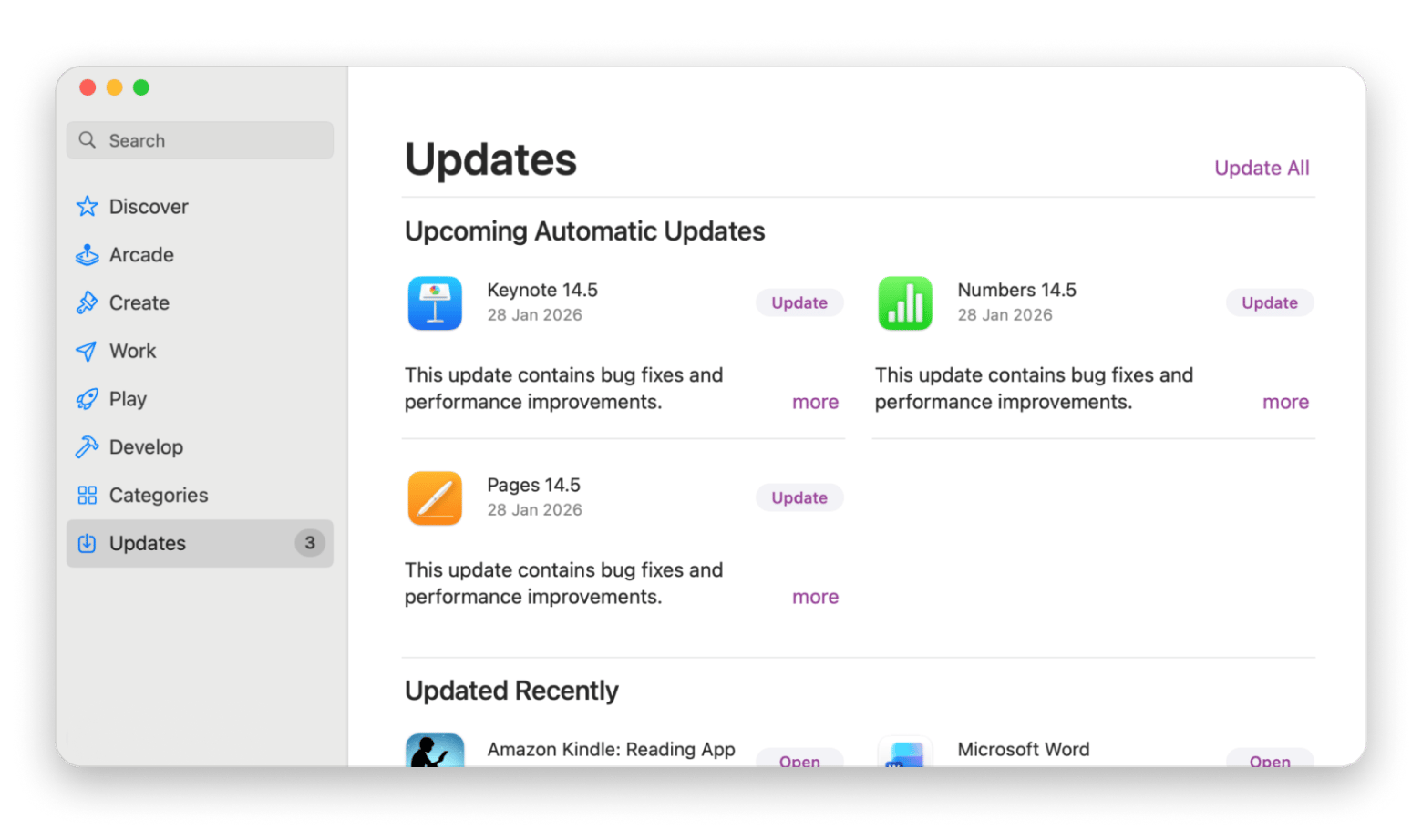
If you downloaded the app from the App Store, follow this process:
Open the App Store.
Go to Updates in the sidebar.
Install the update if it's available.
If you downloaded the app from a developer's website, open the app and look for an option like Check for Updates in the app menu.
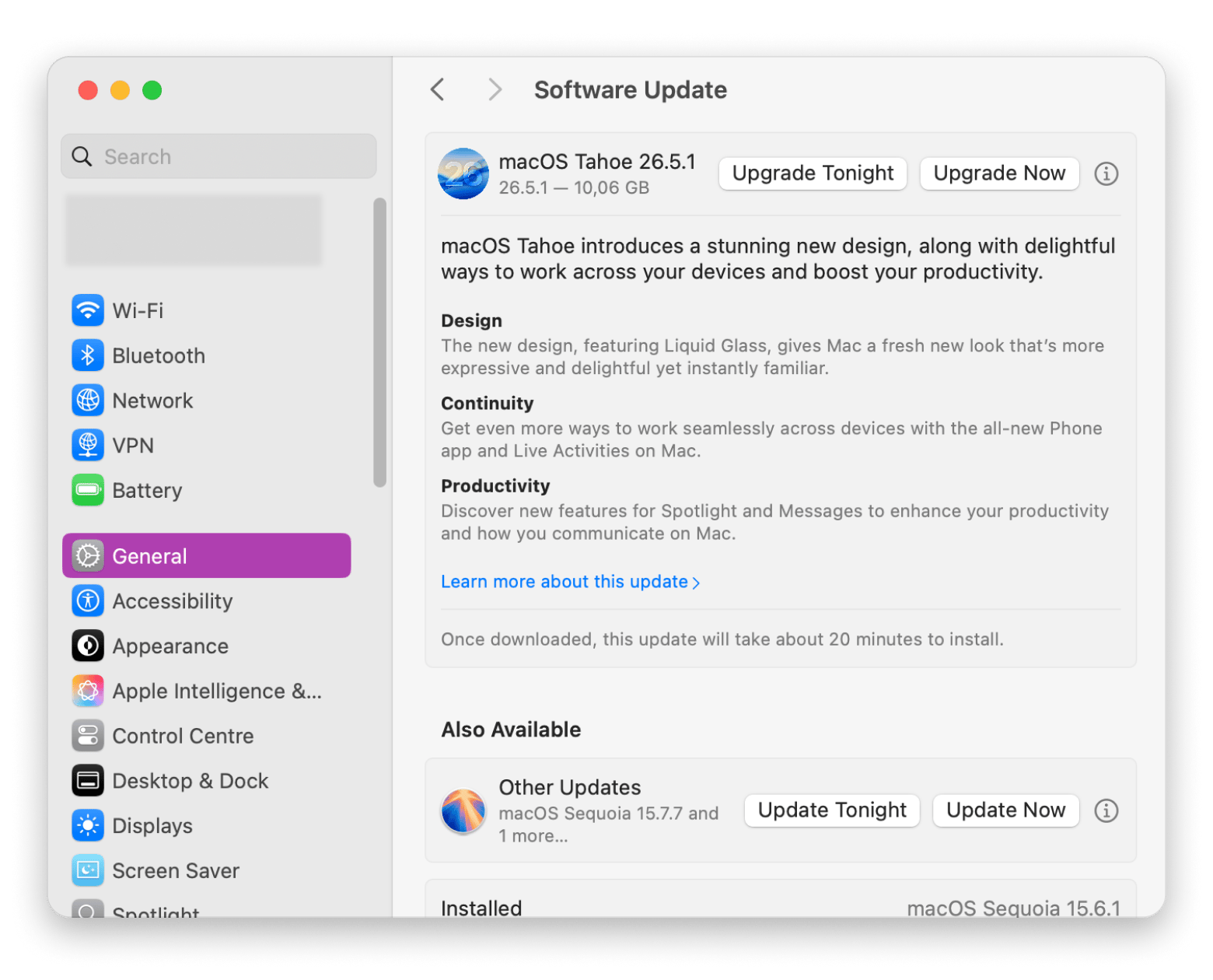
An outdated macOS can also cause apps to malfunction. So what you need to do is check for system updates. Here's how:
Open System Settings.
Click General > Software Updates
Install any available macOS updates.
Restart your Mac once the update is done and test the app.
If one of these quick fixes works, then you're ready to go back to using the app. If the problem remains, then you'll need to look deeper and troubleshoot the app itself.
How to fix persistent app crashes on Mac
Okay, so you've arrived at this part because the quick fixes above didn't work. The problem is more complex than a temporary glitch, so you need to try some more advanced troubleshooting fixes.
Delete the app's preference file
Most Mac apps store their settings in preference files, also known as .plist files. You can find these files in the ~/Library/Preferences/ folder.
If a preference file gets corrupted, then the app won't work properly. You'll need to delete the app's preference file. To do this:
Open Finder.
Press Command + Shift + G.
Enter ~/Library/Preferences/ and press Return.
Look for a file associated with the app, such as com.appname.plist.
Move the file to the Trash.
Launch the app again.
When you open the app, macOS automatically creates a new preference file with default settings. In many cases, this fixes the issue.
Clear the app's cache
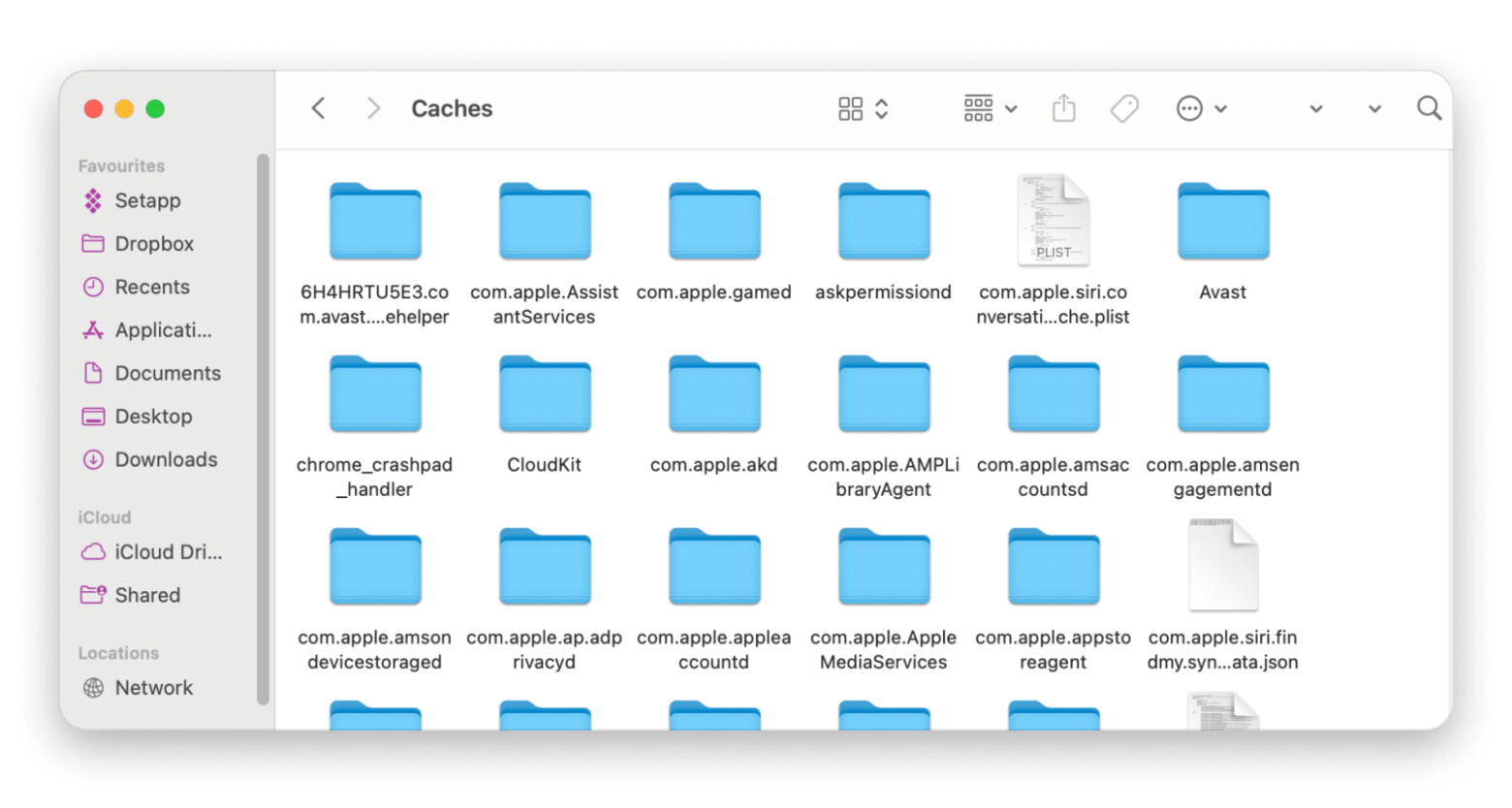
Cache files store temporary data so that apps can load faster and perform certain tasks more efficiently. But over time, cache files can become outdated or corrupted and, consequently, cause the app to malfunction. You'll need to clean the app's cache, but don't worry, this only removes temporary data and won't affect your project files or documents.
To clean an app's cache:
Open Finder.
Press Command + Shift + G.
Enter ~/Library/Caches/ and press Return.
Find the folder associated with the app.
Move the folder to the Trash.
Reopen the app.
Reinstall the app
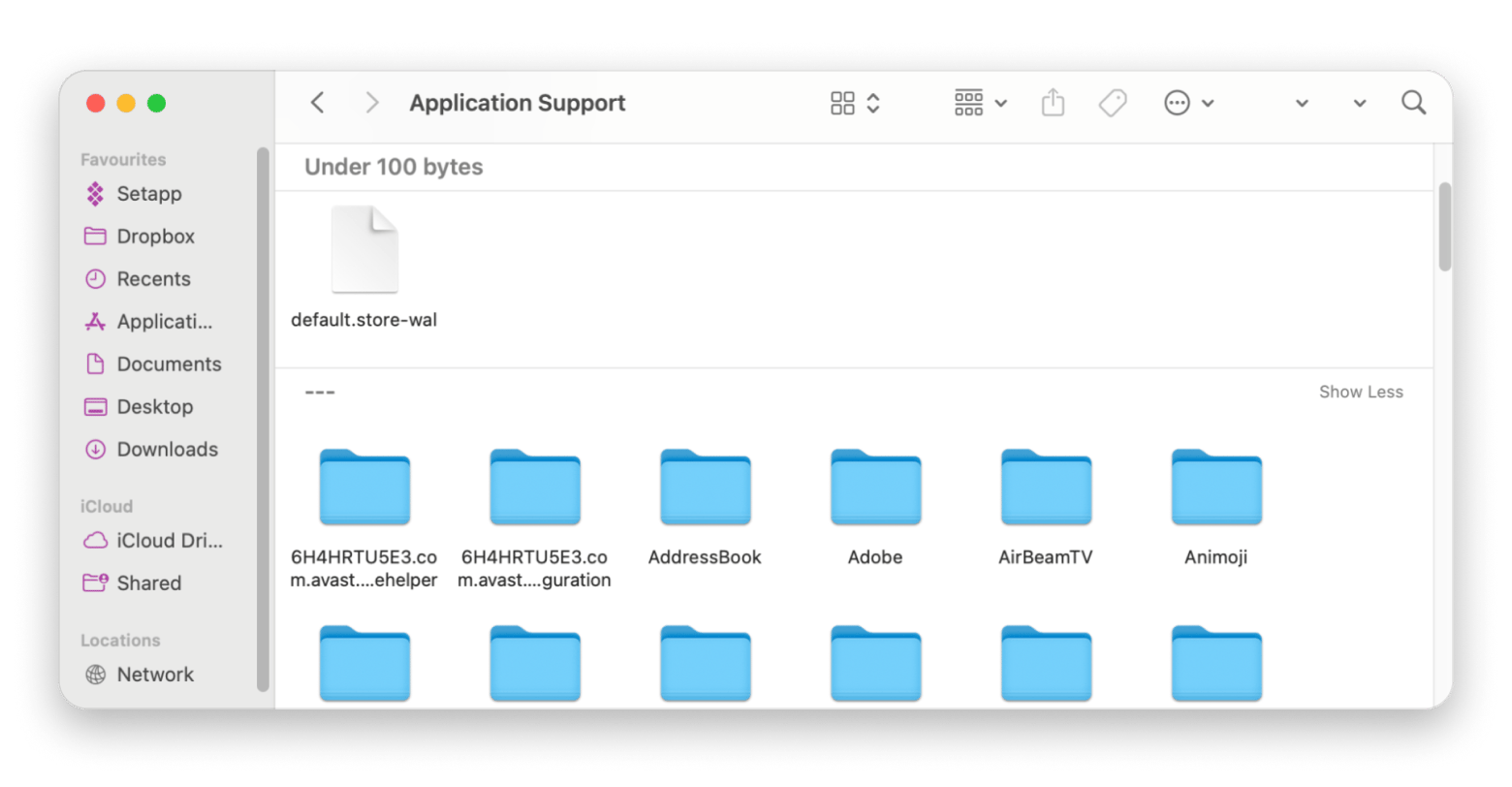
Most people, when they try to delete an app, simply drag it to the Trash folder and then reinstall it. But the thing is that support files may remain in some locations. The app kept opening with the same broken preferences because they were never deleted. A proper uninstall, followed by a fresh download, fixed it immediately.
Follow this step-by-step process to delete an app completely:
Quit the app.
Open the Applications folder and move the app to the Trash.
Press Command + Shift + G in Finder.
Go to ~/Library/Application Support/.
Find the app's folder and move it to the Trash.
Empty the Trash.
Download and install the app again.
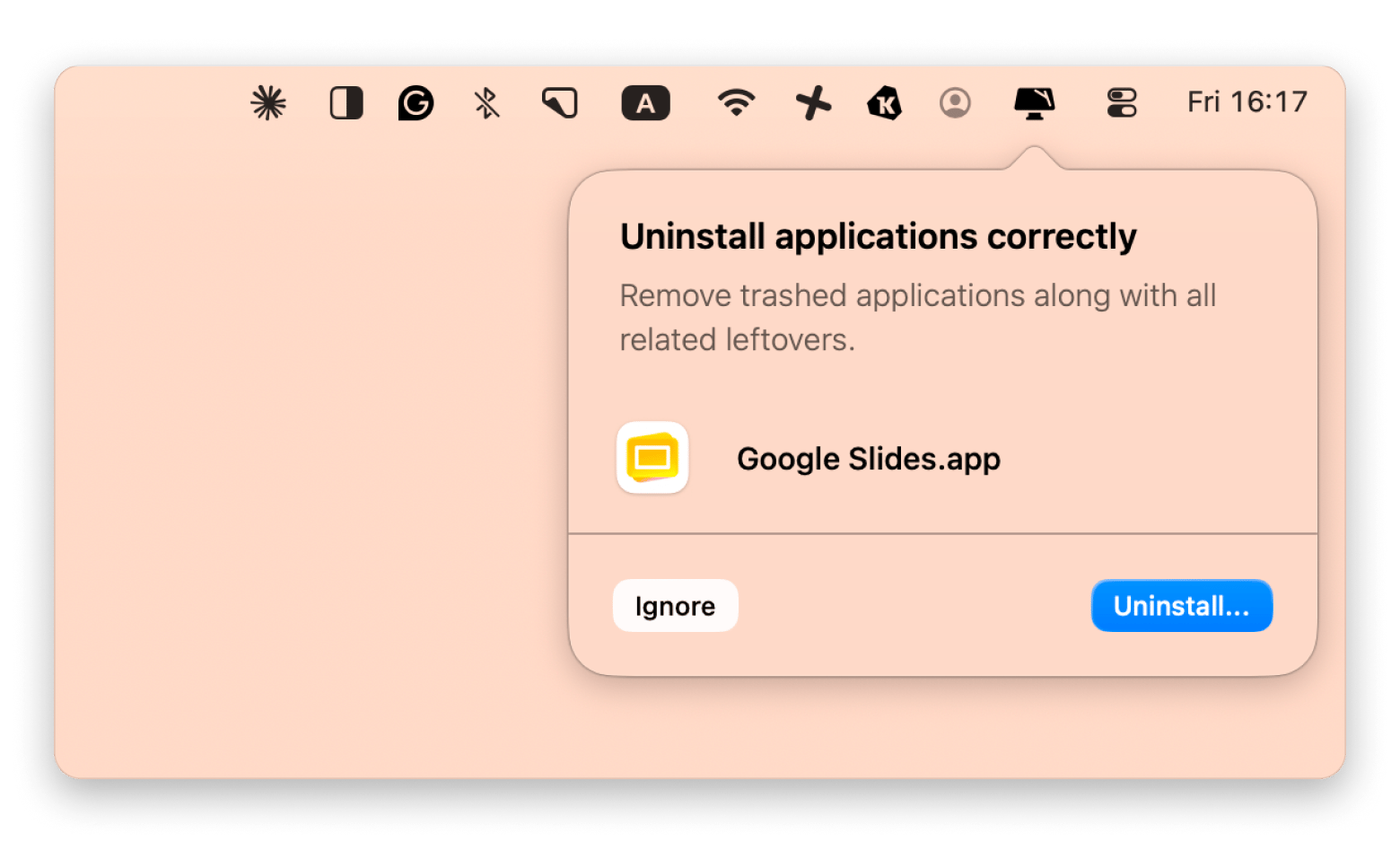
To automate the process, you can install CleanMyMac. Every time you add an app to the Trash folder, it'll detect leftover files and offer to remove them for you:
Free up disk space
When nothing else works, try freeing up some storage space on your Mac. In fact, low storage is a common cause for app crashes.
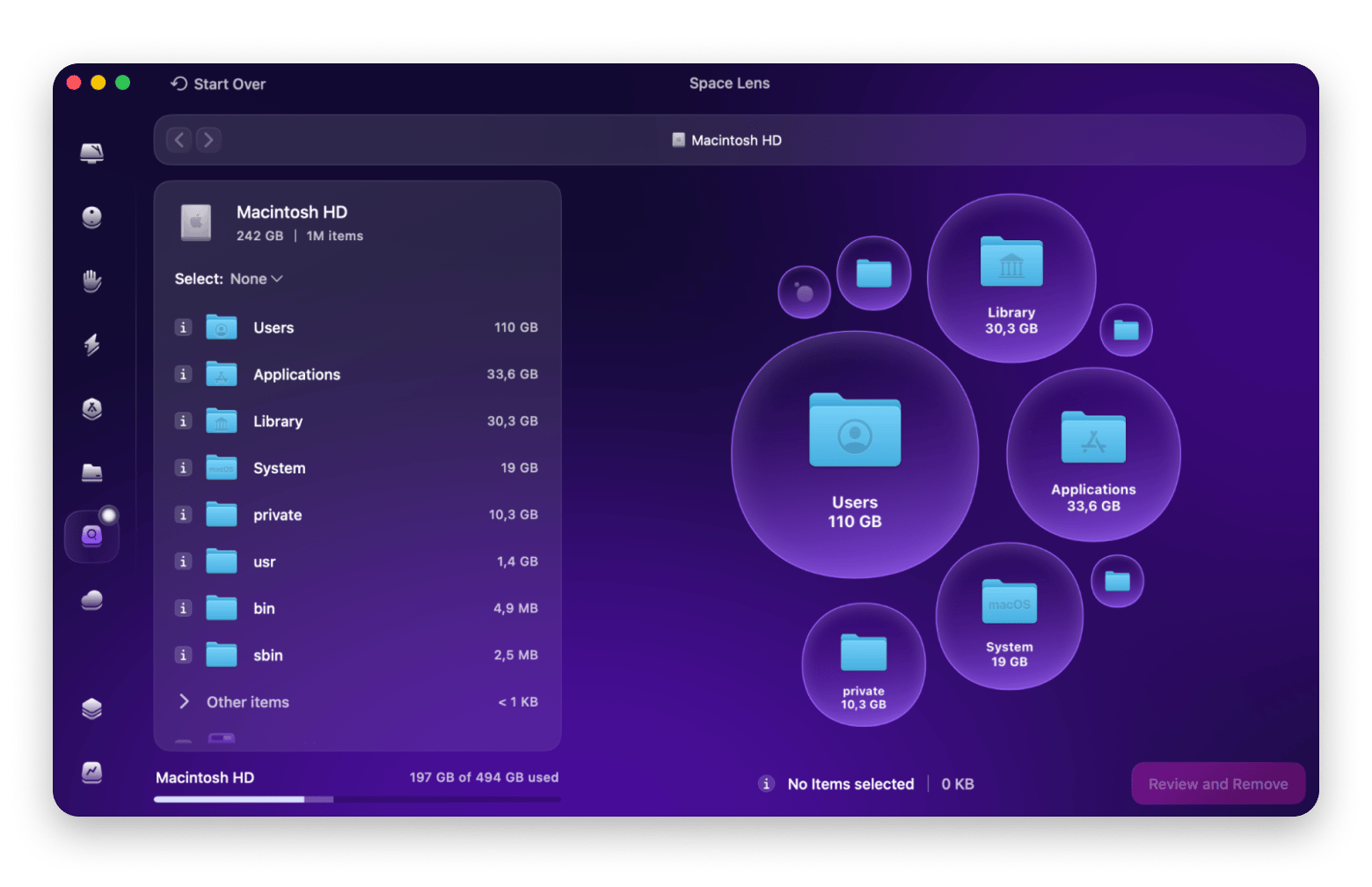
You can check what's taking up the most space on your Mac. Just go to the System Settings > General > Storage or open CleanMyMac. Instead of searching for large files manually, the Space Lens module scans your drive and highlights these files and folders for you:
Check for system-level causes
To check for system-level causes, start your Mac in safe mode. Doing so disables any software that could be interfering with your app.
The process of starting in safe mode is different depending on the type of Mac:
On an Intel-based Mac, restart your Mac and hold the Shift key until the login screen appears.
On an Apple silicon Mac, shut down your Mac, press and hold the power button until startup options appear, select your startup disk, hold Shift, and click Continue in Safe Mode.
Once you're in safe mode, open the app and use it normally. If it works without crashing, then some background process is the culprit. Check which apps launch when your Mac starts and remove those you don't need.
If the app runs fine in safe mode, the culprit is almost always a login item or a background app that's been quietly loading since startup. Go to System Settings > General > Login Items and see what's on the list. Anything you don't recognize is worth removing.
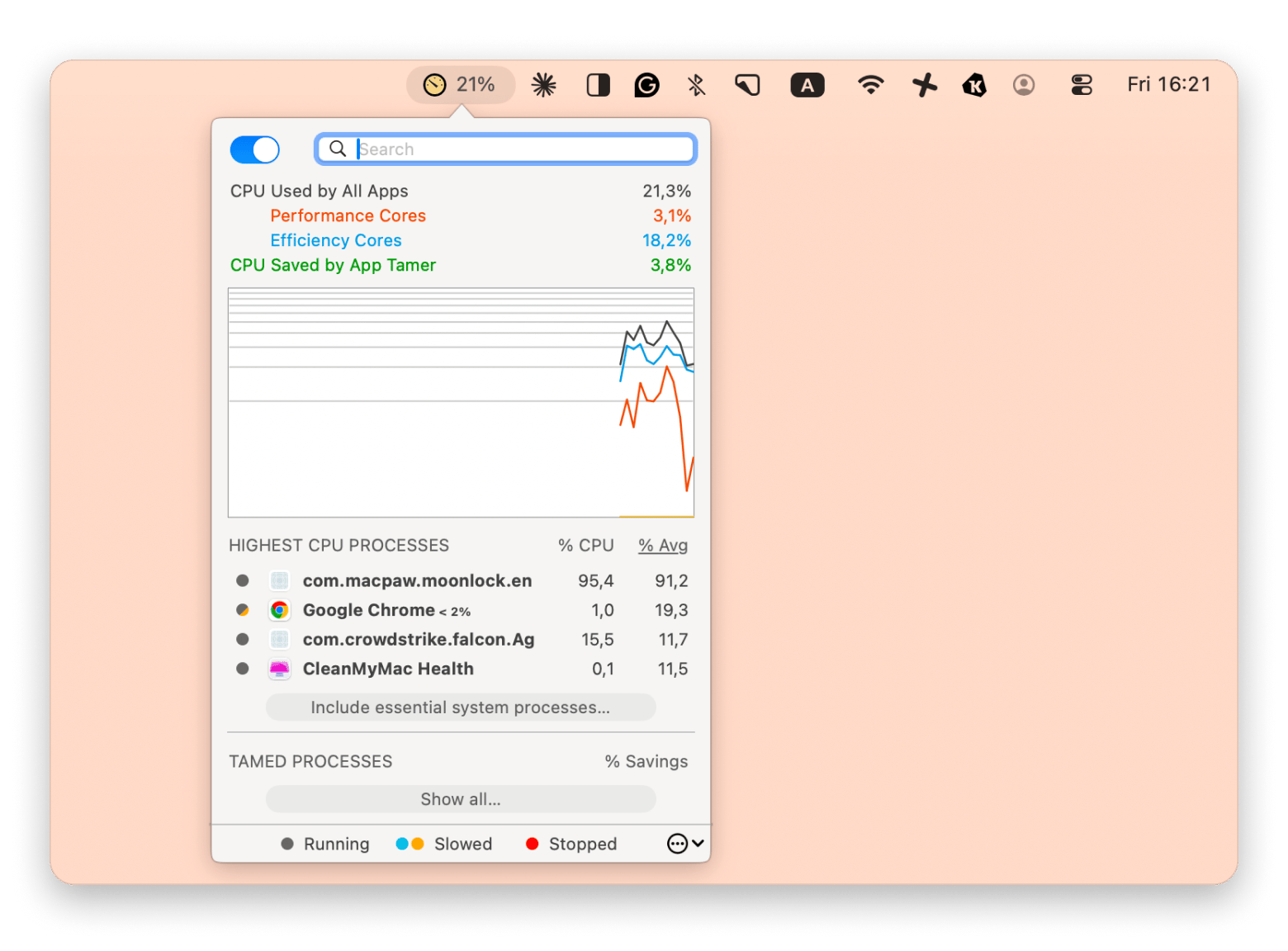
An unchecked background process can trigger crashes every few hours, and you'd never know it's the cause. App Tamer spots the culprit and slows it down without disrupting your work. Get App Tamer on Setapp.
Check for user profile issues
A damaged user profile can also cause apps to crash. Try testing the app in a new account to see if the problem has to do with your personal settings.
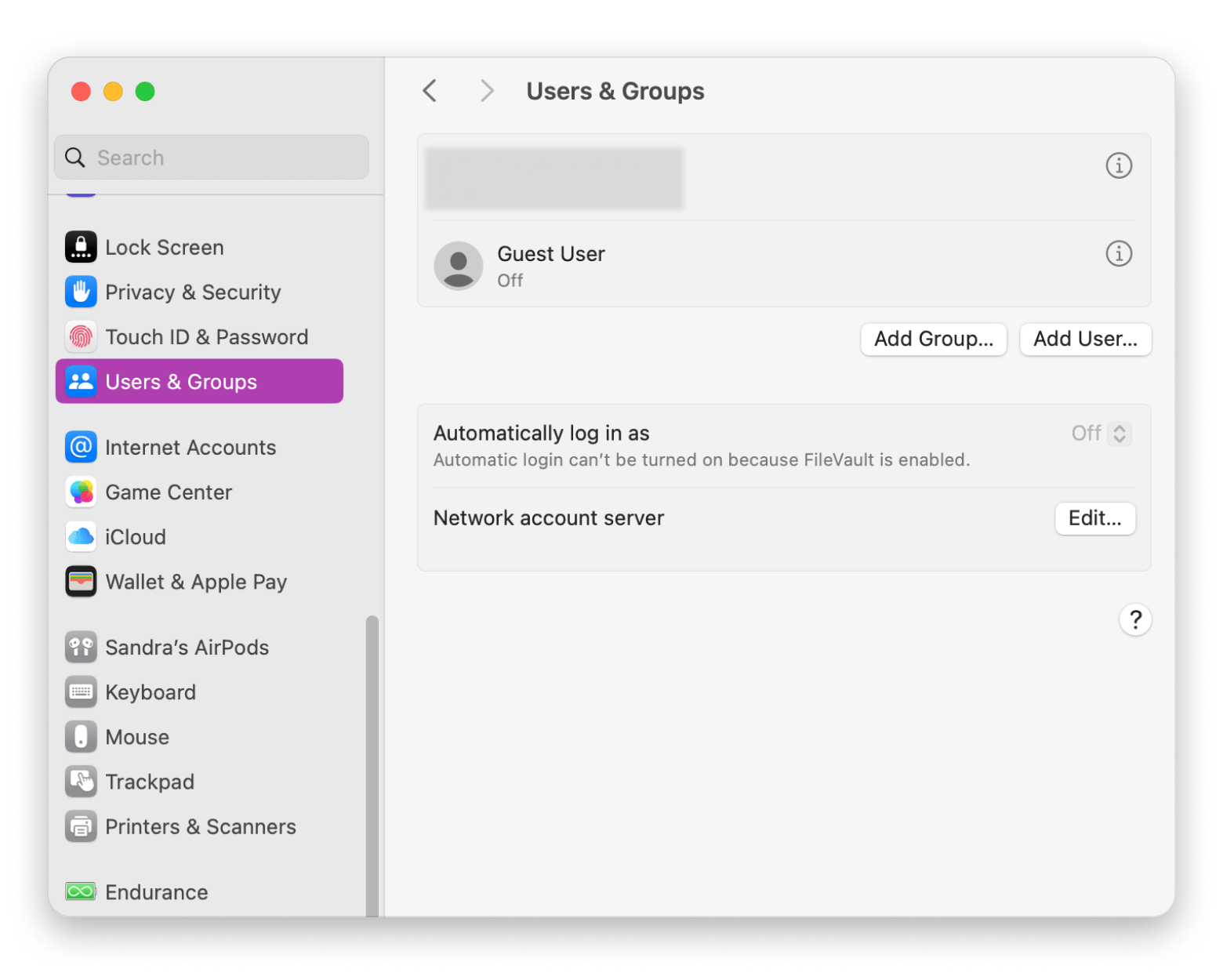
Here's how to create a new account:
Open System Settings.
Go to Users & Groups.
Click Add User.
Create a temporary account and sign in.
Launch the app in the new account.
If the app runs normally, the issue is somewhere in your user Library folder. But if the app continues to malfunction, then the issue is probably system-wide.
Read the Crash Log
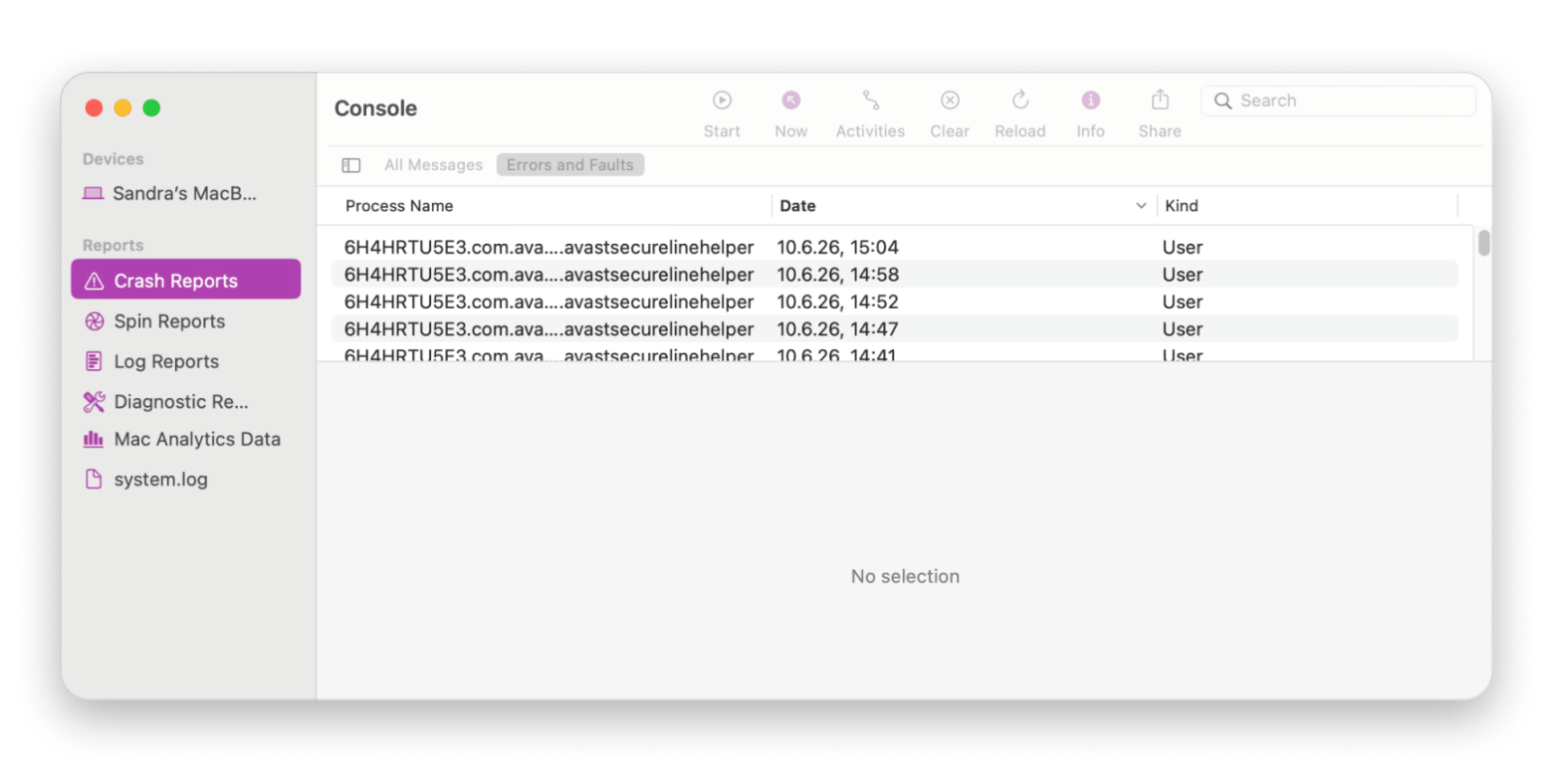
Finally, check the Crash Log in the Console. The reports can reveal some clues about what's going wrong.
To view the reports:
Open Applications > Utilities > Console.
Enter the app's name in the search field.
Look for recent crash reports.
Open the report and review the error details.
You might see that the crash was caused by a missing file or a software bug. This step is useful if you're comfortable troubleshooting technical issues or need information to share with the app's support team.
Prevent app crashes before they happen
A few habits prevent most crashes before they start:
Keep your macOS and apps updated: Developers regularly release patches that fix bugs or other crash issues.
Don't run too many heavy apps at once: Video editors and design software, for example, are heavy apps, especially if your Mac has 8GB of RAM.
Review your login items from time to time: You can find them under System Settings > General > Login Items & Extensions. The fewer apps that launch automatically, the better.
Back up your Mac with Time Machine: Crashes don't usually cause data loss, but it's always reassuring to know your files are safe if something goes wrong. Check out a guide on how to use Time Machine.
Clear cache files and remove unnecessary files regularly: Having available storage helps macOS manage memory more efficiently.
Rated 93% on Setapp — Gemini makes duplicate cleanup something Mac users actually follow through on. Try Gemini Free. Or get Gemini via Marketplace — no membership needed, from $44.95 one-time.
Why apps keep crashing on Mac
Most Mac app crashes trace back to one of five causes:
Outdated software is causing compatibility problems
Corrupted preference or cache files
Low RAM or insufficient free storage
A conflicting background process or extension
A bug introduced by a recent update
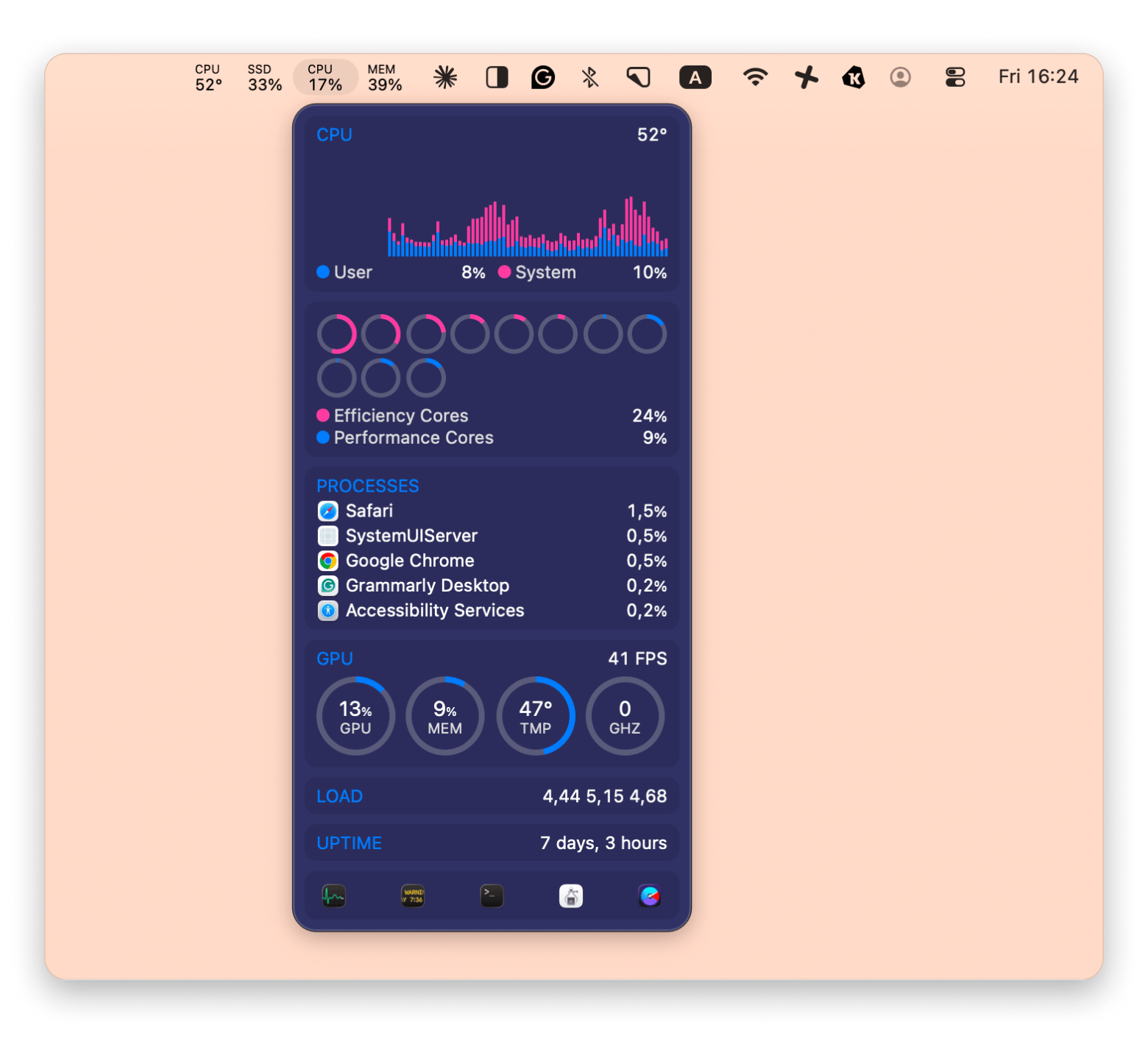
What you can do is try to notice when the crashes happen. You can do that by checking the crash logs that macOS records in the Console app. Another option is to install an app like iStat Menus. It shows real-time RAM and CPU data. You might notice that crashes occur during periods of high memory or CPU usage.
If you can't see your RAM and CPU in real time, you're guessing at the cause. iStat Menus puts live system stats in your menu bar, so you can see exactly when a memory spike triggers your next crash. Try iStat Menus on Setapp.
How to keep your Mac apps from crashing for good
If you take just one thing from this guide, let it be this: most crashes come down to outdated software, corrupted cache or preference files, low storage, or a background process hogging your resources, and you don't need to be technical to fix any of them.
Start with the quick wins (force quitting, restarting, updating), and only move on to deleting preference files or reinstalling apps if the problem sticks around. Tools like CleanMyMac take the guesswork out of the deeper fixes by clearing leftover files and freeing up storage automatically, while iStat Menus and App Tamer help you catch resource problems before they cause another crash. And if duplicate files are quietly eating your storage, Gemini clears those out in one scan.
CleanMyMac, App Tamer, iStat Menus, and Gemini are all on Setapp. One subscription, all four apps, cancel before Day 7 — $0 charged. Start My 7-Day Trial. Not ready for a subscription? Get CleanMyMac via Marketplace — from $39.95/yr.
FAQ
Why does the same app keep crashing on my Mac even after reinstalling it?
The same app keeps crashing on your Mac even after reinstalling it because reinstalling it doesn't always remove it completely. Some support files or caches might remain on your device. If one of those remaining files is corrupted, the problem can return after you reinstall the app. The problem could also be a macOS bug or an issue with your user profile and not the app.
How do I read a Mac crash report to find out what caused an app to crash?
To read a Mac crash report, open Applications > Utilities > Console and search for the app's name. Look for recent crash reports and open the most relevant entry. You might discover some compatibility problems or software bugs that caused the app to malfunction.
Can a macOS update cause apps to start crashing?
Yes, a macOS update can cause apps to start crashing. This can be due to compatibility issues with older apps that the developer hasn't updated. Or, a newly updated app can no longer work on an older version of macOS.
Does low RAM cause apps to crash on a Mac, and how much RAM do I need?
Yes, low RAM can cause an app to crash, especially if you're running several heavy apps at the same time. Macs with 8GB of RAM perform well when you're doing basic tasks like browsing and document editing. But if you're doing video editing, design work, gaming, or have dozens of tabs open at once, then you need a Mac with 16GB of RAM.
Is it safe to delete preference files and cache files to fix app crashes on a Mac?
Yes, in most cases, it's safe to delete preference files and cache files. Deleting a cache file only removes temporary data that the app can recreate automatically. It doesn't affect your documents or projects.
Powerful apps live on Setapp
Ditch defaults and discover new gems on one app platform.






 Best solution
 Best solution